
You need not require Visual Studio to compile and run a C# program from the DOS command prompt. This includes Visual Basic as well. However, you should configure C# compiler properly to enable your source code to compile correctly as per the target .NET Framework. Sometimes, you will view the following error message while attempting to compile a C# code.

In order to resolve the above error, you need to set the Path correctly inside your computer by following the below mentioned steps.
- Right click on Computer and select Properties from the popup menu
- Select Advanced system settings link from the navigation panel
- Select Environment Variables button located inside Advanced tab
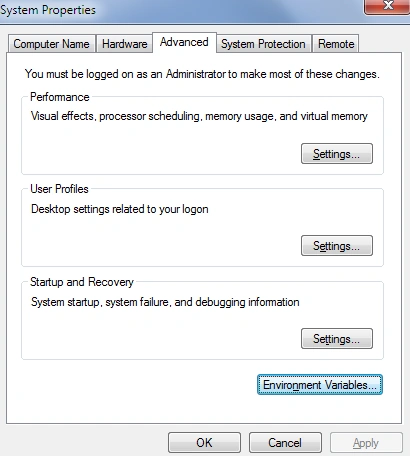
- Select an item inside System Variables box
- Scroll down, select and double click Path variable
- Select inside variable value textbox
- Select End key
- Add the path as shown below
Code
;C:\Windows\Microsoft.NET\Framework\v3.5You should make sure to include semicolon as well. v3.5 should be replaced by the appropriate version of .NET Framework SDK installed on your computer. You can locate the correct version from C:\Windows\Microsoft.NET\Framework directory.
You need to follow the steps mentioned below after the completion of the above steps to test whether the path you have entered works correctly.
- Enter Run from the search box inside Start menu
- Provide the command csc
You should view a screen as in the following screenshot,
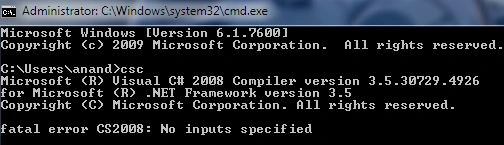
If everything goes on well, you should be able to compile C# code directly from the command prompt. Alternatively, if you have installed Visual Studio, you can directly run the above command by following the below steps
- Select All Programs and locate Microsoft Visual Studio followed by its version number
- Select Visual Studio Tools
- Select Developer Command Prompt
In the next FAQ, you will learn the steps required to work with a simple C# Hello World program.


Kumaresh RajalingamPosted Dec 30, 2015, 10:21 PM EST
Nice
Santhakumar MunuswamyPosted Nov 29, 2015, 6:44 PM EST
Good one
Banketeshvar NarayanPosted Nov 29, 2015, 6:21 PM EST
Nice Share
Ajay GandhiPosted Nov 29, 2015, 6:12 PM EST
Helpful
Raja TPosted Nov 29, 2015, 5:40 PM EST
Nice, thanks for sharing
Manas MohapatraPosted Nov 29, 2015, 8:03 AM EST
Waiting for next article how it can build and run a program in DOS