
Create an ASP.NET MVC Project
Open Visual Studio 2015, click on File, choose New and then choose Project. It will open a New Project Dialog. Inside the Installed Template, choose Visual C# and then choose Web. After that select ASP.NET Web Application and provide proper name and click OK.

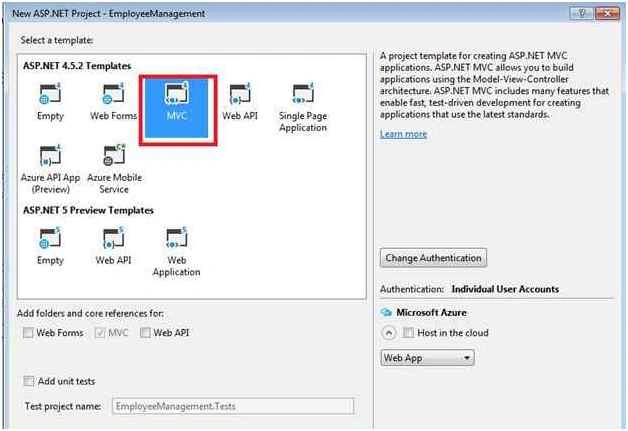
It will open a new dialog where you can choose different types of project. Choose MVC as the project and click OK.
It will take some time and create a new project for you. When you will see the project inside the solution explorer then the following project structure is visible:
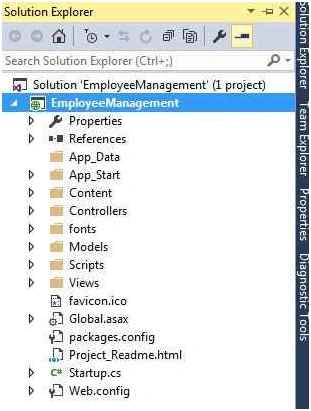
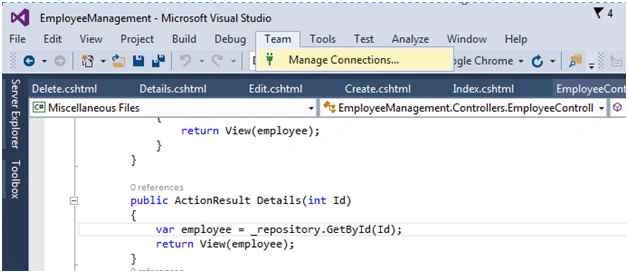
So, I have created an ASP.NET MVC project inside the d:/ drive. To add it to Visual Studio Online, click on Team Menu and choose Manage Connections.
If you are using the older version then you need to add server in “Team Foundation Server”.
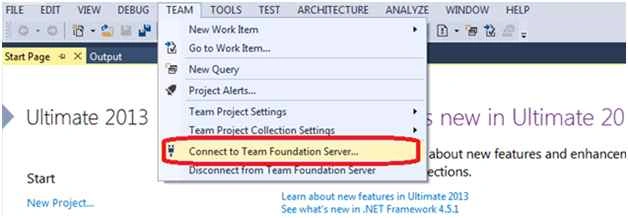
When you choose Manage Connections, It will open Connect to Team Foundation Server. Choose your server if you have and if not you can add here.
To add new server, choose Server and then click Add.
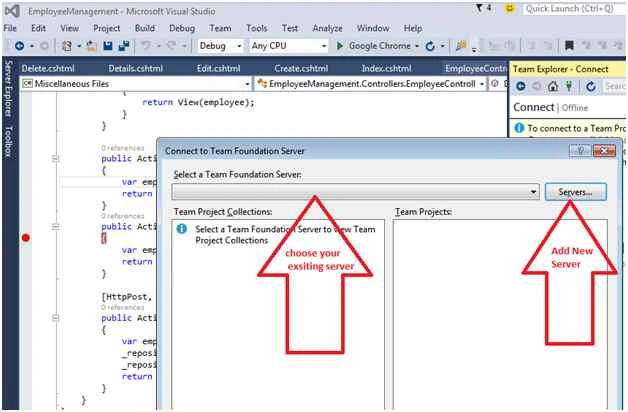
After choosing the server, it will open a new dialog to add new.
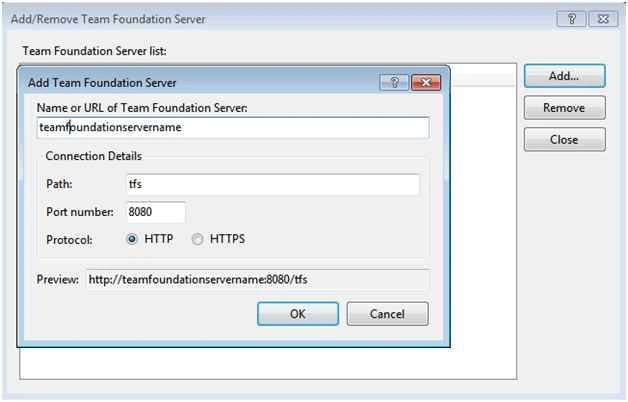
It will add your Team Foundation Server with your Visual Studio. I have already added it.
So, let’s continue.
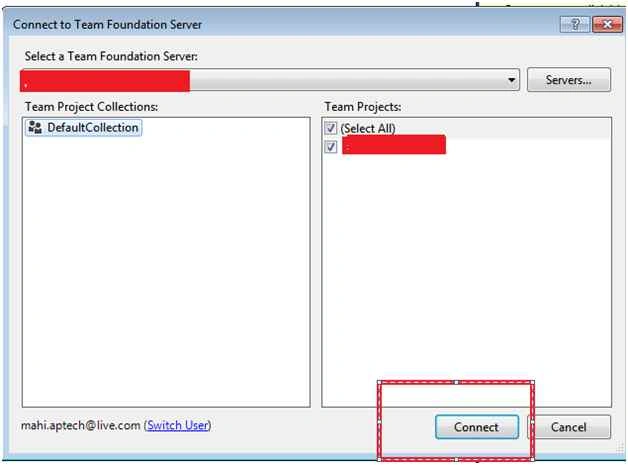
Choose your Team Foundation Server and click to connect.
To add this Solution to your Team Foundation Server, Right click to Solution and choose Source Control.
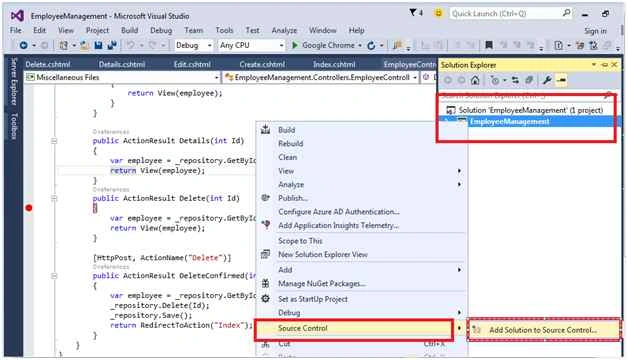
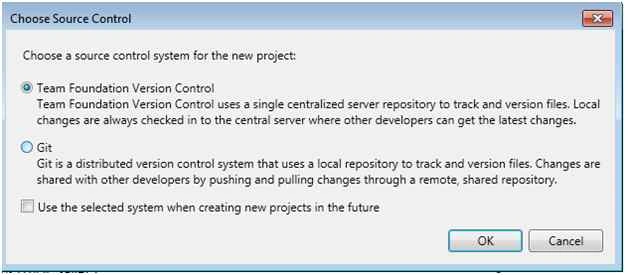
It will ask you to choose source control and you need to use Team Foundation Version Control. Now click OK.
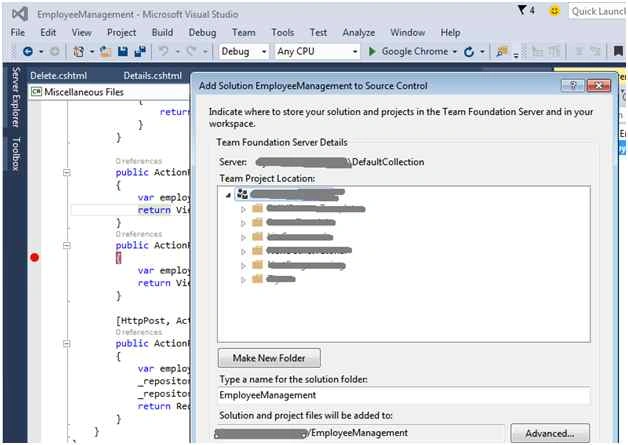
It will open a dialog which shows all your projects inside the Source Control. Choose that project where you want to add your project and click on OK.
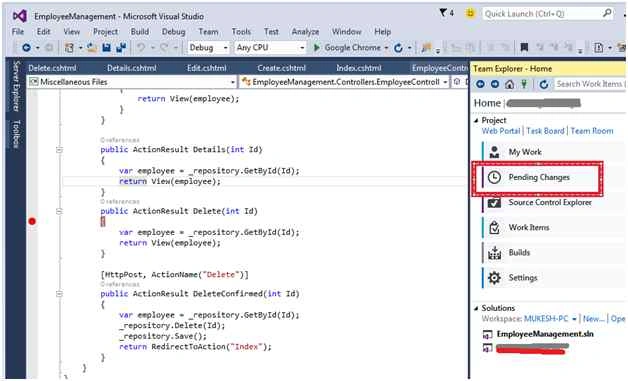
Now, go to Team explorer and choose Pending Changes.
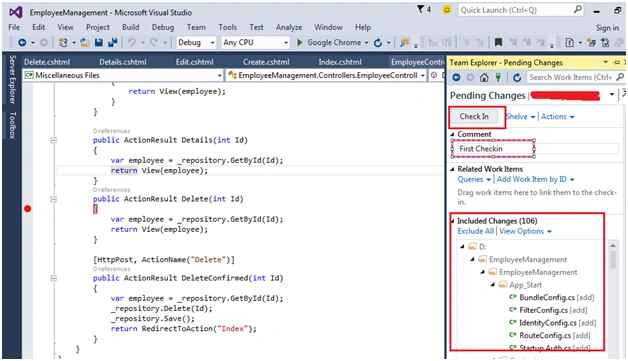
You will see that all the files of your project are ready for check in. Enter your comment in comment section and click on Check In.
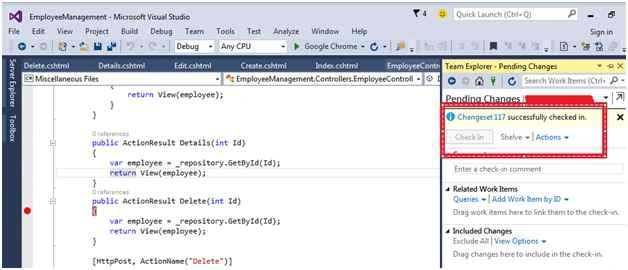
It will take some time depending upon your project size and finally it will show you a message as in the following screenshot:
Thanks for reading my article. Hope you enjoyed it.
Add ASP.NET MVC Project In Visual Studio Online Or TFS
In this article, I will show you how to add your project in Visual Studio Online. Using Visual Studio Online we can store our code on the server and access through worldwide.


Monir HossainPosted May 21, 2017, 1:23 PM EDT
Nice Tutorial, Thanks
Sibeesh VenuTOP 100Posted Oct 19, 2015, 4:54 AM EDT
Nice Share
Jaipal ReddyPosted Oct 19, 2015, 4:20 AM EDT
good work..
Humayun Kabir MamunPosted Oct 18, 2015, 9:41 PM EDT
Nice...
Ankit BansalPosted Oct 18, 2015, 8:42 PM EDT
nice one..thanks for sharing with us..
Nilesh JadavPosted Oct 18, 2015, 8:16 PM EDT
Really Nice !!
Harshad PansuriyaPosted Oct 18, 2015, 8:06 PM EDT
Nice one
Akash VarshneyPosted Oct 18, 2015, 5:52 PM EDT
Good Explanation
Kamlesh BhorPosted Oct 18, 2015, 10:31 AM EDT
Very good... Thanks for sharing.
Priyaranjan K STOP 100Posted Oct 18, 2015, 9:32 AM EDT
Good One