
Introduction
Angular Routing is an important concept to learn about. In this article, we will learn routing in Angular 2+ along with the process of preserving the trailing slash in a page URL with the addition of current page content, which means, we will retain the data of any page while doing a page refresh.
In simple terms, while refreshing the page, we want to remain on the same page with the same page data.
Routing in Angular
If you are new to Angular, you can read the previous article to start with Angular 2+ by clicking here. So, I am starting here by adding a new component here in my application (the application setup is already done on my system). I am adding it using the CLI command in Angular, as mentioned below.
- D:\DemoProject\FirstAngularApp> ng g c Home
- D:\DemoProject\FirstAngularApp> ng g c AboutUs
- D:\DemoProject\FirstAngularApp> ng g c ContactUs
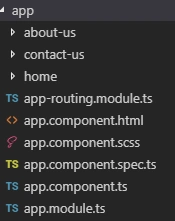
Now, let's learn and add routing in Angular 2+. Let's go to the app-routing.module.ts file (this file is auto created in Angular 7 if you choose "Yes" in the beginning of the application setup; otherwise, you have to add it manually) and add the below code for routing.
- import { NgModule } from '@angular/core';
- import { Routes, RouterModule } from '@angular/router';
- import { HomeComponent } from './home/home.component';
- import { AboutUsComponent } from './about-us/about-us.component';
- import { ContactUsComponent } from './contact-us/contact-us.component'
- const routes: Routes = [
- { path: '', redirectTo: 'home', pathMatch: 'full'},
- { path: 'home', component: HomeComponent },
- { path: 'about', component: AboutUsComponent },
- { path: 'contactus', component: ContactUsComponent }
- ];
- @NgModule({
- imports: [RouterModule.forRoot(routes)],
- exports: [RouterModule]
- })
- export class AppRoutingModule { }
- <div style="text-align:center">
- <h1>
- Welcome to {{ title }}!
- </h1>
- </div>
- <div style="text-align:center">
- <ul class="nav navbar-nav">
- <li>
- <a [routerLink]="['home']" [routerLinkActive]="['active']">Home</a>
- </li>
- <li>
- <a [routerLink]="['about']" [routerLinkActive]="['active']">About Us</a>
- </li>
- <li>
- <a [routerLink]="['contactus']" [routerLinkActive]="['active']">Contact Us</a>
- </li>
- </ul>
- <router-outlet></router-outlet>
- </div>
This HTML is quite simple to understand. Here, router-outlet will work like a placeholder (in ASP.NET). It will allow us to load the data of different components when we click on any particular URL in the navigation bar. Now, let's check the output by running the application.
- D:\DemoProject\FirstAngularApp> ng serve
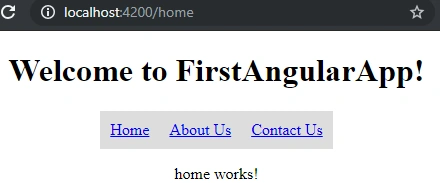
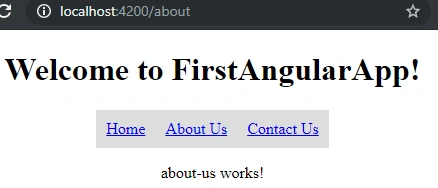
So, our application is working fine. We just implemented routing in Angular. I hope you have found everything quite simple so far. As I told earlier, we want to add a trailing slash in the URL and we want to preserve this trailing slash while refreshing the page.
Why trailing slash?
Trailing slash means a backslash at the end of the URL. Now, the question is what is the need for that. Let me explain this with an example. Suppose, we have a page URL like above http://localhost:4200/about.
Now, if a user tries to see this page by adding a trailing slash in the end, i.e., http://localhost:4200/about/, the page will still show the content of the page without 404 error (if rule not applied). It seems to be the same URL but Google will consider these URLs as two different links. With two URLs having the same content, the SEO rating of the content will get affected. So, to avoid this, you should either not allow the addition of trailing slash in the URL (by using 301 parament redirection) or add a trailing slash with 301. So here, we are going to add the trailing slash in the URL. So, let's change the below code in app-routing.module.ts.
- import { NgModule } from '@angular/core';
- import { Routes, RouterModule } from '@angular/router';
- import { HomeComponent } from './home/home.component';
- import { AboutUsComponent } from './about-us/about-us.component';
- import { ContactUsComponent } from './contact-us/contact-us.component'
- const routes: Routes = [
- { path: '', redirectTo: 'home/.', pathMatch: 'full'},
- { path: 'home/.', component: HomeComponent },
- { path: 'about/.', component: AboutUsComponent },
- { path: 'contactus/.', component: ContactUsComponent }
- ];
- @NgModule({
- imports: [RouterModule.forRoot(routes,{ useHash: false, initialNavigation: 'enabled' })],
- exports: [RouterModule]
- })
- export class AppRoutingModule { }
We just added a backslash in the above routing and in @NgModule, just some basic settings (useHash:false, hash one of the navigation type in Angular, in which # comes with the URL).
Add the below code in app.module.ts.
- import { BrowserModule } from '@angular/platform-browser';
- import { NgModule } from '@angular/core';
- import { AppRoutingModule } from './app-routing.module';
- import { AppComponent } from './app.component';
- import { HomeComponent } from './home/home.component';
- import { AboutUsComponent } from './about-us/about-us.component';
- import { ContactUsComponent } from './contact-us/contact-us.component';
- import {Location} from '@angular/common';
- @NgModule({
- declarations: [
- AppComponent,
- HomeComponent,
- AboutUsComponent,
- ContactUsComponent
- ],
- imports: [
- BrowserModule,
- AppRoutingModule
- ],
- providers: [],
- bootstrap: [AppComponent]
- })
- export class AppModule { }
- const __stripTrailingSlash = (Location as any).stripTrailingSlash;
- Location.stripTrailingSlash = function (url) {
- if (url.endsWith('/')) {
- url=url;
- }
- else {
- url=url+'/';
- }
- const queryString$ = url.match(/([^?]*)?(.*)/);
- if (queryString$[2].length > 0) {
- return /[^\/]\/$/.test(queryString$[1]) ? queryString$[1] + '.' + queryString$[2] : __stripTrailingSlash(url);
- }
- return /[^\/]\/$/.test(url) ? url + '.' : __stripTrailingSlash(url);
- };
- <!--The content below is only a placeholder and can be replaced.-->
- <div style="text-align:center">
- <h1>
- Welcome to {{ title }}!
- </h1>
- </div>
- <div style="text-align:center">
- <ul class="nav navbar-nav">
- <li>
- <a [routerLink]="['/home/.']" [routerLinkActive]="['active']">Home</a>
- </li>
- <li>
- <a [routerLink]="['/about/.']" [routerLinkActive]="['active']">About Us</a>
- </li>
- <li>
- <a [routerLink]="['/contactus/.']" [routerLinkActive]="['active']">Contact Us</a>
- </li>
- </ul>
- <router-outlet></router-outlet>
- </div>
- D:\DemoProject\FirstAngularApp> ng serve
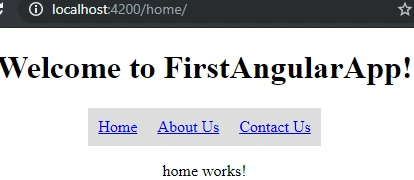
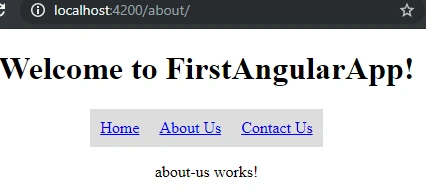
We can see that now the URL is coming with a trailing slash. You can remove the last trailing slash and hit Enter. Still, you will see the content of that page and the URL with a trailing slash. In this article, we have learned simple Routing and Routing with trailing slash in Angular. Hope it will help you.
Happy coding!!


Pluvaricus DiliviusPosted Jul 31, 2020, 12:40 PM EDT
A backslash is that which is used in your Windows file paths: "\". Every other operating system, HTTP, and all other internet-based technologies use the forward slash: "/".
Juanjo CalderónPosted Sep 3, 2019, 12:48 AM EDT
Does this work and keep query params? Example link.com/track/?param=3
Sohaib javedPosted Aug 24, 2019, 12:26 AM EDT
When useHash = true how can I remove slash right after hash?
macductrongPosted May 7, 2019, 12:20 AM EDT
Thanks for your nice article. Can you explain me why there is a dot (.) at the end of a certain path. ex: ‘home/.’
Amit Kumar SinghPosted Apr 2, 2019, 8:58 PM EDT
Nice... Thanks for sharing beautiful blog !!!!