
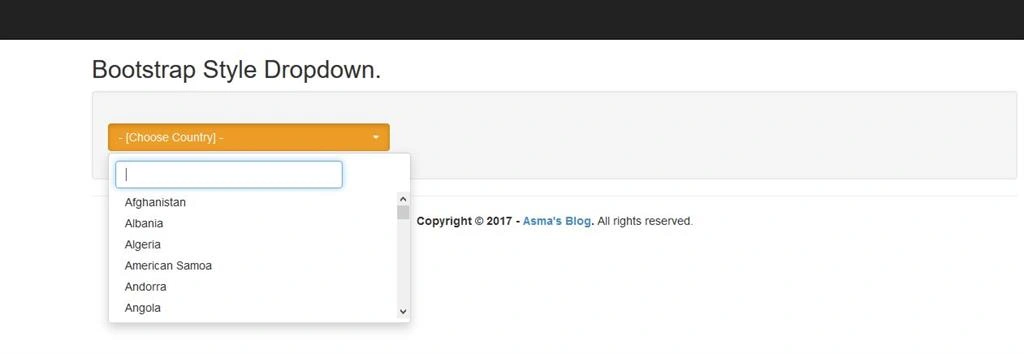
One of the cool things about the Bootstrap CSS framework is that it provides very rich and interactive built-in plugins, which are easy to use and integrate in any Server side technology.
Today, I shall be demonstrating an integration of Bootstrap CSS style dropdown plugin Bootstrap which needs to be selected into ASP.NET MVC5 platform.
Following are some prerequisites before you proceed further in this tutorial.
- Knowledge of ASP.NET MVC5.
- Knowledge of HTML.
- Knowledge of JavaScript.
- Knowledge of Bootstrap.
- Knowledge of Jquery.
- Knowledge of C# Programming.
You can download the complete source code for this tutorial or you can follow the step by step discussion given below. The sample code is being developed in Microsoft Visual Studio 2015 Enterprise. I am using Country table data extract from Adventure Works Sample database.
Let's begin now.
Step 1
Create a new MVC Web project and name it as BootstrapStyleDropdown.
Step 2
Now, download Bootstrap Select. Plugin and place the respective JavaScript & CSS files into Scripts & Content->style folders.
Step 3
Open the Views->Shared->_Layout.cshtml file and replace the code given below in it i.e.
- <!DOCTYPE html>
- <html>
- <head>
- <meta charset="utf-8" />
- <meta name="viewport" content="width=device-width, initial-scale=1.0">
- <title>@ViewBag.Title</title>
- @Styles.Render("~/Content/css")
- @Scripts.Render("~/bundles/modernizr")
- <!-- Font Awesome -->
- <link rel="stylesheet" href="https://maxcdn.bootstrapcdn.com/font-awesome/4.4.0/css/font-awesome.min.css" />
- </head>
- <body>
- <div class="navbar navbar-inverse navbar-fixed-top">
- <div class="container">
- <div class="navbar-header">
- <button type="button" class="navbar-toggle" data-toggle="collapse" data-target=".navbar-collapse">
- <span class="icon-bar"></span>
- <span class="icon-bar"></span>
- <span class="icon-bar"></span>
- </button>
- </div>
- </div>
- </div>
- <div class="container body-content">
- @RenderBody()
- <hr />
- <footer>
- <center>
- <p><strong>Copyright © @DateTime.Now.Year - <a href="http://www.asmak9.com/">Asma's Blog</a>.</strong> All rights reserved.</p>
- </center>
- </footer>
- </div>
- @Scripts.Render("~/bundles/jquery")
- @Scripts.Render("~/bundles/bootstrap")
- @RenderSection("scripts", required: false)
- </body>
- </html>
In the code given above, we have simply set our default layout of any page.
Step 4
Create a new file CountryObj.cs under Models folder and replace the code given below in it i.e.
- using System;
- using System.Collections.Generic;
- using System.Linq;
- using System.Web;
- namespace BootstrapStyleDropdown.Models
- {
- public class CountryObj
- {
- public int Country_Id { get; set; }
- public string Country_Name { get; set; }
- }
- }
In the code given above, I have simply created an object class which will map my sample list data.
Step 5
Now, create another new file under Models folder and replace the code given below in it i.e
- using System.Collections.Generic;
- using System.ComponentModel.DataAnnotations;
- namespace BootstrapStyleDropdown.Models
- {
- public class DropdownViewModel
- {
- [Display(Name = "Choose country")]
- public int? SelectedCountryId { get; set; }
- }
- }
In the above code, I have created my view model which I will attach with my view. Notice that I have created a null-able integer property which will capture my selected value from the razor view dropdown control.
Step 6
Create a new "HomeController.cs" controller in "Controllers" folder and replace the following code in it i.e.
- //-----------------------------------------------------------------------
- // <copyright file="HomeController.cs" company="None">
- // Copyright (c) Allow to distribute this code.
- // </copyright>
- // <author>Asma Khalid</author>
- //-----------------------------------------------------------------------
- namespace BootstrapStyleDropdown.Controllers
- {
- using System;
- using System.Collections.Generic;
- using System.IO;
- using System.Linq;
- using System.Reflection;
- using System.Web;
- using System.Web.Mvc;
- using Models;
- /// <summary>
- /// Home Controller class.
- /// </summary>
- public class HomeController : Controller
- {
- #region Index method
- /// <summary>
- /// GET: Index method.
- /// </summary>
- /// <returns>Returns - index view page</returns>
- public ActionResult Index()
- {
- // Initialization.
- DropdownViewModel model = new DropdownViewModel();
- // Settings.
- model.SelectedCountryId = 0;
- // Loading drop down lists.
- this.ViewBag.CountryList = this.GetCountryList();
- // Info.
- return this.View(model);
- }
- #endregion
- #region Helpers
- #region Load Data
- /// <summary>
- /// Load data method.
- /// </summary>
- /// <returns>Returns - Data</returns>
- private List<CountryObj> LoadData()
- {
- // Initialization.
- List<CountryObj> lst = new List<CountryObj>();
- try
- {
- // Initialization.
- string line = string.Empty;
- string srcFilePath = "content/files/country_list.txt";
- var rootPath = Path.GetDirectoryName(Assembly.GetExecutingAssembly().CodeBase);
- var fullPath = Path.Combine(rootPath, srcFilePath);
- string filePath = new Uri(fullPath).LocalPath;
- StreamReader sr = new StreamReader(new FileStream(filePath, FileMode.Open, FileAccess.Read));
- // Read file.
- while ((line = sr.ReadLine()) != null)
- {
- // Initialization.
- CountryObj infoObj = new CountryObj();
- string[] info = line.Split(',');
- // Setting.
- infoObj.Country_Id = Convert.ToInt32(info[0].ToString());
- infoObj.Country_Name = info[1].ToString();
- // Adding.
- lst.Add(infoObj);
- }
- // Closing.
- sr.Dispose();
- sr.Close();
- }
- catch (Exception ex)
- {
- // info.
- Console.Write(ex);
- }
- // info.
- return lst;
- }
- #endregion
- #region Get roles method.
- /// <summary>
- /// Get country method.
- /// </summary>
- /// <returns>Return country for drop down list.</returns>
- private IEnumerable<SelectListItem> GetCountryList()
- {
- // Initialization.
- SelectList lstobj = null;
- try
- {
- // Loading.
- var list = this.LoadData()
- .Select(p =>
- new SelectListItem
- {
- Value = p.Country_Id.ToString(),
- Text = p.Country_Name
- });
- // Setting.
- lstobj = new SelectList(list, "Value", "Text");
- }
- catch (Exception ex)
- {
- // Info
- throw ex;
- }
- // info.
- return lstobj;
- }
- #endregion
- #endregion
- }
- }
In the code given above, I have created LoadData(), GetCountryList() & Index() methods. Let's break down each method and try to understand that what have we added here.
The first method that created here is LoadData() method i.e.
- #region Load Data
- /// <summary>
- /// Load data method.
- /// </summary>
- /// <returns>Returns - Data</returns>
- private List<CountryObj> LoadData()
- {
- // Initialization.
- List<CountryObj> lst = new List<CountryObj>();
- try
- {
- // Initialization.
- string line = string.Empty;
- string srcFilePath = "content/files/country_list.txt";
- var rootPath = Path.GetDirectoryName(Assembly.GetExecutingAssembly().CodeBase);
- var fullPath = Path.Combine(rootPath, srcFilePath);
- string filePath = new Uri(fullPath).LocalPath;
- StreamReader sr = new StreamReader(new FileStream(filePath, FileMode.Open, FileAccess.Read));
- // Read file.
- while ((line = sr.ReadLine()) != null)
- {
- // Initialization.
- CountryObj infoObj = new CountryObj();
- string[] info = line.Split(',');
- // Setting.
- infoObj.Country_Id = Convert.ToInt32(info[0].ToString());
- infoObj.Country_Name = info[1].ToString();
- // Adding.
- lst.Add(infoObj);
- }
- // Closing.
- sr.Dispose();
- sr.Close();
- }
- catch (Exception ex)
- {
- // info.
- Console.Write(ex);
- }
- // info.
- return lst;
- }
- #endregion
In the method given above, I am loading my sample country list data extract from the ".txt" file into in-memory list of type "CountryObj".
The second method that is created here is GetCountryList() method i.e.
- #region Get country method.
- /// <summary>
- /// Get country method.
- /// </summary>
- /// <returns>Return country for drop down list.</returns>
- private IEnumerable<SelectListItem> GetCountryList()
- {
- // Initialization.
- SelectList lstobj = null;
- try
- {
- // Loading.
- var list = this.LoadData()
- .Select(p =>
- new SelectListItem
- {
- Value = p.Country_Id.ToString(),
- Text = p.Country_Name
- });
- // Setting.
- lstobj = new SelectList(list, "Value", "Text");
- }
- catch (Exception ex)
- {
- // Info
- throw ex;
- }
- // info.
- return lstobj;
- }
- #endregion
In the method given above, I have converted my data list into type, which is acceptable by razor view engine dropdown control. Notice the lines of code in the code given above.
- var list = this.LoadData()
- .Select(p =>
- new SelectListItem
- {
- Value = p.Country_Id.ToString(),
- Text = p.Country_Name
- });
- // Setting.
- lstobj = new SelectList(list, "Value", "Text");
In the lines of code, the text value i.e. Value & Text is passed in the SelectList constructor are the properties of SelectListItem class. We are simply telling SelectList class that these two properties contains the dropdown, which displays the text value and the corresponding id mapping.
The third method, which is created here is Index() method i.e.
- #region Index method
- /// <summary>
- /// GET: Index method.
- /// </summary>
- /// <returns>Returns - index view page</returns>
- public ActionResult Index()
- {
- // Initialization.
- DropdownViewModel model = new DropdownViewModel();
- // Settings.
- model.SelectedCountryId = 0;
- // Loading drop down lists.
- this.ViewBag.CountryList = this.GetCountryList();
- // Info.
- return this.View(model);
- }
- #endregion
In the code given above, I have mapped the dropdown list data into a view bag property, which will be used in razor view control.
Step 7
Create a view Index.cshtml file under Views folder and replace the code given below in it i.e.
- @model BootstrapStyleDropdown.Models.DropdownViewModel
- @{
- ViewBag.Title = "Bootstrap Style Dropdown";
- }
- <h2>@ViewBag.Title.</h2>
- <section>
- <div class="well bs-component">
- <br />
- <div class="row">
- <div class="col-xs-4 col-xs-push-0">
- <div class="form-group">
- @Html.DropDownListFor(m => m.SelectedCountryId, this.ViewBag.CountryList as SelectList, new { @class = "form-control" })
- </div>
- </div>
- </div>
- </div>
- </section>
In the code given above, we have created our dropdown control without Bootsrtap style plugin integration.
Step 8
Execute the project and you will see the result, as shown below with the integration of bootstrap style plugin integration.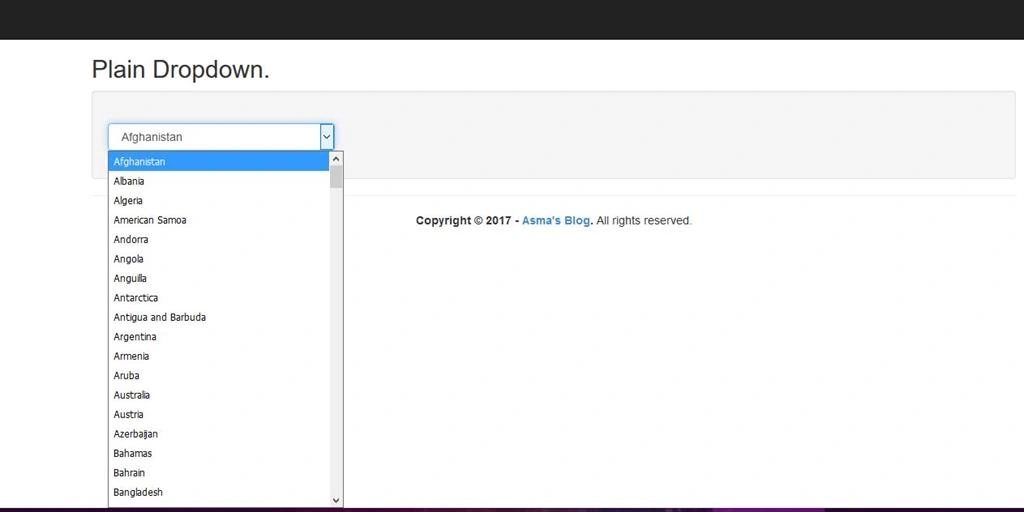
Step 9
Now, let's integrate bootstrap style dropdown plugin bootstrap select. Create an new JavaScript "script-bootstrap-select.js" under "Scripts" folder and replace the code given below in it.
- $(document).ready(function ()
- {
- // Enable Live Search.
- $('#CountryList').attr('data-live-search', true);
- $('.selectCountry').selectpicker(
- {
- width: '100%',
- title: '- [Choose Country] -',
- style: 'btn-warning',
- size: 6
- });
- });
In the code given above, I have called "slectpicker()" method of the bootstrap. Select plugin with the basic settings. Before calling this method I have also set the live search property of the plugin, so, the end-user can search require value from the dropdown list.
Step 10
Open Index.cshtml file and replace the code given below in it i.e.
- @model BootstrapStyleDropdown.Models.DropdownViewModel
- @{
- ViewBag.Title = "Bootstrap Style Dropdown";
- }
- <h2>@ViewBag.Title.</h2>
- <section>
- <div class="well bs-component">
- <br />
- <div class="row">
- <div class="col-xs-4 col-xs-push-0">
- <div class="form-group">
- @Html.DropDownListFor(m => m.SelectedCountryId, this.ViewBag.CountryList as SelectList, new { id = "CountryList", @class = "selectCountry show-tick form-control" })
- </div>
- </div>
- </div>
- </div>
- </section>
- @section Scripts
- {
- @*Scripts*@
- @Scripts.Render("~/bundles/bootstrap-select")
- @*Styles*@
- @Styles.Render("~/Content/Bootstrap-Select/css")
- }
In the code given above, we have added reference links of Bootstrap Select plugin and set HTML ID and classes related to plugin settings.
Step 11
Now, execute the project and you will see bootstrap style dropdown plugin in an action, as shown below i.e.
Conclusion
In this article, you learned about Bootstrap Select" dropdown plugin. You also learned about the integration of the bootstrap style plugin with ASP.NET MVC5 platform. In addition to it, you have learned about the creation of list data which is compatible with razor view engine.


Farhan AhmedTOP 100Posted Jul 24, 2018, 3:53 AM EDT
Nice helpful.....
Mugilarasan SPosted Jun 28, 2018, 9:35 PM EDT
Thank You!!!
naveed abdulPosted Jan 17, 2018, 10:03 PM EST
Hi, Search is working fine but unable to click on dropdown to select
foladi behrazPosted Aug 16, 2017, 10:24 AM EDT
Hi ,How can I change right-to-left?