
Collecting image data or any other file format data is equally important as collecting textual data. Although collecting textual data is more simple than collecting an image or any other file format data, the choice for storing the image or any other file format data is the most difficult part, but, it entirely depends on one's business & system requirement.
Today, I shall be demonstrating uploading of the image file into the database on ASP.NET MVC5 platform. This article is not specific to image files only, you can use the provided solution with any type of file format as well.
Before moving to the coding part, let us observe some of the advantages and disadvantages of uploading an image or any other file format data into the database.
- Sensitive images or any other file format data is fully secure as it is only accessible via system/software. Files are not accessible via links.
- Storing of the uploaded file is guaranteed.
- Images/Files store on database do not require extra backups.
- Transnational integrity is guaranteed as you won't be locked into typical reader/writer problem and deleting the entry in the database means the file is actually deleted, you do not need extra precautions to delete the file i.e. ensuring that file is deleted from both database and file system.
- Image replication is easy (if needed).
- In load-balanced web servers or distributed environments, dealing with synchronizing images across multiple file systems is difficult especially in a web application where a new server may be added any time.
Disadvantages (Cons)
- Database storage becomes expensive for many and large file storage.
- There will be a performance penalty as latency to retrieve image/file is slower and database lookup is slower than filesystem lookup.
- Additional code is needed to extract and stream files.
- You cannot directly edit the files, especially images files, as you can not directly utilize image edit features such as file resize and file cropping.
- There will be more load on the database.
- Web server bandwidth will increase which adds additional costs.
Prerequisites
Following are some prerequisites before you proceed any further in this tutorial:
- Knowledge of ASP.NET MVC5.
- Knowledge of HTML.
- Knowledge of Bootstrap.
- Knowledge of C# Programming.
You can download the complete source code for this tutorial or you can follow the step by step discussion below. The sample code is being developed in Microsoft Visual Studio 2015 Enterprise.
Let's begin now.Step 1
- USE [db_img]
- GO
- /****** Object: StoredProcedure [dbo].[sp_insert_file] Script Date: 11/18/2018 12:27:55 AM ******/
- DROP PROCEDURE [dbo].[sp_insert_file]
- GO
- /****** Object: StoredProcedure [dbo].[sp_get_file_details] Script Date: 11/18/2018 12:27:55 AM ******/
- DROP PROCEDURE [dbo].[sp_get_file_details]
- GO
- /****** Object: StoredProcedure [dbo].[sp_get_all_files] Script Date: 11/18/2018 12:27:55 AM ******/
- DROP PROCEDURE [dbo].[sp_get_all_files]
- GO
- /****** Object: Table [dbo].[tbl_file] Script Date: 11/18/2018 12:27:55 AM ******/
- DROP TABLE [dbo].[tbl_file]
- GO
- /****** Object: Table [dbo].[tbl_file] Script Date: 11/18/2018 12:27:55 AM ******/
- SET ANSI_NULLS ON
- GO
- SET QUOTED_IDENTIFIER ON
- GO
- CREATE TABLE [dbo].[tbl_file](
- [file_id] [int] IDENTITY(1,1) NOT NULL,
- [file_name] [nvarchar](max) NOT NULL,
- [file_ext] [nvarchar](max) NOT NULL,
- [file_base6] [nvarchar](max) NOT NULL,
- CONSTRAINT [PK_tbl_file] PRIMARY KEY CLUSTERED
- (
- [file_id] ASC
- )WITH (PAD_INDEX = OFF, STATISTICS_NORECOMPUTE = OFF, IGNORE_DUP_KEY = OFF, ALLOW_ROW_LOCKS = ON, ALLOW_PAGE_LOCKS = ON) ON [PRIMARY]
- ) ON [PRIMARY] TEXTIMAGE_ON [PRIMARY]
- GO
- /****** Object: StoredProcedure [dbo].[sp_get_all_files] Script Date: 11/18/2018 12:27:55 AM ******/
- SET ANSI_NULLS ON
- GO
- SET QUOTED_IDENTIFIER ON
- GO
- -- =============================================
- -- Author: <Author,,Name>
- -- Create date: <Create Date,,>
- -- Description: <Description,,>
- -- =============================================
- CREATE PROCEDURE [dbo].[sp_get_all_files]
- AS
- BEGIN
- /****** Script for SelectTopNRows command from SSMS ******/
- SELECT [file_id]
- ,[file_name]
- ,[file_ext]
- FROM [db_img].[dbo].[tbl_file]
- END
- GO
- /****** Object: StoredProcedure [dbo].[sp_get_file_details] Script Date: 11/18/2018 12:27:55 AM ******/
- SET ANSI_NULLS ON
- GO
- SET QUOTED_IDENTIFIER ON
- GO
- -- =============================================
- -- Author: <Author,,Name>
- -- Create date: <Create Date,,>
- -- Description: <Description,,>
- -- =============================================
- CREATE PROCEDURE [dbo].[sp_get_file_details]
- @file_id INT
- AS
- BEGIN
- /****** Script for SelectTopNRows command from SSMS ******/
- SELECT [file_id]
- ,[file_name]
- ,[file_ext]
- ,[file_base6]
- FROM [db_img].[dbo].[tbl_file]
- WHERE [tbl_file].[file_id] = @file_id
- END
- GO
- /****** Object: StoredProcedure [dbo].[sp_insert_file] Script Date: 11/18/2018 12:27:55 AM ******/
- SET ANSI_NULLS ON
- GO
- SET QUOTED_IDENTIFIER ON
- GO
- -- =============================================
- -- Author: <Author,,Name>
- -- Create date: <Create Date,,>
- -- Description: <Description,,>
- -- =============================================
- CREATE PROCEDURE [dbo].[sp_insert_file]
- @file_name NVARCHAR(MAX),
- @file_ext NVARCHAR(MAX),
- @file_base64 NVARCHAR(MAX)
- AS
- BEGIN
- /****** Script for SelectTopNRows command from SSMS ******/
- INSERT INTO [dbo].[tbl_file]
- ([file_name]
- ,[file_ext]
- ,[file_base6])
- VALUES
- (@file_name
- ,@file_ext
- ,@file_base64)
- END
- GO
Step 2
Step 3
- <!DOCTYPE html>
- <html>
- <head>
- <meta charset="utf-8" />
- <meta name="viewport" content="width=device-width, initial-scale=1.0">
- <title>@ViewBag.Title</title>
- @Styles.Render("~/Content/css")
- @Scripts.Render("~/bundles/modernizr")
- <!-- Font Awesome -->
- <link rel="stylesheet" href="https://maxcdn.bootstrapcdn.com/font-awesome/4.4.0/css/font-awesome.min.css" />
- </head>
- <body>
- <div class="navbar navbar-inverse navbar-fixed-top">
- <div class="container">
- <div class="navbar-header">
- <button type="button" class="navbar-toggle" data-toggle="collapse" data-target=".navbar-collapse">
- <span class="icon-bar"></span>
- <span class="icon-bar"></span>
- <span class="icon-bar"></span>
- </button>
- </div>
- </div>
- </div>
- <div class="container body-content">
- @RenderBody()
- <hr />
- <footer>
- <center>
- <p><strong>Copyright © @DateTime.Now.Year - <a href="http://wwww.asmak9.com/">Asma's Blog</a>.</strong> All rights reserved.</p>
- </center>
- </footer>
- </div>
- @*Scripts*@
- @Scripts.Render("~/bundles/jquery")
- @Scripts.Render("~/bundles/jqueryval")
- @Scripts.Render("~/bundles/bootstrap")
- @RenderSection("scripts", required: false)
- </body>
- </html>
In the above code, I have simply created a basic default layout page and linked the required libraries into it.
Step 4
- //-----------------------------------------------------------------------
- // <copyright file="ImgObj.cs" company="None">
- // Copyright (c) Allow to distribute this code and utilize this code for personal or commercial purpose.
- // </copyright>
- // <author>Asma Khalid</author>
- //-----------------------------------------------------------------------
- namespace ImgSaveDb.Helper_Code.Objects
- {
- using System;
- using System.Collections.Generic;
- using System.Linq;
- using System.Web;
- /// <summary>
- /// Image object class.
- /// </summary>
- public class ImgObj
- {
- #region Properties
- /// <summary>
- /// Gets or sets Image ID.
- /// </summary>
- public int FileId { get; set; }
- /// <summary>
- /// Gets or sets Image name.
- /// </summary>
- public string FileName { get; set; }
- /// <summary>
- /// Gets or sets Image extension.
- /// </summary>
- public string FileContentType { get; set; }
- #endregion
- }
- }
In the above code, I have simply created an object class which will map my image file metadata from SQL database.
Step 5
- //-----------------------------------------------------------------------
- // <copyright file="ImgViewModel.cs" company="None">
- // Copyright (c) Allow to distribute this code and utilize this code for personal or commercial purpose.
- // </copyright>
- // <author>Asma Khalid</author>
- //-----------------------------------------------------------------------
- namespace ImgSaveDb.Models
- {
- using System.Collections.Generic;
- using System.ComponentModel.DataAnnotations;
- using System.Web;
- using Helper_Code.Objects;
- /// <summary>
- /// Image view model class.
- /// </summary>
- public class ImgViewModel
- {
- #region Properties
- /// <summary>
- /// Gets or sets Image file.
- /// </summary>
- [Required]
- [Display(Name = "Upload File")]
- public HttpPostedFileBase FileAttach { get; set; }
- /// <summary>
- /// Gets or sets Image file list.
- /// </summary>
- public List<ImgObj> ImgLst { get; set; }
- #endregion
- }
- }
In the above code, I have created my view model which I will attach with my view. Here, I have created a HttpPostedFileBase type file attachment property which will capture uploaded image/file data from the end-user and image object type list property which will display a list of images that I have stored in my database.
Step 6
- //-----------------------------------------------------------------------
- // <copyright file="ImgController.cs" company="None">
- // Copyright (c) Allow to distribute this code and utilize this code for personal or commercial purpose.
- // </copyright>
- // <author>Asma Khalid</author>
- //-----------------------------------------------------------------------
- namespace ImgSaveDb.Controllers
- {
- using System;
- using System.Collections.Generic;
- using System.Linq;
- using System.Web;
- using System.Web.Mvc;
- using Helper_Code.Objects;
- using Models;
- /// <summary>
- /// Image controller class.
- /// </summary>
- public class ImgController : Controller
- {
- #region Private Properties
- /// <summary>
- /// Gets or sets database manager property.
- /// </summary>
- private db_imgEntities databaseManager = new db_imgEntities();
- #endregion
- #region Index view method.
- #region Get: /Img/Index method.
- /// <summary>
- /// Get: /Img/Index method.
- /// </summary>
- /// <returns>Return index view</returns>
- public ActionResult Index()
- {
- // Initialization.
- ImgViewModel model = new ImgViewModel { FileAttach = null, ImgLst = new List<ImgObj>() };
- try
- {
- // Settings.
- model.ImgLst = this.databaseManager.sp_get_all_files().Select(p => new ImgObj
- {
- FileId = p.file_id,
- FileName = p.file_name,
- FileContentType = p.file_ext
- }).ToList();
- }
- catch (Exception ex)
- {
- // Info
- Console.Write(ex);
- }
- // Info.
- return this.View(model);
- }
- #endregion
- #region POST: /Img/Index
- /// <summary>
- /// POST: /Img/Index
- /// </summary>
- /// <param name="model">Model parameter</param>
- /// <returns>Return - Response information</returns>
- [HttpPost]
- [AllowAnonymous]
- [ValidateAntiForgeryToken]
- public ActionResult Index(ImgViewModel model)
- {
- // Initialization.
- string fileContent = string.Empty;
- string fileContentType = string.Empty;
- try
- {
- // Verification
- if (ModelState.IsValid)
- {
- // Converting to bytes.
- byte[] uploadedFile = new byte[model.FileAttach.InputStream.Length];
- model.FileAttach.InputStream.Read(uploadedFile, 0, uploadedFile.Length);
- // Initialization.
- fileContent = Convert.ToBase64String(uploadedFile);
- fileContentType = model.FileAttach.ContentType;
- // Saving info.
- this.databaseManager.sp_insert_file(model.FileAttach.FileName, fileContentType, fileContent);
- }
- // Settings.
- model.ImgLst = this.databaseManager.sp_get_all_files().Select(p => new ImgObj
- {
- FileId = p.file_id,
- FileName = p.file_name,
- FileContentType = p.file_ext
- }).ToList();
- }
- catch (Exception ex)
- {
- // Info
- Console.Write(ex);
- }
- // Info
- return this.View(model);
- }
- #endregion
- #endregion
- #region Download file methods
- #region GET: /Img/DownloadFile
- /// <summary>
- /// GET: /Img/DownloadFile
- /// </summary>
- /// <param name="fileId">File Id parameter</param>
- /// <returns>Return download file</returns>
- public ActionResult DownloadFile(int fileId)
- {
- // Model binding.
- ImgViewModel model = new ImgViewModel { FileAttach = null, ImgLst = new List<ImgObj>() };
- try
- {
- // Loading dile info.
- var fileInfo = this.databaseManager.sp_get_file_details(fileId).First();
- // Info.
- return this.GetFile(fileInfo.file_base6, fileInfo.file_ext);
- }
- catch (Exception ex)
- {
- // Info
- Console.Write(ex);
- }
- // Info.
- return this.View(model);
- }
- #endregion
- #endregion
- #region Helpers
- #region Get file method.
- /// <summary>
- /// Get file method.
- /// </summary>
- /// <param name="fileContent">File content parameter.</param>
- /// <param name="fileContentType">File content type parameter</param>
- /// <returns>Returns - File.</returns>
- private FileResult GetFile(string fileContent, string fileContentType)
- {
- // Initialization.
- FileResult file = null;
- try
- {
- // Get file.
- byte[] byteContent = Convert.FromBase64String(fileContent);
- file = this.File(byteContent, fileContentType);
- }
- catch (Exception ex)
- {
- // Info.
- throw ex;
- }
- // info.
- return file;
- }
- #endregion
- #endregion
- }
- }
In the above code, I have created a databaseManager private property which will allow me to access my SQL database via entity framework. Then, I have created "GetFile(...)" helper method which will convert my SQL database stored image file from base64 data format to byte data format. Then, I have created "DownloadFile(...)" method which will return image file stored in the SQL database base on the provided image file ID. Then, I have created GET "Index(...)" method which will retrieve the list of images data from SQL database and send it to the view page. Finally, I have created POST() "Index(...)" method which will receive the input image file from the end-user, then convert that file into a base64 data format and finally save the base64 data format file into the SQL database.
Step 7
- @using ImgSaveDb.Models
- @model ImgSaveDb.Models.ImgViewModel
- @{
- ViewBag.Title = "ASP.NET MVC5: Upload Image into Database";
- }
- <div class="row">
- <div class="panel-heading">
- <div class="col-md-8">
- <h3>
- <i class="fa fa-file-text-o"></i>
- <span>ASP.NET MVC5: Upload Image into Database</span>
- </h3>
- </div>
- </div>
- </div>
- <br/>
- <div class="row">
- <div class="col-md-6 col-md-push-2">
- <section>
- @using (Html.BeginForm("Index", "Img", FormMethod.Post, new { enctype = "multipart/form-data", @class = "form-horizontal", role = "form" }))
- {
- @Html.AntiForgeryToken()
- <div class="well bs-component">
- <br />
- <div class="row">
- <div class="col-md-12">
- <div class="col-md-8 col-md-push-2">
- <div class="input-group">
- <span class="input-group-btn">
- <span class="btn btn-default btn-file">
- Browse…
- @Html.TextBoxFor(m => m.FileAttach, new { type = "file", placeholder = Html.DisplayNameFor(m => m.FileAttach), @class = "form-control" })
- </span>
- </span>
- <input type="text" class="form-control" readonly>
- </div>
- @Html.ValidationMessageFor(m => m.FileAttach, "", new { @class = "text-danger custom-danger" })
- </div>
- </div>
- </div>
- <div class="form-group">
- <div class="col-md-12">
- </div>
- </div>
- <div class="form-group">
- <div class="col-md-offset-5 col-md-10">
- <input type="submit" class="btn btn-danger" value="Upload" />
- </div>
- </div>
- </div>
- }
- </section>
- </div>
- </div>
- <hr />
- <div class="row">
- <div class="col-md-offset-4 col-md-8">
- <h3>List of Imagess </h3>
- </div>
- </div>
- <hr />
- @if (Model.ImgLst != null &&
- Model.ImgLst.Count > 0)
- {
- <div class="row">
- <div class="col-md-offset-1 col-md-8">
- <section>
- <table class="table table-bordered table-striped">
- <thead>
- <tr>
- <th style="text-align: center;">Sr.</th>
- <th style="text-align: center;">Image Name</th>
- <th style="text-align: center;"></th>
- </tr>
- </thead>
- <tbody>
- @for (int i = 0; i < Model.ImgLst.Count; i++)
- {
- <tr>
- <td style="text-align: center;">@(i + 1)</td>
- <td style="text-align: center;">
- <div class="input-group" style="height:40px;">
- <i class="fa fa-2x fa-paperclip text-navy"></i>
- <a class="download-file1" href="@Url.Action("DownloadFile", "Img", new { fileId = @Model.ImgLst[i].FileId })" target="_blank">
- @Model.ImgLst[i].FileName
- </a>
- </div>
- </td>
- <td style="text-align: center;">
- <div>
- <img src="@Url.Action("DownloadFile", "Img", new { fileId = @Model.ImgLst[i].FileId })" width="100" height="100" />
- </div>
- </td>
- </tr>
- }
- </tbody>
- </table>
- </section>
- </div>
- </div>
- }
- @section Scripts
- {
- @*Scripts*@
- @Scripts.Render("~/bundles/bootstrap-file")
- @*Styles*@
- @Styles.Render("~/Content/Bootstrap-file/css")
- }
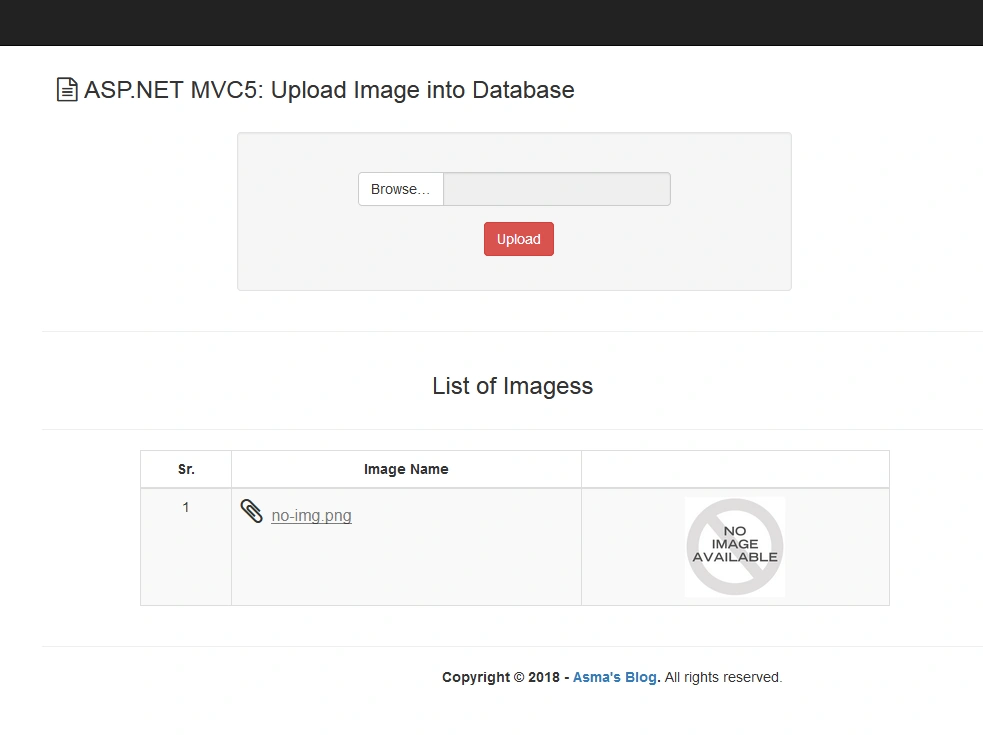
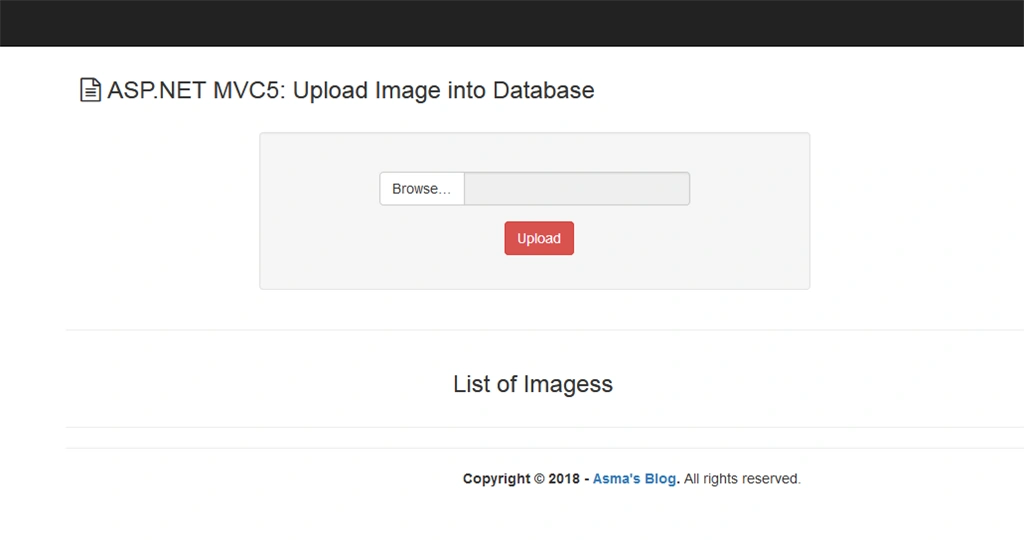
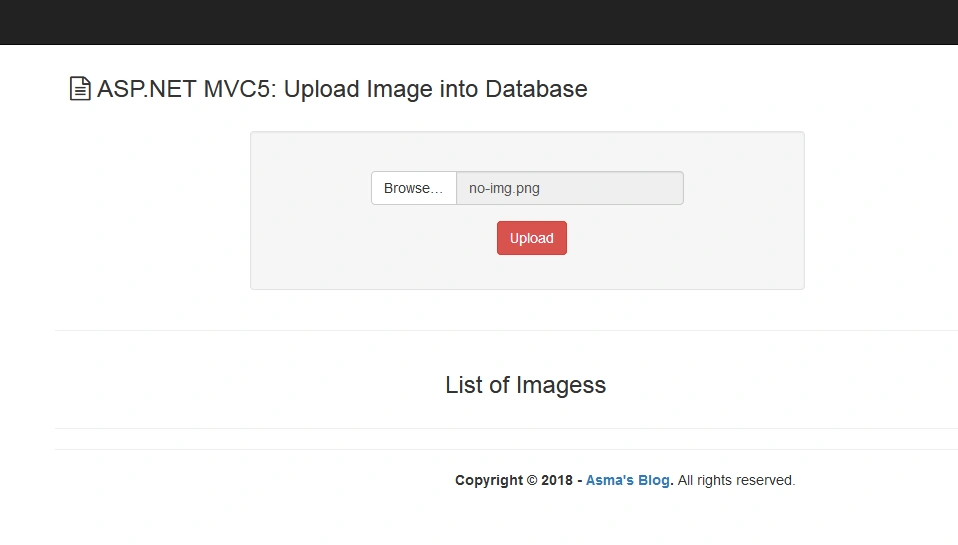
In the above code, I have created a simple view for uploading an image file to the server for storing it into the SQL database and then display the uploaded image files list. I have created bootstrap style file upload control and a table to display the list of uploaded images on the server in the SQL database.
Step 8
Conclusion
In this article, you learned about uploading of the image file into the database on ASP.NET MVC5 platform. You also learned how to convert the image file into the base64 data format. You also learned to convert base64 data format to byte data format. You also learned to retrieve image data stored in SQL server database as base64 and you learned about the advantages & disadvantages of storing image/file into the database.


Sơn LêPosted Sep 11, 2020, 5:45 AM EDT
Thank you very much! But this way can be writting in EF Code First?
Malik HassanPosted May 19, 2020, 9:40 AM EDT
Browse button not shown properly .. pl help ..thank you
Roberto RazzettiPosted Feb 24, 2020, 11:47 PM EST
Very well done! It works fine for me. Thank you so much!
John SmithPosted Jan 11, 2020, 12:49 AM EST
Good article but I struggled when adding the databaseManager private property in the imgcontroller code. As this is aimed at beginners it would be helpful if you mention that we need to add the DB first data item before adding the controller code. Once I added EF 6 all was well.
Reshma FrancisPosted Dec 5, 2019, 7:08 PM EST
When we try to insert into database it insert not like base 64..please help us
Alice NguyenPosted Nov 28, 2018, 4:27 PM EST
I really enjoyed this. Thank you for sharing. Be well.
First LastPosted Nov 28, 2018, 5:20 AM EST
This is uses the Database First approach in Entity Frameworks correct?