
Introduction
Today, in this article let's play around with one of the interesting and most useful concepts in SharePoint 2010.
Question: What is an Asset Library?
In simple terms "It enables sharing and managing audio, video and image files across the site".
I think we are now good to go and implement this wonderful concept.
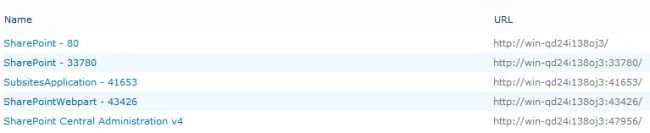
Step 1: Open SharePoint 2010 Central Administration and navigate to a specific site:


Step 2: Navigate to "Site Actions" -> "More Options...":

Step 3: Select "Asset Library" from the listed categories. Give a name to the library:


Step 4: The Asset Library is created; the site now looks like this:

Step 5: Click on "Upload an image." and locate in local directory:

Step 6: The "Upload Document" dialogue box appears:

Step 7: Giving name to the selected item:

Step 8: Viewing the uploaded item:

Step 9: Uploading audio asset:


Step 10: Giving a name to the selected item:

Step 11: Playing the uploaded item:

I hope this article is useful for you.

Join the conversation! Your thoughts help the community grow.