
Introduction
As you know WPF Toolkit has the recent version in February 2010, it has some
controls added in Preview Brand. One of them is AutoCompleteBox. In this article
we will see how to use it.
Creating WPF Application Project
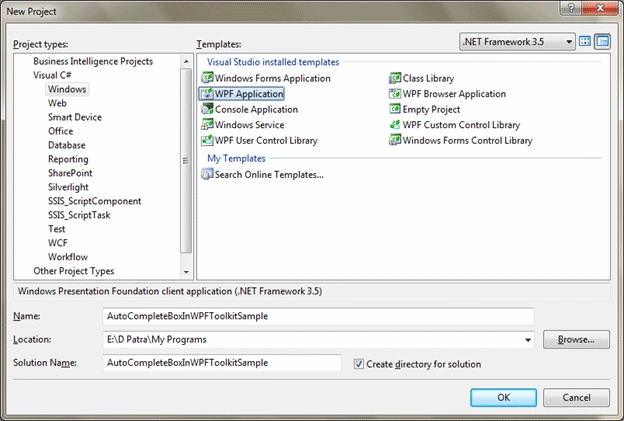
Fire up Visual Studio 2008 and Create a WPF Application and name the project as
AutoCompleteBoxInWPFToolkitSample.
Now we will add the AutoCompleteBox to our application. You can add it two ways,
as you have recently uninstalled previous version of Toolkit and installed the
new version, there will be occurrences where VisualStudio will through you error
like the component doesn't exist.
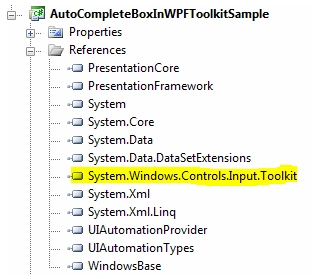
So you need to add the Namespace "System.Windows.Controls.Input.Toolkit"
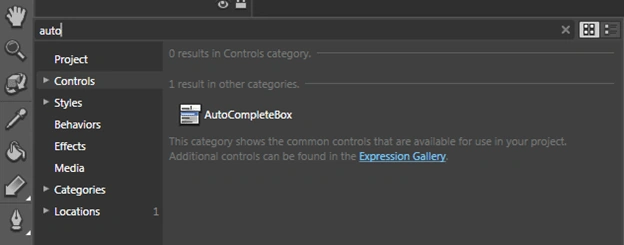
You can add it easily in Expression Blend as the following figure displays.
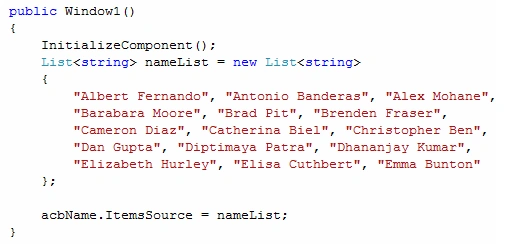
Now we will have some sample data to bind to the AutoCompleteBox.
That's it. Run the application and type in AutoCompleteBox. You will have the
suggested list in the drop down.
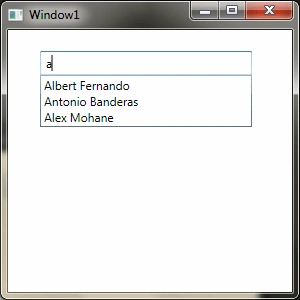
And more importantly the fade in and fade out effect is added to the
AutoCompleteBox.
Hope this article helps.
Auto Complete Box in WPF Toolkit
In this article we will see how to use Auto Complete Box in WPF Toolkit.


Adrian Rodriguez MendezPosted May 24, 2015, 7:21 AM EDT
how can take the focus()? any suggestion?
cristian rojasPosted Sep 11, 2012, 1:30 PM EDT
Siempre tan bueno!
imran khlilPosted Aug 15, 2012, 2:10 AM EDT
Very good Tutorial
chinni chinniPosted Jul 16, 2012, 6:30 AM EDT
Hi, I want to change the shape of a existing popup in Autocompletebox using expression blend. Can you help me in this. Thanks i advance.
Mervha NifflemhellPosted Nov 9, 2010, 5:47 PM EST
Hi, I was trying to implement an on-screen keyboard in WPF where I use buttons to send keys inside the textbox. My problem is that your AutoCompleteBox control keeps on losing focus. Is there a workaround?