
Here are the steps:
Open a site where we want to create a backup.
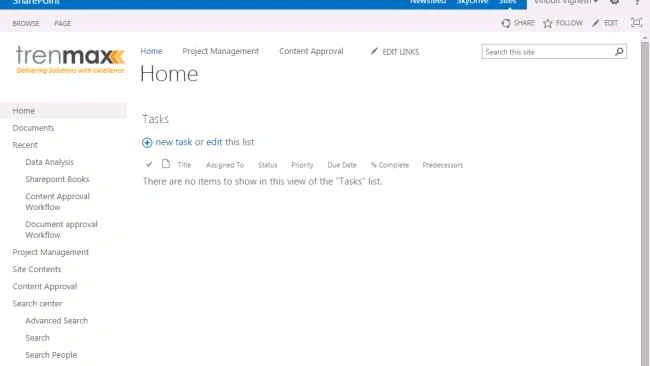
Now I am going to backup the site.
Open “SharePoint management shell”.
Run as elevated privileges.
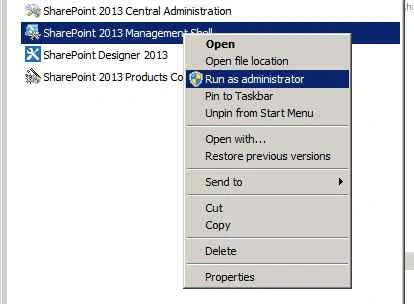
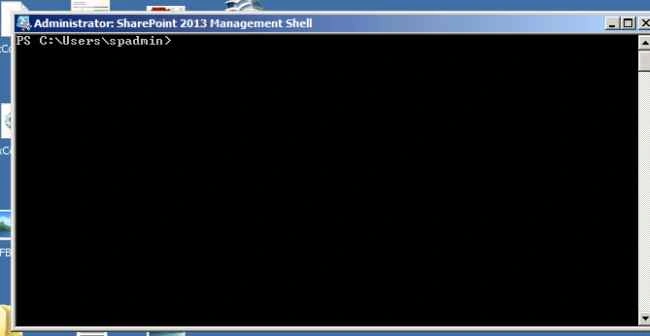
Command: Backup-SPSite -Identity URL -Path “location”.
Example:
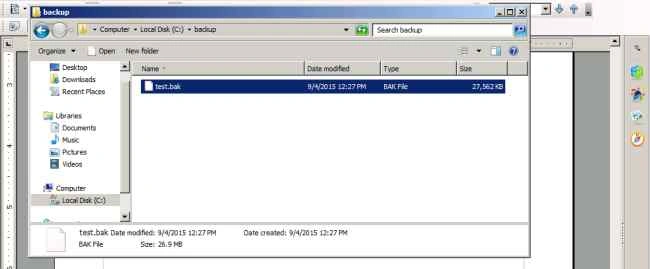
Backup-SPSite -Identity “http://site/test” -Path “c:\backup\test.bak”.
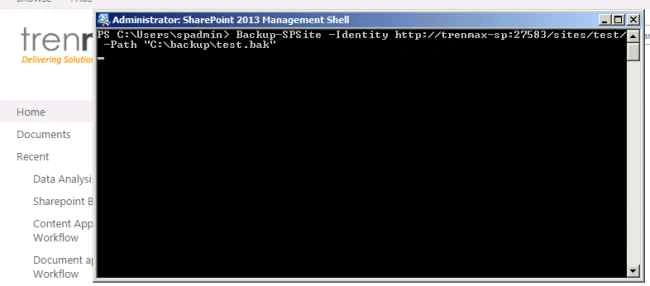
So site backup has been taken successfully.
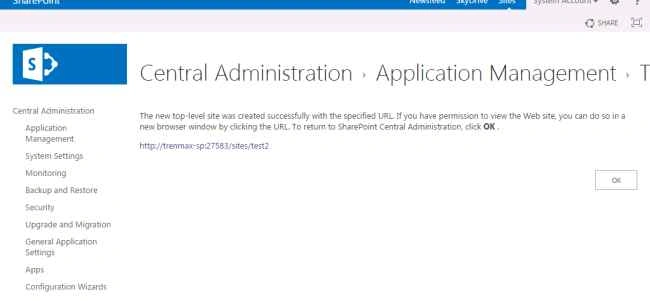
Open central administration.
Now create a team site to restore the backup.
Now we will restore the backup to this site.
Command
Restore-SPSite -Identity URL -Path “backup file location” -Force.
Example:
Restore-SPSite -Identity “http://trenmax-sp/sites/test2/” -Path “c:\backup\test.bak” -Force.
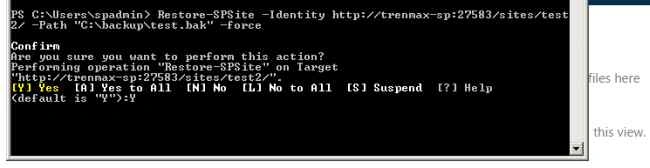
Type: Yes
Select the default is 'Y', so the site has now start restoring.
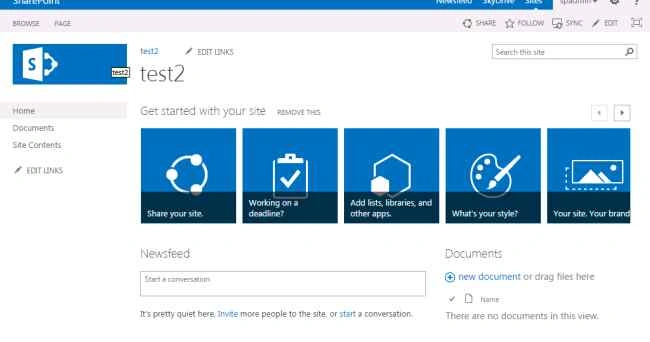
Now the site has been restored successfully into this site.
Now refresh the page.
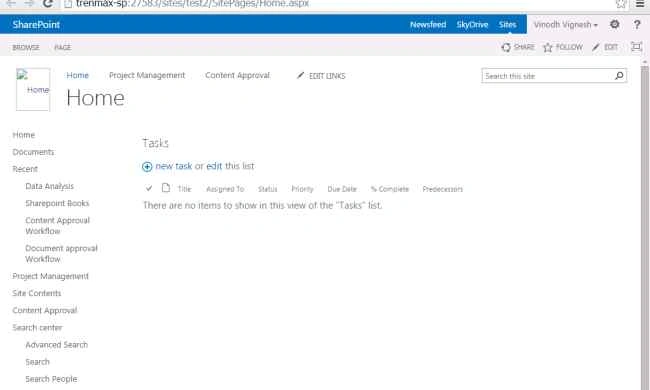
It has been restored successfully into test2 site.
Backup And Restore A Site Collection In SharePoint 2013
In this article I have explained how to back up and restore the SharePoint site collection using power shell scripts.


Vinodh NarayananPosted Sep 5, 2015, 11:58 PM EDT
Rakesh Chavda thanks a lot
RakeshPosted Sep 5, 2015, 8:35 PM EDT
Nice one
Vinodh NarayananPosted Sep 5, 2015, 12:18 AM EDT
Santhakumar MunuswamyThanks a lot sir
Santhakumar MunuswamyPosted Sep 5, 2015, 12:02 AM EDT
Thanks for nice share
Vinodh NarayananPosted Sep 4, 2015, 9:01 PM EDT
Karthikeyan K Thanks
Karthikeyan KPosted Sep 4, 2015, 8:59 PM EDT
Good one sir...Thanks for sharing
Vinodh NarayananPosted Sep 4, 2015, 8:12 PM EDT
Thanks a lot guys
Abhay ShankerPosted Sep 4, 2015, 4:08 PM EDT
Nice ...
Mohammed IbrahimPosted Sep 4, 2015, 11:40 AM EDT
Nice Article