
I have started an article series on Bootstrap and published six articles so far. Read the previous six parts here,
Introduction
In this article we will create Bootstrap Panels with different styles. Bootstrap panel components are useful when sometimes we want to put content in a box on the webpages.
Panels
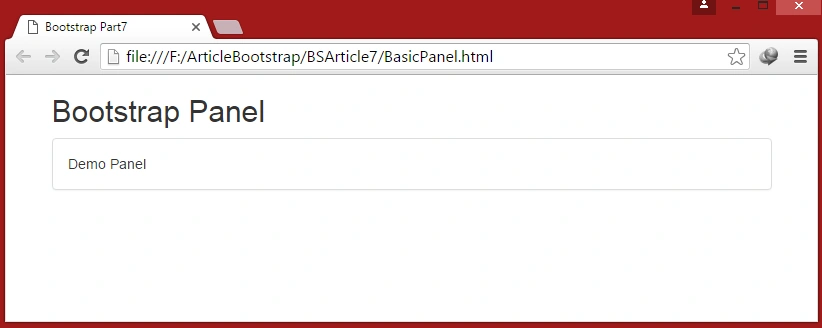
A panel in bootstrap is a bordered box with some padding around its content. To create a basic panel,we use .panel class to the <div> element, and content inside the panel has a .panel-body class.
Example 1 : Creating Panel
In this example we will create a basic panel by using .panel class to the <div> element and we will write content in the panel by using .panel-body class to the <div> element. In this example we will use .panel-default class for styling of the panel by writing the following code.
- <!DOCTYPE html>
- <html lang="en">
- <head>
- <meta charset="utf-8">
- <title>Bootstrap Part7</title>
- <meta name="viewport" content="width=device-width,initial-scale=1">
- <link rel="stylesheet" type="text/css" href="css/bootstrap.min.css">
- </head>
- <body>
- <div class="container">
- <h2>Bootstrap Panel</h2>
- <div class="panel panel-default">
- <div class="panel-body">Demo Panel</div>
- </div>
- </div>
- <script src="js/jquery-2.1.4.min.js"></script>
- <script src="js/bootstrap.min.js"></script>
- </body>
- </html>
Output
Panel Heading
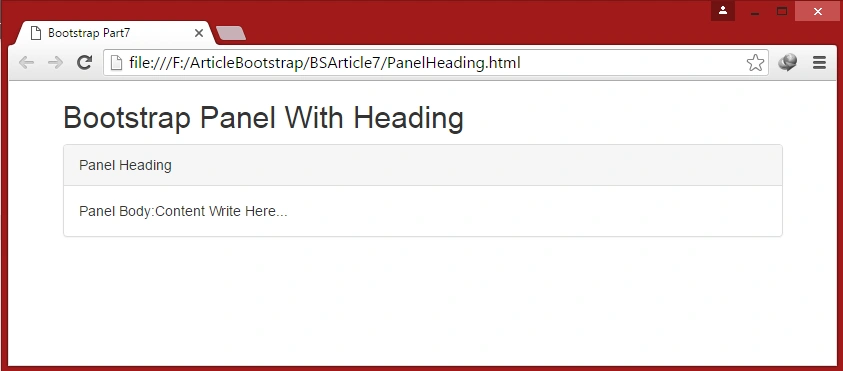
We can add a heading to our panel by using .panel-heading class.
Example 2: Creating Panel with Heading
In this example we will add .panel-heading class for creating Heading of the panel by writing the following code.
Panel Heading
We can add a heading to our panel by using .panel-heading class.
Example 2: Creating Panel with Heading
In this example we will add .panel-heading class for creating Heading of the panel by writing the following code.
- <!DOCTYPE html>
- <html lang="en">
- <head>
- <meta charset="utf-8">
- <title>Bootstrap Part7</title>
- <meta name="viewport" content="width=device-width,initial-scale=1">
- <link rel="stylesheet" type="text/css" href="css/bootstrap.min.css">
- </head>
- <body>
- <div class="container">
- <h2>Bootstrap Panel With Heading</h2>
- <div class="panel panel-default">
- <div class="panel-heading">Panel Heading</div>
- <div class="panel-body">Panel Body:Content Write Here...</div>
- </div>
- </div>
- <script src="js/jquery-2.1.4.min.js"></script>
- <script src="js/bootstrap.min.js"></script>
- </body>
- </html>
Output
Panel Heading With Title
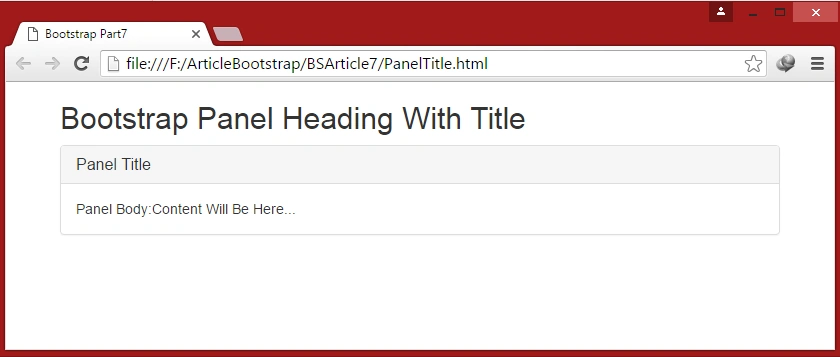
We can use heading elements from <h1> to <h6> with a .panel-title class.
Example 3: Panel Title
In this example we will use .panel-title class for creating Panel Title by writing following code.
Panel Heading With Title
We can use heading elements from <h1> to <h6> with a .panel-title class.
Example 3: Panel Title
In this example we will use .panel-title class for creating Panel Title by writing following code.
- <!DOCTYPE html>
- <html lang="en">
- <head>
- <meta charset="utf-8">
- <title>Bootstrap Part7</title>
- <meta name="viewport" content="width=device-width,initial-scale=1">
- <link rel="stylesheet" type="text/css" href="css/bootstrap.min.css">
- </head>
- <body>
- <div class="container">
- <h2>Bootstrap Panel Heading With Title</h2>
- <div class="panel panel-default">
- <div class="panel-heading">
- <h1 class="panel-title">Panel Title</h1>
- </div>
- <div class="panel-body">Panel Body:Content Will Be Here...</div>
- </div>
- </div>
- <script src="js/jquery-2.1.4.min.js"></script>
- <script src="js/bootstrap.min.js"></script>
- </body>
- </html>
Output
Panel Footer
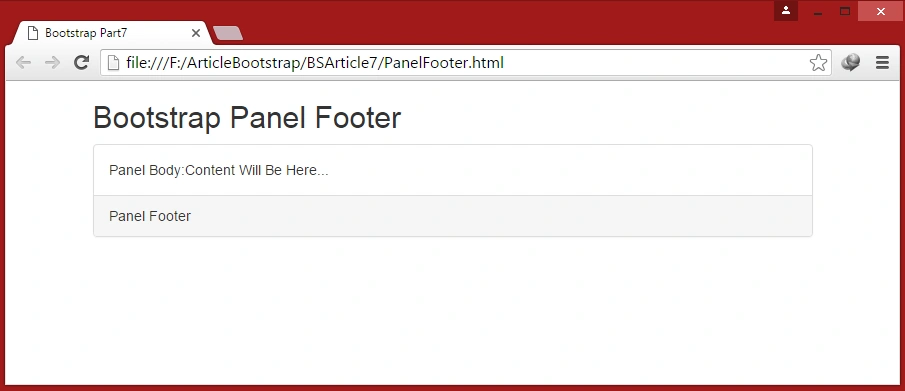
We can add a footer to our panels by using the .panel-footer class. In footer we can add text, links, buttons etc.
Example 4: Panel with Footer
In this example we will create footer of the panel by using .panel-footer class by writing the following code.
Panel Footer
We can add a footer to our panels by using the .panel-footer class. In footer we can add text, links, buttons etc.
Example 4: Panel with Footer
In this example we will create footer of the panel by using .panel-footer class by writing the following code.
- <!DOCTYPE html>
- <html lang="en">
- <head>
- <meta charset="utf-8">
- <title>Bootstrap Part7</title>
- <meta name="viewport" content="width=device-width,initial-scale=1">
- <link rel="stylesheet" type="text/css" href="css/bootstrap.min.css">
- </head>
- <body>
- <div class="container">
- <h2>Bootstrap Panel Footer</h2>
- <div class="panel panel-default">
- <div class="panel-body">Panel Body:Content Will Be Here...</div>
- <div class="panel-footer">Panel Footer</div>
- </div>
- </div>
- <script src="js/jquery-2.1.4.min.js"></script>
- <script src="js/bootstrap.min.js"></script>
- </body>
- </html>
Output
Panel Group
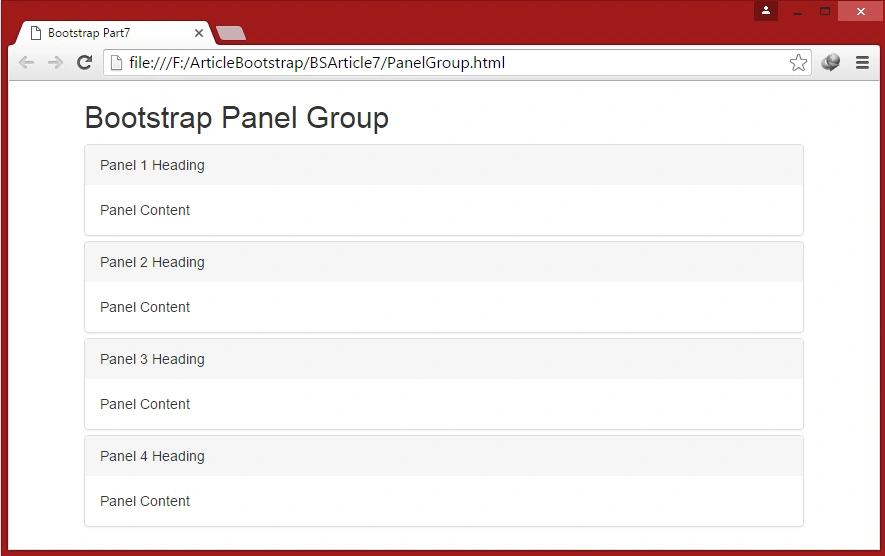
We can group many panels together, by wrapping a <div> with class .panel-group around them. The .panel-group class clears the bottom-margin of each panel.
Example 5: Creating Panel Group
In this example we will create Panels and Group it by using .panel-group class by writing the following code.
- <!DOCTYPE html>
- <html lang="en">
- <head>
- <meta charset="utf-8">
- <title>Bootstrap Part7</title>
- <meta name="viewport" content="width=device-width,initial-scale=1">
- <link rel="stylesheet" type="text/css" href="css/bootstrap.min.css">
- </head>
- <body>
- <div class="container">
- <h2>Bootstrap Panel Group</h2>
- <!--Panel Group Start-->
- <div class="panel-group">
- <!--Panel 1 Start-->
- <div class="panel panel-default">
- <div class="panel-heading">Panel 1 Heading</div>
- <div class="panel-body">Panel Content</div>
- </div>
- <!--Panel 1 End-->
- <!--Panel 2 Start-->
- <div class="panel panel-default">
- <div class="panel-heading">Panel 2 Heading</div>
- <div class="panel-body">Panel Content</div>
- </div>
- <!--Panel 2 End-->
- <!--Panel 3 Start-->
- <div class="panel panel-default">
- <div class="panel-heading">Panel 3 Heading</div>
- <div class="panel-body">Panel Content</div>
- </div>
- <!--Panel 3 End-->
- <!--Panel 4 Start-->
- <div class="panel panel-default">
- <div class="panel-heading">Panel 4 Heading</div>
- <div class="panel-body">Panel Content</div>
- </div>
- <!--Panel 4 End-->
- </div>
- <!--Panel Group End-->
- </div>
- <script src="js/jquery-2.1.4.min.js"></script>
- <script src="js/bootstrap.min.js"></script>
- </body>
- </html>
Output
Panels with Contextual Classes
To color the panel for particular context we can use contextual classes as
Panels with Contextual Classes
To color the panel for particular context we can use contextual classes as
- .panel-default
- .panel-primary
- .panel-success
- .panel-info
- .panel-warning
- .panel-danger
Example 6: Panels with Contextual Classes
In this example we will create panels with heading and we will use Contextual Classes for making panels more meaningful by writing the following code.
In this example we will create panels with heading and we will use Contextual Classes for making panels more meaningful by writing the following code.
- <!DOCTYPE html>
- <html lang="en">
- <head>
- <meta charset="utf-8">
- <title>Bootstrap Part7</title>
- <meta name="viewport" content="width=device-width,initial-scale=1">
- <link rel="stylesheet" type="text/css" href="css/bootstrap.min.css">
- </head>
- <body>
- <div class="container">
- <h2>Bootstrap Panel Contextual States</h2>
- <!--Panel 1 Start-->
- <div class="panel panel-default">
- <div class="panel-heading">
- <h2 class="panel-title">Default Panel</h2>
- </div>
- <div class="panel-body">Panel Content</div>
- </div>
- <!--Panel 1 End-->
- <!--Panel 2 Start-->
- <div class="panel panel-primary">
- <div class="panel-heading">
- <h2 class="panel-title">Primary Panel</h2>
- </div>
- <div class="panel-body">Panel Content</div>
- </div>
- <!--Panel 2 End-->
- <!--Panel 3 Start-->
- <div class="panel panel-success">
- <div class="panel-heading">
- <h2 class="panel-title">Success Panel</h2>
- </div>
- <div class="panel-body">Panel Content</div>
- </div>
- <!--Panel 3 End-->
- <!--Panel 4 Start-->
- <div class="panel panel-info">
- <div class="panel-heading">
- <h2 class="panel-title">Info Panel</h2>
- </div>
- <div class="panel-body">Panel Content</div>
- </div>
- <!--Panel 4 End-->
- <!--Panel 5 Start-->
- <div class="panel panel-warning">
- <div class="panel-heading">
- <h2 class="panel-title">Warning Panel</h2>
- </div>
- <div class="panel-body">Panel Content</div>
- </div>
- <!--Panel 5 End-->
- <!--Panel 6 Start-->
- <div class="panel panel-danger">
- <div class="panel-heading">
- <h2 class="panel-title">Danger Panel</h2>
- </div>
- <div class="panel-body">Panel Content</div>
- </div>
- <!--Panel 6 End-->
- </div>
- <script src="js/jquery-2.1.4.min.js"></script>
- <script src="js/bootstrap.min.js"></script>
- </body>
- </html>
Output
In this article we focused on Bootstrap Panels. Then in next articles we will understand all the components of Bootstrap step by step.
Read more articles on Bootstrap:


Sonu ChaudharyPosted May 2, 2016, 2:01 AM EDT
Thanks for sharing
Bhuvanesh MohankumarPosted Apr 30, 2016, 11:08 AM EDT
Good one...
Vivek KumarPosted Apr 28, 2016, 11:03 AM EDT
Good series.
Vignesh ManiTOP 100Posted Apr 14, 2016, 4:25 AM EDT
Good one
Sthitaprajnya Debasis NayakPosted Apr 12, 2016, 11:51 PM EDT
Nice Share ...
Humayun Kabir MamunPosted Apr 12, 2016, 8:18 PM EDT
Nice...
Rahul Kumar SaxenaTOP 100Posted Apr 12, 2016, 10:06 AM EDT
7 up... Goood Going
Mohammed IbrahimPosted Apr 12, 2016, 10:02 AM EDT
nice
Debasis SahaTOP 100Posted Apr 12, 2016, 9:24 AM EDT
Good One..
Gowtham KTOP 100Posted Apr 12, 2016, 8:23 AM EDT
Good One
Kuppurasu NagarajTOP 100Posted Apr 12, 2016, 8:23 AM EDT
Nice Sharing..
NitinPosted Apr 12, 2016, 7:05 AM EDT
good explanation
Shakti Singh DulawatPosted Apr 12, 2016, 7:01 AM EDT
Nice Series
Jaipal ReddyPosted Apr 12, 2016, 3:20 AM EDT
Good job. .
Debasis SahaTOP 100Posted Apr 12, 2016, 2:55 AM EDT
Nice one..