
Introduction
CalendarDatePicker represents a control that allows a user to pick a date from a calendar display.
Step 1
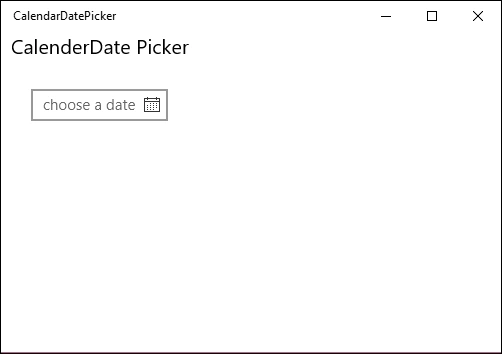
Open a blank app and add CalendarDatePicker and Textblock control either from the toolbox or by copying the following XAML code into your grid.
- <StackPanel>
- <TextBlock Text="CalenderDate Picker" FontSize="20"></TextBlock>
- <StackPanel Orientation="Horizontal" Margin="20,30,0,0">
- <CalendarDatePicker Name="myCalender" PlaceholderText="choose a date" DateChanged="myCalender_DateChanged"></CalendarDatePicker>
- <TextBlock Name="selectedDate" Margin="10,0,0,0" Foreground="Green"></TextBlock>
- </StackPanel>
- </StackPanel>
Step 2
Copy and paste the following code to the myCalender_DateChanged event on the cs page.
- DateTime date = args.NewDate.Value.LocalDateTime;
- DateTimeFormatter dtf = new DateTimeFormatter("shortdate");
- selectedDate.Text ="The selected date is "+ dtf.Format(date).ToString();
Step 3
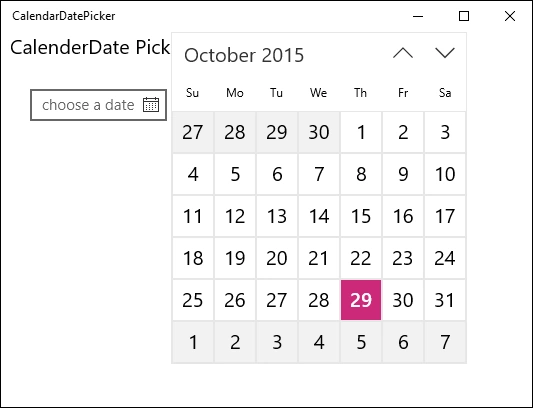
Run your application and select a date. The selected date will be shown in our assigned TextBlock:

Summary
In this article, we learned about CalendarDatePicker Control For Windows 10.


Kuppurasu NagarajTOP 100Posted Feb 11, 2016, 7:39 AM EST
Nice Ramees..
Gowtham KTOP 100Posted Oct 30, 2015, 8:41 AM EDT
Good One
Nilesh JadavPosted Oct 30, 2015, 7:54 AM EDT
Good post !
RameesPosted Oct 30, 2015, 5:34 AM EDT
Thanks :)
Sibeesh VenuTOP 100Posted Oct 30, 2015, 1:10 AM EDT
Nice Share
Harshad PansuriyaPosted Oct 29, 2015, 10:40 PM EDT
Nice one