

Introduction
In this tutorial, we will learn how to use CalendarView in Xamarin.Forms. This plugin will help more when we are creating a mobile app for the attendance management system.
This Calendar Control is an awesome plugin created by Rebecca and is open-sourced on GitHub. This control offers
- single date selection,
- multi-date selection,
- special date selection and date background selection as image and background pattern.
To know more about it, we will skip into the coding part without delay.
Steps
I have split this part into 3 steps as in the following.
Step 1
Creating new Xamarin.Forms projects.
Step 2
Setting up the plugin for Xamarin.Forms application.
Step 3
Implementing CalendarView in Xamarin.Forms.
Step 1 - Creating new Xamarin.Forms Projects
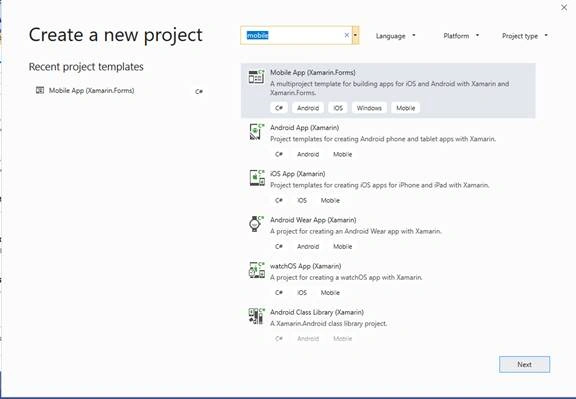
- Create a new project by selecting "New Project". Select Xamarin cross-platform app and click OK.
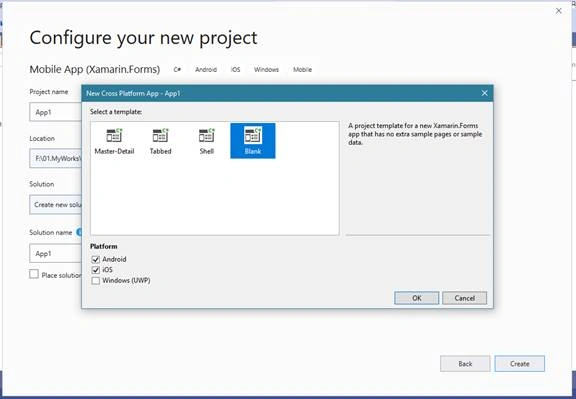
- Then, select Android, iOS, and UWP platforms as shown below with the project template as "Blank" and click OK.
Step 2 - Setting up the plugin for Xamarin.Forms Application
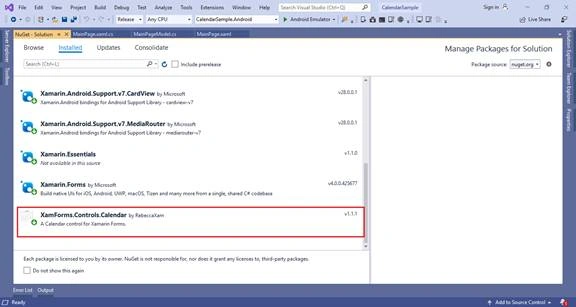
- Open NuGet Package Manager against the solution and do a search for Calendar Control plugin.
- Click "Install" to install this plugin against your PCL project or .NET Standard Project.
- We need to install this plugin in all client projects.
Step 3 - Implementing CalendarView in Xamarin.Forms
- After installing the plugin into the project, open your designer page (in my case “MainPage.xaml”) and add the following line for importing the calendar control.
- xmlns:controls="clr-namespace:XamForms.Controls;assembly=XamForms.Controls.Calendar"
- Then, add the calendar control in your page like below.
- <controls:Calendar Padding="10,0,10,0"
- SelectedBorderWidth="4"
- DisabledBorderColor="Black"
- ShowNumberOfWeek="false"
- StartDay="Monday"
- TitleLabelTextColor="Purple"
- TitleLeftArrowTextColor="Blue"
- SelectedDate="{Binding Date}"
- SpecialDates="{Binding Attendances}"
- DateCommand="{Binding DateChosen}"/>
- Here, SelectedDate is used to select date by default, SpecialDates is used to highlight the sepecial dates like "Holidays", "Festivals", "Appointments" and more.
- In this project, we are using MVVM pattern. So, we should create a page model and add this to binding the context. After that, add bindable properties for SelectedDate, SpecialDates.
- Selection of a particular date can be identified by the "DateCommand". Below you can find the whole code implementations of the PageModel.
- namespace CalendarSample
- {
- public class MainPageModel : BindableObject
- {
- private DateTime? _date;
- public DateTime? Date
- {
- get
- {
- return _date;
- }
- set
- {
- _date = value;
- OnPropertyChanged(nameof(Date));
- }
- }
- private ObservableCollection<XamForms.Controls.SpecialDate> attendances;
- public ObservableCollection<XamForms.Controls.SpecialDate> Attendances
- {
- get
- {
- return attendances;
- }
- set
- {
- attendances = value;
- OnPropertyChanged(nameof(Attendances));
- }
- }
- public Command DateChosen
- {
- get
- {
- return new Command((obj) =>
- {
- System.Diagnostics.Debug.WriteLine(obj as DateTime?);
- });
- }
- }
- }
- }
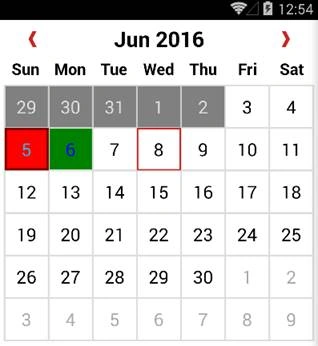
- You can find the ouput of this application below,
Full Code
MainPage.xaml
- <?xml version="1.0" encoding="utf-8" ?>
- <ContentPage xmlns="http://xamarin.com/schemas/2014/forms"
- xmlns:x="http://schemas.microsoft.com/winfx/2009/xaml"
- xmlns:d="http://xamarin.com/schemas/2014/forms/design"
- xmlns:mc="http://schemas.openxmlformats.org/markup-compatibility/2006"
- xmlns:controls="clr-namespace:XamForms.Controls;assembly=XamForms.Controls.Calendar"
- xmlns:viewmodels="clr-namespace:CalendarSample"
- mc:Ignorable="d"
- x:DataType="viewmodels:MainPageModel"
- x:Class="CalendarSample.MainPage">
- <StackLayout>
- <controls:Calendar Padding="10,0,10,0"
- SelectedBorderWidth="4"
- DisabledBorderColor="Black"
- ShowNumberOfWeek="false"
- StartDay="Monday"
- TitleLabelTextColor="Purple"
- TitleLeftArrowTextColor="Blue"
- SelectedDate="{Binding Date}"
- SpecialDates="{Binding Attendances}"
- DateCommand="{Binding DateChosen}"/>
- </StackLayout>
- </ContentPage>
MainPageModel.cs
- using System;
- using System.Collections.ObjectModel;
- using Xamarin.Forms;
- namespace CalendarSample
- {
- public class MainPageModel : BindableObject
- {
- private DateTime? _date;
- public DateTime? Date
- {
- get
- {
- return _date;
- }
- set
- {
- _date = value;
- OnPropertyChanged(nameof(Date));
- }
- }
- private ObservableCollection<XamForms.Controls.SpecialDate> attendances;
- public ObservableCollection<XamForms.Controls.SpecialDate> Attendances
- {
- get
- {
- return attendances;
- }
- set
- {
- attendances = value;
- OnPropertyChanged(nameof(Attendances));
- }
- }
- public Command DateChosen
- {
- get
- {
- return new Command((obj) =>
- {
- System.Diagnostics.Debug.WriteLine(obj as DateTime?);
- });
- }
- }
- }
- }
Reference
Download Code


Abirami JothiPosted Jan 24, 2020, 12:16 PM EST
How to add background for selective date