
Introduction
This article shows how to capture an image using a webcam in MVC4 and in this application we will use a jQuery webcam.js plug-in for capturing images. I have seen that most online applications currently require webcam image capturing functionality in some way or another. Most social networking sites use this kind of functionality in their application for capturing user profile pictures.
Similarly I have written this article on how to capture a picture using webcam.js in ASP.Net web forms.
Here is the URL: C-SharpCorner
Agenda
- Create basic MVC application.
- Download and Adding webcam.js related reference files to project.
- Adding Controller ( PhotoController ).
- Adding Index view.
- Adding Action Method Capture( ).
- Adding Script for capturing Image.
- Adding Action Method and Script for binding image.
- Adding [HttpPost] Index Action Method.
- Displaying the index View in New Window.
- Changephoto.cshtml Code Snippet.
- PhotoController Code Snippet.
- Index.cshtml Code Snippet.
- Finally Output.
Create basic MVC application
Create a MVC 4 application and name it WebcamMVC.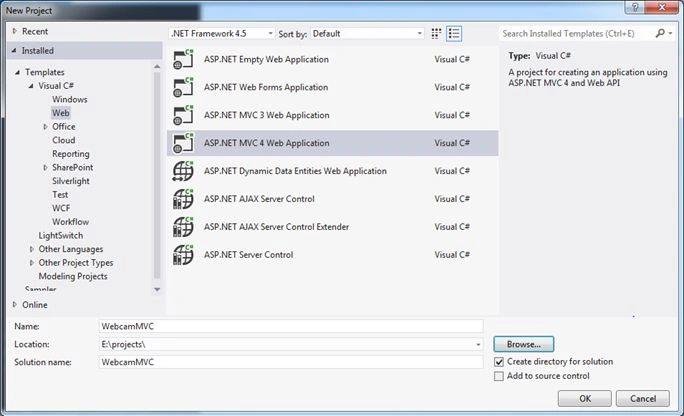
After naming it just click on the OK button. A new dialog will then popup for selecting a template. Select Basic template and click the OK button.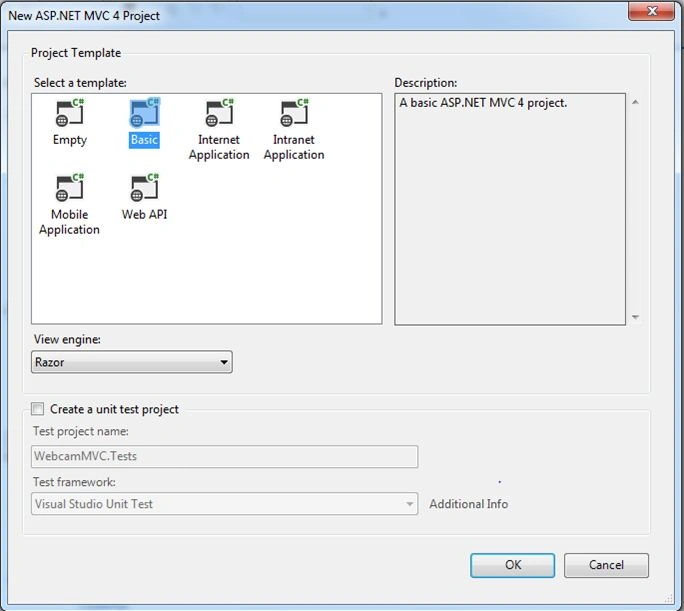
After creating the application it's time to download and add webcam.js and related files to the project.
Downloading and adding webcam.js related reference files to project
For downloading (webcam.js related) files just visit the give URL: jQuery-webcam.
Here you can download the Zip file.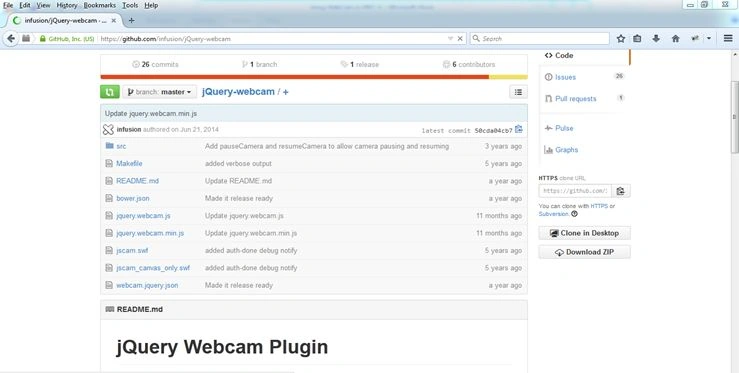
And the following is the complete view of the files that are In the Zip folder.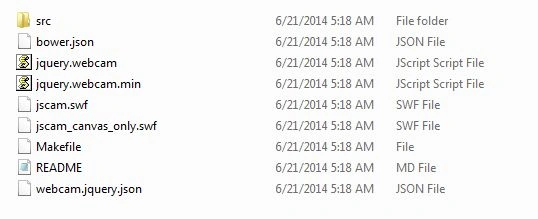
After downloading just extract the files and add all the files to the script folder of your project.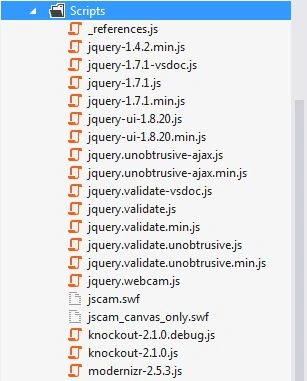
After adding the files, let's move to adding a Controller.
Adding Controller (PhotoController)
We will add a Controller with the name PhotoController.
Code Snippet of photocontroller
- using System;
- using System.Collections.Generic;
- using System.Linq;
- using System.Web;
- using System.Web.Mvc;
- using System.IO;
- namespace WebcamMVC.Controllers
- {
- public class PhotoController : Controller
- {
- [HttpGet]
- public ActionResult Index()
- {
- return View();
- }
- }
- }
Now let's add a View to this Index action method.
Adding Index view
To add the View just right-click inside View and select Add View. A new dialog will popup for configuring the View. Don't change the name of the View, let it be “ Index”. Just click on the Add button.
After adding the View let's add some controls and scripts to it for capturing it and submitting it to the Controller.
Code Snippet of Index View
- <div style="margin: 0 auto; width: 980px; text-align: center">
- <div style="float: left; border: 4px solid #ccc; padding: 5px">
- <div id="Camera">
- </div>
- <br>
- <input type="button" value="Capture" />
- </div>
- <div style="float: left; margin-left: 20px; border: 4px solid #ccc; padding: 5px">
- <img id="show" style="width: 320px; height: 240px;" src="../../WebImages/person.jpg" />
- <br>
- <br>
- <input id="Submit1" type="submit" value="submit" />
- </div>
- </div>
- @section scripts
- {
- <script src="@Url.Content("~/Scripts/jquery.webcam.js")">
- </script>
- <script type="text/javascript">
- $("#Camera").webcam({
- width: 320,
- height: 240,
- mode: "save",
- swffile: "@Url.Content("~/Scripts/jscam.swf")",
- onTick: function () { },
- onSave: function () {
- UploadPic();
- },
- onCapture: function () {
- webcam.save("@Url.Content("~/Photo/Capture")/");
- },
- debug: function () { },
- onLoad: function () { }
- });
- </script>
- }
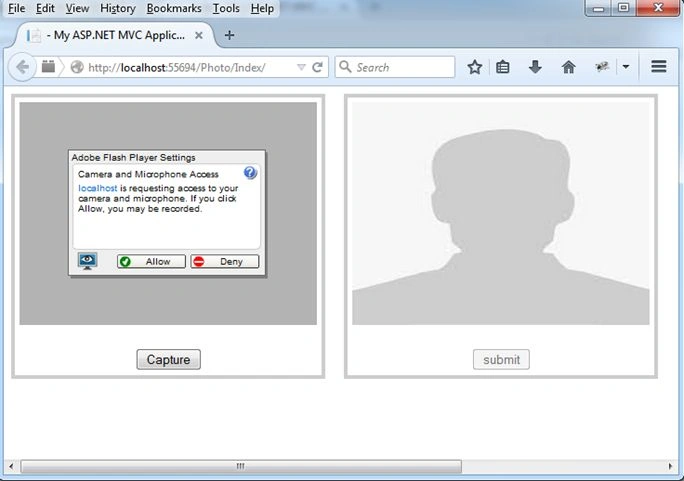
Adding Action Method Capture( )
For capturing an image I will add 1 new Action Method with the name Capture and another method to write stringtoBytes with the name String_To_Bytes2 in the same Photo controller.
- public ActionResult Capture()
- {
- var stream = Request.InputStream;
- string dump;
- using (var reader = new StreamReader(stream))
- {
- dump = reader.ReadToEnd();
- DateTime nm = DateTime.Now;
- string date = nm.ToString("yyyymmddMMss");
- var path = Server.MapPath("~/WebImages/" + date + "test.jpg");
- System.IO.File.WriteAllBytes(path, String_To_Bytes2(dump));
- ViewData["path"] = date + "test.jpg";
- Session["val"] = date + "test.jpg";
- }
- return View("Index");
- }
- private byte[] String_To_Bytes2(string strInput)
- {
- int numBytes = (strInput.Length) / 2;
- byte[] bytes = new byte[numBytes];
- for (int x = 0; x < numBytes; ++x)
- {
- bytes[x] = Convert.ToByte(strInput.Substring(x * 2, 2), 16);
- }
- return bytes;
- }
- @section scripts
- {
- <script src="@Url.Content("~/Scripts/jquery.webcam.js")">
- </script>
- <script type="text/javascript">
- $("#Camera").webcam({
- width: 320,
- height: 240,
- mode: "save",
- swffile: "@Url.Content("~/Scripts/jscam.swf")",
- onTick: function () { },
- onSave: function () {
- UploadPic();
- },
- onCapture: function () {
- webcam.save("@Url.Content("~/Photo/Capture")/");
- },
- debug: function () { },
- onLoad: function () { }
- });
- </script>
- }
- onCapture: function () {
- webcam.save("@Url.Content("~/Photo/Capture")/");
- },
To capture an Image on button click we need to call the function webcam.capture();
- <input type="button" value="Capture" onclick="webcam.capture();" />
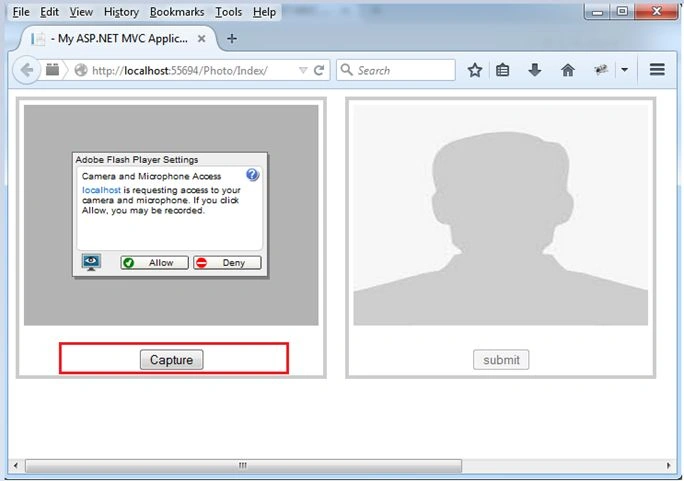
After writing the code for capturing let's move to binding the image that we have captured.
Adding Action Method and Script for binding image
For binding the image I wrote a JSON method with the name Rebind that will be called when I click on the Capture button.
- public JsonResult Rebind()
- {
- string path = "http://localhost:55694/WebImages/" + Session["val"].ToString();
- return Json(path, JsonRequestBehavior.AllowGet);
- }
This Uploadpic ajax function calls the JSON method Rebind() that returns the path of the image. We will bind this path to the image control.
- function UploadPic() {
- $.ajax({
- type: 'POST',
- url: ("@Url.Content("~/Photo/Rebind")/"),
- dataType: 'json',
- success: function (data) {
- $("#show").attr("src", data);
- document.getElementById('Submit1').disabled = false;
- alert("Photo Capture successfully!");
- }
- });
- }
- onSave: function ()
- {
- UploadPic();
- },
- [HttpPost]
- public ActionResult Index(string Imagename)
- {
- ViewBag.pic = "http://localhost:55694/WebImages/" + Session["val"].ToString();
- return View();
- }
We are taking an image name from the image control that we bound when the image was captured.
- function Uploadsubmit()
- {
- debugger;
- var src = $('img').attr('src');
- src_array = src.split('/');
- src = src_array[4];
- if (src != "") {
- $.ajax({
- type: 'POST',
- url: ("@Url.Content("~/Photo/Index")/"),
- dataType: 'json',
- data: { Imagename: src },
- success: function () {
- }
- });
- }
- <input id="Submit1" type="submit" onclick="Uploadsubmit();" value="submit" />
Displaying the index View in New Window
- [HttpGet]
- public ActionResult Changephoto()
- {
- if (Convert.ToString(Session["val"]) != string.Empty)
- {
- ViewBag.pic = "http://localhost:55694/WebImages/" + Session["val"].ToString();
- }
- else
- {
- ViewBag.pic = "../../WebImages/person.jpg";
- }
- return View();
- }
After creating the action method let's add a View to this action method.
Tp add the View just right-click inside the View folder and select Add View. A new dialog will popup for configuring the View. Don't change the name of the View, let it be “Changephoto”. Just click on the Add button.
After clicking on the Add button a new View will be generated in the View folder inside the Photo Folder.
Now inside this View I will add an image control to display the captured image and a button to display the Index View in a new window.
Changephoto.cshtml Code Snippet
- @{
- ViewBag.Title = "Changephoto";
- }
- <script type="text/javascript">
- function ShowPopUp() {
- window.open('/Photo/Index/', "wndPopUp", 'width=720,height=400,left=100,top=100,resizable=no');
- }
- </script>
- <img id="Userpic" src="@ViewBag.pic" />
- <br />
- <input type="button" id="btnSave" value="Take Photo" onclick="ShowPopUp();" />
PhotoController Code Snippet
- using System;
- using System.Collections.Generic;
- using System.Linq;
- using System.Web;
- using System.Web.Mvc;
- using System.IO;
- namespace WebcamMVC.Controllers
- {
- public class PhotoController : Controller
- {
- [HttpGet]
- public ActionResult Index()
- {
- Session["val"] = "";
- return View();
- }
- [HttpPost]
- public ActionResult Index(string Imagename)
- {
- ViewBag.pic = "http://localhost:55694/WebImages/" + Session["val"].ToString();
- return View();
- }
- [HttpGet]
- public ActionResult Changephoto()
- {
- if (Convert.ToString(Session["val"]) != string.Empty)
- {
- ViewBag.pic = "http://localhost:55694/WebImages/" + Session["val"].ToString();
- }
- else
- {
- ViewBag.pic = "../../WebImages/person.jpg";
- }
- return View();
- }
- public JsonResult Rebind()
- {
- string path = "http://localhost:55694/WebImages/" + Session["val"].ToString();
- return Json(path, JsonRequestBehavior.AllowGet);
- }
- public ActionResult Capture()
- {
- var stream = Request.InputStream;
- string dump;
- using (var reader = new StreamReader(stream))
- {
- dump = reader.ReadToEnd();
- DateTime nm = DateTime.Now;
- string date = nm.ToString("yyyymmddMMss");
- var path = Server.MapPath("~/WebImages/" + date + "test.jpg");
- System.IO.File.WriteAllBytes(path, String_To_Bytes2(dump));
- ViewData["path"] = date + "test.jpg";
- Session["val"] = date + "test.jpg";
- }
- return View("Index");
- }
- private byte[] String_To_Bytes2(string strInput)
- {
- int numBytes = (strInput.Length) / 2;
- byte[] bytes = new byte[numBytes];
- for (int x = 0; x < numBytes; ++x)
- {
- bytes[x] = Convert.ToByte(strInput.Substring(x * 2, 2), 16);
- }
- return bytes;
- }
- }
- }
- <script type="text/javascript">
- function UploadPic() {
- $.ajax({
- type: 'POST',
- url: ("@Url.Content("~/Photo/Rebind")/"),
- dataType: 'json',
- success: function (data) {
- $("#show").attr("src", data);
- document.getElementById('Submit1').disabled = false;
- alert("Photo Capture successfully!");
- }
- });
- }
- function Uploadsubmit() {
- debugger;
- var src = $('img').attr('src');
- src_array = src.split('/');
- src = src_array[4];
- if (src != "") {
- $.ajax({
- type: 'POST',
- url: ("@Url.Content("~/Photo/Index")/"),
- dataType: 'json',
- data: { Imagename: src },
- success: function () { }
- });
- window.opener.location.href = "http://localhost:55694/Photo/Changephoto";
- self.close();}}
- </script>
- @using (Html.BeginForm())
- {
- @section scripts
- {
- <script src="@Url.Content("~/Scripts/jquery.webcam.js")">
- </script>
- <script type="text/javascript">
- $("#Camera").webcam({
- width: 320,
- height: 240,
- mode: "save",
- swffile: "@Url.Content("~/Scripts/jscam.swf")",
- onTick: function () { },
- onSave: function () {
- UploadPic();
- },
- onCapture: function () {
- webcam.save("@Url.Content("~/Photo/Capture")/");
- },
- debug: function () { },
- onLoad: function () { }
- });
- </script>
- }
- <div style="margin: 0 auto; width: 980px; text-align: center">
- <div style="float: left; border: 4px solid #ccc; padding: 5px">
- <div id="Camera"></div><br>
- <input type="button" value="Capture" onclick="webcam.capture();" />
- </div>
- <div style="float: left; margin-left: 20px; border: 4px solid #ccc; padding: 5px">
- <img id="show" style="width: 320px; height: 240px;" src="../../WebImages/person.jpg" />
- <br><br>
- <input id="Submit1" type="submit" onclick="Uploadsubmit();" value="submit" />
- </div>
- </div>
- }
- <script type="text/javascript">
- window.onload = load();
- function load() {
- debugger;
- document.getElementById('Submit1').disabled = true;
- }
- </script>
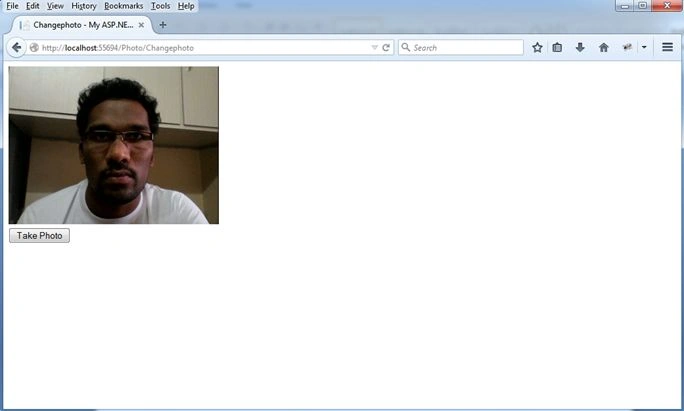
Now let's run the application and access the changephoto View.
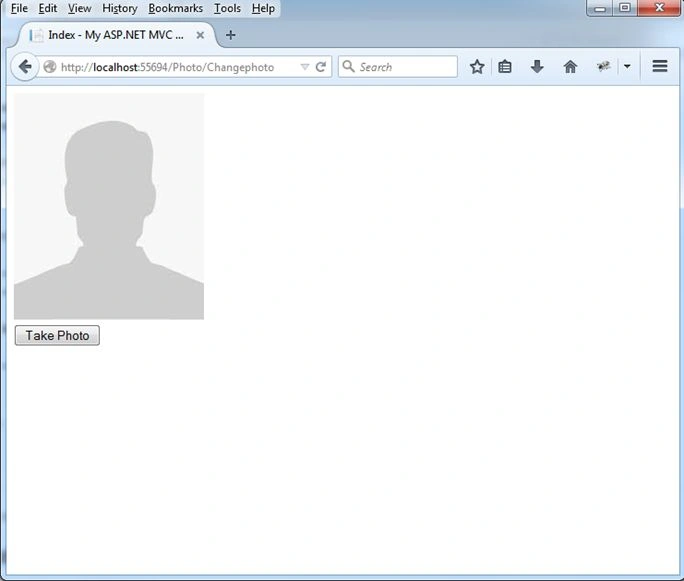
Now just click on the Take photo button and a new window will popup.
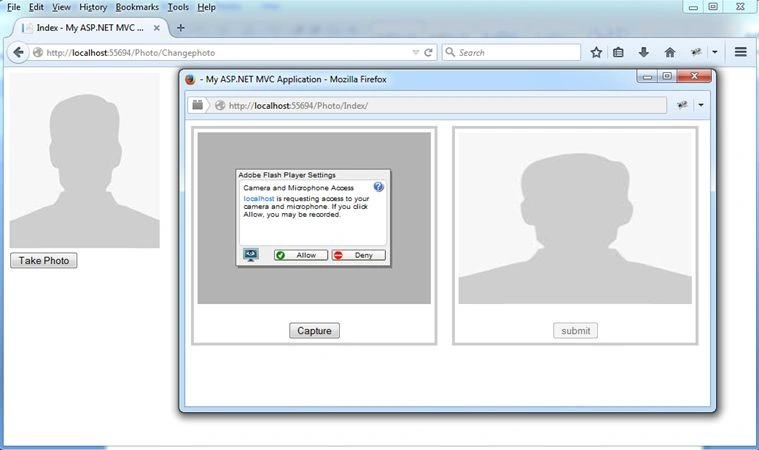
Just click on the Allow button.
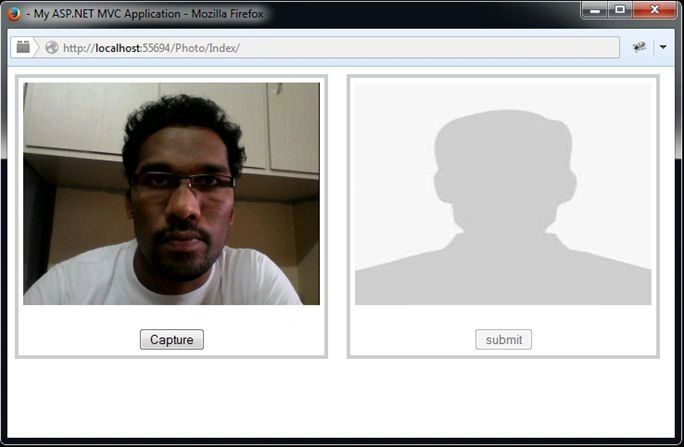
Now to capture. Just click on the Capture button.
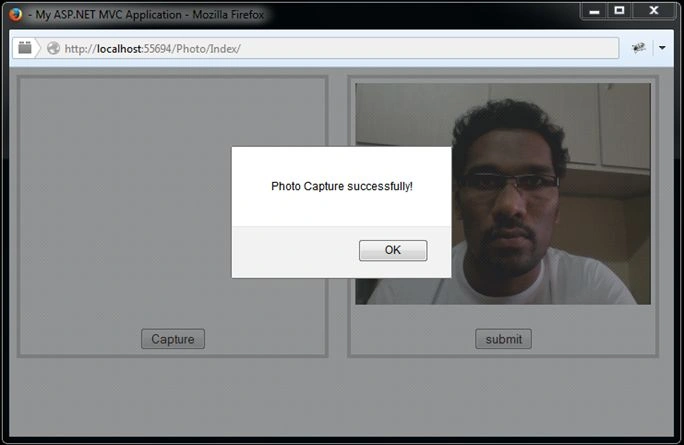
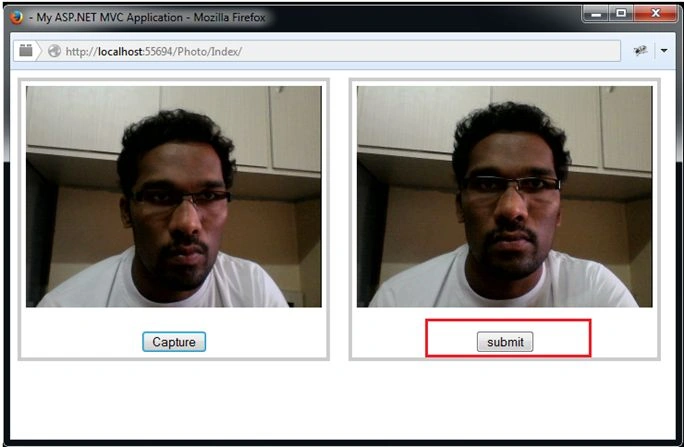
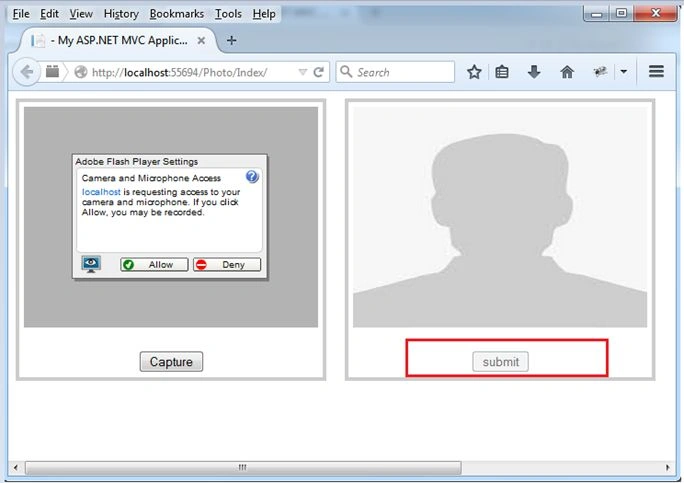
Now click on the Submit button.
After clicking the submit button the popup is closed and an image is set to the Profile picture.
Conclusion
This article showed how to capture an image using webcam.js in MVC in a simple procedure.


Nidhi PaneriPosted Dec 3, 2021, 2:46 AM EST
How can we use rear camera
Trinadh TataPosted Oct 17, 2020, 8:07 AM EDT
As flash will go off by 31 dec 2020 in all browsers, can this approach works from next year?
Denmark PusoPosted May 9, 2020, 4:20 PM EDT
Is it working when i use cellphone ?
ribha shakoorPosted Aug 1, 2019, 12:47 AM EDT
Can we use this code with a digital camera?
Tên Họ VàPosted Dec 16, 2018, 10:58 PM EST
Handsome @@
Nabeel HassanPosted Oct 10, 2018, 2:22 AM EDT
Nice and thankx
Abdul NasirPosted Sep 18, 2018, 5:48 AM EDT
How to insert captured picture in sqlserver please...
John FelixPosted Jul 12, 2018, 1:22 AM EDT
Thanks for the article. Camera is showing as blank. Hence image is also blank. Please help me to resolve this
Ratnadeep JadhavPosted Jul 10, 2018, 8:24 PM EDT
Thank you for the code , but same when i am adding to by project it is showing error cannot read property capture of null in jquery.webcam.js , please help me with this
narendra CPosted Mar 5, 2018, 12:16 AM EST
Hi i used same example to understand and it is working well in local machine. but its not in from remote machine. i mean after deployement it is unable to switch on the camera. do you have any idea to sort it out
Jhoel Daniel Salinas JimenezPosted Feb 26, 2018, 4:35 AM EST
Gracias necesitaba este ejemplo ..
mahmoud eidPosted Feb 15, 2018, 12:00 AM EST
I want prevent poupp for allow and denay camera , i want allow access
Sasiumar GPosted Dec 4, 2017, 2:50 AM EST
How to open webcam in onload function
Sasiumar GPosted Dec 4, 2017, 2:48 AM EST
How to save capture image into database
Mohammad GhorbaniPosted Oct 21, 2017, 3:13 PM EDT
Nice man , i like it
Sonia MartinezPosted Aug 16, 2017, 12:17 PM EDT
Hola, How do I display the image without saving it to a folder?
Sonia MartinezPosted Aug 16, 2017, 12:17 PM EDT
Como hacer para que se muestre la imagen en pantalla sin guardarlo en una carpeta?
Mahesh VartakPosted Jun 28, 2017, 7:10 AM EDT
Hi Saineshwar, The code provided works perfectly fine for me. But when I allow camera on popup comes saying 'A script in this movie is causing Adobe Flash Player to run slowly...'. Do you know about this issue?
Rafael PortalPosted May 25, 2017, 6:25 AM EDT
Great - perfect - that's it
Sridevi MahapatraPosted May 10, 2017, 2:09 AM EDT
Thanks a Lot. I have saved the Image in WebImage folder, and even saved ImagePath in Database.
Smriti SarkarPosted May 9, 2017, 12:48 AM EDT
I have saved the pictures in Content/Images/Profile with Username it works but Rebind did not happend. How can i do it?? Please help... And is this work in mobile Camera??
Najim MullaPosted Mar 21, 2017, 9:42 AM EDT
How can 2 user between video chatting using browser
Mutaz AlsayeghPosted Feb 6, 2017, 12:24 PM EST
Hi, do you gave a minute to discuss a project? Email me if you do: mikesayegh003 @gmail.com.
Henry WendixPosted Dec 20, 2016, 3:56 AM EST
Thanks Saineshwar Bageri.
Delpin Susai RajTOP 100Posted Aug 28, 2016, 6:34 AM EDT
Nice
RamprasathPosted Jul 14, 2016, 12:34 AM EDT
If i implement the IIS how to change the localhost picture path..
RamprasathPosted Jul 14, 2016, 12:22 AM EDT
Ok .. any other solution Immediately showing?
RamprasathPosted Jul 13, 2016, 9:45 PM EDT
Hi Saineshwar Bageri..good article..i am implemented my project..but i take snopshot delay to showing the picture..Not immediately showing...how to solve this one..
mark borresPosted Mar 30, 2016, 4:42 PM EDT
Adobe flash settings confirmation does not appear in my browser Chrome Version 24.0.1312.57
mark borresPosted Mar 15, 2016, 5:56 PM EDT
can I test this program yet without webcam? or this is only working if you have plugin a webcam. Thanks
sandeep rattuPosted Dec 29, 2015, 2:06 AM EST
After publicshing on (FTP) local host swf file not working it is working on computer
Saineshwar BageriPosted Nov 5, 2015, 7:22 PM EST
kiran thanks for your comment
Kiran BPosted Nov 5, 2015, 8:26 AM EST
The above method was actually written by http://programmerramblings.blogspot.in/2008/03/convert-hex-string-to-byte-array-and.html In the Original article http://weblogs.asp.net/gunnarpeipman/using-jquery-webcam-plugin-with-asp-net-mvc the auther actually given credit to the person who wrote String_To_Bytes2 method. Credits for String_To_Bytes2() method that I quickly borrowed go to Kenneth Scott and his blog posting Convert Hex String to Byte Array and Vice-Versa.
Kiran BPosted Nov 5, 2015, 8:24 AM EST
String_To_Bytes2
Kiran BPosted Nov 5, 2015, 8:16 AM EST
One thing I agree, you added few more into the original article. Good work
Kiran BPosted Nov 5, 2015, 8:15 AM EST
Even the method names are exact.
Kiran BPosted Nov 5, 2015, 8:15 AM EST
Please check http://weblogs.asp.net/gunnarpeipman/using-jquery-webcam-plugin-with-asp-net-mvc
Saineshwar BageriPosted Nov 5, 2015, 7:37 AM EST
check step by step before commenting Kiran http://www.c-sharpcorner.com/UploadFile/4d9083/capturing-image-from-web-cam-in-Asp-Net/ http://www.c-sharpcorner.com/uploadfile/4d9083/capturing-image-from-web-cam-in-asp-net-mvc139/#ReadAndPostComment http://weblogs.asp.net/gunnarpeipman/using-jquery-webcam-plugin-with-asp-net-mvc
Kiran BPosted Nov 5, 2015, 5:22 AM EST
Saineshwar Bageri, This is an exact copy from the below blog. http://weblogs.asp.net/gunnarpeipman/using-jquery-webcam-plugin-with-asp-net-mvc
Anil KumarPosted Oct 1, 2015, 6:25 AM EDT
Thanks
praneet kumarPosted Aug 28, 2015, 9:11 AM EDT
Thank you sir its very helpful........
Yashwanth MuthineniPosted Aug 26, 2015, 11:14 PM EDT
Nice Share
Neeraj KumarPosted Jul 24, 2015, 8:51 AM EDT
Great
Humayun Kabir MamunPosted Jul 24, 2015, 6:32 AM EDT
Great Work...
Rajeesh MenothPosted Jul 24, 2015, 4:23 AM EDT
good one
Rahul Kumar SaxenaTOP 100Posted Jul 24, 2015, 3:40 AM EDT
Good Show
Sibeesh VenuTOP 100Posted Jul 24, 2015, 12:12 AM EDT
Nice Share. Thank you
SharadPosted Jul 23, 2015, 11:14 PM EDT
nice....
Gopi ChandPosted Jul 23, 2015, 9:43 PM EDT
Excellent work
Shridhar SharmaPosted Jul 23, 2015, 1:17 PM EDT
good one
Apple ArbanPosted May 13, 2015, 12:38 AM EDT
hi how can i mirror the webcam ?
alx kebedePosted May 5, 2015, 8:58 PM EDT
nice article thank you
Rubaiyat HasanPosted May 5, 2015, 3:27 PM EDT
It's interesting
Jeetendra GundTOP 100Posted May 5, 2015, 8:26 AM EDT
Good one
Ashish NakilPosted May 5, 2015, 1:46 AM EDT
nice article :) Thanks
Asp.Net HeinPosted May 4, 2015, 7:47 PM EDT
Very interesting topic . Thz author :-)
Santhakumar MunuswamyPosted May 4, 2015, 10:24 AM EDT
Thanks for nice article
Santhakumar MunuswamyPosted May 4, 2015, 10:24 AM EDT
Excellent work
Karthik Muthu KaruppanPosted May 4, 2015, 9:54 AM EDT
Good