
Introduction
This article explains how to implement a Cascading Drop-Down List in a SharePoint 2010 List using jQuery and Sp services.
To implement a Cascading Drop-Down List in a SharePoint 2010 List using jQuery and Sp services use the following procedure.
Object
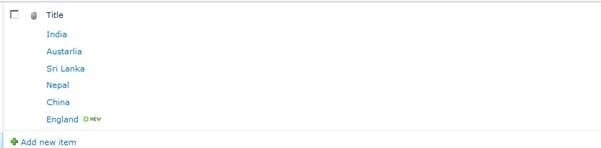
- Create a Country custom list:
- Create a State Custom list: with a Country lookup column:
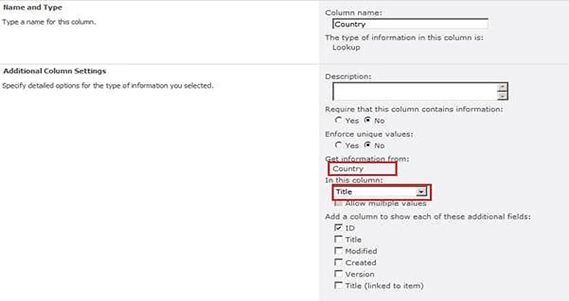
Look up Column Settings:
State List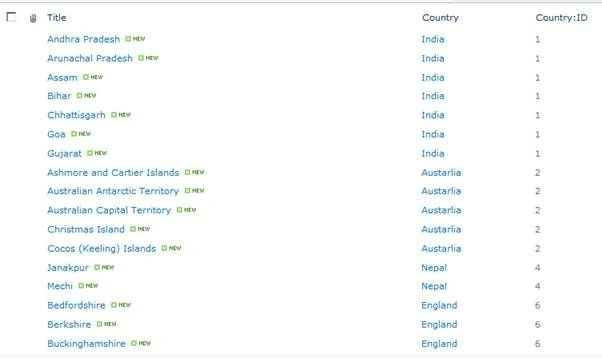
- Create a CascadeDropDownList with Country and State lookup columns.
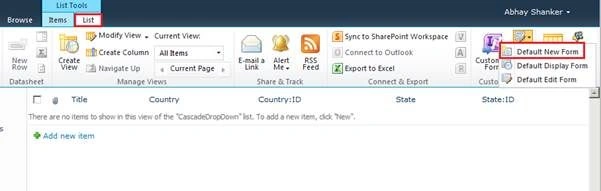
- Select the Default New Form under the List tab of the newly created List CascadeDropDownList.
- Add a Content Editor Web part and select Edit HTML Source under the Format Text Tab.
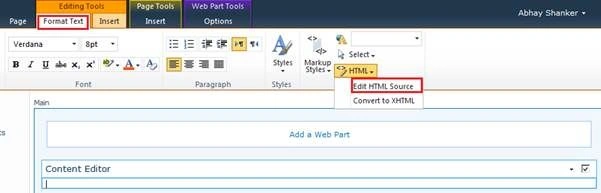
- Copy and Paste the following code in the HTML Editor: HTML / XML
<script language="javascript" src="/JSLibrary/jquery-1.4.2.min.js" type="text/javascript"> </script> <script language="javascript" src="/JSLibrary/jquery.SPServices-0.5.7.min.js" type="text/javascript"></script> <script type="text/javascript"> $(document).ready(function() { $().SPServices.SPCascadeDropdowns({ relationshipList: "State", relationshipListParentColumn: "Country", relationshipListChildColumn: "Title", relationshipListSortColumn: "ID", parentColumn: "Country", childColumn: "State", promptText: "Choose State...", debug: true }); }); </script>
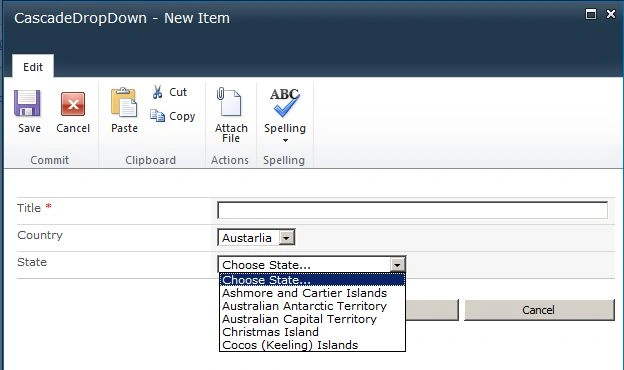
Summary
In some scenario we need to implement a cascading type of concept in OOB forms as for example by selecting a Country's respective states or cities. It's not easier in SharePoint.


Deeptyranjan MohnatyPosted May 30, 2019, 9:30 AM EDT
I followed the exact steps to create similar test scenario, but the cascading functionality is not working. The dropdown list is loading all values.
Nagu VPosted Jul 7, 2018, 4:12 AM EDT
Its Urgent pls help me
Nagu VPosted Jul 7, 2018, 4:12 AM EDT
I tried the above steps but its not working, Nothing is happening in the dropdowns ,please help me
Mohammed AmerPosted Nov 13, 2014, 12:00 AM EST
Could u please help me how to do it?
Mohammed AmerPosted Nov 11, 2014, 10:31 PM EST
how to make this scenario when we have the first two lists in a sub site and the third list in another sub site? is it available
venkatesh rajanPosted Sep 18, 2014, 3:23 AM EDT
i have created a cascading dropdown list based on your post but i getting error when i try to save item. the error is : Invalid postback or callback argument. Event validation is enabled using <pages enableEventValidation="true"/> in configuration or <%@ Page EnableEventValidation="true" %> in a page. For security purposes, this feature verifies that arguments to postback or callback events originate from the server control that originally rendered them. If the data is valid and expected, use the ClientScriptManager.RegisterForEventValidation method in order to register the postback or callback data for validation. could u assist on this.