
Background
In modern application it becomes important to protect personal account information and for this their is an option known as password strength. In this article we will learn about the Ajax PasswordStrength Checker control which shows the message based on the password policy we have set.
The following are some of the common properties of the Ajax PasswordStrength control:
- BarBorderCssClass: Used to set custom css class for border of PasswordStrength control.
- BarIndicatorCssClass: Used to set custom css class for password strength Bar Indicator.
- CalculationWeightings: Set the Calculation Weightings for strength Bar Indicator.
- DisplayPosition: Sets the display position for strength indicator ,default is right.
- HelpHandleCssClass: Sets the CSS class for help link.
- HelpHandlePosition: Sets the help link position,default is AboveRight.
- HelpStatusLabelID: sets the help status Lable Id.
- MinimumLowerCaseCharacters: Defines the how many minimum lower case letter in password.
- MinimumNumericCharacters: Defines how many numeric characters in password.
- MinimumSymbolCharacters: Defines minimum occurrences of Special symbol characters.
- MinimumUpperCaseCharacters: Defines the how many minimum upper case letter in password.
- PreferredPasswordLength: Defines the length of the password.
- PrefixText: Defines prefix for password which should be start from prefix.
- RequiresUpperAndLowerCaseCharacters: Specifies whether the password must required both upper and lower case characters .if yes then required ,if no then not required.
- StrengthIndicatorType: Defines the strenght indicator type whether it will be BarIndicator or Text.
- StrengthStyles: Used to specify CSS class for strength indicator.
- TextCssClass: Used to specify CSS class for text.
- TextStrengthDescriptions: Used to specify text to describe password strength such as good,strong ,very strong etc.
- TextStrengthDescriptionStyles: Used to specify CSS class for strength indicator text description.
I hope you got the basic Idea about the Ajax control Toolkit password strength control.
Now let us see the preceding explanation by creating a sample web application as in the following:
- "Start" - "All Programs" - "Microsoft Visual Studio 2010".
- "File" - "New Project" - "C#" - "Empty WebSite" (to avoid adding a master page).
- Provide the website a name: "UsingPasswordStrengthValidator" or another as you wish and specify the location.
- Then right-click on the Solution Explorer and select "Add New Item" and Add Web Form.
- Drag and drop one Button, a TextBox onto the <form> section of the Default.aspx page.
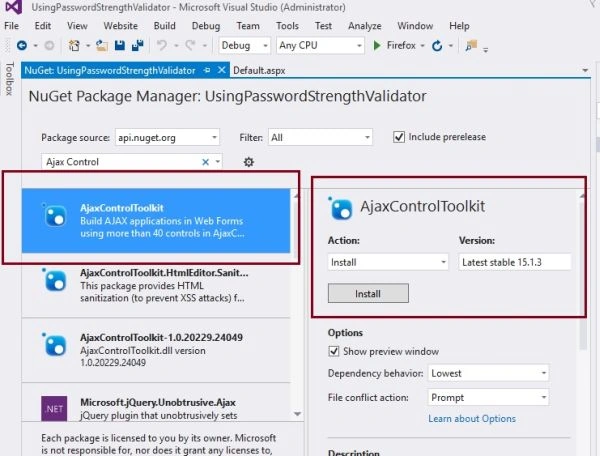
- Add the reference of Ajax Control toolkit from nuget or directly from the official website of Ajax Control toolkit. To add using the nuget package manager, type ajax control toolkit in NuGet package manager search and click on search button. Here's a screenshot for making things clear:
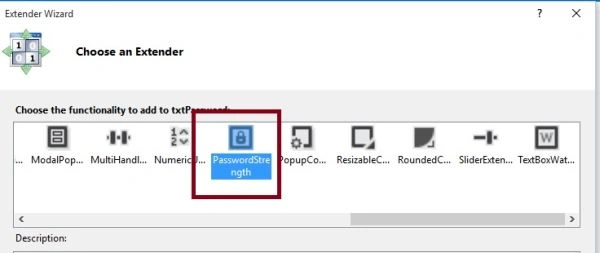
- After installing, the Ajax control will get added automatically into the toolbox. Now click on upper right hand corner of the textbox and add the PasswordStrength control to textbox control as in the following screenshot:
Now the default.aspx page source code will look like the following:
- <%@ Page Language="C#" AutoEventWireup="true" CodeFile="Default.aspx.cs" Inherits="_Default" %>
- <!DOCTYPE html>
- <html xmlns="http://www.w3.org/1999/xhtml">
- <head runat="server">
- <title></title>
- </head>
- <body>
- <form id="form1" runat="server">
- <div>
- <table style="margin-top: 30px">
- <tr>
- <td>Enter Password
- </td>
- <td>
- <asp:TextBox ID="txtPassword" TextMode="Password" runat="server"></asp:TextBox>
- <ajaxToolkit:PasswordStrength ID="txtPassword_PasswordStrength" runat="server" BehaviorID="txtPassword_PasswordStrength" TargetControlID="txtPassword" />
- </td>
- </tr>
- </table>
- </div>
- </form>
- </body>
- </html>
- PreferredPasswordLength : 10
- MinimumLowerCaseCharacters : 2
- MinimumUpperCaseCharacters : 2
- MinimumNumericCharacters : 2
- RequiresUpperAndLowerCaseCharacters : True
- StrengthIndicatorType : Text.
After setting the values for PasswordStrength control, the code will look like the following:
- <ajaxToolkit:PasswordStrength ID="txtPassword_PasswordStrength" runat="server"
- BehaviorID="txtPassword_PasswordStrength" TargetControlID="txtPassword"
- MinimumLowerCaseCharacters="2" MinimumNumericCharacters="2"
- MinimumUpperCaseCharacters="2" PreferredPasswordLength="10" />
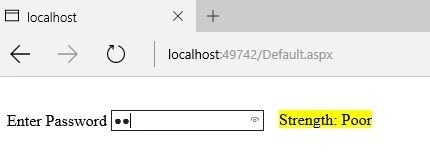
After entering one more character (.), the strength of the password will look like the following screenshot:
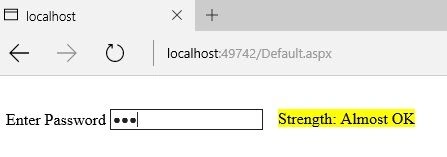
Now enter the passwords which is like the one defined under the properties of PasswordStrength control. After that it will show the following message:
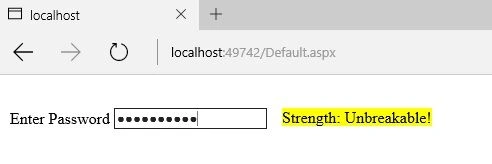
The complete Default.aspx code is given below:
- <%@ Page Language="C#" AutoEventWireup="true" CodeFile="Default.aspx.cs" Inherits="_Default" %>
- <!DOCTYPE html>
- <html xmlns="http://www.w3.org/1999/xhtml">
- <head runat="server">
- <title></title>
- </head>
- <body>
- <form id="form1" runat="server">
- <asp:ScriptManager ID="ScriptManager1" runat="server"></asp:ScriptManager>
- <div>
- <table style="margin-top: 30px">
- <tr>
- <td>Enter Password
- </td>
- <td>
- <asp:TextBox ID="txtPassword" TextMode="Password" runat="server"></asp:TextBox>
- <ajaxToolkit:PasswordStrength StrengthIndicatorType="Text" ID="txtPassword_PasswordStrength" runat="server" BehaviorID="txtPassword_PasswordStrength" TargetControlID="txtPassword" MinimumLowerCaseCharacters="2" MinimumNumericCharacters="2" MinimumUpperCaseCharacters="2" PreferredPasswordLength="10" />
- </td>
- </tr>
- </table>
- </div>
- </form>
- </body>
- </html>
From all the above examples we learned about the Password Strength control.
- Please add Ajax control toolkit dll reference as shown in this article.
- Don't forget to give the reference of Script manager.
- For more details and explanation, download the Uploaded Zip file.
Summary
From all the preceding examples you have learned about the Password Strength control. I hope this article is useful for all readers. If you have a suggestion then please contact me or mention it in the comments section.


Vithal WadjeTOP 100Posted Oct 11, 2015, 9:19 AM EDT
yes
Mohamed Gani MnPosted Oct 10, 2015, 6:02 PM EDT
Sir, If I will download this kit from Ajax website except NuGet package managers, Then available for Password Strength option.
Vithal WadjeTOP 100Posted Oct 9, 2015, 10:56 AM EDT
any other website ?
Mohamed Gani MnPosted Oct 9, 2015, 4:48 AM EDT
If I will download this kit from any other website, Then available for Password Strength option.
Vithal WadjeTOP 100Posted Oct 9, 2015, 12:23 AM EDT
available in NuGet package managers
Mohamed Gani MnPosted Oct 8, 2015, 11:25 PM EDT
Sir, It's available in NuGet package managers or any other website for Ajax Tool Kit.If i will download this kit from any other website, Then available for Password Strength option.
Vithal WadjeTOP 100Posted Sep 3, 2015, 9:18 AM EDT
Thanks Shridhar Sharma sir
Vithal WadjeTOP 100Posted Sep 3, 2015, 9:18 AM EDT
Thanks Santhakumar Munuswamy sir
Hammad SaleemPosted Sep 3, 2015, 7:14 AM EDT
when i entered the password in the textbox it does not show the status whether it is weak or strong?
Shridhar SharmaPosted Sep 2, 2015, 3:21 PM EDT
good one sir
Santhakumar MunuswamyPosted Sep 2, 2015, 11:02 AM EDT
Good article. Thanks for sharing
Vithal WadjeTOP 100Posted Sep 2, 2015, 8:51 AM EDT
welcome
Mohammed IbrahimPosted Sep 2, 2015, 7:27 AM EDT
thanks for sharing information
Vithal WadjeTOP 100Posted Sep 2, 2015, 7:20 AM EDT
Thanks Rajeesh Menoth sir
Vithal WadjeTOP 100Posted Sep 2, 2015, 7:20 AM EDT
Thanks Upendra Pratap Shahi sir
Vithal WadjeTOP 100Posted Sep 2, 2015, 7:19 AM EDT
Thanks Rakesh Chavda sir
Vithal WadjeTOP 100Posted Sep 2, 2015, 7:19 AM EDT
Thanks Ratnesh Singh sir
Rajeesh MenothPosted Sep 2, 2015, 3:24 AM EDT
Good One, Thank you for sharing..
Upendra Pratap ShahiPosted Sep 2, 2015, 3:19 AM EDT
nice share sir..
RakeshPosted Sep 2, 2015, 3:00 AM EDT
Good one sir
Sibeesh VenuTOP 100Posted Sep 2, 2015, 2:44 AM EDT
Nice Share
Vithal WadjeTOP 100Posted Sep 2, 2015, 2:16 AM EDT
Thanks Karthikeyan K sir
Ratnesh SinghPosted Sep 1, 2015, 11:42 PM EDT
nice..
Karthikeyan KPosted Sep 1, 2015, 11:38 PM EDT
Good one sir...Thanks for sharing