
Make your Windows application a more animated and colorful attraction.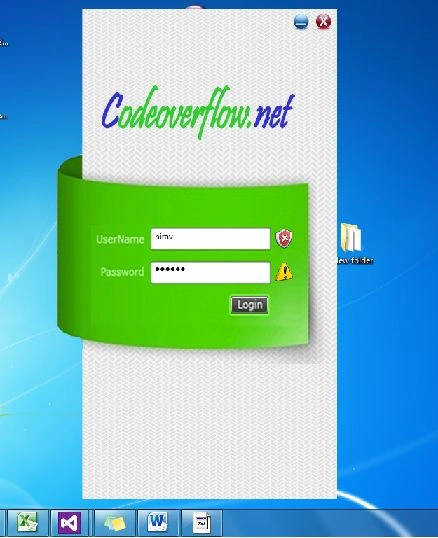
Use the following procedure.
- Open Visual Studio. (Here I used Visual Studio 2012).
- Go to New project then select WPF application as shown in the figure.

- Now go to Solution Explorer and add a new folder as shown in the figure.
- Provide it the “Images”.
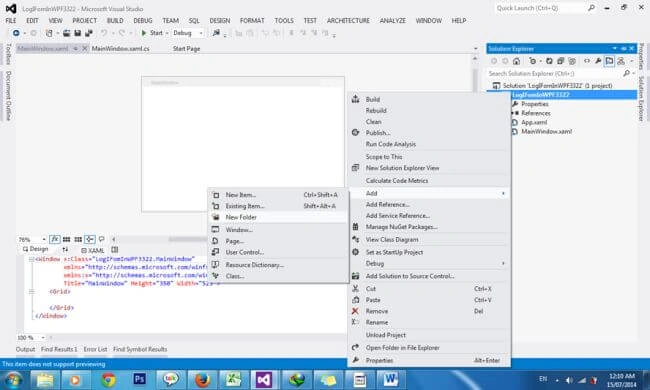
- Add the entire image to this folder. (Here the image is given in the scours code demo project).
- Add a new window to the project and give it the name “login2.xaml”.
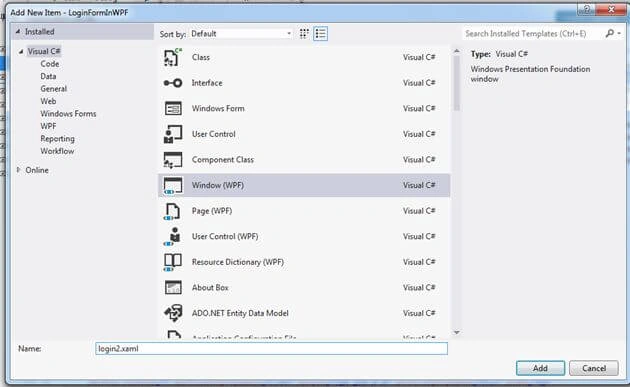
- Now open “login2.xaml” and write the code for displaying the images.
- Set the main window properties.
- <Window x:Class="LoginFormInWPF.login2"
- xmlns="http://schemas.microsoft.com/winfx/2006/xaml/presentation"
- xmlns:x="http://schemas.microsoft.com/winfx/2006/xaml"
- Title="login2" Height="700" Width="400" AllowsTransparency="True" WindowStyle="None" WindowStartupLocation="CenterScreen">
- Now add a background image display in the code.
- <Window.Background>
- <ImageBrush ImageSource="Images/Untitled-1.png"/>
- </Window.Background>
- Now add other code for displaying the validation of images, textboxes, login button and so on.
Now open in App.xamp and change the startup form name like:- <Grid>
- <TextBox HorizontalAlignment="Left" Height="30" Margin="135,313,0,0" TextWrapping="Wrap" Text="" VerticalAlignment="Top" Width="169"/>
- <Button Content="" HorizontalAlignment="Left" Margin="248,410,0,0" VerticalAlignment="Top" Width="54" Height="24" Click="Button_Click_1">
- <Button.Background>
- <ImageBrush/>
- </Button.Background>
- </Button>
- <Image HorizontalAlignment="Left" Source="Images/worng.png" Height="30" VerticalAlignment="Top" Width="41" Margin="309,313,0,0">
- </Image>
- <Image HorizontalAlignment="Left" Source="Images/Warning.png" Height="30" VerticalAlignment="Top" Width="41" Margin="309,361,0,0"/>
- <PasswordBox HorizontalAlignment="Left" Margin="135,361,0,0" VerticalAlignment="Top" Width="169" Height="30"/>
- <Image HorizontalAlignment="Left" Height="25" VerticalAlignment="Top" Width="30" Margin="368,6,0,0" Source="Images/close.png" MouseDown="Image_MouseDown_1"/>
- <Image HorizontalAlignment="Left" Height="25" VerticalAlignment="Top" Width="30" Margin="336,6,0,0" Source="Images/minimize.png" MouseDown="Image_MouseDown_2"/>
- </Grid>
Here this open the Login2.xaml form when you run the project.- StartupUri="login2.xaml"
- Now run your projects. It will show the output such as you shown in the preceding image. If you have any query then provideit in the comments section.


Kashif Ahmad KhanPosted Sep 15, 2016, 10:50 PM EDT
Nicely explained
Shobana JPosted Jul 7, 2016, 3:41 AM EDT
Nice explanation
Hemant SrivastavaPosted Jul 20, 2015, 7:14 AM EDT
Looks really good!
Sibeesh VenuTOP 100Posted Jul 20, 2015, 12:48 AM EDT
Nice Share.
Naren Kumar KumaresanPosted Jul 20, 2015, 12:00 AM EDT
good one
Debendra DashPosted Jul 19, 2015, 9:45 PM EDT
good one.......
Debasis SahaTOP 100Posted Jul 19, 2015, 9:26 PM EDT
Good One...
Santhakumar MunuswamyPosted Jul 19, 2015, 3:44 AM EDT
Good one
RakeshPosted Jul 19, 2015, 3:39 AM EDT
Good One
SharadPosted Jul 19, 2015, 3:01 AM EDT
great...
Mubarak AhmadPosted Jul 19, 2015, 2:10 AM EDT
Nice Information..
Abhishek YadavPosted Jul 18, 2015, 9:06 PM EDT
Wow!!! That's looks good.... (Y)
Gopi ChandPosted Jul 18, 2015, 11:36 AM EDT
Nice effort