
Introduction
The Command Bar control in a UAP is a new control in Universal Windows programming. It is like a toolbar control or upgrades version for an App bar control in Windows 8.1, we can place a Command Bar anywhere in the UI, like top or bottom or anywhere.
A Command Bar is divided into the following two main areas or two property areas.
- Content
- Command Area

Display Mode
- Compact: Display Command Bar with icon mode, the text is hidden
- Minimal: Display Command Bar, icon and text are hidden
- Hidden: Complete Command Bar is hidden.
- FlowDirection: We can change the content area from the left to the right using the FlowDirection property.
Note
Content and Command areas are optional, either can be present or both.
The Content area is like a container, we can place any control inside the content area.
Example
Content
- <CommandBar.Content>
- <StackPanel Margin="10,2">
- <TextBlock Text="Update status Here !!!"/>
- <ProgressBar Maximum="100" Minimum="0" Height="15" Value="25"/>
- </StackPanel>
- </CommandBar.Content>
Command Area
Note
All three controls are not necessary to be present in the Command Bar.
- Primary commands
- Secondary commands
Commands
Primary Command Area
- <CommandBar.PrimaryCommands>
- <AppBarButton Label="Add Recored" Icon="Add" Click="AppBarButton_Click"/>
- <AppBarSeparator/>
- <AppBarToggleButton Label="Edit Recored" Icon="Delete" Click="AppBarToggleButton_Click"/>
- <AppBarButton>
- <ProgressBar Maximum="100" Minimum="0" Height="15" Value="25"/>
- </AppBarButton>
- </CommandBar.PrimaryCommands>
Note
It is a best practice to add the tag of the primary command always.
Secondary commands
- IsSticky: True, the menu will display until the click of any menu item in the Command Bar.
- IsSticky: False, the menu will disappear, click anywhere outside the menu item (the default mode).
Note
the IsSticky property can be set as overall the Command Bar properties, it applies to the primary Command Area.
CommandbarOverflowPresenter changes the style of the Secondary command style.
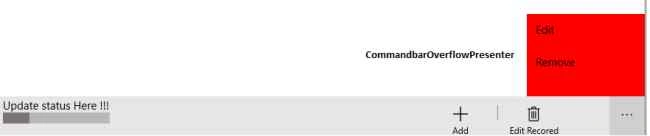 Example
CommandBarOverflowPresenter
- <CommandBar.CommandBarOverflowPresenterStyle>
- <Style TargetType="CommandBarOverflowPresenter">
- <Setter Property="Background" Value="Red"/>
- <Setter Property="FontSize" Value="25"/>
- </Style>
- </CommandBar.CommandBarOverflowPresenterStyle>
Note
Microsoft has recommended in Windows 10 programming to use the Command Bar instead of the App bar control.
Summary
In this article, we learned about the Command Bar in UAP in Windows.


Vinoth RajendranTOP 100Posted Aug 27, 2015, 7:14 AM EDT
Thanks folks
Vaikesh K PPosted Aug 24, 2015, 9:40 PM EDT
Good One
Karthikeyan KPosted Aug 23, 2015, 7:25 PM EDT
Good one sir..Thanks for share
Gopi ChandPosted Aug 23, 2015, 9:55 AM EDT
Its nice one to start with :)
Gowtham KTOP 100Posted Aug 23, 2015, 9:40 AM EDT
Good one
Vinoth RajendranTOP 100Posted Aug 23, 2015, 7:27 AM EDT
Thanks santhakumar
Santhakumar MunuswamyPosted Aug 23, 2015, 7:25 AM EDT
Welcome
Santhakumar MunuswamyPosted Aug 23, 2015, 7:18 AM EDT
Good Start
Vinoth RajendranTOP 100Posted Aug 23, 2015, 2:56 AM EDT
Thanks folks
Sibeesh VenuTOP 100Posted Aug 22, 2015, 11:46 PM EDT
Nice Share
RakeshPosted Aug 22, 2015, 11:33 PM EDT
Good one
Rajeesh MenothPosted Aug 22, 2015, 10:41 PM EDT
Nice Share