
Introduction
In my case, I am using Windows 10 Enterprise Edition.
Now open the browser and just type the URL http://localhost/.
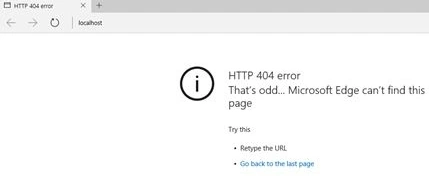
On pressing Enter, it will throw a page not found error.
Now I am going to search for the IIS manager.
Not found!
Open Control Panel.
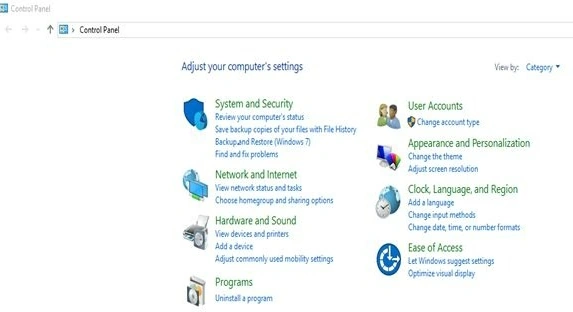
Click Programs.

Under Programs and Features, click Turn Windows features on or off.

A new popup will appear.
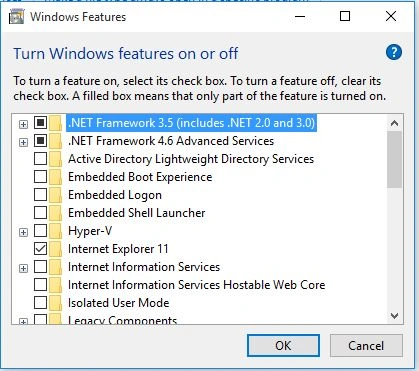
Just check the Internet Information Services and its related features.
Under Internet Information Services check the following folders.
- FTP Server
- Web Management Tools
- World Wide Web services
- Application development features
- Common HTTP Feature
- Health and Diagnostics
- Performance Feature
- Security
Then click OK to complete the installation of new features.
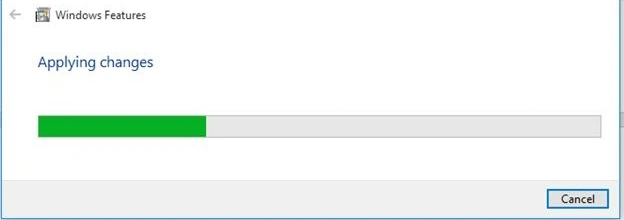
Click Restart now to apply changes to complete the IIS feature installation.
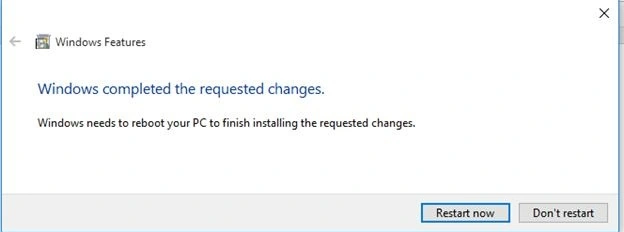
After a successful restart.
Now you can see the IIS webserver option on the All Programs menu.
Open the browser.
Now type URL http://localhost.
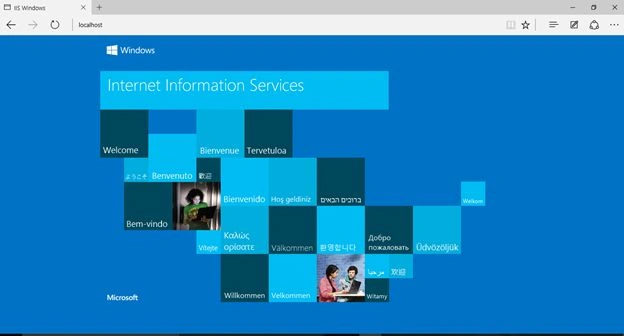
Internet Information Services (IIS) successfully configured.
Summary
In this article, we learned about Configure IIS In the Windows 10 Operating System.


Christian ChavesPosted May 26, 2018, 9:18 AM EDT
Good afternoon, I can not visualize content as images in my IIS 10. I use Windows 10 64 bits. Any advice please
Jay HarmanPosted Mar 22, 2018, 12:17 PM EDT
Cannot copy files to Inetpub/wwwroot. States I don't have permission even tho I have activated Full Access in security. How do I get full access to that folder? Windows 10 Home, unfortunately. Hope to upgrade to Pro.
Rajendra TripathyPosted Jun 6, 2017, 5:54 AM EDT
Https://msdn.microsoft.com/en-us/library/hh167503(v=nav.90).aspx#Win8
Santhakumar MunuswamyPosted Sep 26, 2015, 8:30 AM EDT
Nice share
Vinodh NarayananPosted Sep 24, 2015, 12:57 AM EDT
Gopi Chand Thanks a lot
Gopi ChandPosted Sep 24, 2015, 12:55 AM EDT
Nice work
Vinodh NarayananPosted Sep 23, 2015, 10:25 PM EDT
Sibeesh Venu Thanks a lot
Sibeesh VenuTOP 100Posted Sep 23, 2015, 10:18 PM EDT
Nice Share
Vinodh NarayananPosted Sep 23, 2015, 9:59 PM EDT
Ajeet Mishra Thanks a lot
Ajeet MishraPosted Sep 23, 2015, 9:48 PM EDT
good one
Vinodh NarayananPosted Sep 23, 2015, 7:30 PM EDT
Thanks a. Lot sir
Sachin KaliaPosted Sep 23, 2015, 12:08 PM EDT
Gud to get about this..
Vinodh NarayananPosted Sep 23, 2015, 8:31 AM EDT
Thanks a lot Rajeesh Menoth
Rajeesh MenothPosted Sep 23, 2015, 6:54 AM EDT
Nice Share
Vinodh NarayananPosted Sep 23, 2015, 4:44 AM EDT
Thanks a lotAnkit Bansal
Ankit BansalPosted Sep 23, 2015, 4:43 AM EDT
thanks for sharing..
Vinodh NarayananPosted Sep 23, 2015, 4:41 AM EDT
Thanks a lot Harshad Pansuriya
Harshad PansuriyaPosted Sep 23, 2015, 4:30 AM EDT
Nice One