
The following steps will guide you how to configure SharePoint 2013 to Shared Folder.
Step 1: Go to Central Administration, Service Application, then Manage Service Application.
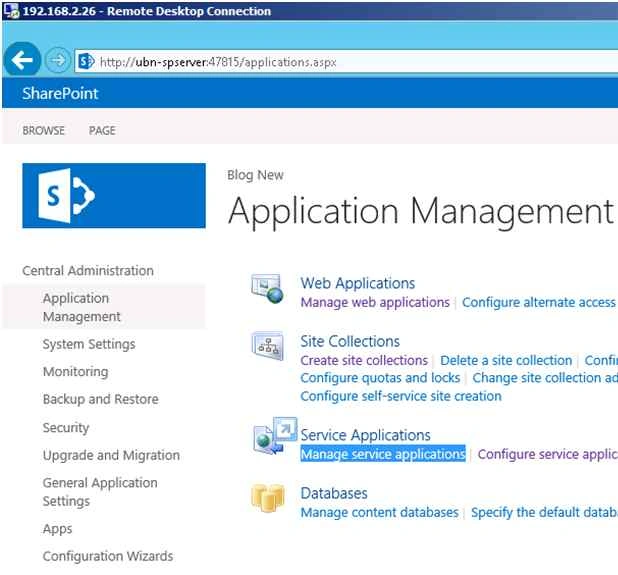
Step 2: Click Search Service Application.
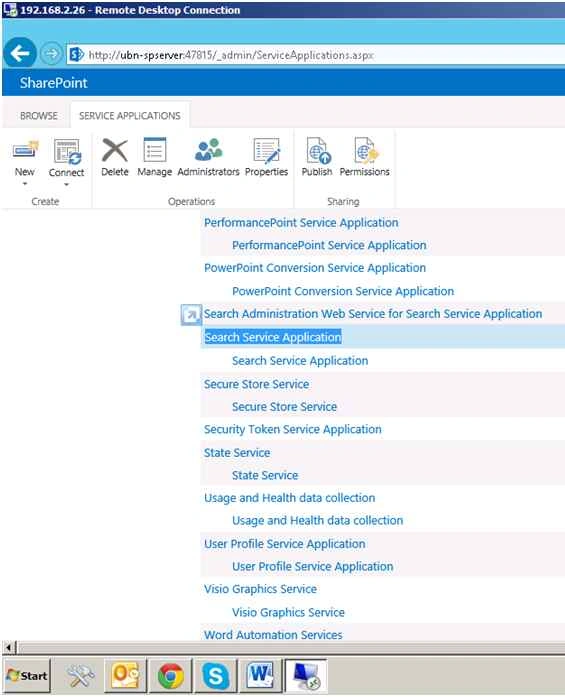
Step 3: Click Content Source.
Step 4: Click New Content Source on top of the link bar.
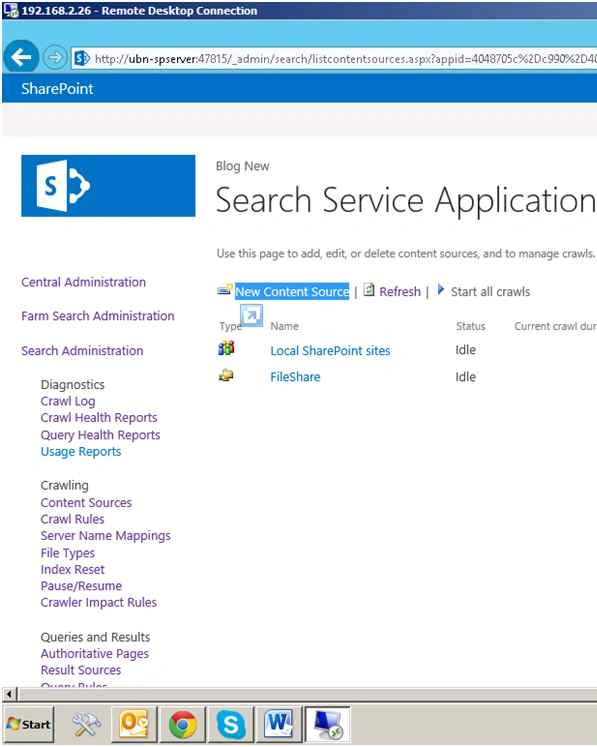
Step 5: Use this page to Add, Edit or Delete Content Source and to Manage Crawls. Click New Content Source.
Content Source Type
Select what type of Content will be crawls.
Note: This cannot be changed after this content source is created because other settings depend on it.
Start Addresses
Type the URL from which the search system should start crawling.
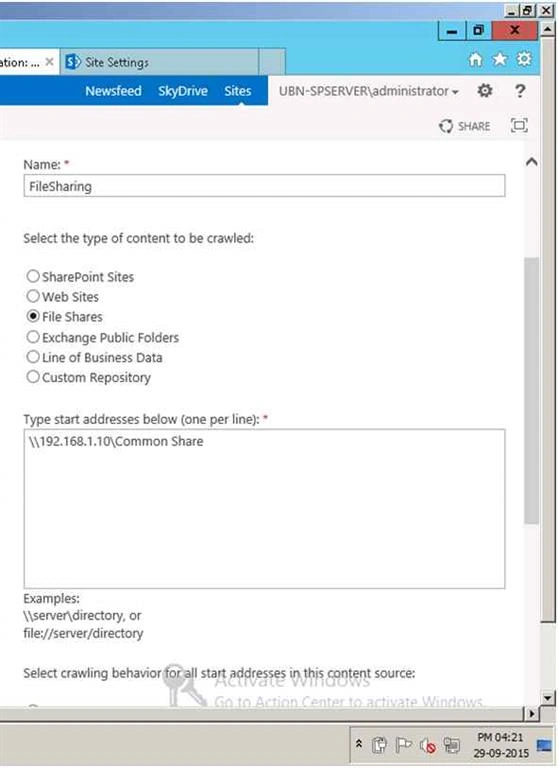
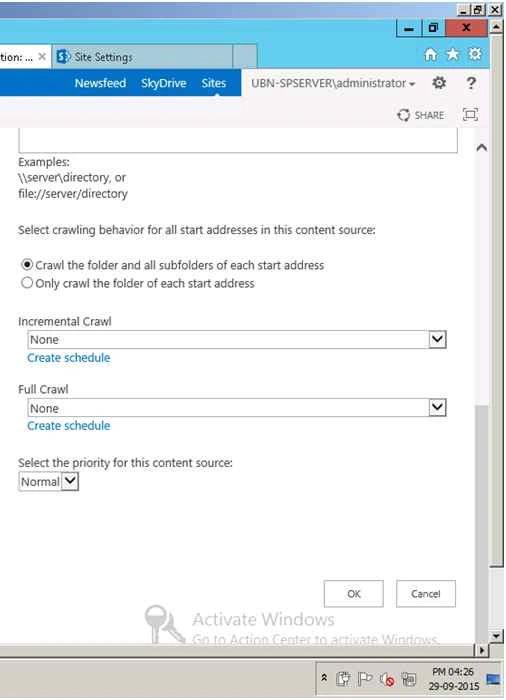
Step 6: Click OK to perform a full crawl of this content source.
Configure SharePoint 2013 Search To Crawl Files In Shared Folder
SharePoint 2013 allows you to setup an Enterprise Search document in file share. These steps will guide you how to configure SharePoint 2013 to Shared Folder.


Keith DouglasPosted Oct 8, 2020, 6:07 AM EDT
Any drawbacks of doing this? Slower search results? Server overload as such?
Shobana JPosted Jul 11, 2016, 11:17 PM EDT
Nice one
Santhakumar MunuswamyPosted Oct 18, 2015, 1:50 AM EDT
Good one
Rajkiran SwainPosted Oct 6, 2015, 11:07 PM EDT
you should provide ShareFolder addrss"FTP"
Ankit BansalPosted Oct 6, 2015, 9:28 PM EDT
nice..thanks for sharing knowledge..
Sibeesh VenuTOP 100Posted Oct 6, 2015, 8:58 PM EDT
Nice Share
Rupali ShindePosted Oct 6, 2015, 8:58 PM EDT
can you please explain - which address to provide as " Start Address " ?? is it means path of shared folder on system ?? where output of crwal get stored ??
Nilesh JadavPosted Oct 6, 2015, 5:23 PM EDT
Nice one sir !
Priyaranjan K STOP 100Posted Oct 6, 2015, 9:06 AM EDT
Good One ...