
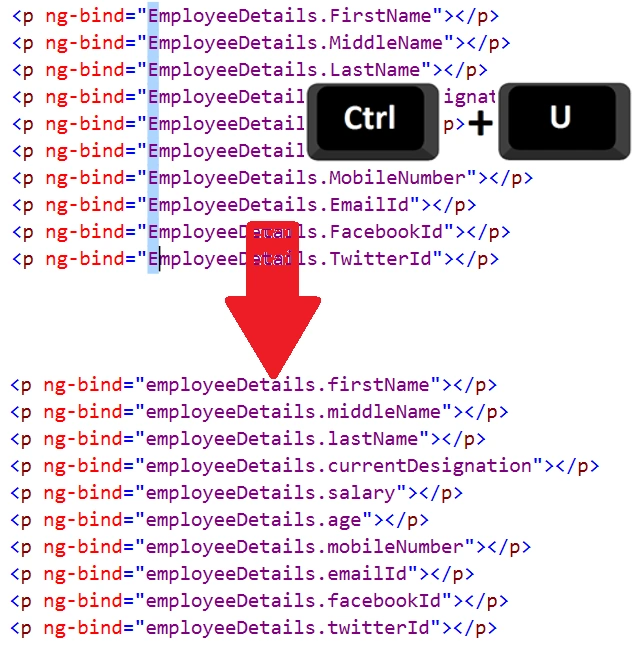
We can convert a string to different cases using C# code or Visual Studio shortcuts like Ctrl + U & Ctrl + Shift + U. Along with it, we can also use other combination box selection (vertical selection or rectangular selection) Ctrl + Shift + Arrow (Left Arrow, Right Arrow, Up Arrow, Down Arrow) or you can also use Ctrl + Shift + Mouse pointer to select a rectangular area. In the below image, you can see how box selection can be used with change case shortcuts.
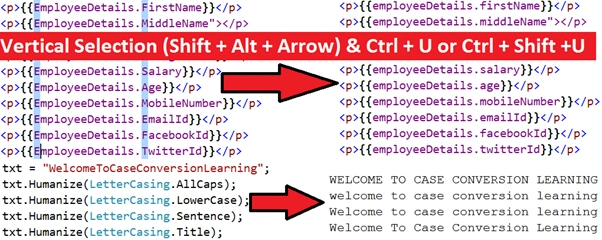
This is not limited and if you do not want to just convert case of string but convert a string to a sentence you can use Humanizer for which if we combine all these, it will look something similar t the image shown below.
Let’s start one by one to understand it in a better way.
Convert a string to Lower case
- Convert a string to Lower case : Using shortcut
"WelcomeToCaseConversionLearning" => "welcometocaseconversionlearning"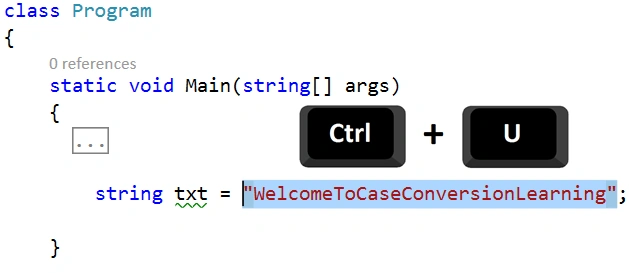
- Convert a string to Lower case: Using String class methods.Output
- string txt = "WelcomeToCaseConversionLearning";
- Console.WriteLine(txt.ToLower());
welcometocaseconversionlearning - Convert a string to Lower case: Using TextInfo class methods.Output
- string txt = "WelcomeToCaseConversionLearning";
- TextInfo textinfo = new CultureInfo("en-US", false).TextInfo;
- WriteLine(textinfo.ToLower(txt));
welcometocaseconversionlearning - Convert a string to Lower case sentence : Using Humanizer
If you would like that "WelcomeToCaseConversionLearning" should be converted to “welcome to case conversion learning”, you can use Humanizer.
i.e. "WelcomeToCaseConversionLearning" => “welcome to case conversion learning” use code shown below,Output- string txt = "WelcomeToCaseConversionLearning";
- Console.WriteLine(txt.Humanize(LetterCasing.LowerCase));
Welcome to case conversion learning
Humanizer is a portable class library that can be used for manipulation of strings, enums, numbers, quantities, dates, times, timespans etc.
Convert a string to Upper case
- Convert a string to Upper case: Using shortcut
"welcometocaseconversionlearning" => "WELCOMETOCASECONVERSIONLEARNING"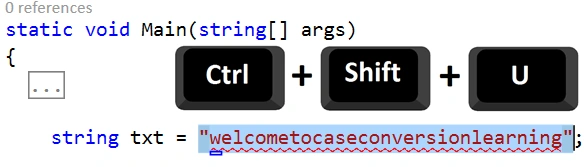
- Convert a string to Upper case: Using String class methods,Output
- string txt = "welcometocaseconversionlearning";
- Console.WriteLine(txt.ToUpper());
WELCOMETOCASECONVERSIONLEARNING - Convert a string to Upper case: Using TextInfo class methods,Output
- string txt = "welcometocaseconversionlearning";
- TextInfo textinfo = new CultureInfo("en-US", false).TextInfo;
- WriteLine(textinfo.ToUpper(txt));
WELCOMETOCASECONVERSIONLEARNING - Using Humanizer, convert a sentence with all the characters in Upper case
i.e. "welcomeToCaseConversionLearning " => “WELCOME TO CASE CONVERSION LEARNING” use below code,Output- string txt = "welcomeToCaseConversionLearning";
- Console.WriteLine(txt.Humanize(LetterCasing.AllCaps));
WELCOME TO CASE CONVERSION LEARNING
Converting Pascal Case to Camel Case
- Converting Pascal Case to Camel Case: Using shortcut
You can just select the first character of the string and use the shortcut “Ctrl+U” and it will convert the first character of the string to Lower case.
The shortcut option is not limited to C#. Shortcut option can be used with any language opened inside Visual Studio because it is a feature of Visual Studio.
Let’s do Some More Conversion
ConvertTo- <p ng-bind="EmployeeDetails.FirstName"></p>
- <p ng-bind="EmployeeDetails.MiddleName"></p>
- <p ng-bind="EmployeeDetails.LastName"></p>
- <p ng-bind="EmployeeDetails.CurrentDesignation"></p>
- <p ng-bind="EmployeeDetails.Salary"></p>
- <p ng-bind="EmployeeDetails.Age"></p>
- <p ng-bind="EmployeeDetails.MobileNumber"></p>
- <p ng-bind="EmployeeDetails.EmailId"></p>
- <p ng-bind="EmployeeDetails.FacebookId"></p>
- <p ng-bind="EmployeeDetails.TwitterId"></p>
As we know, most of the popular text editors like Visual Studio, Notepad++, Sublime etc. provides the feature of box selection (Vertical Selection). Hence, select the first character of the string “EmployeeDetails” vertically and the press Ctrl+U. Again, select first character of each attribute vertically and then press Ctrl+U.- <p ng-bind="employeeDetails.firstName"></p>
- <p ng-bind="employeeDetails.middleName"></p>
- <p ng-bind="employeeDetails.lastName"></p>
- <p ng-bind="employeeDetails.currentDesignation"></p>
- <p ng-bind="employeeDetails.salary"></p>
- <p ng-bind="employeeDetails.age"></p>
- <p ng-bind="employeeDetails.mobileNumber"></p>
- <p ng-bind="employeeDetails.emailId"></p>
- <p ng-bind="employeeDetails.facebookId"></p>
- <p ng-bind="employeeDetails.twitterId"></p>
e.g.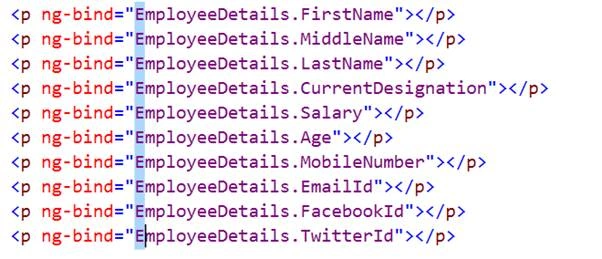
Press Ctrl+U and repeat same for the attributes of employee details.
For box selection we use the shortcut key Ctrl+Shift+ Arrow
1. Ctrl + Shift + Down Arrow => select vertically down.
2. Ctrl + Shift + Up Arrow => select vertically up
3. Ctrl + Shift + Right Arrow => select horizontally right
4. Ctrl + Shift + Left Arrow => select horizontally left
Or you can use Ctrl + Shift and drag mouse to select a rectangular area.
We can also change multiple line vertically e.g. change EmployeeDetails to empDtls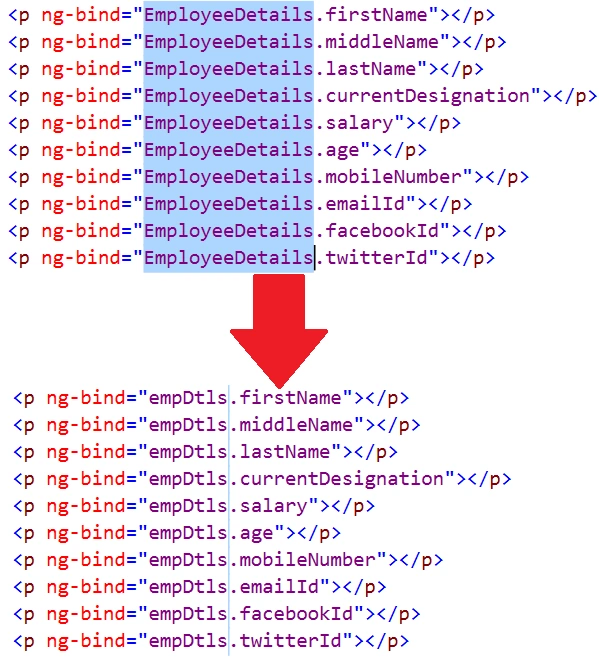
Vertical selection provides a lot more features but I am not going to explain all those features here. - Converting Pascal Case to Camel Case: Using String class methodsIn the same way, you can use methods for conversion to other case types.
- string txt = "WelcomeToCaseConversionLearning";
- var txt2 = txt.Insert(0, txt[0].ToString().ToLower()).Remove(1, 1);
Have a look at the code snippet shown below which will provide you with the complete idea about the method available for case conversion in TextInfo & String class.- #region String Class Methods
- //Case Conversion Example using String Class Methods
- string txt = "WelcomeToCaseConversionLearning";
- //Converting a string to upper case.
- WriteLine(txt.ToUpper());
- //Converting a string to lower case.
- WriteLine(txt.ToLower());
- #endregion
- #region TextInfo Class Methods
- //Case Conversion Example using TextInfo Class Methods
- string txt2 = "welcomeTocaseconversionLEarning";
- TextInfo textinfo = new CultureInfo("en-US", false).TextInfo;
- //Converting a string to upper case.
- WriteLine(textinfo.ToUpper(txt2));
- //Converting a string to lower case.
- WriteLine(textinfo.ToLower(txt2));
- //Converting a string to Title case
- WriteLine(textinfo.ToTitleCase("welcome To CASe conversion LEArning"));
- #endregion
Until now, you may have been thinking that if we can achieve something easily using String class or TextInfo class methods then why I am using Humanizer? Let me show you some examples after which you will understand why we need Humanizer.
- Convert a string to pascal case
- WriteLine("welcomeTo_CaseConversion_Learning".Pascalize());
- //output: WelcomeToCaseConversionLearning
- Convert a string to camel case
- WriteLine("WelcomeTo_Case_Conversion_Learning".Camelize());
- //output :welcomeToCaseConversionLearning
- Convert a string to lower case.
- WriteLine(txt3.Humanize(LetterCasing.LowerCase));
- //output: welcome to case conversion learning
- Convert a string to upper case.
- WriteLine(txt3.Humanize(LetterCasing.AllCaps));
- //Output: WELCOME TO CASE CONVERSION LEARNING
- Convert a string to sentence case.
- WriteLine(txt3.Humanize(LetterCasing.Sentence));
- //output: Welcome to case conversion learning
- Convert a string to Title Case
- WriteLine(txt3.Humanize(LetterCasing.Title));
- //Output: Welcome To Case Conversion Learning
- Pluralize a string
- WriteLine("Employee".Pluralize());
- //Output: Employees
- Singularize a string
- WriteLine("Employees".Singularize());
- //Output: Employee
- Add Underscore
- WriteLine("Welcome to case conversion learning".Underscore());
- //Output: welcome_to_case_conversion_learning
- Convert underscore to dash or hyphen
- WriteLine("welcome_to_case_conversion_learning".Hyphenate());
- WriteLine("welcome_to_case_conversion_learning".Dasherize());
- //Output : welcome-to-case-conversion-learning
- //Output : welcome-to-case-conversion-learning
Apart from these examples, you can do hundreds of other types of conversion and formatting using Humanizer. For more details, visit here


Banketeshvar NarayanPosted Aug 21, 2016, 8:14 AM EDT
Thanks everyone for your comments, appreciations and giving your valuable time to go through this article.
Ketak BhalsingPosted Jun 1, 2016, 9:38 PM EDT
Helpful information....
NitinPosted Jun 1, 2016, 7:42 PM EDT
Good one
Raja TPosted May 30, 2016, 8:21 PM EDT
Good, Thansk for sharing
Vignesh ManiTOP 100Posted May 30, 2016, 1:01 PM EDT
Nice one
RakeshPosted May 30, 2016, 11:52 AM EDT
Good share
Debasis SahaTOP 100Posted May 30, 2016, 9:58 AM EDT
Good One..
Bhuvanesh MohankumarPosted May 30, 2016, 9:16 AM EDT
Good one