
This article will let you know how to create a Virtual Machine in Windows Azure and how to attach disks to it.
Requirements- Windows Azure account
- Internet Connectivity without any proxy block
Step 1 - Go here and login with your azure credentials,

Step 2
Now on the home screen of Azure management portal select Virtual Machines -> Create a Virtual Machine -> now enter the details of DNS name, OS that you need, size configuration, Username for VM, password and region where it has to be deployed.

Step 3 - Click on Connect below and download the rdp file,


Step 5 - Enter the login credentials for your VM.
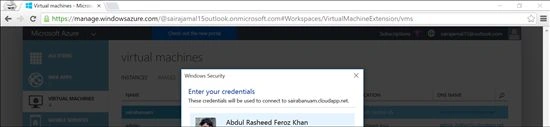

Now your VM gets loaded and you will be getting the following screen,
Click on yes to allow network connections,
Step 7 - Followed by this you will be getting Server Manager.


(In the above image there is no disk attached)
Now we will be attaching disk towards the VM created
Step 8 - Click on Tools -> Computer Management,
Here you will be getting the Computer Management Window,

Step 9 - Goto Storage -> Disk Management,
Here you can find the disks attached on your VM.
Step 10 - Move to your local machine OS now and go for the Azure porta where your VM is created.


Click on the VM that is created now -> Attach -> Empty Disk

Step 11 - Enter the size you need,

Now your disk is attached towards the VM,
Step 12 - Login to the VM now -> Under same Computer Management you can find the disk attached,
Step 13 - You will be getting this screen now where your Disk is attached and now it asks for initializing. Click on OK,


Step 14 - Now right click on Disk 2 and go for New Simple Volume,
Step 15 - Click on Next,

Step 16 - Allocate the disk space in the following wizard,


Step 17 - Allocate the Drive Letter in the next wizard,

Step 18 - Select the file system in the next wizard,

Step 19 - Click on Finish,

Now you can find the new disk that has been attached towards the VM,




Prasanna MuraliPosted May 10, 2016, 6:24 AM EDT
Nice one
Sr KarthigaPosted May 5, 2016, 11:43 PM EDT
good one
Anbu ManiPosted May 5, 2016, 10:37 PM EDT
Nice share
Bhushan GawalePosted May 5, 2016, 8:58 PM EDT
Thanks for sharing!
Kuppurasu NagarajTOP 100Posted May 5, 2016, 9:03 AM EDT
Nice Sharing..
Debasis SahaTOP 100Posted May 5, 2016, 5:41 AM EDT
Good one..
Raja TPosted May 5, 2016, 5:22 AM EDT
Very Nice, Thanks for sharing
Vignesh ManiTOP 100Posted May 5, 2016, 4:22 AM EDT
Nice
Anbu ManiPosted May 5, 2016, 1:34 AM EDT
Nice one
Thiruppathi RPosted May 5, 2016, 1:02 AM EDT
Superb ..