
Introduction
In this article I am explaining how to create a Windows Service to schedule daily mail at a specified time. Scheduling email and sending the email is a basic requirement of any project.
Step 1
Open Visual Studio and create a new project. Under Windows Desktop select Windows Service and provide a proper name and click on the OK button.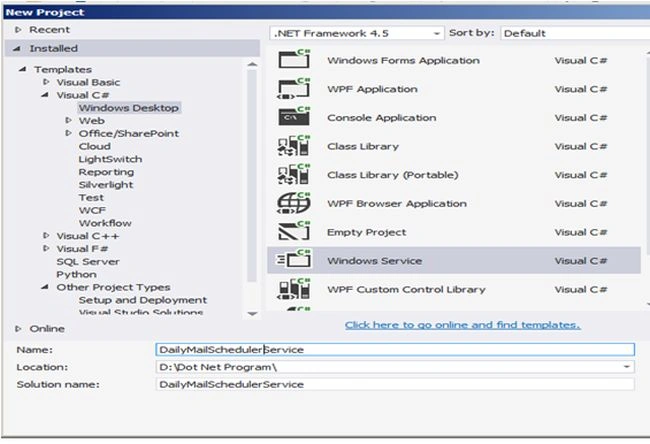
Step 2
Rename the service1 class to a proper name. In this case I am using mail service. Click on “Click here to switch to code view”.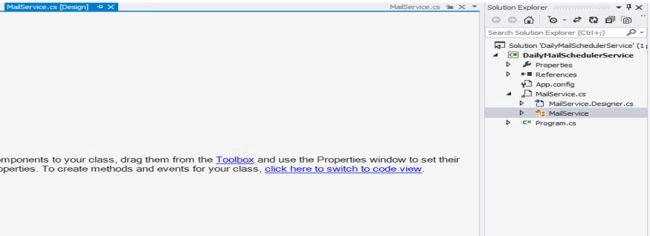
Step 3
Add some app settings in the app.config file as in the following:
- <appSettings>
- <add key="StartTime" value="08:33 PM "/>
- <add key="callDuration" value="2"/>
- <add key="CallType" value="1"/>
- <add key="FromMail" value="****"/>
- <add key="Password" value="****"/>
- <add key="Host" value="smtpout.secureserver.net"/>
- </appSettings>
In the MailService class write the following function.
- public Scheduler()
- {
- InitializeComponent();
- int strTime = Convert.ToInt32(ConfigurationManager.AppSettings["callDuration"]);
- getCallType = Convert.ToInt32(ConfigurationManager.AppSettings["CallType"]);
- if (getCallType == 1)
- {
- timer1 = new System.Timers.Timer();
- double inter = (double)GetNextInterval();
- timer1.Interval = inter;
- timer1.Elapsed += new ElapsedEventHandler(ServiceTimer_Tick);
- }
- else
- {
- timer1 = new System.Timers.Timer();
- timer1.Interval = strTime * 1000;
- timer1.Elapsed += new ElapsedEventHandler(ServiceTimer_Tick);
- }
- }
- private double GetNextInterval()
- {
- timeString = ConfigurationManager.AppSettings["StartTime"];
- DateTime t = DateTime.Parse(timeString);
- TimeSpan ts = new TimeSpan();
- int x;
- ts = t - System.DateTime.Now;
- if (ts.TotalMilliseconds < 0)
- {
- ts = t.AddDays(1) - System.DateTime.Now;//Here you can increase the timer interval based on your requirments.
- }
- return ts.TotalMilliseconds;
- }
- private void SetTimer()
- {
- try
- {
- double inter = (double)GetNextInterval();
- timer1.Interval = inter;
- timer1.Start();
- }
- catch (Exception ex)
- {
- }
- }
- protected override void OnStart(string[] args)
- {
- timer1.AutoReset = true;
- timer1.Enabled = true;
- ServiceLog.WriteErrorLog("Daily Reporting service started");
- }
- protected override void OnStop()
- {
- timer1.AutoReset = false;
- timer1.Enabled = false;
- ServiceLog.WriteErrorLog("Daily Reporting service stopped");
- }
- /// <summary>
- /// This function write log to LogFile.text when some error occurs.
- /// </summary>
- /// <param name="ex"></param>
- public static void WriteErrorLog(Exception ex)
- {
- StreamWriter sw = null;
- try
- {
- sw = new StreamWriter(AppDomain.CurrentDomain.BaseDirectory + "\\LogFile.txt", true);
- sw.WriteLine(DateTime.Now.ToString() + ": " + ex.Source.ToString().Trim() + "; " + ex.Message.ToString().Trim());
- sw.Flush();
- sw.Close();
- }
- catch
- {
- }
- }
- /// <summary>
- /// this function write Message to log file.
- /// </summary>
- /// <param name="Message"></param>
- public static void WriteErrorLog(string Message)
- {
- StreamWriter sw = null;
- try
- {
- sw = new StreamWriter(AppDomain.CurrentDomain.BaseDirectory + "\\LogFile.txt", true);
- sw.WriteLine(DateTime.Now.ToString() + ": " + Message);
- sw.Flush();
- sw.Close();
- }
- catch
- {
- }
- }
- #region Send Email Code Function
- /// <summary>
- /// Send Email with cc bcc with given subject and message.
- /// </summary>
- /// <param name="ToEmail"></param>
- /// <param name="cc"></param>
- /// <param name="bcc"></param>
- /// <param name="Subj"></param>
- /// <param name="Message"></param>
- public static void SendEmail(String ToEmail, string cc, string bcc, String Subj, string Message)
- {
- //Reading sender Email credential from web.config file
- string HostAdd = ConfigurationManager.AppSettings["Host"].ToString();
- string FromEmailid = ConfigurationManager.AppSettings["FromMail"].ToString();
- string Pass = ConfigurationManager.AppSettings["Password"].ToString();
- //creating the object of MailMessage
- MailMessage mailMessage = new MailMessage();
- mailMessage.From = new MailAddress(FromEmailid); //From Email Id
- mailMessage.Subject = Subj; //Subject of Email
- mailMessage.Body = Message; //body or message of Email
- mailMessage.IsBodyHtml = true;
- string[] ToMuliId = ToEmail.Split(',');
- foreach (string ToEMailId in ToMuliId)
- {
- mailMessage.To.Add(new MailAddress(ToEMailId)); //adding multiple TO Email Id
- }
- string[] CCId = cc.Split(',');
- foreach (string CCEmail in CCId)
- {
- mailMessage.CC.Add(new MailAddress(CCEmail)); //Adding Multiple CC email Id
- }
- string[] bccid = bcc.Split(',');
- foreach (string bccEmailId in bccid)
- {
- mailMessage.Bcc.Add(new MailAddress(bccEmailId)); //Adding Multiple BCC email Id
- }
- SmtpClient smtp = new SmtpClient(); // creating object of smptpclient
- smtp.Host = HostAdd; //host of emailaddress for example smtp.gmail.com etc
- //network and security related credentials
- smtp.EnableSsl = false;
- NetworkCredential NetworkCred = new NetworkCredential();
- NetworkCred.UserName = mailMessage.From.Address;
- NetworkCred.Password = Pass;
- smtp.UseDefaultCredentials = true;
- smtp.Credentials = NetworkCred;
- smtp.Port = 3535;
- smtp.Send(mailMessage); //sending Email
- }
- #endregion
Now inside the MailService class write a ServiceTimer_Tick() function. This function is mainly used for the task done by this Window Service when the timer tic reaches the time specified in the app.config file. You can change your code based on your requirements.
- private void ServiceTimer_Tick(object sender, System.Timers.ElapsedEventArgs e)
- {
- string Msg = "Hi ! This is DailyMailSchedulerService mail.";//whatever msg u want to send write here.
- // Here you can write the
- ServiceLog.SendEmail("[email protected]", "[email protected]", "[email protected]", "Daily Report of DailyMailSchedulerService on " + DateTime.Now.ToString("dd-MMM-yyyy"), Msg);
- if (getCallType == 1)
- {
- timer1.Stop();
- System.Threading.Thread.Sleep(1000000);
- SetTimer();
- }
- }
Now your Windows Service is ready. Compile this and use the following procedure to install and use this Windows Service.
Install Windows Service.
- Go to "Start" >> "All Programs" >> "Microsoft Visual Studio 2012" >> "Visual Studio Tools" . Click "Developer Command Prompt for VS2012".
Type the following command:
cd <physical location of your DailyMailSchedulerService.exe file>
In my case it is:
cd D:\Dot Net Program\DailyMailSchedulerService\DailyMailSchedulerService\bin\Debug
- Type the following command:
InstallUtil.exe “DailyMailSchedulerService.exe”
And press Enter.
Now go to Services and find the services of your project name and start that service. You will then start finding the mail every day at 08:00 PM.
- Build the Solution.
- Start your Service.
- While your Service is starting, go to --> Debug --> Attach Process.
- Make sure "Show Process from all users" and "Show Process in all sessions" are checked.
- Find your "" in the list and click "Attach".
- You should now be at the breakpoint you inserted.
Summary
In this illustration we learned about Windows Service and sending mail daily by using that service. This may be helpful somehow when scheduling something based on your requirements. Please provide your valuable comments about this article.


Raul LunaPosted Sep 9, 2023, 10:55 AM EDT
Please send me the code to my email to [email protected]. thanks in advance
Rizwan khanPosted Jun 24, 2021, 8:14 AM EDT
Email is not sending in window service "Unable to connect to the remote server" while in web project its working fine. need your help thanks. Any body : reply [email protected]
David FintenPosted Jun 6, 2021, 10:38 PM EDT
Please send me the code to my email to [email protected]. thanks
wadldPosted Mar 23, 2021, 10:30 AM EDT
Please send me the code to my email [email protected]
nakshatra sawantPosted Mar 15, 2021, 6:59 AM EDT
Please send me the code to my mail [email protected]
cnttcd aPosted Mar 8, 2021, 9:52 PM EST
Please send the code to mail sir [email protected]
faiz ahamedPosted Oct 4, 2020, 10:11 PM EDT
Please send the code to mail sir [email protected]
Ripon GogiPosted Mar 31, 2020, 1:17 AM EDT
Please send me the code at my mail- [email protected]
Sachin AherPosted Aug 12, 2019, 3:50 AM EDT
Please send me the code to my mail sir. [email protected]
Thys SteenkampPosted Mar 25, 2019, 1:04 AM EDT
Can i please get the code for this? [email protected]
sayliPosted Mar 6, 2019, 7:50 PM EST
I want to run job on Hourly, daily or weekly basis depending on the choice of a user which I ccan get form windows application. If hourly, options = Every X hours. If daily, options = Time of day.If weekly, options = Day of week and time of day
Sunil AcharyaPosted Dec 20, 2018, 6:41 PM EST
Manish, Can we set dependencies on this to check the other service are working or not or force to start them? like if LAN Connection is not there then it force to start or display some message for the same.
jamshed alamPosted May 3, 2018, 1:49 AM EDT
Very nice, clear and useful article
Fatih KARAKAŞPosted Feb 19, 2018, 3:13 AM EST
I want to zip file this program with source code. [email protected]
changhai gohPosted Feb 11, 2018, 8:11 PM EST
Please send me the code to my mail [email protected]
Dhanush NairPosted Jan 30, 2018, 10:26 PM EST
Please send me the code to my mail sir. [email protected]
Chandan KumarPosted Jan 25, 2018, 1:33 AM EST
On my email [email protected]
Chandan KumarPosted Jan 25, 2018, 1:32 AM EST
Ok Thank You So much sir, would you please send me the zip file of this program
Shivshanker CheralPosted Dec 20, 2016, 4:19 AM EST
It has two methods with the same name "WriteErrorLog"
Mohamed FouadPosted Sep 4, 2016, 4:11 AM EDT
Not working
vinayak ghantiPosted Jun 26, 2016, 4:19 AM EDT
hi Manish nice article i want to know how we can host this service in server like how we host a website i ? or do we need VPS please let me know
Wajeed AliPosted May 11, 2016, 6:05 AM EDT
Nice Article
Abhijit DasPosted Mar 18, 2016, 5:20 AM EDT
waoow, its a nice example
sameer skPosted Mar 4, 2016, 12:18 AM EST
here is my mail id [email protected]
sameer skPosted Mar 4, 2016, 12:18 AM EST
need to study this project ,Manish sir can you please send me a build exe file for this program
bhimani sambaPosted Sep 2, 2015, 3:20 AM EDT
service is running but not receving mail message so once check and update immediately
bhimani sambaPosted Sep 2, 2015, 3:19 AM EDT
iam testing this article,but not receving mail message.so once check and update immediately
bhimani sambaPosted Sep 2, 2015, 3:12 AM EDT
This article is not working .. please check once
Rajeesh MenothPosted Jul 28, 2015, 2:52 AM EDT
Good Article Sir
Saber ShaikhPosted Jul 14, 2015, 4:35 AM EDT
nice
Polyana PolanaPosted Jun 17, 2015, 12:33 AM EDT
Hi Manish, this is a nice article. Thank you for submitting it. I have a few questions. The method Scheduler is a constructor, where is it coming from? And there are variables without type, like timer1, getCallType, are they defined somewhere else? I am a bit new so maybe I am missing the point.
Nick DemariPosted May 29, 2015, 9:03 AM EDT
Can i have the source code?
hussain baigPosted Mar 16, 2015, 12:18 AM EDT
Nice article. I was looking same kind of requirement, got here.
Gowtham RajamanickamTOP 100Posted Mar 13, 2015, 1:24 AM EDT
Good article !
Manish Kumar ChoudharyPosted Feb 17, 2015, 2:40 AM EST
Thanks for reading this article Sumit Jolly sir. yes we can achieve email scheduling using sql server job scheduling also.
Guest UserPosted Feb 17, 2015, 2:37 AM EST
I read this article now. There is another way to achieve email scheduler is via Sql Server db job. It has scheduler built-in, so its an alternative to windows task scheduler.
Manish Kumar ChoudharyPosted Feb 17, 2015, 2:02 AM EST
Harpreet Singh sir thanks for reading and posting your valuable comments.
Manish Kumar ChoudharyPosted Feb 17, 2015, 2:01 AM EST
Thanks Piyush Pansuriya. Yes possible store 10 different message and email id in list and then send.
Harpreet SinghPosted Feb 17, 2015, 1:55 AM EST
another interesting article....very nice
Piyush PansuriyaPosted Feb 17, 2015, 1:55 AM EST
This is nice but, If I want to send 10 different msg to 10 Diff. email at a same time. is it possible?
Manish Kumar ChoudharyPosted Jan 11, 2015, 6:03 PM EST
Thanks burak horozoglu sir.
burak horozogluPosted Jan 11, 2015, 4:54 AM EST
good and working sample. Thanks
Manish Kumar ChoudharyPosted Dec 27, 2014, 6:44 AM EST
Thanks KP Singh Chundawat sir....
K P Singh ChundawatPosted Dec 27, 2014, 1:59 AM EST
Nice Article .. Manish Kumar Choudhary sir
ratnesh kumarPosted Dec 4, 2014, 9:23 PM EST
sir,could you please tell me , what is the use of calltype and callduration in app.config()
RahulPosted Nov 17, 2014, 5:24 AM EST
Manish, but i have worked on application with send file and email through day and likewise, believe me you can achieve all the similar requirement with window task Scheduler. No need to write a new service as the task scheduler service does the same also it provide logging and other feature. You can you use Task scheduler unless there is some dependent scheduling and few more limitations.
Vithal WadjeTOP 100Posted Nov 17, 2014, 2:27 AM EST
good one,what is difference between creating scheduler using console application and windows service
RahulPosted Nov 17, 2014, 12:21 AM EST
It’s better to user Window Task Scheduler to schedule the exe for sending the email. Task scheduler have a window service running in every system.