
This article introduces Windows Services in .NET and how to create a Windows Service in C# and .NET using Visual Studio.
What is a Windows Service?
Windows Services are non-UI software applications that run in the background. Windows services usually start when an operating system boots and is scheduled to run in the background to execute some tasks. Windows services can also be started automatically or manually. You can also manually pause, stop and restart Windows services.
Windows service is a computer program that runs in the background to execute some tasks. Some examples of Windows services are auto-update of Windows, check emails, print documents, SQL Server Agent, file and folder scanning and indexing, etc. If you open your Task Manager and click on the Services tab, you will see hundreds of services running on your machine. You can also see the statuses of these services. Some services are running, some have paused, and some have stopped. You can start, stop, and pause a service from here by right click on the service.
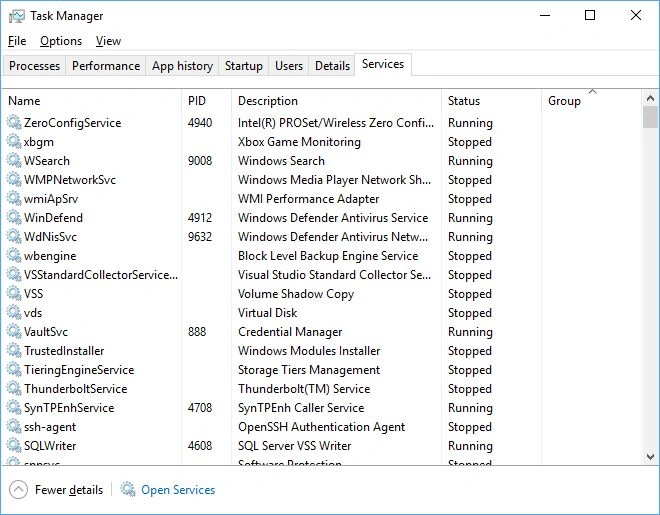
You may also find all services running on your machine in the following ways:
- Go to Control Panel and select "Services" inside "Administrative Tools."
- Next, open the Run window (Window + R), type services.msc, and press ENTER.
How to create a Windows service in C#?
Let's create a Windows Service in C# using Visual Studio.
Step 1
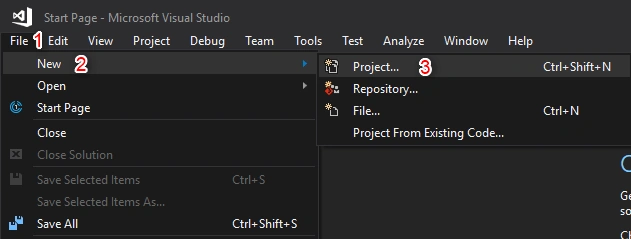
Open Visual Studio, click File > New, and select a project. Next, select a new project from the Dialog box, select "Window Service," and click the OK button.
Step 2
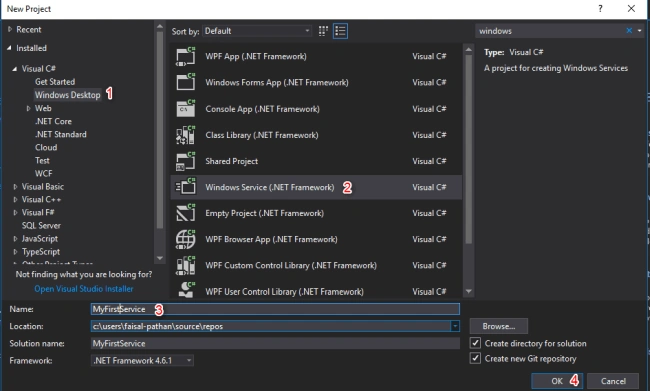
Go to Visual C# ->" Windows Desktop" ->" Windows Service," give an appropriate name and then click OK.
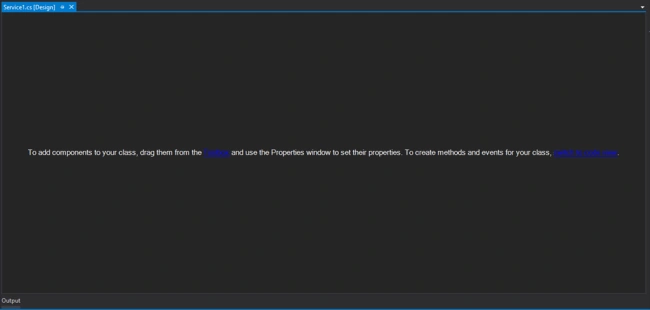
Once you click the OK button, the below screen will appear, which is your service.
Step 3
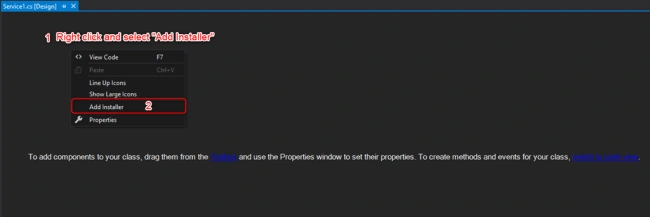
Right-click on the blank area and select "Add Installer."
How to Add an Installer to a Windows Service
Before you can run a Windows Service, you need to install the Installer, which registers it with the Service Control Manager.
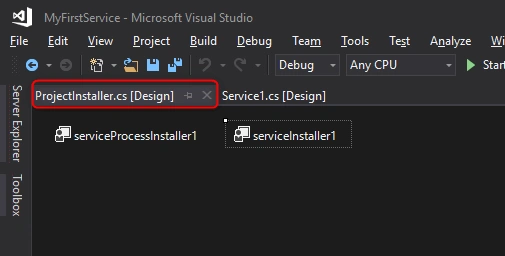
After Adding Installer, ProjectInstaller will add to your project, and ProjectInstakker.cs file will be open. Don't forget to save everything (by pressing the ctrl + shift + s key)
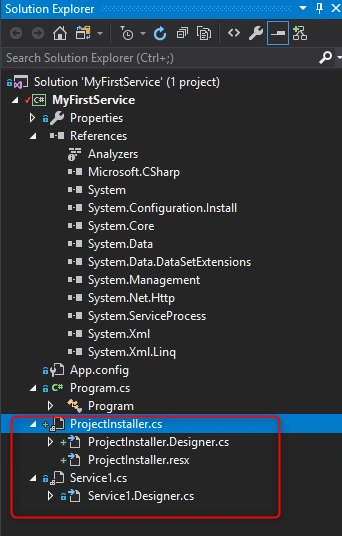
Solution Explore looks like this:
Step 4
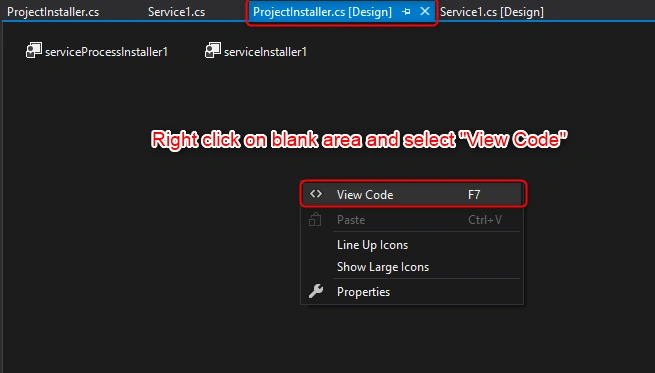
Right-click on the blank area and select "View Code"
Step 5
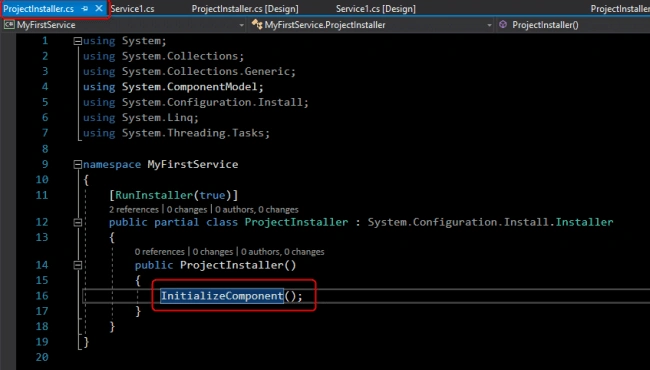
It has Constructor, which contains the InitializeComponent method:
The InitializeComponent method contains the logic which creates and initializes the user interface objects dragged on the forming surface and provides the Property Grid of Form Designer.
Very important: Don't ever try to call any method before the call of the InitializeComponent process.
Step 6
Select the InitializeComponent method and press the F12 key to go definition.
Step 7
Now add the below line:
this.serviceProcessInstaller1.Account = System.ServiceProcess.ServiceAccount.LocalSystem;
You also can add a description and display the service name (optionally).
this.serviceInstaller1.Description = "My First Service demo";
this.serviceInstaller1.DisplayName = "MyFirstService.Demo";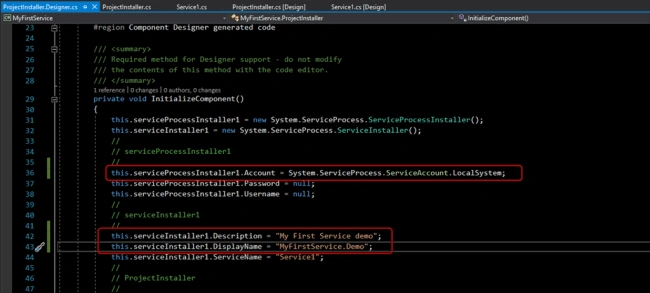
Step 8
In this step, we will implement a timer and code to call the service at a given time. Then, we will create a text file and write the current time in the text file using the service.
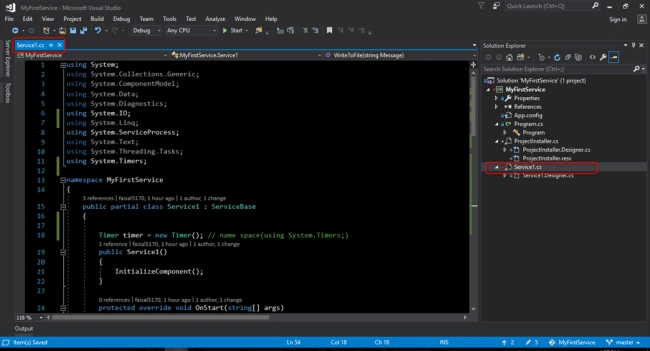
Service1.cs class
using System;
using System.Collections.Generic;
using System.ComponentModel;
using System.Data;
using System.Diagnostics;
using System.IO;
using System.Linq;
using System.ServiceProcess;
using System.Text;
using System.Threading.Tasks;
using System.Timers;
namespace MyFirstService {
    public partial class Service1: ServiceBase {
        Timer timer = new Timer(); // name space(using System.Timers;)
        public Service1() {
            InitializeComponent();
        }
        protected override void OnStart(string[] args) {
            WriteToFile("Service is started at " + DateTime.Now);
            timer.Elapsed += new ElapsedEventHandler(OnElapsedTime);
            timer.Interval = 5000; //number in milisecinds
            timer.Enabled = true;
        }
        protected override void OnStop() {
            WriteToFile("Service is stopped at " + DateTime.Now);
        }
        private void OnElapsedTime(object source, ElapsedEventArgs e) {
            WriteToFile("Service is recall at " + DateTime.Now);
        }
        public void WriteToFile(string Message) {
            string path = AppDomain.CurrentDomain.BaseDirectory + "\\Logs";
            if (!Directory.Exists(path)) {
                Directory.CreateDirectory(path);
            }
            string filepath = AppDomain.CurrentDomain.BaseDirectory + "\\Logs\\ServiceLog_" + DateTime.Now.Date.ToShortDateString().Replace('/', '_') + ".txt";
            if (!File.Exists(filepath)) {
                // Create a file to write to.
                using(StreamWriter sw = File.CreateText(filepath)) {
                    sw.WriteLine(Message);
                }
            } else {
                using(StreamWriter sw = File.AppendText(filepath)) {
                    sw.WriteLine(Message);
                }
            }
        }
    }
}
Code explanation - the above code will call service every 5 seconds, create a folder if none exists, and write our message.
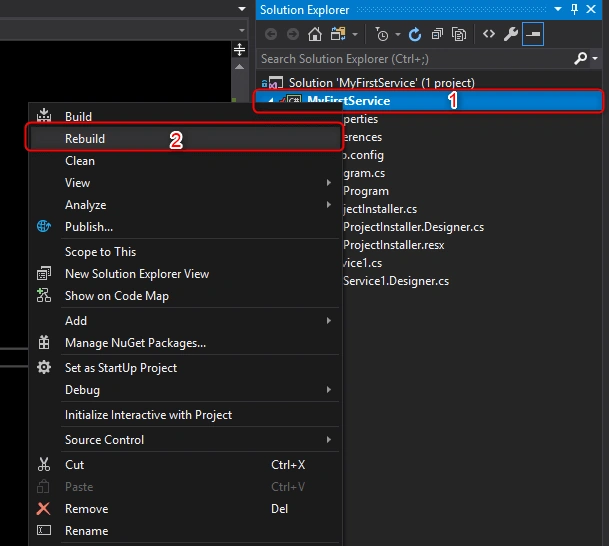
Step 9. Rebuild your application.
Right-click on your project or solution and select Rebuild.
Step 10
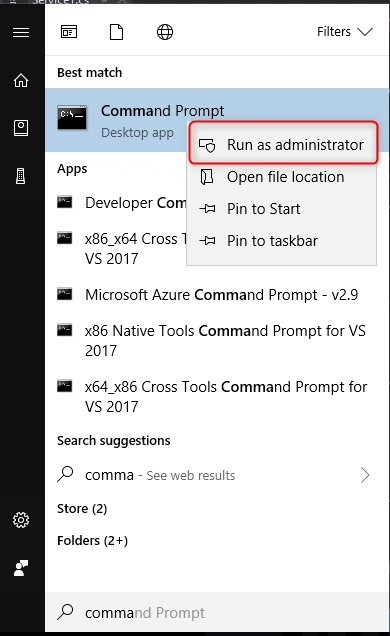
Search "Command Prompt" and run as administrator.
Step 11
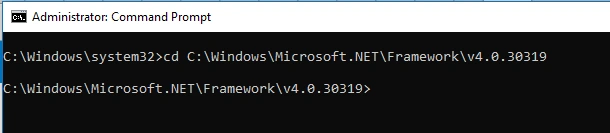
Fire the below command in the command prompt and press ENTER.
cd C:\Windows\Microsoft.NET\Framework\v4.0.30319
Step 12
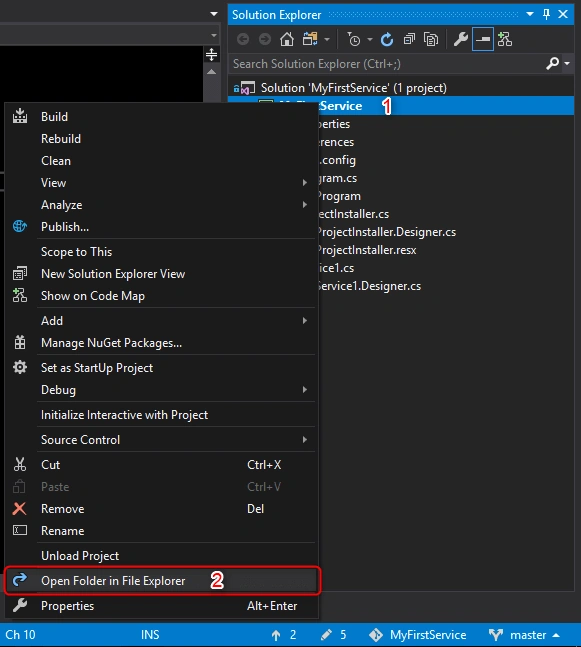
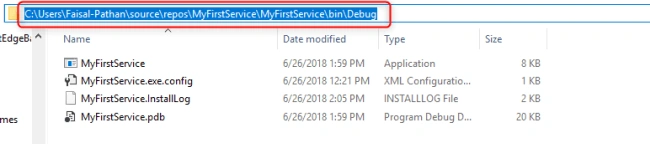
Now Go to your project source folder > bin > Debug and copy the full path of your Windows Service exe file.
Installing a Windows Service
Open the command prompt and fire the below command and press ENTER.
Syntax
InstallUtil.exe + Your copied path + \your service name + .exe
Our path
InstallUtil.exe C:\Users\Faisal-Pathan\source\repos\MyFirstService\MyFirstService\bin\Debug\MyFirstService.exe
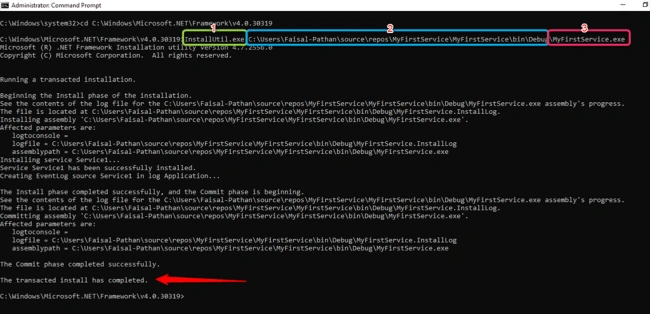
Check the status of a Windows Service.
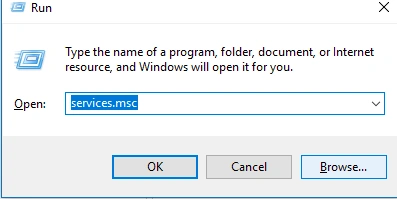
Open services by following the below steps:
- Press the Window key + R.
- Type services.msc
- Find your Service.
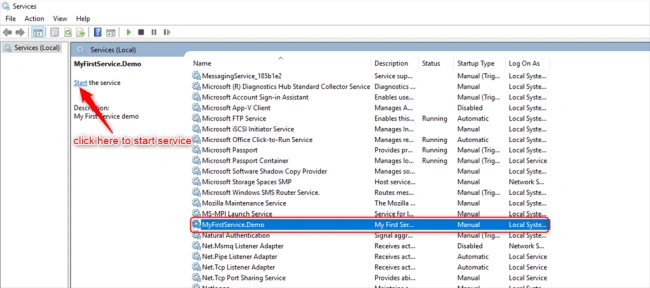
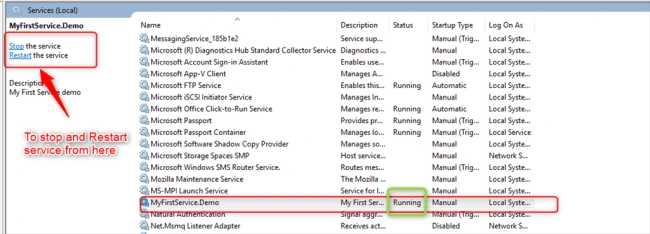
You may notice that the Windows service is running.
Check Windows Service Output
The service will create a text file with the following text in it.
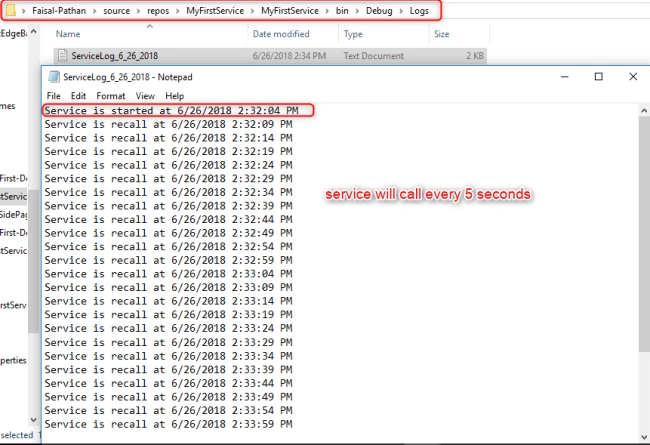
The log folder will be created in your bin folder.
Uninstalling a Windows Service
If you want to uninstall your service, fire the below command.
- Syntax InstallUtil.exe -u + Your copied path + \your service name + .exe
- Our path InstallUtil.exe -u C:\Users\Faisal-Pathan\source\repos\MyFirstService\MyFirstService\bin\Debug\MyFirstService.exe
Summary
This article taught us how to create a Windows Service and install/Uninstall it using InstallUtil.exe from the command prompt.
I hope you found this tutorial easy to follow and understand.
I also uploaded this project on GitHub; here is the URL https://github.com/faisal5170/WindowsService.


balenzi phillipPosted Jul 16, 2025, 8:56 AM EDT
Thank you very much
balenzi phillipPosted Nov 22, 2024, 3:10 AM EST
Thank you very much.... u saved my day
Faisal PathanPosted Mar 11, 2024, 5:28 AM EDT
You are Welcome!
Duc ParkPosted Dec 8, 2023, 11:32 PM EST
It works .. thank mr. Pathan .! <3
r rPosted Jun 5, 2023, 5:05 AM EDT
IS it possible to write this rasa run -m models --enable-api --cors "*" in window services
gopalreddy ganugapentaPosted Mar 17, 2023, 8:13 AM EDT
Very useful.
gopalreddy ganugapentaPosted Mar 17, 2023, 8:12 AM EDT
Hi.. very useful and working fine.
Dave DavePosted Mar 7, 2023, 5:46 PM EST
Very nice and simple explanation. Works perfectly. Initially had some issues installing, but went back and corrected the installer code and it installed properly.
Paul KizilosPosted Sep 22, 2022, 1:26 PM EDT
This is VERY helpful. Thank you!
Mubariz ThakurPosted Nov 22, 2021, 8:48 AM EST
How to create a .net service that pick up the file from local machine and read the data and store in database.once its store u will get a email notification that the data has been stored successfully ? Pls help ??
The TheoryPosted Aug 16, 2021, 9:16 AM EDT
Whenever I try to install the service, it gives me a Win32 Exception. I'm not sure I understand, because the file is literally right there -- I'm looking at it, and I copied the path, added double quotes, so I don't see why it's not finding it?
West EastPosted Aug 9, 2021, 9:42 PM EDT
Good stuff.How to ensure it automatically starts after installation and always starts everytime computer restarts?
Oscar SchultPosted Jul 1, 2021, 8:26 AM EDT
Excellent article. Saved me a lot of time.
chandrugonda nareshPosted Apr 23, 2021, 1:56 AM EDT
Thanks bro, excellent explanation.
Chaitanya KumarPosted Apr 8, 2021, 9:18 AM EDT
How to access the running service from mvc
Ashvin RamphulPosted Mar 19, 2021, 6:16 AM EDT
Thanks bro, excellent explanation. Great article.
sam kowPosted Jan 18, 2021, 12:57 AM EST
Million thanks, Great article.
Thilina WilliamsPosted Dec 10, 2020, 6:25 PM EST
How To fix Below The Error!
Thilina WilliamsPosted Dec 10, 2020, 6:24 PM EST
Exception occurred while initializing the installation:System.IO.FileNotFoundException: Could not load file or assembly 'file:///C:\Users\asus\Desktop\Chanuka' or one of its dependencies. The system cannot find the file specified..
FernandoPosted Sep 23, 2020, 8:59 PM EDT
Muchas gracias, me fue de mucha ayuda!
Ayesha MullaPosted Jun 21, 2020, 5:54 AM EDT
Good explanation..Thanks
Emil SimonyanPosted Jun 9, 2020, 5:11 AM EDT
Thanks, excellent work, really help
Mehmet BlackPosted Apr 22, 2020, 4:20 AM EDT
Thanks, great work
RohanPosted Apr 9, 2020, 8:06 AM EDT
Thank you for the article, it's also helpful for folks like me who develop simple Windows Forms apps and is just curious how Windows Services are developed.
Johary RamanoelinaPosted Apr 7, 2020, 9:37 PM EDT
Excellent tutorial. Steps and screenshots are cristal clear.
Nasir SiddiquiPosted Apr 1, 2020, 3:24 AM EDT
I have to call the controller method of Web API through windows service, for this I have created a windows service and installed it, i has been installed successfully. I have also debug the service in Debug mode it is able to call the controller method of Web API, but when I run the service which I have installed, it is not calling the API method, logs are creating as well. Please suggest
tebourbi riadhPosted Mar 11, 2020, 7:25 PM EDT
Thank you Faisal, great!
Arvind ChourasiyaPosted Mar 10, 2020, 4:34 AM EDT
We have to use Developer command prompt to uninstall the service.
Kees KraamerPosted Mar 2, 2020, 10:29 PM EST
Thank you so much for this article and I see that the typo is already mentioned
quan quanPosted Jan 21, 2020, 2:18 PM EST
There's a typo in the article: ProjectInstakker.cs instead of ProjectInstaller.cs
Sh YarPosted Jan 16, 2020, 8:45 AM EST
Thank you Faisal, Simple & Brilliant Article.
Tuman SahuPosted Jan 7, 2020, 9:52 PM EST
Thankyou for this artical, its great help for my application.
Tuman SahuPosted Jan 7, 2020, 9:52 PM EST
Hi Faisal,
Isaac VasquezPosted Nov 25, 2019, 6:29 AM EST
Nice, how can I use a timer in windows Service with Core 2.2? Timer & Threading Timer doesnt work :(
Deeppak ChaoudharyPosted Nov 10, 2019, 11:04 PM EST
Very nice. good one. Its very easy to learn. Thanks Faisal
srivatsa bsPosted Oct 6, 2019, 8:12 PM EDT
I have created scheduler and its running fine without any error, but now the if i want to control the logic of stop/start of service and configuring the service to run with user defined time interval instead of hard coding the value from code, is that possible
Timothy GrayPosted Oct 3, 2019, 2:41 AM EDT
The following needs to be added to the installer this.serviceProcessInstaller1.Account = System.ServiceProcess.ServiceAccount.LocalSystem; or it asks for a login to install the service
Luciano DbPosted Sep 22, 2019, 4:45 AM EDT
10 minutes to read your post, create project, install and run (fully working) Win Service. Simply... incredible. What else: Thank you a lot :-)
Pius OPosted Sep 12, 2019, 11:40 PM EDT
Hi, Can I use this to run a console or batch file regardless of user login to a server?
shavil shaikPosted Aug 29, 2019, 12:33 AM EDT
Presentation was very good.. i liked it.
Hasitha ChinthakaPosted Aug 21, 2019, 10:38 PM EDT
Nice and simple, awesome work.
Kaustav basuPosted Aug 21, 2019, 1:36 AM EDT
Helpful Explanation
Farid GuseynliPosted Aug 4, 2019, 2:51 AM EDT
Thank you very much!
Shubham KulePosted Aug 1, 2019, 3:37 AM EDT
Hi, Thanks for the article it is very useful.
Marek UherPosted Jun 19, 2019, 1:08 AM EDT
Perfect explanation! It is the first guide that works without any problems for me. Thank you
Raj KPosted Apr 22, 2019, 2:51 AM EDT
Excellent work bro !!
Faisal PathanPosted Apr 14, 2019, 9:31 PM EDT
Just close the Services applet, install the service, and then re-open the Services applet., make sure to run the console as admin.
Yeshal ShahPosted Apr 14, 2019, 9:09 PM EDT
The transacted install has completed. The installation failed, and the rollback has been performed. I got this message after installing in command prompt. what should I do? Please help.
Girija ViswanathanPosted Mar 5, 2019, 5:56 PM EST
Hi, Thanks for the article it is very useful and I have a doubt how can we copy the file to another file in regular interval. Iam getting error if I call the copy method in OnElapsedTime method
Hamid KhanPosted Jan 1, 2019, 6:55 PM EST
Very good explanation Thanks...............................
zaw myo heinPosted Sep 13, 2018, 6:08 PM EDT
Thank you.So valuable for me.
Rameshkumar AngaPosted Jul 25, 2018, 11:26 AM EDT
Brother,im fresher in dotnet my question is, how you know timer have override methods please explain
Ezel AmirPosted Jul 23, 2018, 7:45 AM EDT
Excelente tema y tutorial.
Kaushik DudhatPosted Jul 19, 2018, 6:51 PM EDT
Nice article
Viknaraj ManogararajahTOP 100Posted Jul 14, 2018, 7:07 PM EDT
Nice Article, Thank you for sharing.........
Ravishankar NPosted Jul 11, 2018, 10:18 PM EDT
Nice Article. Thanks for Sharing
Lazy HeapPosted Jul 5, 2018, 8:29 PM EDT
Nice explanation. Just to add one point here. Just need to make sure that if timer event is already in process then another elapsed event may cause issue to access same file handle. This may stop your service. In these cases you'll have to make sure if execution is already writing in file then another elapsed event should not try to access the file.
Hiten PandyaPosted Jun 29, 2018, 7:42 AM EDT
Nice and straightforward presentation.
AKshay RautPosted Jun 29, 2018, 7:25 AM EDT
Please mention which version of visual studio you have used.
ragu moorthiPosted Jun 29, 2018, 6:43 AM EDT
Nice example
Kiranteja JallepalliPosted Jun 28, 2018, 8:49 PM EDT
Awesome presentation