
Introduction
In this article we will see how we can make a Dashboard in Silverlight 4.
Create Silverlight Application
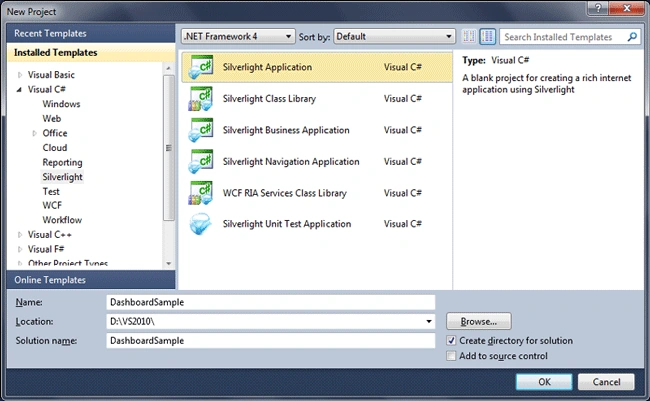
Fire up Visual Studio 2010, and select Silverlight Project from the
templates. Name the solution as DashboardSample.
A Dashboard is a page that contains brief description of a large content or
any tool on the page. For example igoogle. It consists of varieties of
gadgets, that can be added or removed.
We will see how to start with a Dashboard.
I am going to add couple of RSS feeds from some sites, twitter tweets and a
Calculator to the Dashboard.
Before that we need to have a Widget Control that can hold the Content or
Tool.
Widget Control
Widget control is a control with fixed size and style, which can contain the
widget inside it.
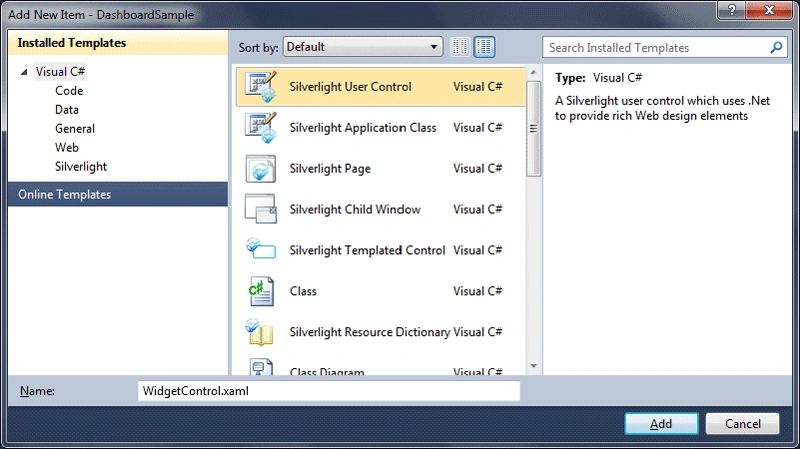
Add a Silverlight User Control name it as WidgetControl.
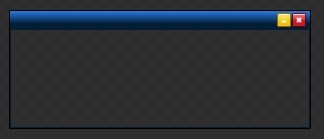
Open up Expression Blend 4 and design it. I have designed it as displayed
below.
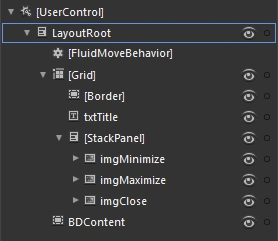
If you look into above Objects in the panel, you could see we have a Title
Text, 3 Image Buttons, and a Border to contain the widget.
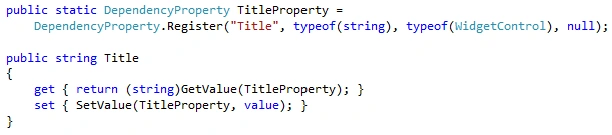
A Dependency Property called TitleProperty is added.
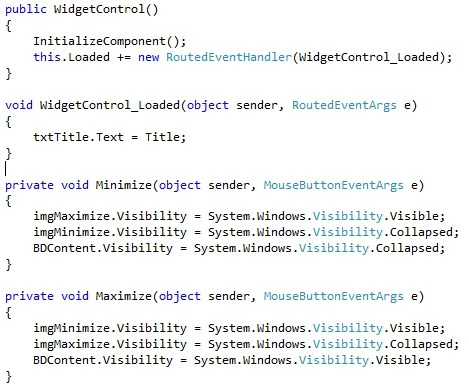
Then we have the Routed events for minimizing and restoring the widget.
Calculator Control
This is a calculator with simple operations.
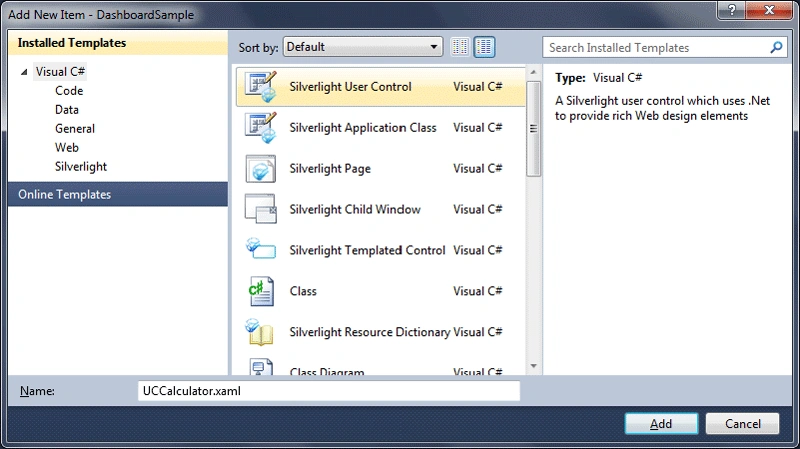
Add a User Control to the Silverlight project and name it as UCCalculator.
As I said it is a simple calculator, and you can design it in either of the
tools (Expression Blend or VS 2010).
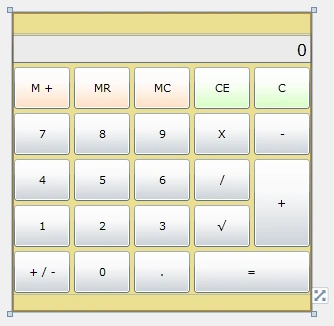
You can refer the source code, for the calculator user control code, as it
is commonly used code.
RSS Feeds Control
Add a new user control to the Silverlight project and name it as UCRSSFeeds.
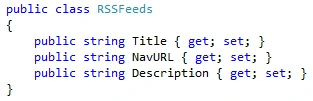
Let's create a class named RSSFeeds which would have the below properties.
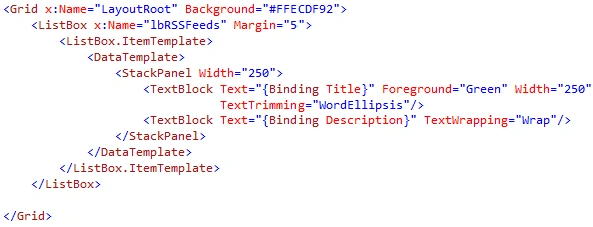
We will have a ListBox to display the feeds.
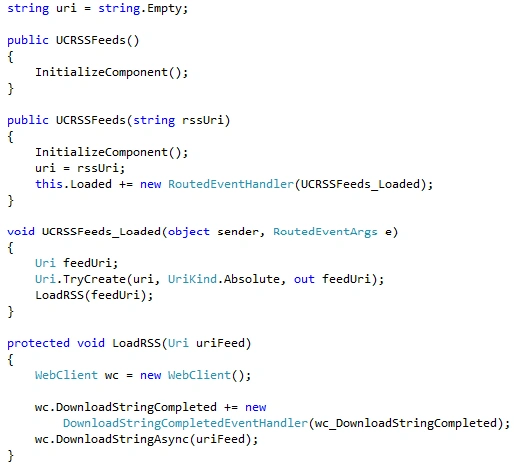
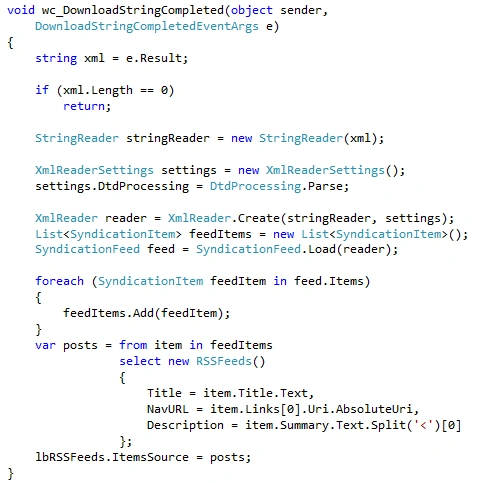
The following is for loading RSS Feeds. As you can see we have created an
overloaded constructor through which we can pass the RSS Feed url.
Twitter Control
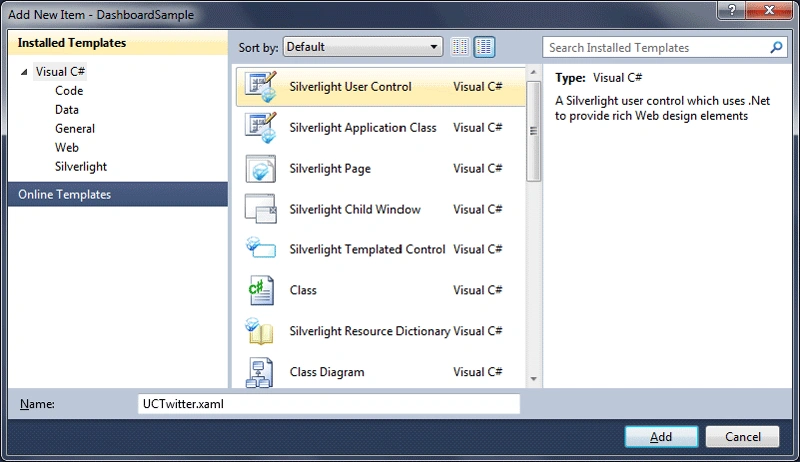
Add a new user control to the Silverlight project and name it as USTwitter.
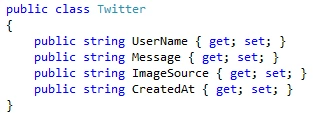
Add a class named Twitter which would contain the following properties.
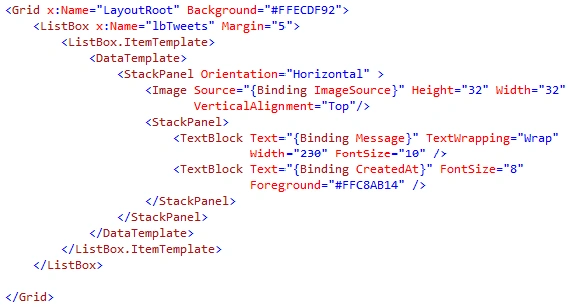
We need to add a ListBox to display the data from the Twitter api call.
Following is the xaml code for the data template of the ListBox.
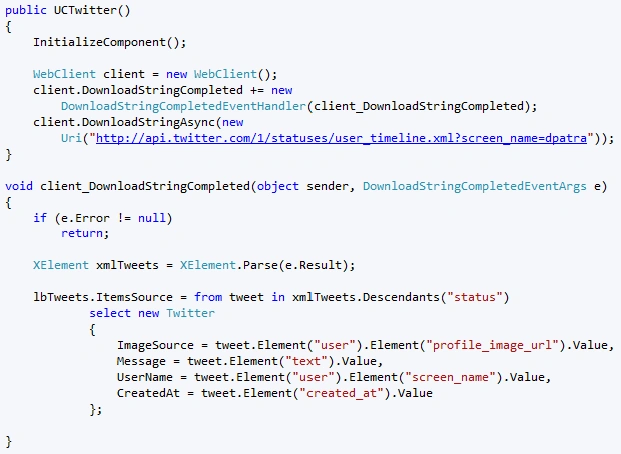
Add the following code for getting the feeds from twitter api.
Authentication Issue
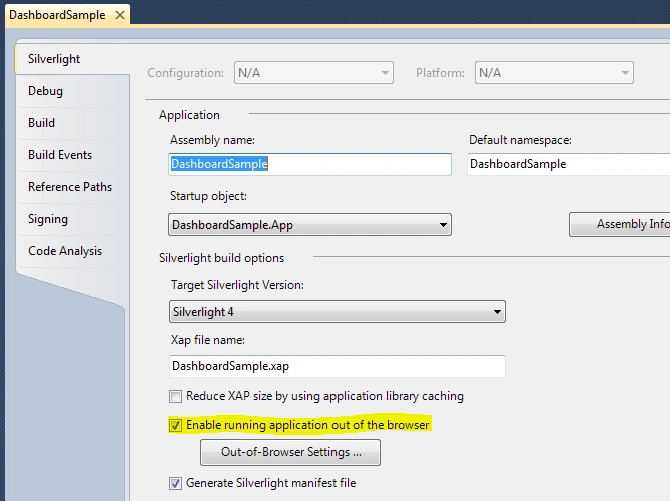
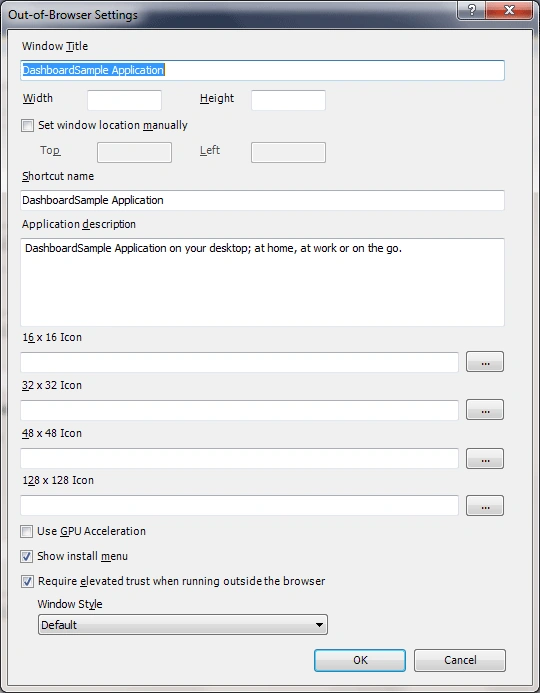
In Silverlight 4 we cannot have the RSS Feeds or twitter api call directly,
for that we need to have the application running in OOB mode as well as with
Elevated Privilege.
Adding Widgets
As per requirement we can have widget panels defined. For example 3 column
widget panel or 2 column widget panel.
In our case I have taken two panels such as Left Panel and Right Panel.
The MainPage.xaml has the following two panels.
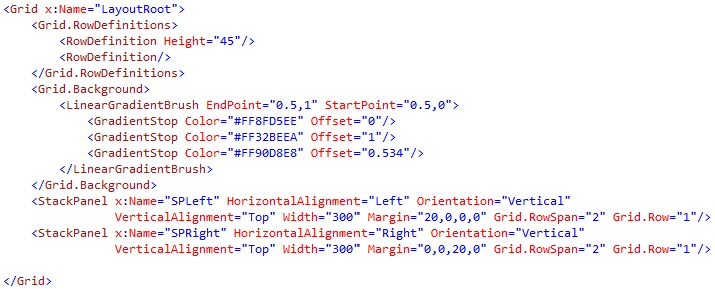
We can add the Widgets to the WidgetControl and then to the columns as
following.
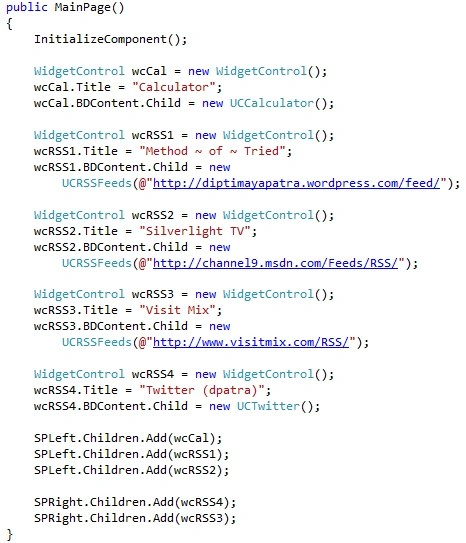
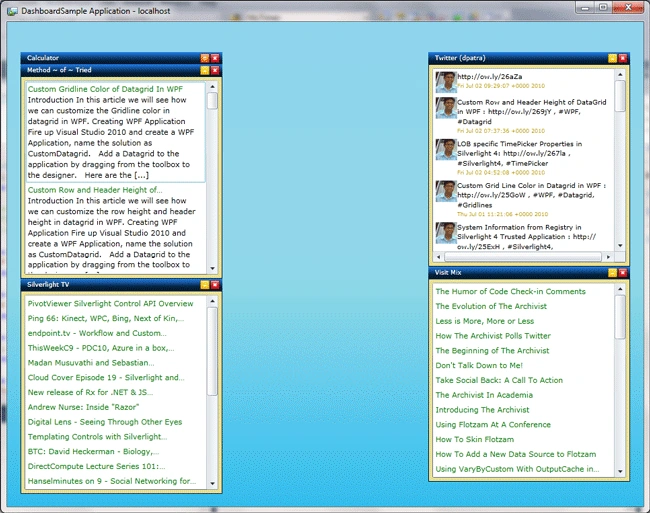
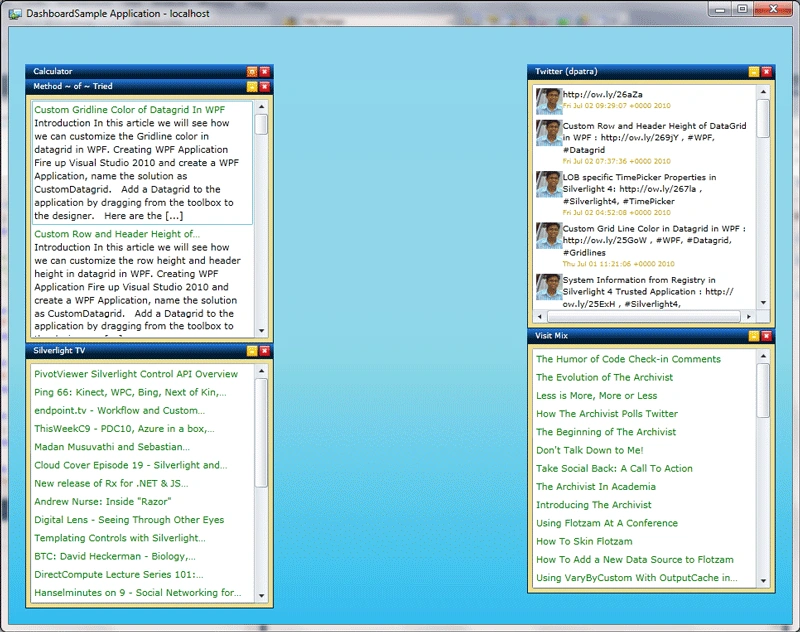
That's it now we can run the application and see the Dashboard.
Hope this article helps.


Raheel YousufPosted Jul 1, 2013, 10:28 PM EDT
An exception occurred during the operation, making the result invalid. Check InnerException for exception details.
darsh antaniPosted Apr 12, 2013, 1:39 AM EDT
how can we add more Widgets in it?? and how much helpful this can be?? tell me in detail bcoz i don't know much but I wan to know..
Hitesh AgjaPosted May 23, 2011, 1:40 AM EDT
Nice article set. If you could add drag and drop functionality in this sample then it would be great help.
Arunava BhattacharjeePosted Jul 22, 2010, 3:13 AM EDT
Great article..
Mahesh ChandTOP 10Posted Jul 21, 2010, 7:00 AM EDT
Great work with real world example. Keep it up Dipti.