
In this article I am going to explain how we can deploy Custom List Forms using PowerShell, this is mainly useful to deploy custom pages in multiple environments instead of recreating list.
Steps to Deploy Custom Forms:
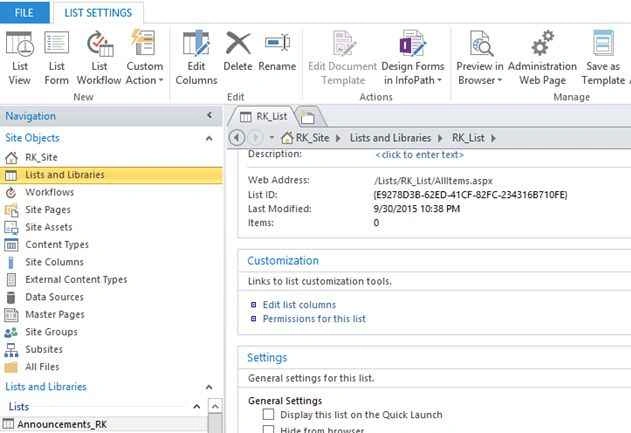
- Create test list in your site.

- Create custom List form using SharePoint Designer and make that as default one for creating new item.

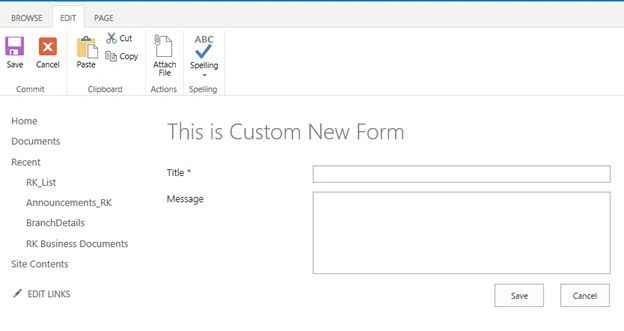
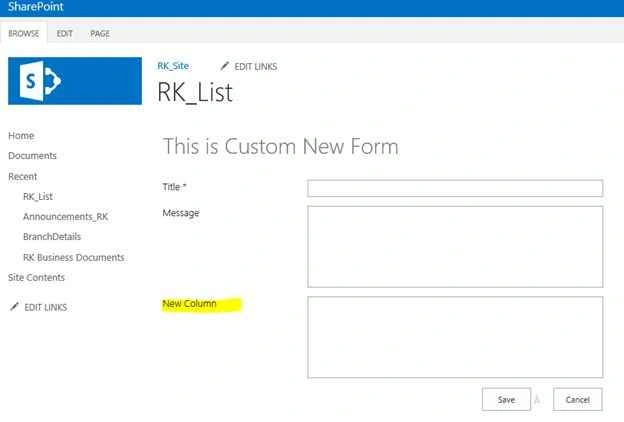
- We can see the new custom form to create new item to the list.
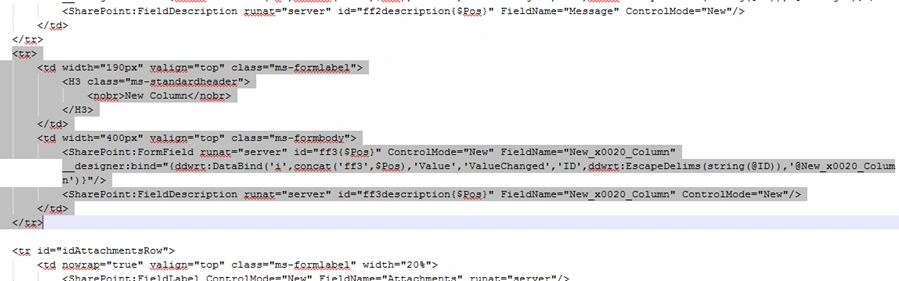
- After deploying this list to different/same site, there is a change in requirement to add new column.
This change can be deployed by creating new list in the target server but it is going to affect the data which is already created.
The second option is to deploy only the list form using PowerShell.
- Export the updated custom form to local drive and deploy using PowerShell script.
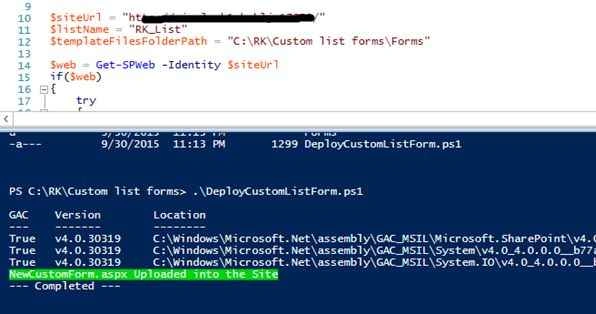
- Open Windows PowerShell management studio or PowerShell ISE and execute the following PowerShell script to deploy files.

- PowerShell Script code:
- [System.Reflection.Assembly]::LoadWithPartialName("Microsoft.SharePoint")
- [System.Reflection.Assembly]::LoadWithPartialName("Microsoft.Publishing")
- [System.Reflection.Assembly]::LoadWithPartialName("System")
- [System.Reflection.Assembly]::LoadWithPartialName("System.IO")
- $siteUrl = "http://RKSite/"
- $listName = "RK_List"
- $templateFilesFolderPath = "C:\RK\Custom list forms\Forms"
- $web = Get-SPWeb -Identity $siteUrl
- if($web)
- {
- try
- {
- $list = $web.Lists.TryGetList($listName)
- $files = Get-ChildItem -Path $templateFilesFolderPath -Force -Recurse
- foreach ($file in $files)
- {
- $stream = $file.OpenRead()
- $completedFileName = $list.RootFolder.Files.Add($file.Name, $stream, [Microsoft.SharePoint.SPTemplateFileType]::FormPage)
- $stream.Close()
- Write-Host $completedFileName.Name "Uploaded into the list"
- }
- $list.Update();
- }
- catch
- {
- Write-Host $($_.Exception.Message)
- }
- }
- else
- {
- Write-Host "Site not exist"
- }
- Write-Host "--- Script Completed ---"
- PowerShell Configuration:
Site Url = <<Site url to deploy the form>>
List Name = <<List name to deploy the from>>
templateFilesFolderPath = <<Local folder path for list forms>>
- Execute the script using the following command:
.\DeployCustomListForm.ps1
- You can see the updated custom list form in target list.
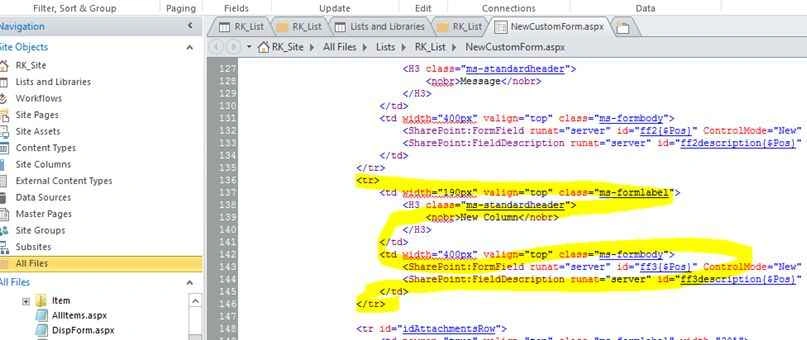
Important Note: If we are going to update this form in different server we need to update the target list id in the custom form.
We need to replace all list ids in the custom form otherwise it will throw an error, better select replace all option



web studentPosted Jun 7, 2017, 11:35 PM EDT
Hi RB. Thanks for the nice article. Do you happen to know of a PowerShell Script to download a SharePoint List Form's source code? I've tried a few scripts from the internet, but they do not give me the whole file (as in SPD Advanced Editing Mode). Any hint is greatly appreciated.
Ramakrishna BasagallaPosted Nov 28, 2015, 4:57 AM EST
Thanks for posting your feedback.
Rupali ShindePosted Nov 27, 2015, 12:51 AM EST
nice article on powershell ..
Ramakrishna BasagallaPosted Oct 12, 2015, 9:09 AM EDT
Thanks for feedback :-)
Shakti SaxenaPosted Oct 2, 2015, 3:41 AM EDT
good one
Karthikeyan KPosted Oct 1, 2015, 10:21 PM EDT
Good one sir...Thanks for sharing
Santhakumar MunuswamyPosted Oct 1, 2015, 11:50 AM EDT
Good one
Priyaranjan K STOP 100Posted Oct 1, 2015, 10:06 AM EDT
Good One ...
Abhay ShankerPosted Oct 1, 2015, 2:16 AM EDT
Nice one...
Ankit BansalPosted Oct 1, 2015, 1:08 AM EDT
nice..thanks for sharing..
Nilesh JadavPosted Oct 1, 2015, 12:24 AM EDT
Great !!