
What is a Windows Service
- Enables you to create long-running executable applications that run in their own windows session.
- Can be automatically started when the computer boots, can be paused and restarted without any user interaction.
- Easily installable by running the command line utility InstallUtil.exe and passing the path to the service's executable file.
Why a Windows Service?
One of the most common requirements of some businesses is long-running scheduled jobs based on some time interval. For example: sending a newsletter everyday afternoon or send an email alert to the customer for every one hour.
So building a Windows Service could be one of the reliable solutions to do the goal that can do the required job in the behind the scenes without interfering others users on the same computer.
Introduction
This article explains a step-by-step process of developing and installing a Windows Service to do a scheduled job based on a time interval.
Open Visual Studio and from the menus select "File" -> "New" -> "Project...".
A New Project window will open. Choose "Visual C#" >> "Windows" project type and select "Windows Service" from the right hand side and name the project "TestWindowsService" as shown in the following screenshot.

After you click "OK", the project will be created and you will see the design view of the service as shown in the following screen. Right-click the "Service1.cs" file in Solution Explorer and rename it "to" Scheduler or any other name that you want to give it. Then click “click here to switch to code view”.
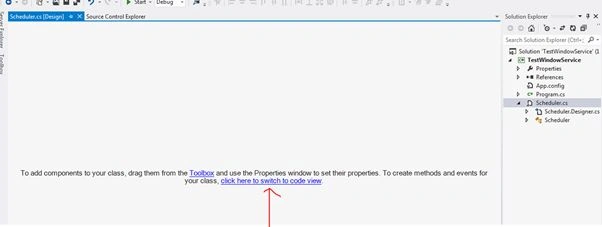
In the code view, you can see two methods called OnStart() and OnStop(). The OnStart() triggers when the Windows Service starts and the OnStop() triggers when the service stops.
using System;
using System.Collections.Generic;
using System.ComponentModel;
using System.Data;
using System.Diagnostics;
using System.Linq;
using System.ServiceProcess;
using System.Text;
using System.Threading.Tasks;
using System.Timers;

namespace TestWindowService
{
    public partial class Scheduler : ServiceBase
    {
        public Scheduler()
        {
            InitializeComponent();
        }
        protected override void OnStart(string[] args)
        {

        }
        protected override void OnStop()
        {

        }
    }
}
Right-click the TestWindowService project, add a new class and name it "Library.cs". This class will be useful to create the methods that we require in the project. If your TestWindowService is a big project, you can create a ClassLibrary project and reference it to your TestWindowService.
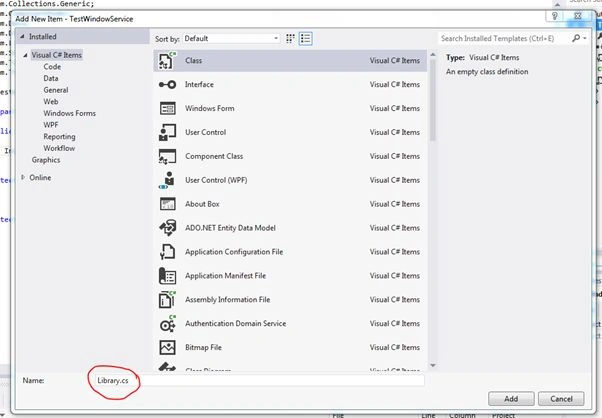
Library.cs
Make the class public and declare it as a Static class.
using System;
using System.Collections.Generic;
using System.Linq;
using System.Text;
using System.Threading.Tasks;
using System.IO;

namespace TestWindowService
{
    public static class Library
    {

    }
}
Create a log method (WriteErrorLog) to log the exceptions.
public static void WriteErrorLog(Exception ex)
{
    StreamWriter sw = null;
    try
    {
        sw = new StreamWriter(AppDomain.CurrentDomain.BaseDirectory + "\\LogFile.txt", true);
        sw.WriteLine(DateTime.Now.ToString() + ": " + ex.Source.ToString().Trim() + "; " + ex.Message.ToString().Trim());
        sw.Flush();
        sw.Close();
    }
    catch
    {
    }
}
Create one more log method (WriteErrorLog) to log the custom messages.
public static void WriteErrorLog(string Message)
{
    StreamWriter sw = null;
    try
    {
        sw = new StreamWriter(AppDomain.CurrentDomain.BaseDirectory + "\\LogFile.txt", true);
        sw.WriteLine(DateTime.Now.ToString() + ": " + Message);
        sw.Flush();
        sw.Close();
    }
    catch
    {
    }
}
Scheduler.cs
Now return to our Scheduler.cs file and declare a Timer.
using System;
using System.Collections.Generic;
using System.ComponentModel;
using System.Data;
using System.Diagnostics;
using System.Linq;
using System.ServiceProcess;
using System.Text;
using System.Threading.Tasks;
using System.Timers;

namespace TestWindowService
{
    public partial class Scheduler : ServiceBase
    {
        private Timer timer1 = null;

        public Scheduler()
        {
            InitializeComponent();
        }
        protected override void OnStart(string[] args)
        {
        }
        protected override void OnStop()
        {
        }
    }
}
Write the following code in the OnStart() method and timer1_Tick():
protected override void OnStart(string[] args)
{
    timer1 = new Timer();
    this.timer1.Interval = 30000; //every 30 secs
    this.timer1.Elapsed += new System.Timers.ElapsedEventHandler(this.timer1_Tick);
    timer1.Enabled = true;
    Library.WriteErrorLog("Test window service started");
}

private void timer1_Tick(object sender, ElapsedEventArgs e)
{
    //Write code here to do some job depends on your requirement
    Library.WriteErrorLog("Timer ticked and some job has been done successfully");
}
Write the following code in the OnStop() method:
protected override void OnStop()
{
    timer1.Enabled = false;
    Library.WriteErrorLog("Test window service stopped");
}
Scheduler.cs [Design]
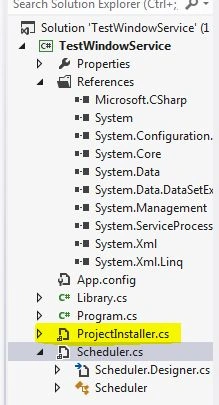
Now return to the Scheduler.cs [Design] and right-click on the editor window then click "Add Installer".

Then you can see that there will be a new file called "ProjectInstaller.cs" as shown in the following.

Right-click on the "serviceInstaller1" and click "Properties".

Change the ServiceName to "Test Windows Service" (or your own name) and StartType to "Manual" (or you can choose "Automatic" if you need this service to be automatic).
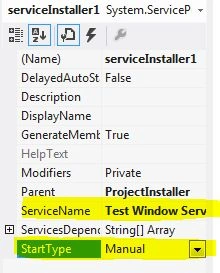
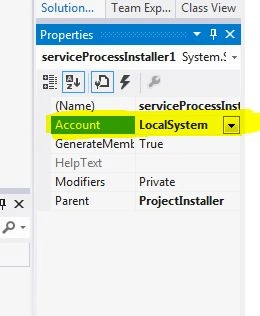
Right-click the serviceProcessInstaller1, go to the properties window and change "Account" to "LocalSystem".
Build the project to see the .exe file at the location where you created the solution.
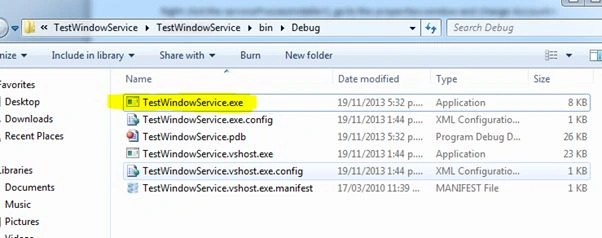
That's all. Your Windows Service is all ready to install in your machine.
Installing the Windows Service
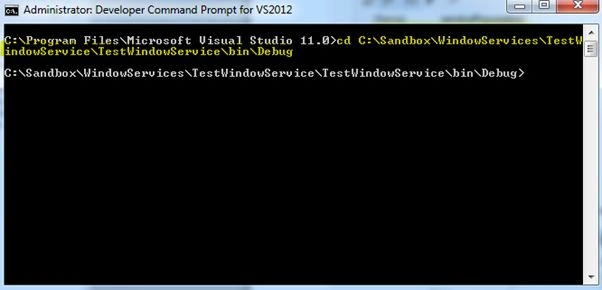
Go to "Start" >> "All Programs" >> "Microsoft Visual Studio 2012" >> "Visual Studio Tools" then click "Developer Command Prompt for VS2012".
Type the following command:
cd <physical location of your TestWindowService.exe file>
in my case it is :
cd C:\Sandbox\WindowServices\TestWindowService\TestWindowService\bin\Debug
Next type the following command:
InstallUtil.exe “TestWindowService.exe”
and press Enter.

Here you go, the TestWindowService is installed successfully.

How to start the Windows Service
Since we chose StartType = Manual, we must start the Windows Service manually by visiting the "Services and Applications" window in the computer.
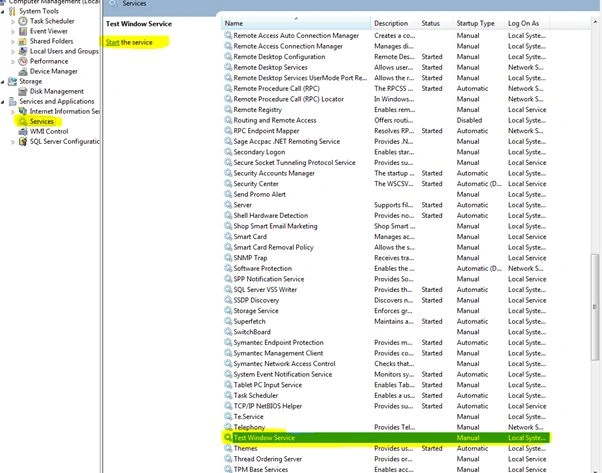
Select the Test Windows Service and click "Start" to start the service. Go to the "TestWindowService.exe" location to see the logs.
LogFile.txt
Since we are tracking our Windows Service by writing some logs to a .txt file called LogFile.txt, we can test the working condition of our Windows Service by looking at this log file.

As you can see in the preceding screen, you can find the LogFile.txt file at the physical location that your TestWindowService solution exists.
Click the LogFile.txt to see the logs, whether our service is doing the job that we set it to do for every 30 seconds.

If you look at the preceding log file, we can prove that our Windows Service is running and doing the job that we wanted on a 30 seconds interval.
Stop the Windows Service
To stop the Windows Service, just click "Stop" link in the Services window by selecting our TestWindowService.
Logfile after stopping our service:
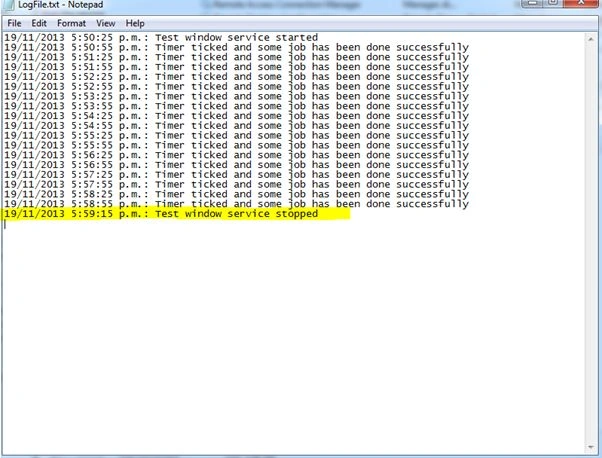
Type the following two commands in the "Developer Command Prompt for VS2012" to uninstall the TestWindowService.exe.
- cd <physical location of your TestWindowService.exe file>
and press Enter. In my case it is:
cd C:\Sandbox\WindowServices\TestWindowService\TestWindowService\bin\Debug - InstallUtil.exe /u “TestWindowService.exe”
And press enter.
After executing the preceding commands, the TestWindowService will be uninstalled from your computer.
Summary
In this article, I explained how to develop a Windows Service and install it using InstallUtil.exe from a command prompt.
I believe that I have explained each step clearly that can be easily understandable for a beginner to develop and install a Windows Service.


margam chakriPosted Jan 11, 2022, 6:24 AM EST
Thank you very much it's helped a lot of time and simply and neatly explained
Chatrughan PrasadPosted May 11, 2021, 1:12 AM EDT
Perfect Tutorial...easy to understand
Niels IllemPosted Apr 13, 2021, 10:43 AM EDT
Great tutorial! Now I understand how to build a service, thanks!
Noel MacaraPosted May 11, 2020, 6:32 AM EDT
Nice clean article. Thank you. I still have much to learn about building a Windows Service. Do you have any more examples to offer.
Dipak NilePosted Jan 13, 2020, 7:38 AM EST
Nice article, thanks for sharing.
JESURAJA IPosted Jan 9, 2020, 6:58 PM EST
How to install the windows service in other computer
Aruna RanatungaPosted Nov 25, 2019, 11:33 AM EST
How can we start this windows app automatically ?
Dinesh GabhanePosted Nov 7, 2019, 3:32 AM EST
Very Nice Article
DeepanPosted Jul 12, 2019, 9:12 PM EDT
Thanks for sharing
Protas MbanjwaPosted Jul 4, 2019, 4:15 AM EDT
Thank you sir
umar drazPosted Jun 28, 2019, 4:44 AM EDT
Is it possible we can use windows service into to different project's
neeraj chaurasiaPosted May 13, 2019, 10:32 PM EDT
Thank u sir
Prakash ChasiyaPosted Dec 13, 2018, 7:49 PM EST
Well written article. Thanks for sharing.
Marilena WeizmannPosted Dec 7, 2018, 2:36 AM EST
10,000,000,000 LIKES !!! Excellent Article !
Hariharan KrishnamoorthiPosted Dec 4, 2018, 1:43 AM EST
Hi Naresh, It is good to add few points on How to debug the Windows services in Visual Studio for Developer friendly.
Hariharan KrishnamoorthiPosted Dec 3, 2018, 10:43 PM EST
Its really helpful.
Krishna GOUTEPosted Nov 19, 2018, 7:25 PM EST
Great Article and Thanks for sharing
Dharmendra Kumar PanditPosted Sep 1, 2018, 12:54 AM EDT
I want to start SqlServer services on computer startup. Using windows services
Adin AronsonPosted Aug 29, 2018, 10:32 PM EDT
I would recommend developers check out TopShelf NuGet too for converting a console app into a Windows Service
thau tranPosted Jun 16, 2018, 5:02 AM EDT
Thanks you!
Jorge TorresPosted Apr 27, 2018, 5:16 AM EDT
Quiero instalar mi servicio en una maquina donde no hay visual studio .Que pasos debo realizar.
Luis BernalPosted Apr 26, 2018, 8:29 AM EDT
Thanks, this is help me too much!
Ammar ShaukatPosted Apr 23, 2018, 2:09 AM EDT
Which means Windows Service is just like a library which keeps on running in background . In case if we need a mechanism for communication between different softwares , then WCF will be the solution.
Suresh KamrushiPosted Apr 13, 2018, 2:13 AM EDT
Perfect article. Thanks for writing
Subham PolpagedarPosted Apr 11, 2018, 10:19 PM EDT
How can I run multiple Windows services in one .EXE ?
Ng JayPosted Apr 5, 2018, 7:22 AM EDT
I tried changing the path of the log file to @"D:/LogFile.txt and "D://LogFile.txt". But there are errors.......Help me, thanks.
Emanuele LeoniPosted Apr 3, 2018, 6:33 AM EDT
Great article Naresh. In your opinion, Can I use a windows service to monitoring a console application, and in case of exception write a log and restart the console application?
sethu sunddareshPosted Mar 20, 2018, 1:51 AM EDT
Hi thanks. i was using sample project like same but there was not InstallUtil.exe in bin how to get the exe . pls replay.......
Rakesh SasiPosted Feb 26, 2018, 9:05 PM EST
Error 1053: The service did not respond to the start or control request in a timely fashion.Can you give me a solution for that?This happens when I start the service.
Dahiana DahianaPosted Feb 9, 2018, 3:46 AM EST
Gracias! me ayudo much?simo ;)
Vipin MittalPosted Jan 30, 2018, 1:42 AM EST
Thanx for this....very helpfull..
Սուրեն ԱթոյանPosted Jan 28, 2018, 7:48 PM EST
Thanks a lot for tutorial !
Govind Singh RawatPosted Nov 21, 2017, 7:41 PM EST
Great, it will be very helpful to me.
Vignesh RajaPosted Nov 17, 2017, 7:49 AM EST
Works great... Cool explanation.. Thanks !
Anel HodzicPosted Nov 9, 2017, 2:40 AM EST
This is awesome tutorial mate. Thanks a lot for it. You should consider the fact of using EventLogger instead of .TXT log file
Sean GrahamPosted Sep 27, 2017, 4:27 AM EDT
This is jolly wonderful article, and useful very. I use this now to create them windows services. Thanks much.
Gideon KwasiPosted Jun 25, 2017, 3:19 AM EDT
What if I want to install on another PC which does not run visual studio ? Is there any other means to install windows services aside using the visual studio developer command prompt ?
Gideon KwasiPosted Jun 25, 2017, 3:16 AM EDT
Very helpful article.
Mohammed WardPosted Jun 18, 2017, 9:16 PM EDT
Thanks why comment can't be less than 18 characters
Jack ZengPosted Mar 16, 2017, 10:09 PM EDT
Thank you very much! You are a good man. I see this article in china.
Ashok JangamPosted Feb 27, 2017, 9:00 PM EST
I have installed my windows service successfully, but it is not visible in 'Services and Applications" window. what to do?
Ebere EmelikePosted Feb 9, 2017, 9:03 AM EST
Thank you for this article. Great!!!
Gusti AryaPosted Jan 22, 2017, 4:26 PM EST
Thanks for the Article sir, it's very useful, but I want to ask, if I updated my windows service code, do I have to uninstall existing service then install it again?
Supraj vPosted Jan 16, 2017, 7:23 PM EST
How to host this in azure
Shailesh BankarPosted Jan 5, 2017, 3:23 AM EST
Hi, I tried to make a service like you've done. But while installing that exe using that VS console, its giving me error like- Exception occurred while initializing the installation:System.IO.FileNotFoundException: Could not load file or assembly 'file ://C:\WindowsService\TestWindowsService\TestWindowsService\bin\Debug\TestWindowsService.exe' or one of its dependencies. The system cannot find the file specified.. Please help.
Naveen KumarPosted Dec 26, 2016, 5:07 AM EST
Its works fine Thanks So much
Manish JainPosted Dec 8, 2016, 8:31 PM EST
Nice Article Sir and very good working code.
Carlos RicoPosted Nov 15, 2016, 9:30 AM EST
Thanks for this article and take my like, good man !!!
Mohsin AzamPosted Nov 9, 2016, 12:29 AM EST
Thanks For Nice Article and Style of understanding..:)
mack davidPosted Sep 21, 2016, 5:50 AM EDT
This is best one article so far I have read online. I would like to appreciate you for making it very simple and easy. I have found another nice post related to this post over the internet which also explained very well.https://www.mindstick.com/Articles/988/windows-service-in-dot-net
Suppa BalfaPosted Jul 21, 2016, 10:26 AM EDT
Download link is broken
D v KootenPosted Jul 12, 2016, 8:02 AM EDT
Thank you very much, very easy to understand and complete. Just the following (some of it written in other remarks): 1 Open Developer Command Prompt via Run as Administrator otherwise you get an Access Denied Error. 2) On logon use .\YourWinLogonName (instead of YourWinLogonName) otherwise you get The account name is invalid or does not exist. 3) If you set the service as automatic the option to set the "Account" to "LocalSystem" does not appear (at least I guess that is the cause) 4) Also an Automatic service has to be started the first time manually using My Computer, Services 5) Use InstallUtil.exe /u “MyService.exe” if you want to uninstall it again.
kalu singh raoPosted Jul 9, 2016, 6:34 AM EDT
Nice...
Mukesh vermaPosted May 27, 2016, 3:53 AM EDT
nice article
Muhammed AbdussalamPosted Apr 6, 2016, 9:17 AM EDT
Simple and powerful.. ;) Thank you very much.
manoj t sPosted Mar 8, 2016, 4:00 AM EST
in the VS Cmd prompt
manoj t sPosted Mar 8, 2016, 3:59 AM EST
here it is showing 'Access is denied'
Shamim RezaPosted Feb 26, 2016, 11:55 PM EST
nice article for beginners.
Humayun Kabir MamunPosted Feb 17, 2016, 8:33 PM EST
Nice...
Bhavin MehtaPosted Feb 9, 2016, 10:05 PM EST
Nice Article.
Fevzi SivriPosted Jan 30, 2016, 2:33 AM EST
Thank you Great sample
Shrimant TelgavePosted Jan 19, 2016, 6:57 AM EST
ohhh ya great ....
Sumeet BrahamankarPosted Jan 11, 2016, 1:16 AM EST
Nice Article
Malik AamirPosted Jan 1, 2016, 12:10 AM EST
It really help beginners like me.
Aakriti GangwalPosted Dec 10, 2015, 8:09 PM EST
Thanks for such a clear explanation. It helped a lot :)
Girjesh VishakarmaPosted Dec 10, 2015, 2:10 AM EST
Great article .. .... Thank You
Banketeshvar NarayanPosted Nov 19, 2015, 11:57 PM EST
Nice Article..
Harminder SinghPosted Oct 30, 2015, 10:28 PM EDT
great article
Shahbaz AhmadPosted Oct 27, 2015, 5:18 AM EDT
Hi kunal, I think you should be used threading concept in your project. call a function inside thread and call after certain time period as your require.
kunal kumarPosted Oct 15, 2015, 4:00 AM EDT
hi i did that and really it will helpful to me but i need to create one window application in which i have a grid view in which i need to show what are the services are there and what is the status for that services either is is stop or started, can someone help me on that....
Elian FernandezPosted Oct 12, 2015, 7:08 AM EDT
Excellent article. I need to do something similar but checking scheduled times stored in a database(If ScheduledTime <= DateTime.Now then Execute action(Funtion stored in DLL but I need to call it from a WCF Service method)). I get these scheduled times using a function implemented in a DLL that it is called from a WCF Service where a method that implements the service call that function in the DLL. Please, some help about how to do that?
Cody S.Posted Aug 29, 2015, 4:39 AM EDT
it says "Access is denied." Please help. I'm a beginner.
SavindraSingh ShahooPosted Jul 22, 2015, 4:10 AM EDT
This is an excellent article. That helped me develop one service for network monitoring. However, I am still not clear on how to install the service on other computers?
Iswarya RengarajanPosted Jul 9, 2015, 1:15 AM EDT
very useful for me to learn window service
Srinivas MNDPosted Jun 26, 2015, 4:29 AM EDT
It's a good example. But how to set this to run weekly? Do I need to put the value of the "Interval" by calculating in seconds....it quite difficult!
Ashish ShuklaPosted Jun 24, 2015, 2:15 AM EDT
It's very helpful for beginners...!!
Jaipal ReddyPosted Jun 6, 2015, 3:49 AM EDT
5/5
Chandni JainPosted Jun 2, 2015, 10:53 PM EDT
hello i am tring your above example and it works fine but as soon as i am trying to connect with sql db it doesn't wotk. how to resolve it?
krishna kumar singhPosted May 11, 2015, 9:32 AM EDT
Best article ever
Jaison JoePosted Apr 29, 2015, 1:42 AM EDT
Nice...!!!
Mahesh RajolePosted Apr 9, 2015, 2:58 AM EDT
Hi Naresh, am trying to get DataSet OnStrart() of service but while service in Debug mode it getting the DataSet but after install this service couldn't start.
s sPosted Mar 26, 2015, 9:28 PM EDT
But how can we access this service from another windows form application. For eg. what if I want to call some method which is implemented in the service
Shaili DashoraPosted Mar 11, 2015, 9:23 AM EDT
nice one
Tom MohanPosted Mar 11, 2015, 8:21 AM EDT
nice one
Praveen KumarPosted Mar 11, 2015, 5:52 AM EDT
very helpful! Nice explanation
Mahesh ChandTOP 10Posted Mar 11, 2015, 4:47 AM EDT
Job well done!
Sandeep Singh ShekhawatPosted Mar 11, 2015, 3:56 AM EDT
+5
NitinPosted Mar 11, 2015, 1:28 AM EDT
great article
Humayun Kabir MamunPosted Mar 11, 2015, 12:53 AM EDT
Nice...
Venkatajalapathy KPosted Mar 10, 2015, 11:21 PM EDT
Useful for me...Thanks..
Imran Khan MemonPosted Mar 2, 2015, 9:15 AM EST
Nice work dear
Manzoor AhmedPosted Feb 20, 2015, 3:30 AM EST
Thanks dude you helped me out ...
Vaishak GopiPosted Feb 13, 2015, 12:28 AM EST
Good one..
Srinivasan K KPosted Feb 5, 2015, 8:40 PM EST
Helpful article for a beginner too...
Guest UserPosted Feb 5, 2015, 8:35 PM EST
Time worth spend to read this article!
Vikram AgrawalPosted Jan 21, 2015, 6:39 PM EST
Very Helpful Article........
MUHAMMAD TASADDUQ ALIPosted Jan 16, 2015, 9:58 PM EST
Solution for Installation failed : Go to "Start" >> "All Programs" >> "Microsoft Visual Studio 2012" >> "Visual Studio Tools" then right click "Developer Command Prompt for VS2012" and Run as Administrator.
K P Singh ChundawatPosted Dec 26, 2014, 1:07 AM EST
nice article sir..
KumarPosted Dec 8, 2014, 10:19 AM EST
Very nice Article with simple explanation....Thanks Naresh...!
Mazen SenihPosted Dec 1, 2014, 8:01 AM EST
I think the Log's Stream Writer sould be intitialized in a static constructer, so we don't have to re-create it every time.
Silver ZPosted Nov 28, 2014, 2:02 AM EST
what is much better to use? Timer or Thread..How can I use Thread instead of Timer..
ASHWIN RAJPosted Nov 21, 2014, 1:58 AM EST
i wrote some functions to update my database in ' Library.cs ' file , But it is not working properly . WriteErrorLog function works correctly .
ASHWIN RAJPosted Nov 21, 2014, 1:57 AM EST
good article ..
Manish Kumar ChoudharyPosted Nov 19, 2014, 1:11 AM EST
very helpful for me Naresh Avari sir. Thanks..
Pandurang PailvanPosted Nov 13, 2014, 2:31 AM EST
Very good article...........
boeie boeiePosted Oct 13, 2014, 5:21 AM EDT
Naresh, You forgot to mention in your tutorial that you should start the developer console with ADMIN priviledges, or else you get the security exception.
abdul muqeetPosted Jul 15, 2014, 12:48 AM EDT
I got the same error , when i try to install exe "InstallUtil.exe "TestWindowService.exe"" its getting Rollback
Ajinkya KasarPosted May 5, 2014, 11:57 PM EDT
Very thanks to Naresh Avari . this are very helpful for me. but when i run this code i got this exception(System.Security.SecurityException ) during service installation process.and installation is rollback can you help me to resolve? Exception description says : The source was not found,but some or all event logs could not be searched inaccessible logs: security.
vigneshwarr sPosted Apr 21, 2014, 11:22 PM EDT
NIce Article..It Helped me a lot
Rakhi SinghPosted Apr 8, 2014, 10:30 PM EDT
Superb work.
AniPosted Feb 27, 2014, 9:48 PM EST
Good Article
Sumit DhawanPosted Feb 23, 2014, 9:40 PM EST
When I build the solution,I still cant find the .exe file for service in the folder where project is located??
Dinesh BeniwalTOP 10Posted Feb 23, 2014, 9:08 PM EST
Well explained Naresh, Welcome to the C# Corner.