
Introduction
In this article we will use the model binder in backbone.js. In this tutorial we will display images on a button click using model binding.
In this tutorial you will see a row of a table bound to the collection.
Here we need the following JavaScript files:
<script type="text/javascript" src="js/underscore.js"></script>
<script type="text/javascript" src="js/jquery.js"></script>
<script type="text/javascript" src="js/backbone.js"></script>
<script type="text/javascript" src="js/Backbone.ModelBinder.js"></script>
Now let's see how the collection binder works.
- First we need to create an application.
- Start Visual Studio 2013.
- From the Start window select "New Project".
- Select "Installed" -> "Template" -> "Visual C#" -> "Web" -> "Visual Studio2012" and select as in the following:

- Click on the "OK" button.
- Now add the HTML page to the project.
- In the Solution Explorer.
- Right-click on the project and select "Add" -> "HTML Page".
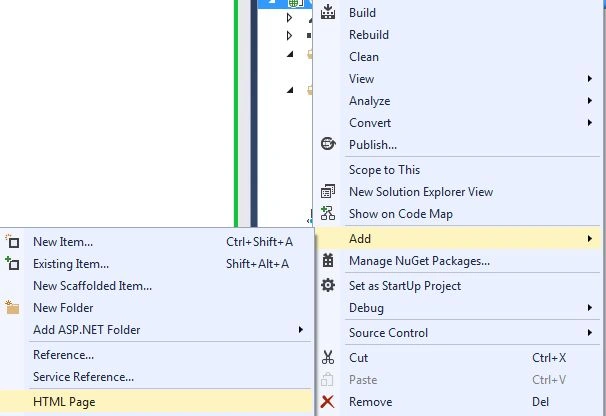
- Change the Name.
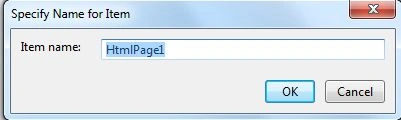
- Then click on the "OK" button.
Add the following code:
<!DOCTYPE HTML PUBLIC "-//W3C//DTD XHTML 1.1//EN" "http://www.w3.org/TR/xhtml11/DTD/xhtml11.dtd">
<html xml:lang="en" xmlns="http://www.w3.org/1999/xhtml">
<head>
<meta content="text/html;charset=UTF-8" http-equiv="Content-Type" />
<title>Bind to img src attribute</title>
<!-- include source files here... -->
<script type="text/javascript" src="js/underscore.js"></script>
<script type="text/javascript" src="js/jquery.js"></script>
<script type="text/javascript" src="js/backbone.js"></script>
<script type="text/javascript" src="js/Backbone.ModelBinder.js"></script>
<script>
$().ready(function () {
model = new Backbone.Model();
ImageArray = ['images/img1.png',
'images/img2.png'];
model.bind('change', function () {
$('#imgmodel').html(JSON.stringify(model.toJSON()));
});
model.trigger('change');
ViewClass = Backbone.View.extend({
_modelBinder: #ff0000,
events: {
'click #button': '_onButtonClick'
},
initialize: function () {
this._modelBinder = new Backbone.ModelBinder();
},
render: function () {
var html = '<button id="button">Click</button> Load images through model Binder.<br><br>';
var bindings = {};
var Nameofimage
for (var i = 0; i < ImageArray.length; i++) {
Nameofimage = 'image' + i;
html += 'Image ' + i + ' : ' + '<img name="' + Nameofimage + '"/><br>';
bindings[Nameofimage] = { selector: '[name=' + Nameofimage + ']', elAttribute: 'src' };
}
this.$el.html(html);
this._modelBinder.bind(this.model, this.el, bindings);
return this;
},
_onButtonClick: function () {
for (var i = 0; i < ImageArray.length; i++) {
var data = {};
data['image' + i] = ImageArray[i];
model.set(data);
}
}
});
view = new ViewClass({ model: model });
$('#viewContent').append(view.render().el);
});
</script>
</head>
<body>
<br>
Bind Images with the Model<br>
<br>
<br>
Model data:
<div id="imgmodel"></div>
<hr>
<br>
<div id="viewContent"></div>
</body>
</html>
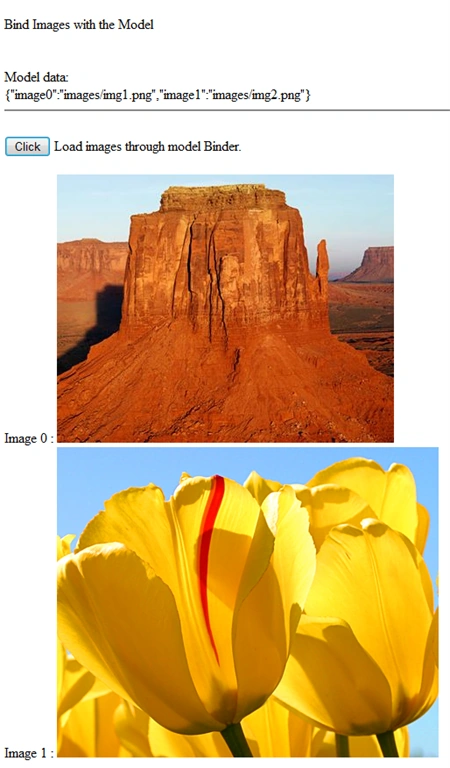
- Now execute the application:

Now click on the button. It will then display all the images bound to the model.

Join the conversation! Your thoughts help the community grow.