
The jQuery fadeIn() effect animates the opacity of the matched elements from hidden to visible (fading effect).This method is often used together with the fadeOut() method.
Syntax
selector.fadeIn( speed, [callback] );
The jQuery fadeOut effect changes the opacity, for selected elements, from visible to hidden (fading effect). This method is often used together with the fadeIn() method.
Syntax
selector.fadeOut( speed, [callback] );
It is similar to the .fadeTo () method but that method does not unhide the element and can specify the final opacity level. Use basic HTML code to create the HTML elements.
The following is the HTML code I used for this tutorial.
HTML
- <!DOCTYPE html>
- <html>
- <head></head>
- <body>
- <div id="pics">
- <img src="https://cdn3.iconfinder.com/data/icons/numbers-6/300/02-128.png" width="128" height="128" id="picOne" />
- <img src="https://cdn3.iconfinder.com/data/icons/numbers-6/300/03-128.png" width="128" height="128" id="picTwo" />
- <img src="https://cdn3.iconfinder.com/data/icons/numbers-6/300/04-128.png" width="128" height="128" id="picThree" />
- <img src="https://cdn3.iconfinder.com/data/icons/numbers-6/300/05-128.png" width="128" height="128" id="picFour" />
- <img src="https://cdn3.iconfinder.com/data/icons/numbers-6/300/06-128.png" width="128" height="128" id="picFive" />
- <img src="https://cdn3.iconfinder.com/data/icons/numbers-6/300/07-128.png" width="128" height="128" id="picSix" />
- <img src="https://cdn3.iconfinder.com/data/icons/numbers-6/300/08-128.png" width="128" height="128" id="picSeven" />
- <img src="https://cdn3.iconfinder.com/data/icons/numbers-6/300/09-128.png" width="128" height="128" id="picEight" />
- <img src="https://cdn3.iconfinder.com/data/icons/numbers-6/300/10-128.png" width="128" height="128" id="picNine" />
- </div>
- </body>
- </html>
CSS
Use CSS code to make the look and feel for all the HTML elements as we used before in the HTML part. The following is the CSS code I have used in this tutorial.
- #
- pics {
- margin - left: 600 px;
- margin - top: 150 px;
- margin - bottom: 150 px;
- }
- #
- title {
- margin - left: 500 px;
- margin - right: 320 px;
- margin - top: 150 px;
- margin - bottom: 150 px;
- }
- body {
- background - color: MediumSpringGreen;
- }#
- picOne, #picTwo, #picThree, #picFour, #picFive, #picSix, #picSeven, #picEight, #picNine {
- position: absolute;
- display: none;
- }#
- pics {
- width: 128 px;
- height: 128 px;
- }
jQuery scripting
The first step in the jQuery scripting part is to include the required jQuery library reference in the head element of your page.
- <script src="https://ajax.googleapis.com/ajax/libs/jquery/1.11.3/jquery.min.js"></script>
- <script>
- $(document).ready(function() {
- $('#picOne').fadeIn(1500).delay(3500).fadeOut(1500);
- $('#picTwo').delay(5000).fadeIn(1500).delay(3500).fadeOut(1500);
- $('#picThree').delay(10000).fadeIn(1500).delay(3500).fadeOut(1500);
- $('#picFour').delay(15000).fadeIn(1500).delay(3500).fadeOut(1500);
- $('#picFive').delay(20000).fadeIn(1500).delay(3500).fadeOut(1500);
- $('#picSix').delay(25000).fadeIn(1500).delay(3500).fadeOut(1500);
- $('#picSeven').delay(30000).fadeIn(1500).delay(3500).fadeOut(1500);
- $('#picEight').delay(35000).fadeIn(1500).delay(3500).fadeOut(1500);
- $('#picNine').delay(40000).fadeIn(1500).delay(3500).fadeOut(1500);
- var delay = 40000;
- var URL = 'http://2.bp.blogspot.com/-2mNLuYYudGs/VV__xP-jFiI/AAAAAAAABsg/CMXsLd_zlnc/s1600/best-wishes-of-onam.jpg';
- setTimeout(function() {
- window.location = URL;
- }, delay);
- });
- </script>
Complete code
The following is the complete HTML, CSS and jQuery scripting codes I used in this tutorial.
- <!DOCTYPE html>
- <html>
- <head>
- <style>
- #pics {
- margin-left: 600px;
- margin-top: 150px;
- margin-bottom: 150px;
- }
- #title {
- margin-left: 500px;
- margin-right: 320px;
- margin-top: 150px;
- margin-bottom: 150px;
- }
- body {
- background-color: MediumSpringGreen;
- }
- #picOne,
- #picTwo,
- #picThree,
- #picFour,
- #picFive,
- #picSix,
- #picSeven,
- #picEight,
- #picNine {
- position: absolute;
- display: none;
- }
- #pics {
- width: 128px;
- height: 128px;
- }
- </style>
- <script src="https://ajax.googleapis.com/ajax/libs/jquery/1.11.3/jquery.min.js"></script>
- <script>
- $(document).ready(function() {
- $('#picOne').fadeIn(1500).delay(3500).fadeOut(1500);
- $('#picTwo').delay(5000).fadeIn(1500).delay(3500).fadeOut(1500);
- $('#picThree').delay(10000).fadeIn(1500).delay(3500).fadeOut(1500);
- $('#picFour').delay(15000).fadeIn(1500).delay(3500).fadeOut(1500);
- $('#picFive').delay(20000).fadeIn(1500).delay(3500).fadeOut(1500);
- $('#picSix').delay(25000).fadeIn(1500).delay(3500).fadeOut(1500);
- $('#picSeven').delay(30000).fadeIn(1500).delay(3500).fadeOut(1500);
- $('#picEight').delay(35000).fadeIn(1500).delay(3500).fadeOut(1500);
- $('#picNine').delay(40000).fadeIn(1500).delay(3500).fadeOut(1500);
- var delay = 40000;
- var URL = 'http://2.bp.blogspot.com/-2mNLuYYudGs/VV__xP-jFiI/AAAAAAAABsg/CMXsLd_zlnc/s1600/best-wishes-of-onam.jpg';
- setTimeout(function() {
- window.location = URL;
- }, delay);
- });
- </script>
- </head>
- <body>
- <div id="pics">
- <img src="https://cdn3.iconfinder.com/data/icons/numbers-6/300/02-128.png" width="128" height="128" id="picOne" />
- <img src="https://cdn3.iconfinder.com/data/icons/numbers-6/300/03-128.png" width="128" height="128" id="picTwo" />
- <img src="https://cdn3.iconfinder.com/data/icons/numbers-6/300/04-128.png" width="128" height="128" id="picThree" />
- <img src="https://cdn3.iconfinder.com/data/icons/numbers-6/300/05-128.png" width="128" height="128" id="picFour" />
- <img src="https://cdn3.iconfinder.com/data/icons/numbers-6/300/06-128.png" width="128" height="128" id="picFive" />
- <img src="https://cdn3.iconfinder.com/data/icons/numbers-6/300/07-128.png" width="128" height="128" id="picSix" />
- <img src="https://cdn3.iconfinder.com/data/icons/numbers-6/300/08-128.png" width="128" height="128" id="picSeven" />
- <img src="https://cdn3.iconfinder.com/data/icons/numbers-6/300/09-128.png" width="128" height="128" id="picEight" />
- <img src="https://cdn3.iconfinder.com/data/icons/numbers-6/300/10-128.png" width="128" height="128" id="picNine" />
- </div>
- </body>
- </html>
1. Open the main Index html file in a web browser.

Figure 1: Main index page
2. FadeIn animates the image fromn 1 to 9.

Figure 2: FadeIn animate

Figure 3: FadeIn animate
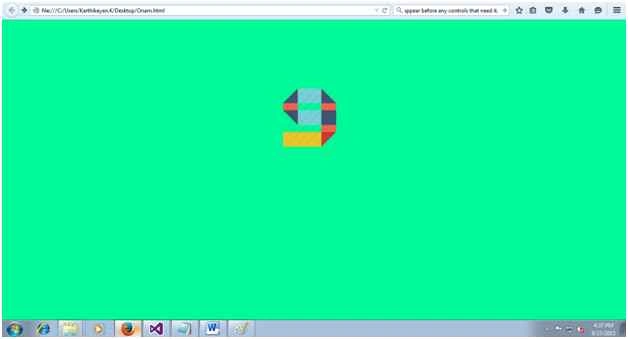
Figure 4: FadeIn animate

Figure 5: Redirect to new URL
Conclusion
I hope you liked this useful article. It will be useful for jQuery beginners. Please provide your valuable feedback and suggestions.
Live demo link: Jsfiddle
References


Karthikeyan KPosted Sep 1, 2015, 4:22 PM EDT
Thank you Gunavadhi A S
Gunavadhi A SPosted Sep 1, 2015, 9:24 AM EDT
Thanks for sharing karthikeyan
Karthikeyan KPosted Aug 29, 2015, 12:47 AM EDT
Thank you Santhakumar Munuswamy sir
Santhakumar MunuswamyPosted Aug 29, 2015, 12:38 AM EDT
Good article. Thanks for sharing
Karthikeyan KPosted Aug 28, 2015, 8:00 PM EDT
Thank you Sandeep Kumar sir
Sandeep KumarPosted Aug 28, 2015, 8:01 AM EDT
nice article :)
Karthikeyan KPosted Aug 28, 2015, 12:50 AM EDT
Thank you Rakesh Chavda sir
RakeshPosted Aug 28, 2015, 12:37 AM EDT
Good work
Karthikeyan KPosted Aug 28, 2015, 12:29 AM EDT
Thank you Gowtham K sir
Gowtham KTOP 100Posted Aug 27, 2015, 11:41 PM EDT
Good one
Karthikeyan KPosted Aug 27, 2015, 10:49 PM EDT
Thank you Pankaj...
Pankaj Kumar ChoudharyTOP 100Posted Aug 27, 2015, 10:38 PM EDT
Nice Explain Sir and also Happy Onam to u...........
Karthikeyan KPosted Aug 27, 2015, 9:05 PM EDT
Thank you Yashwanth Muthineni sir
Karthikeyan KPosted Aug 27, 2015, 9:04 PM EDT
Thank you Rajeesh Menoth sir
Yashwanth MuthineniPosted Aug 27, 2015, 8:57 PM EDT
Nice Share
Rajeesh MenothPosted Aug 27, 2015, 8:55 PM EDT
Happy Onam...Good One
Karthikeyan KPosted Aug 27, 2015, 8:07 PM EDT
Thank you Mohammed Ibrahim sir
Mohammed IbrahimPosted Aug 27, 2015, 7:57 PM EDT
nice