This is a simple example for gensture handelling in Windows 8 Phone. This basic example will provide an idea to implement and use the gesture.
Please refer to the Microsoft detailed doumnentation for this topic:
https://msdn.microsoft.com/en-us/library/windows/apps/jj207076(v=vs.105).aspx
Requirement: Create a rectangle of Blue colour. It could be moved to anywhere on the screen and will change color to Yellow when moving and on a double-tap the size is increased.
1. Create a rectangle
Create a sample project and delete the default grid and make an empty screen. Then add the following code to draw a rectangle.
- <Canvas>
- <Rectangle Name="MyRectangle" Width="150" Height="150" Fill="Blue"></Rectangle>
- </Canvas>
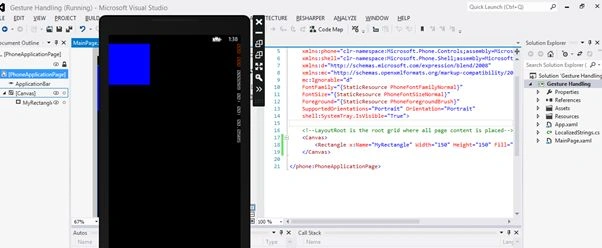
2. This will not react to a gesture or action since we have not written any code for handling action/event.
Now the following is the code for gesture handling:
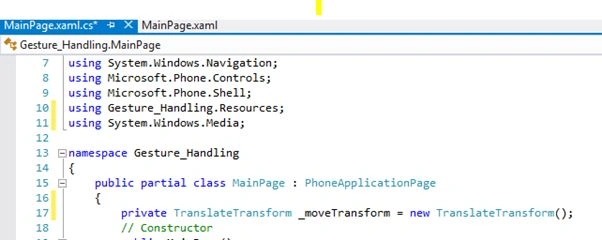
- private TranslateTransform _moveTransform = new TranslateTransform();
- //TranslateTransform : moves the object in 2D X-Y coordinate.
3. Brush to paint the object and apply color.
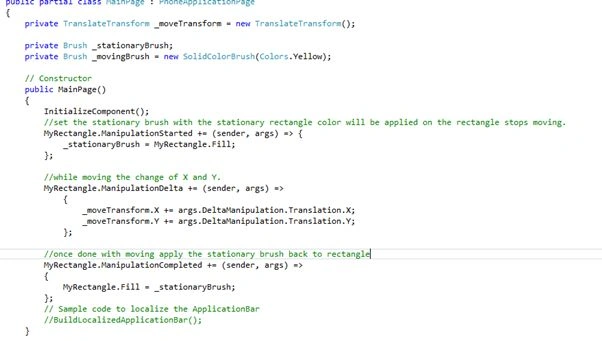
a) Stationary Brush: To apply color when the rectangle is stationary.
- private Brush _stationaryBrush;
- private Brush _movingBrush = new SolidColorBrush(Colors.Yellow);
ManipulationStarted: when it begins to fill the exiting fill to _stationaryBrush, it will be applied again once the movement is complete or stopped.
ManipulationDelta: use TranslateTransform for the change in X and Y to allow moving the object with the change of x and y.
ManipulationCompleted: when done with the moving, set the color as it was.
5. Now we need to associate the TranslateTransform with our rectangle. As you can see in the preceding it has not been associated until now.
- MyRectangle.RenderTransform = _moveTransform;
Yes, we have done it! We can make it fly.
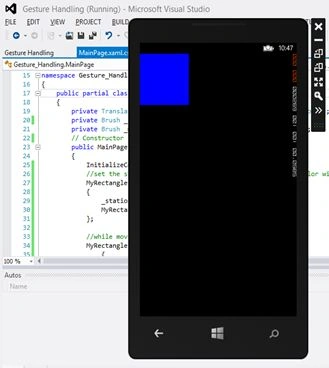
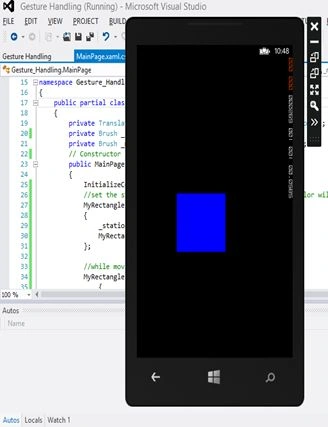
Now to do the second part of the requirements, the rectagle sholud grow on double tap.
- Since we will be scaling the Rectangle on double-tap, we need to add ScaleTransform for this:
- private ScaleTransform _scaleTransform = new ScaleTransform();
- Then, we will be setting the X and Y scale of _scaleTransform on double-tap:
- MyRectangle.DoubleTap += (sender, args) = > {
- _scaleTransform.ScaleX = .25;
- _scaleTransform.ScaleY = .25;
- };
- Now the problem here is, we can apply only one transform to the object/shape MyRectangle at a time.
- MyRectangle.RenderTransform = _scaleTransform;
- MyRectangle.RenderTransform = _moveTransform;
To solve this, we have a TransformGroup so that we can apply multiple transforms.
- private TransformGroup _transformGroup = new TransformGroup();
- _transformGroup.Children.Add(_scaleTransform);
- _transformGroup.Children.Add(_moveTransform);
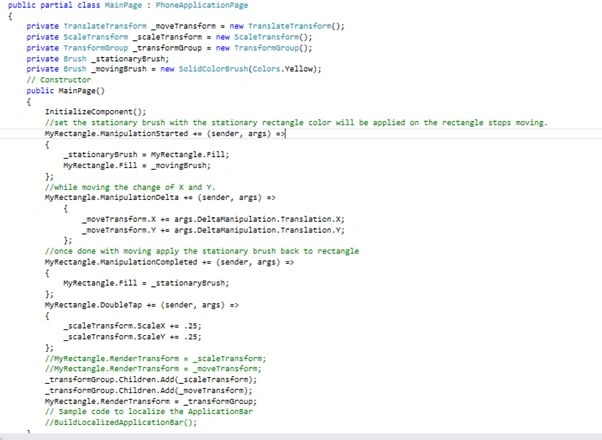
the rectangle is moving as well as the size is increased.
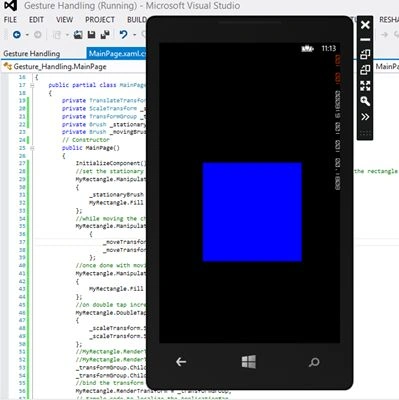
The preceding is a simple code to understand basic gesture handling.


RahulPosted Apr 23, 2015, 8:26 AM EDT
Thanks Karthik
Karthik Muthu KaruppanPosted Apr 23, 2015, 7:20 AM EDT
good one
Krishnanand SivarajPosted Apr 22, 2015, 12:35 PM EDT
Thanks for sharing
RahulPosted Apr 22, 2015, 5:50 AM EDT
Thanks Manoj
Manoj BhoirPosted Apr 22, 2015, 5:16 AM EDT
Good start.....
RahulPosted Apr 22, 2015, 4:24 AM EDT
Thanks Krishnanand
Krishnanand SivarajPosted Apr 22, 2015, 3:11 AM EDT
good
RahulPosted Apr 22, 2015, 2:16 AM EDT
Thanks Nitin
NitinPosted Apr 22, 2015, 1:28 AM EDT
Good one
RahulPosted Apr 21, 2015, 9:02 PM EDT
Thanks Rahul
Rahul BansalPosted Apr 21, 2015, 8:11 PM EDT
Great start :)
RahulPosted Apr 21, 2015, 7:46 PM EDT
Thanks Gowtham
Gowtham RajamanickamTOP 100Posted Apr 21, 2015, 7:26 PM EDT
good one
RahulPosted Apr 21, 2015, 6:45 PM EDT
Thank you Santhakumar
Santhakumar MunuswamyPosted Apr 21, 2015, 6:34 PM EDT
Welcome
Santhakumar MunuswamyPosted Apr 21, 2015, 6:34 PM EDT
Good Start