
Getting Started
- Start Visual Studio 2015
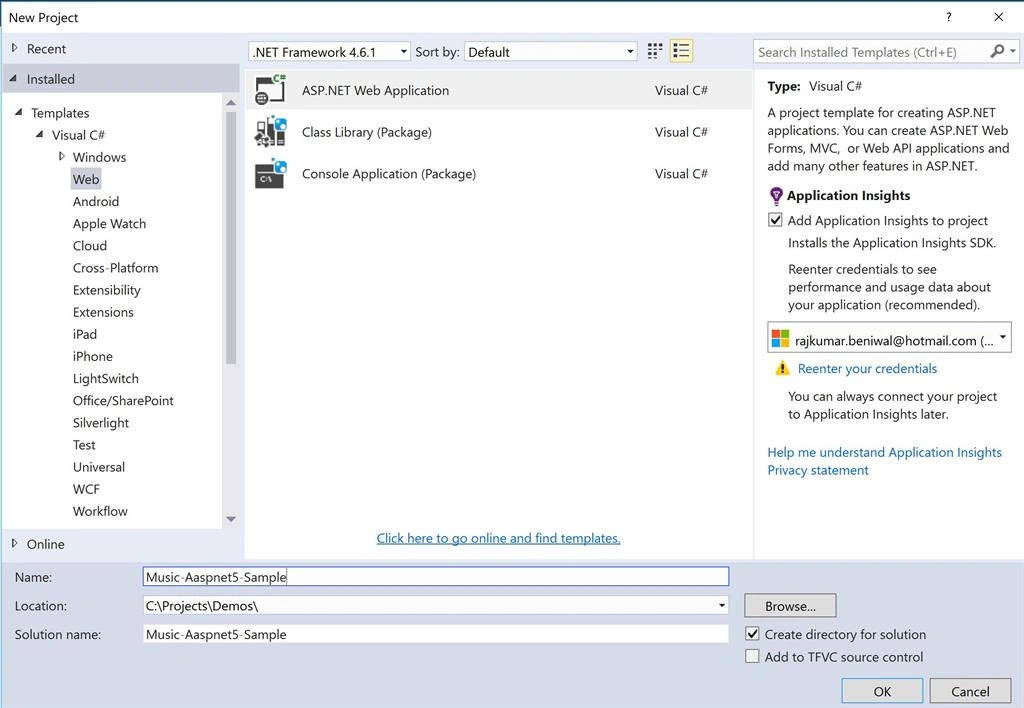
- From the file menu, select New, then Project
- Select Web template
- Select .NET Framework 4.6.1
- Select ASP.NET Web Application
- Enter Name
- Browse save location
- Click OK
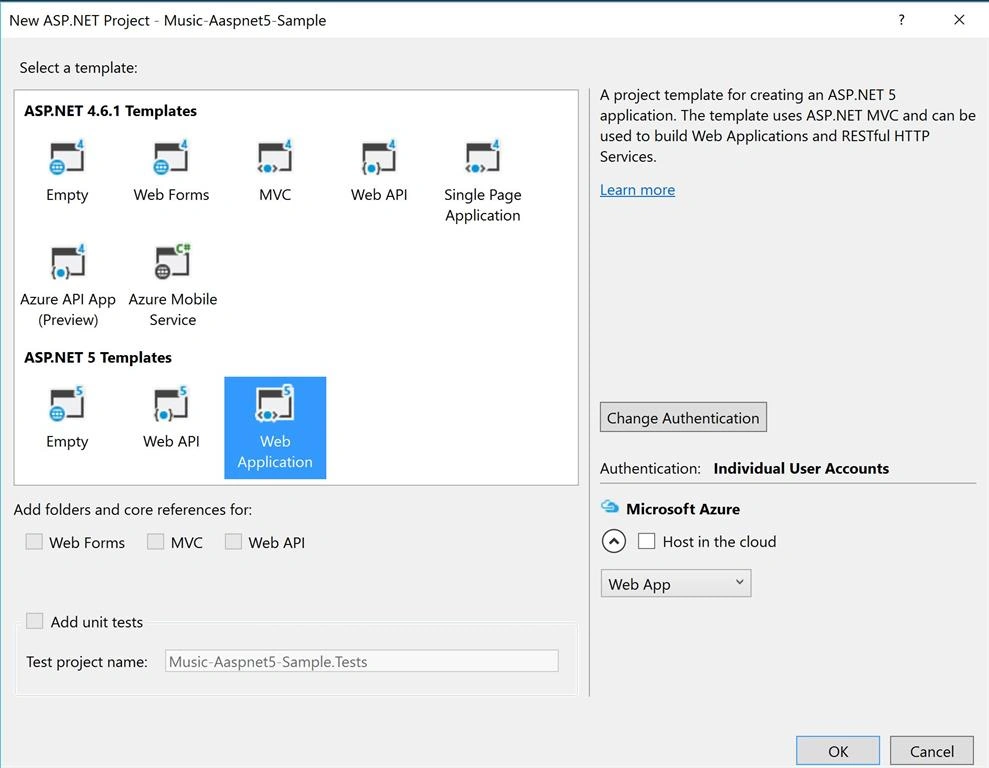
This is the complete project structure of ASP.NET 5.
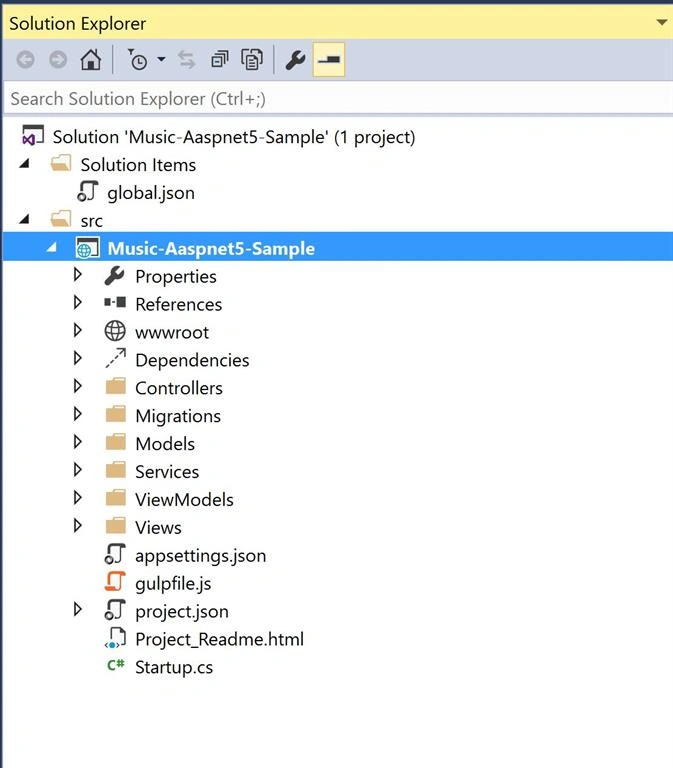
Let’s do some briefing about the project structure.
- appsettings.json - This file allows you to add additional information like connection string values.
- project.json – It defines .NET execution environment (DNX) project. It is the project.json file that contains all the information that DNX needs to run and package your project.
- Startup.cs – This class is the entry point of application.
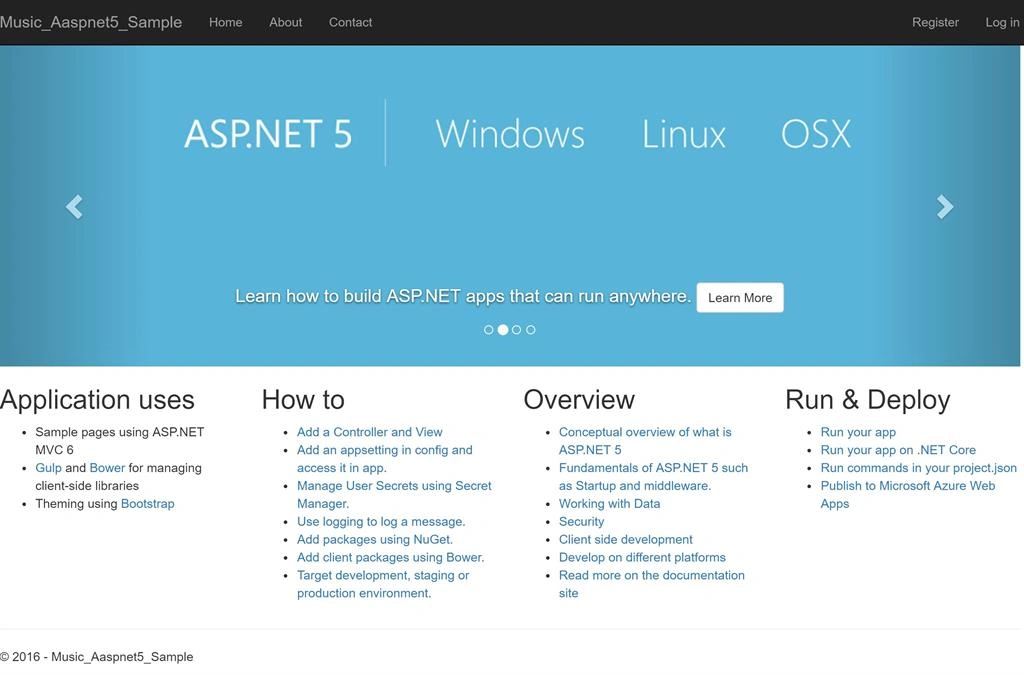
This is the default running screenshot:
Let’s add some model classes in Model directory:
Artist.cs
- public class Artist
- {
- [ScaffoldColumn(false)]
- public int ArtistId
- {
- get;
- set;
- }
- [Required]
- [Display(Name = "Name")]
- public string Name
- {
- get;
- set;
- }
- public virtual ICollection < Album > Albums
- {
- get;
- set;
- }
- }
Album.cs
- public class Album
- {
- [ScaffoldColumn(false)]
- public int AlbumId
- {
- get;
- set;
- }
- [Required]
- public int GenreId
- {
- get;
- set;
- }
- public int ArtistId
- {
- get;
- set;
- }
- public string Title
- {
- get;
- set;
- }
- [Range(1, 500)]
- public decimal Price
- {
- get;
- set;
- }
- public string AlbumArtURL
- {
- get;
- set;
- }
- // Navigation property
- public virtual Artist Artist
- {
- get;
- set;
- }
- }
Now add new scaffolded item and select model class and data context class.
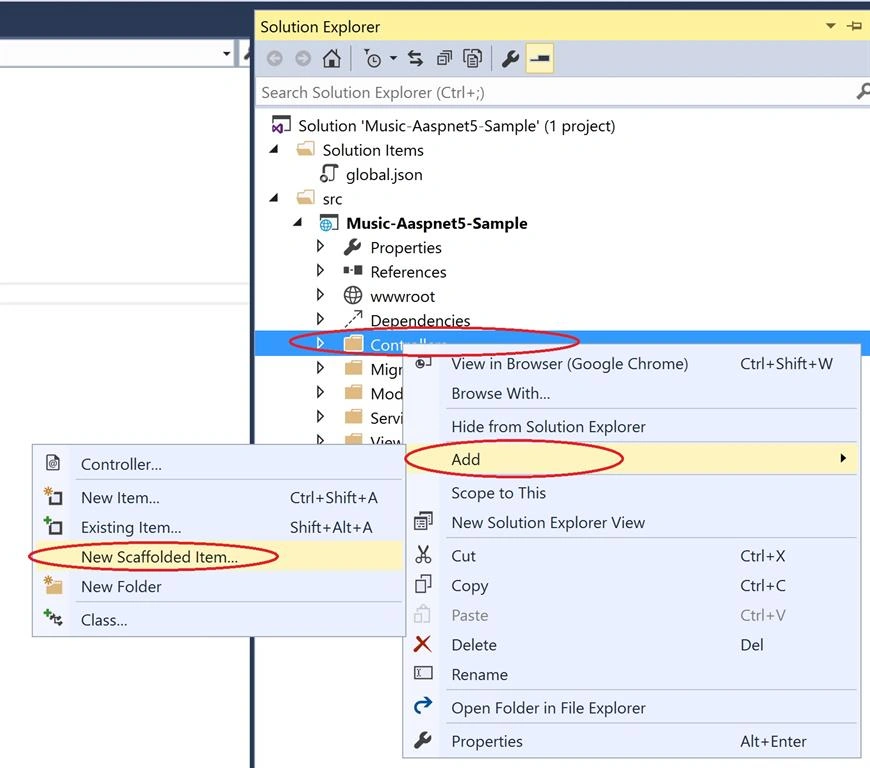
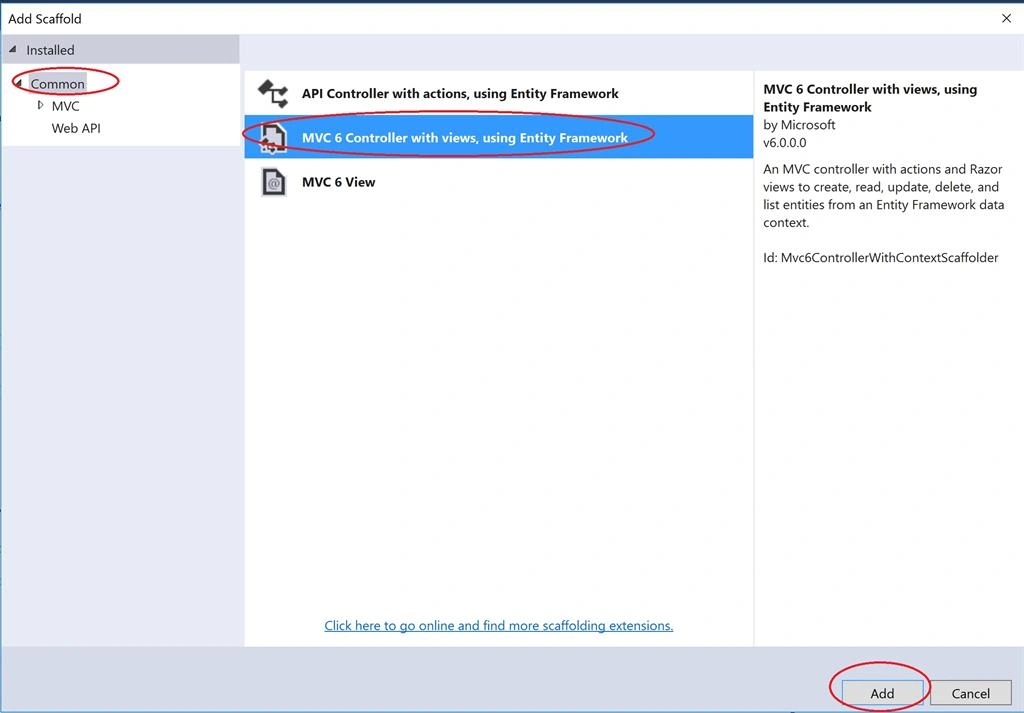
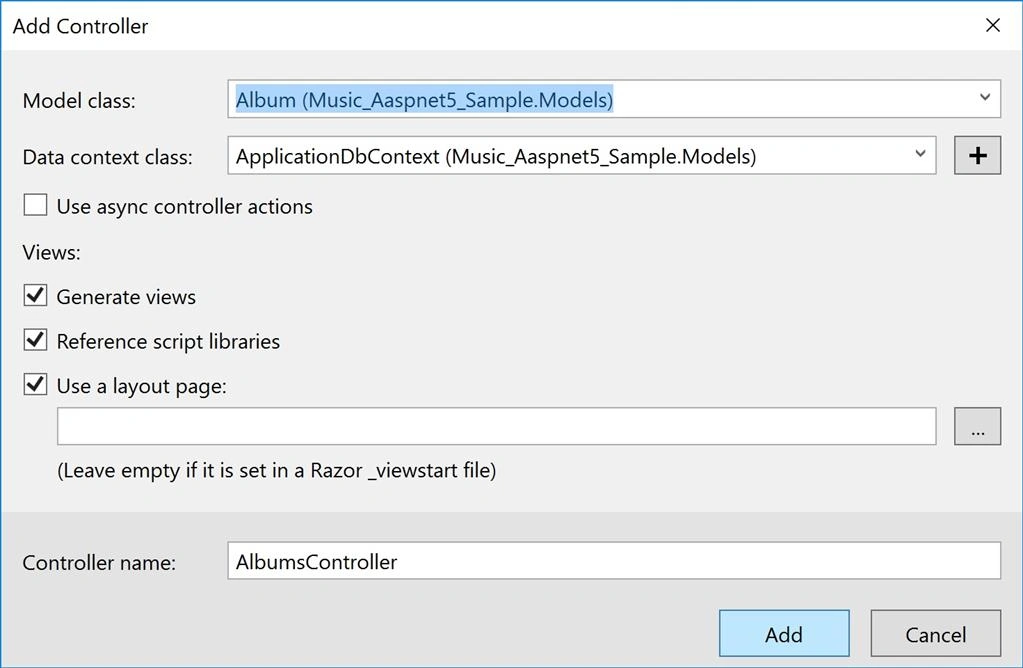
Now add one more scaffolded item.
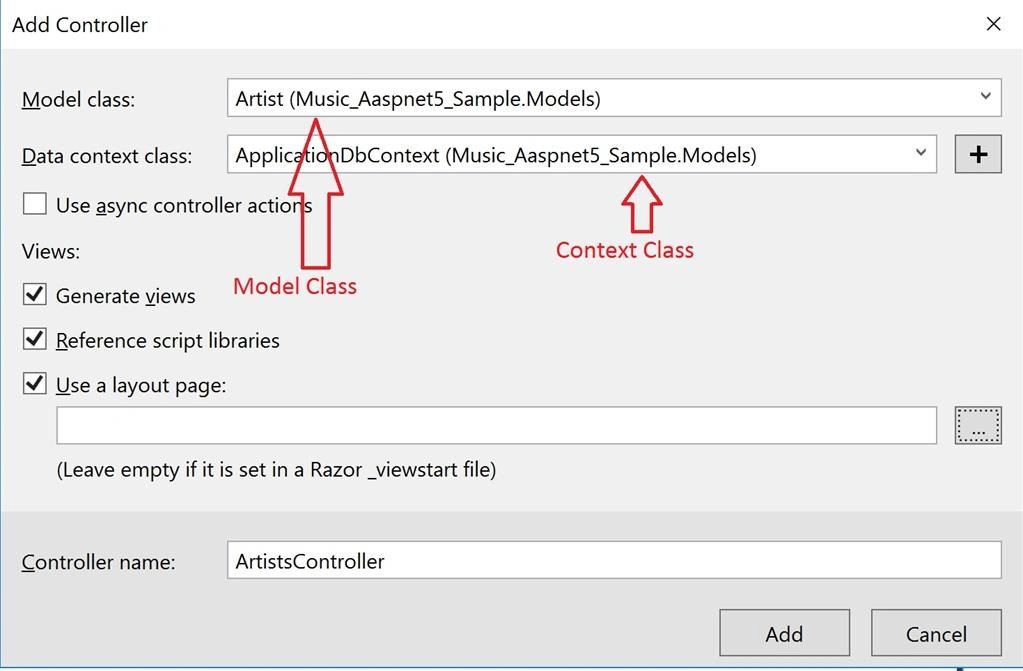
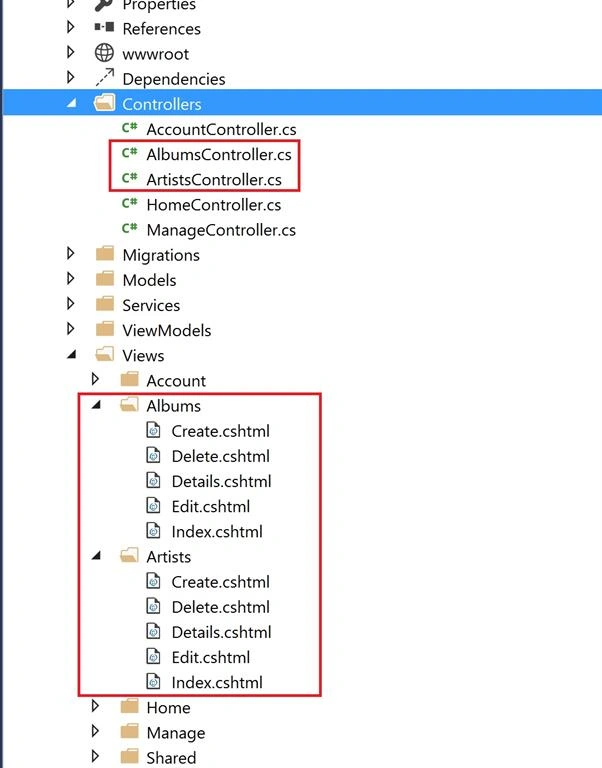
As you can see controller classes has been added on controller’s folder and views are added in views folder.
Now add a new class in model folder
- public static class ArtistAlbumData
- {
- public static void Initialize(IServiceProvider serviceProvider)
- {
- var context = serviceProvider.GetService < ApplicationDbContext > ();
- context.Database.Migrate();
- if (context.Artist.Any())
- {
- var artist = context.Artist.Add(new Artist
- {
- ArtistId = 1, Name = "Aerosmith"
- }).Entity;
- var dickens = context.Artist.Add(new Artist
- {
- ArtistId = 2, Name = "Alanis Morissette"
- }).Entity;
- var cervantes = context.Artist.Add(new Artist
- {
- ArtistId = 1, Name = "Alice In Chains"
- }).Entity;
- context.Album.AddRange(new Album()
- {
- AlbumId = 1,
- GenreId = 1,
- ArtistId = 1,
- Title = "For Those About To Rock We Salute You",
- Price = 8.99 M,
- AlbumArtURL = "/Content/Images/placeholder.gif"
- }, new Album()
- {
- AlbumId = 2,
- GenreId = 1,
- ArtistId = 1,
- Title = "Let There Be Rock",
- Price = 8.99 M,
- AlbumArtURL = "/Content/Images/placeholder.gif"
- }, new Album()
- {
- AlbumId = 3,
- GenreId = 1,
- ArtistId = 100,
- Title = "Greatest Hits",
- Price = 8.99 M,
- AlbumArtURL = "/Content/Images/placeholder.gif"
- }, new Album()
- {
- AlbumId = 4,
- GenreId = 1,
- ArtistId = 102,
- Title = "Misplaced Childhood",
- Price = 8.99 M,
- AlbumArtURL = "/Content/Images/placeholder.gif"
- });
- context.SaveChanges();
- }
- }
- ArtistAlbumData.Initialize(app.ApplicationServices);
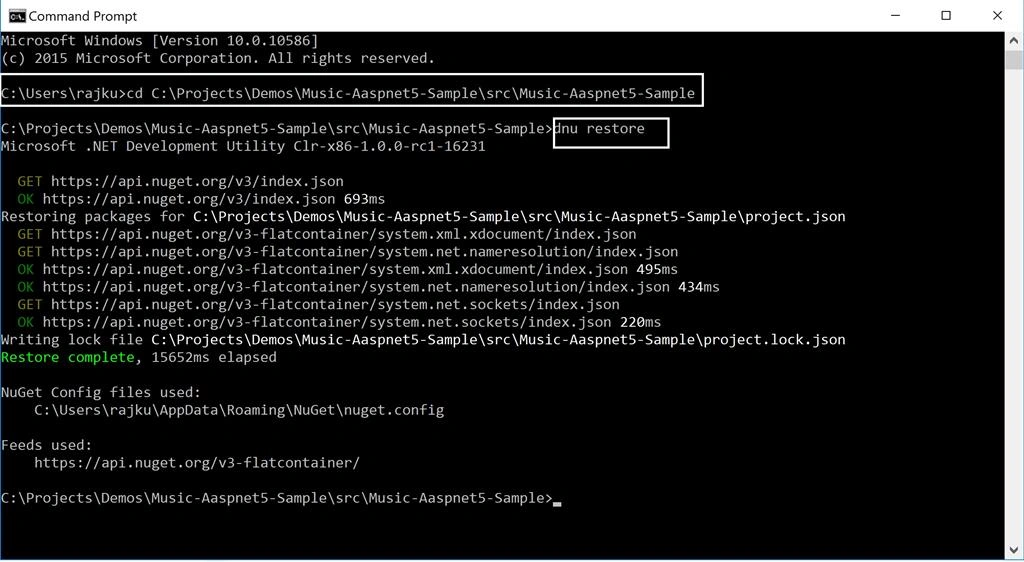
Now, let’s add Data Migration commands to create database.
Firstly, copy your project physical url and open Command Prompt and run the following commands.


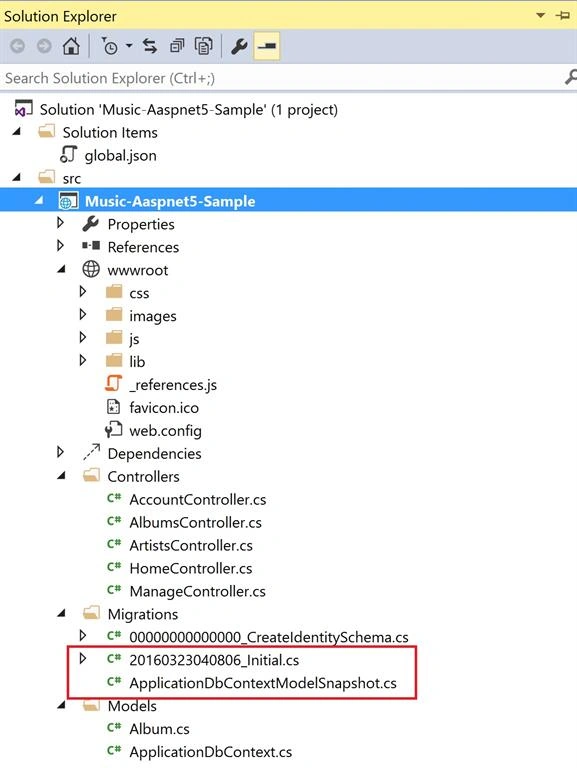
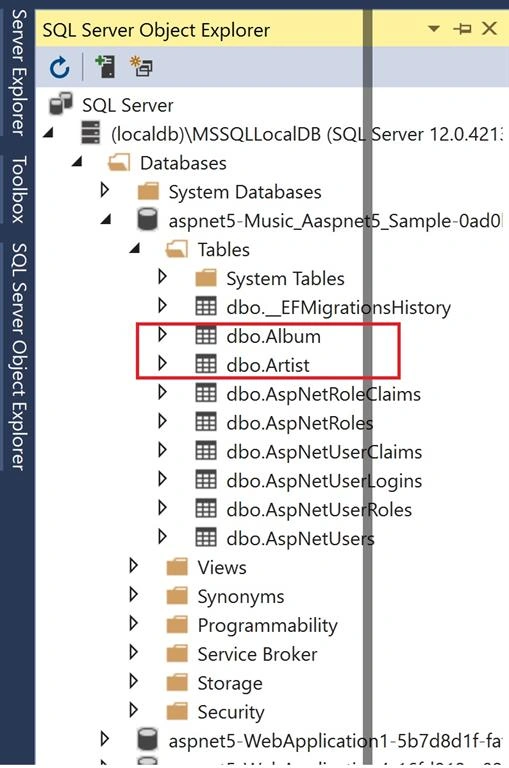
You can see newly created database files in SQL Server Object Explorer.
- <ul class="nav navbar-nav">
- <li><a asp-controller="Home" asp-action="Index">Home</a></li>
- <li><a asp-controller="Home" asp-action="About">About</a></li>
- <li><a asp-controller="Home" asp-action="Contact">Contact</a></li>
- <li><a asp-controller="Artists" asp-action="Index">Artists</a></li>
- <li><a asp-controller="Albums" asp-action="Index">Albums</a></li>
- </ul>
Right click on Solutions Explorer and click on View and then click on View On Browser.
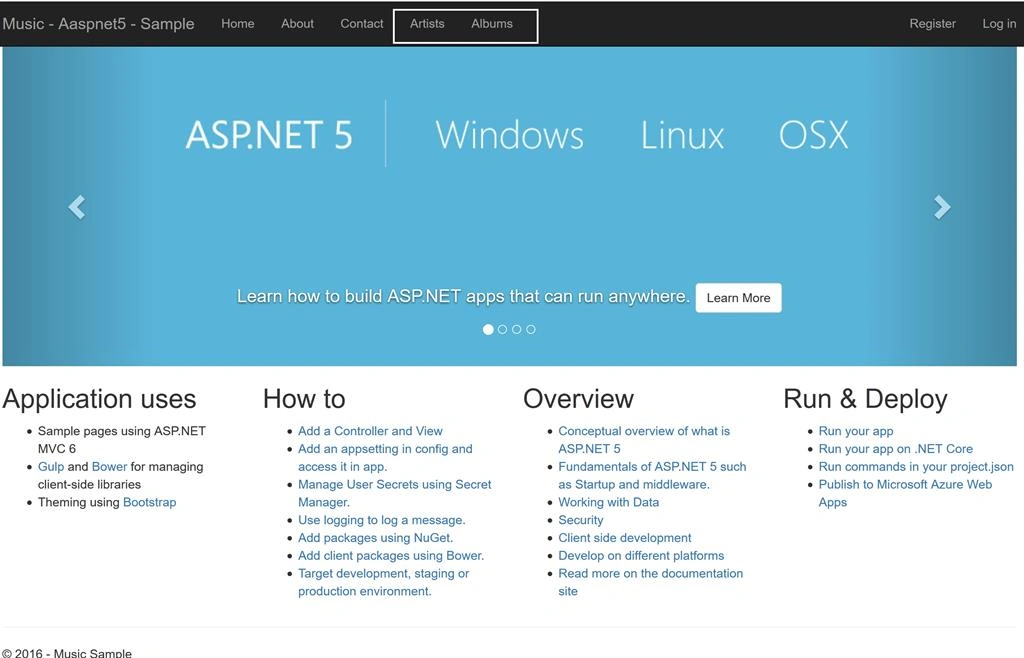
Now click on Artists navigation tab from Header.
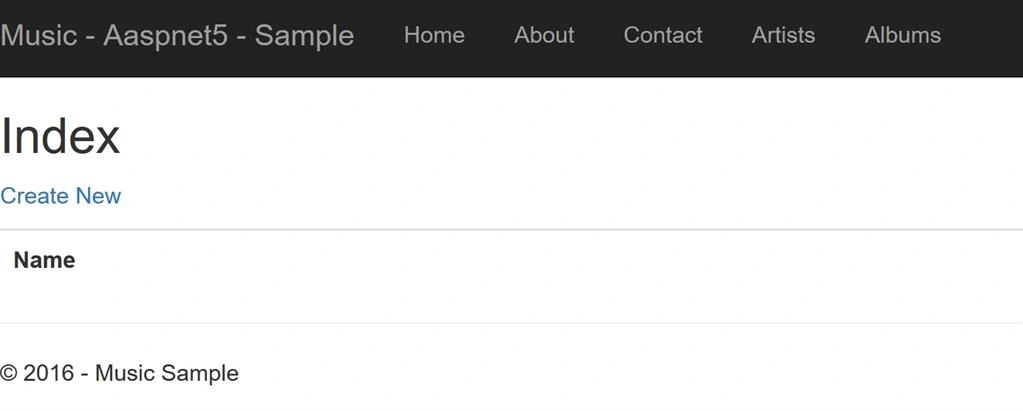
Click Create
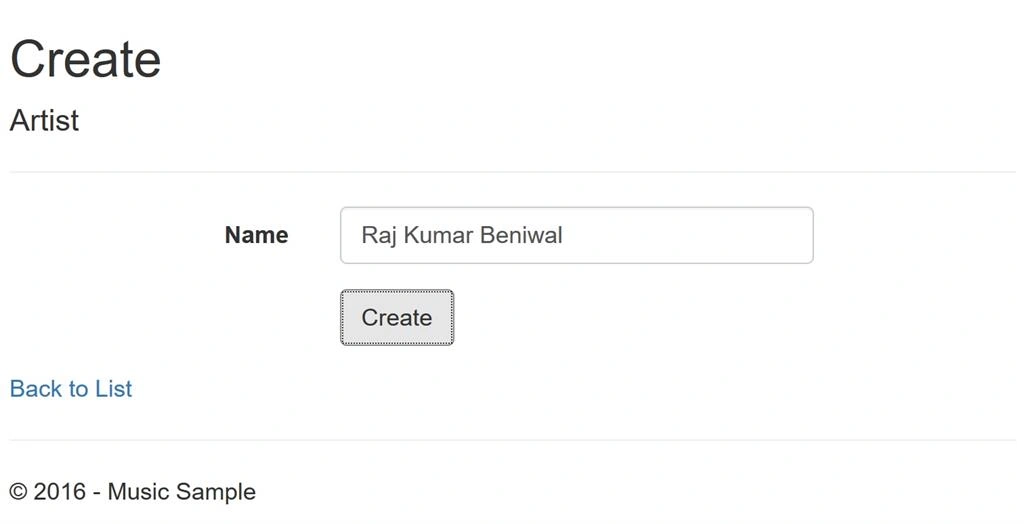
Once you click Create button, as you can see one artist has been added in your list. Here you can edit, details and delete also.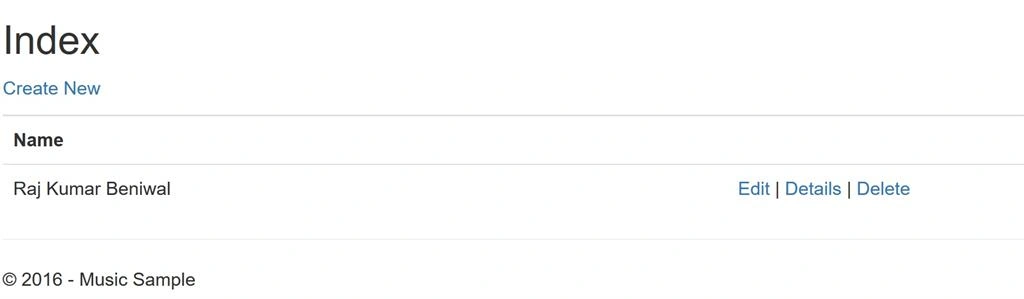
Summary
In this article we have learned how to get started with ASP.NET 5 and some basic things. If you havea question then post a comment in the C# Corner comment section.


Manav PandyaPosted Oct 1, 2016, 11:51 PM EDT
Nice sir ...
Kuppurasu NagarajTOP 100Posted Apr 3, 2016, 12:34 AM EDT
Good
Gowtham RajamanickamTOP 100Posted Apr 2, 2016, 1:23 AM EDT
Good one...
Humayun Kabir MamunPosted Mar 28, 2016, 8:19 PM EDT
Nice...
kalu singh raoPosted Mar 26, 2016, 7:32 AM EDT
Nice...
Sibeesh VenuTOP 100Posted Mar 25, 2016, 1:54 AM EDT
Nice Share
Saillesh PawarPosted Mar 24, 2016, 9:39 PM EDT
Nice share sir
Ankur MistryTOP 100Posted Mar 24, 2016, 5:59 AM EDT
nice
Debasis SahaTOP 100Posted Mar 24, 2016, 4:28 AM EDT
Good One..
Vignesh ManiTOP 100Posted Mar 24, 2016, 4:23 AM EDT
nice