
Introduction
This article describes how to add a Google Blog search feature in ASP.Net. Here I will describe how to communicate with the Google Search API.
Description
Since it is third party software, we require a third-party DLL to be referenced by our application that will communicate with the Google server.
For this we must download the Google Search API:
- GoogleSearchAPI.dll
You can download it from the source code attached to this article.
Or from this link: http://google-api-for-dotnet.googlecode.com/files/GoogleSearchAPI_0.3.1.zip
Design
Now add one TextBox, one Button and one Datalist.Design your screen as in the following screen.
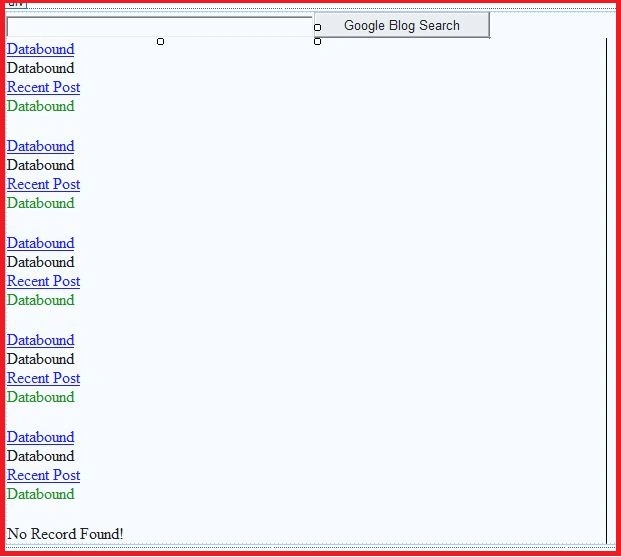
Or you can copy the following source code:
- <body>
- <form id="form1" runat="server">
- <div>
- <asp:TextBox ID="TextBox1" runat="server" Width="300px"></asp:TextBox>
- <asp:Button ID="btnSearch" runat="server" Text="Google Blog Search" OnClick="Button1_Click" /><br />
- <asp:DataList ID="dlSearch" runat="server" Width="600px">
- <ItemTemplate>
- <asp:LinkButton ID="LinkButton1" runat="server" Text='<%#Eval("Title") %>' PostBackUrl='<%#Eval("Url")%>'></asp:LinkButton><br />
- <asp:Label ID="Label1" runat="server" Text='<%#Eval("Content") %>'></asp:Label><br />
- <asp:HyperLink ID="HyperLink1" runat="server" NavigateUrl='<%#Eval("PostUrl") %>'>Recent Post</asp:HyperLink><br/>
- <asp:Label ID="Label2" runat="server" Text='<%# "(Publisher:"+Eval("Author")+")"+Eval("PublishDate") %>' ForeColor="Green"></asp:Label>
- <br /><br />
- </ItemTemplate>
- <FooterTemplate>
- <asp:Label Visible='<%#bool.Parse((dlSearch.Items.Count==0).ToString())%>' runat="server" ID="lblNoRecord" Text="No Record Found!"></asp:Label>
- </FooterTemplate>
- </asp:DataList>
- </div>
- </form>
- </body>
Next add a reference of the following Google Search API DLL to your website:
- GoogleSearchAPI.dll
- using System;
- using System.Collections.Generic;
- using System.Linq;
- using System.Web;
- using System.Web.UI;
- using System.Web.UI.WebControls;
- using System.Data;
- using Google.API.Search;
- public partial class GoogleBlogSearch : System.Web.UI.Page
- {
- protected void Page_Load(object sender, EventArgs e)
- {
- if (!IsPostBack)
- {
- dlSearch.DataSource = null;
- dlSearch.DataBind();
- TextBox1.Text = "";
- }
- }
- protected void Button1_Click(object sender, EventArgs e)
- {
- DataSet ds = new DataSet();
- DataTable dt = new DataTable();
- dt.Columns.Add(new DataColumn("Title", typeof(string)));
- dt.Columns.Add(new DataColumn("Content", typeof(string)));
- dt.Columns.Add(new DataColumn("Url", typeof(string)));
- dt.Columns.Add(new DataColumn("PostUrl", typeof(string)));
- dt.Columns.Add(new DataColumn("Author", typeof(string)));
- dt.Columns.Add(new DataColumn("PublishDate", typeof(string)));
- GblogSearchClient client = new GblogSearchClient("");
- IList<IBlogResult> results = client.Search(TextBox1.Text, 30);
- foreach (IBlogResult result in results)
- {
- DataRow dr = dt.NewRow();
- dr["Title"] = result.Title.ToString();
- dr["Content"] = result.Content.ToString();
- dr["Url"] = result.BlogUrl;
- dr["PostUrl"] = result.PostUrl;
- dr["Author"] = result.Author;
- dr["PublishDate"] = result.PublishedDate;
- dt.Rows.Add(dr);
- }
- dlSearch.DataSource = dt;
- dlSearch.DataBind();
- }
- }
After getting the result I bound it to the datatable then to the datalist control.
Just check these two lines:
- GblogSearchClient client = new GblogSearchClient ("www.c-sharpcorner.com");
- IList<IBlogResult> results = client.Search(TextBox1.Text, 30);
In the first line I am passing "www.c-sharpcorner.com" as the Client because it required a hosted site for security purposes.
If you don't pass that then it will show an exception.
In the second line I am passing 30 and a TextBox value. Here 30 specifies to get 30 search results.
So you can increase or decrease this value as needed.
Now build your application. Enter a search query then press the button.
It will show all the Google Blog search results.
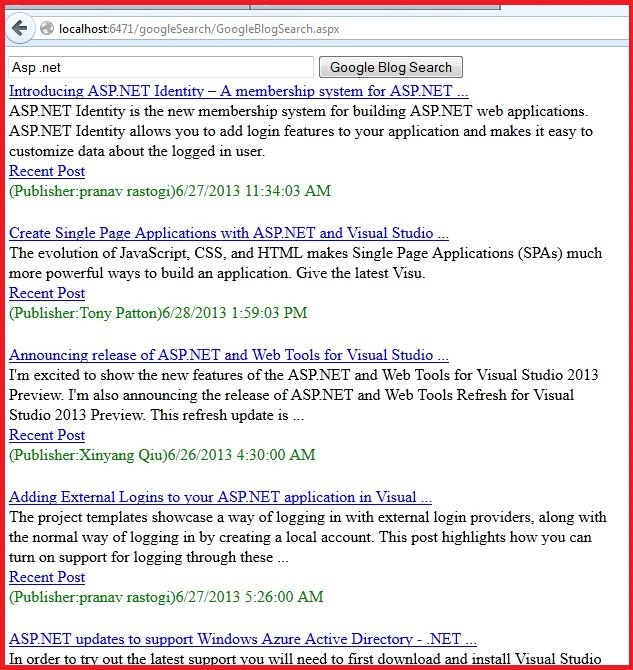
Click on the Blog Title to see the Blog.


Manish Kumar ChoudharyPosted Nov 25, 2014, 6:15 PM EST
nice one..
Rajesh SolankiPosted Nov 25, 2014, 2:00 AM EST
Very Nice.. And Important
Preeti AgrawallaPosted Sep 7, 2013, 3:01 AM EDT
good article..