
Introduction
In this article we will create a "Hello World" Windows Store (Metro) App using C++. It's a simple app to open the Windows picture library.
Step 1
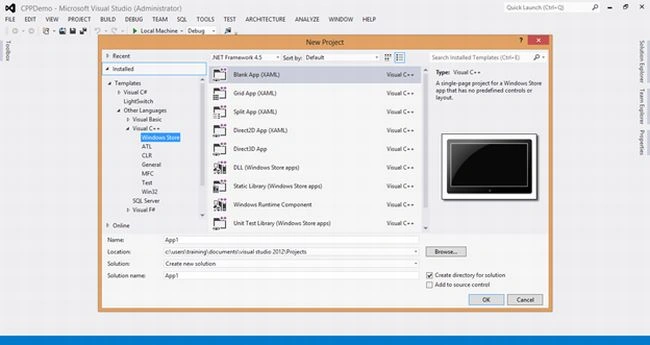
We will select the "C++" template Windows Store Blank App.
Step 2
We will add a simple button control with a click event.

It will result the UI as mentioned below.

Step 3
Navigate to the button click event and we will add the following code to show the alert message using the WinRT API:

And we will see the result as shown below:

Step 4
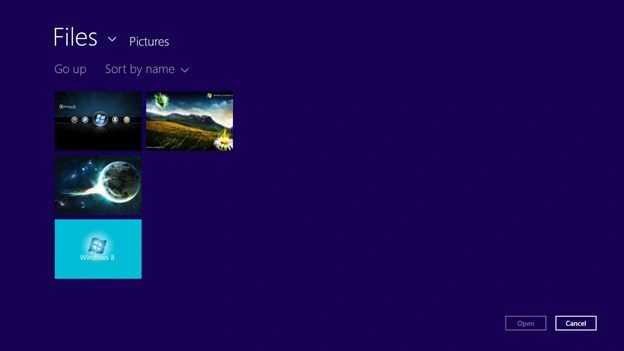
Using the WinRT API, we will use the Pickers object to select a file with the ".jpg" format.

We will see the result as in the following:
Summary
Using C++ to play with Windows native API's is a tedious process. But using WinRT we will able to develop applications using C++.
We will add a simple button control with a click event.
It will result the UI as mentioned below.
Step 3
Navigate to the button click event and we will add the following code to show the alert message using the WinRT API:
And we will see the result as shown below:
Step 4
Using the WinRT API, we will use the Pickers object to select a file with the ".jpg" format.
We will see the result as in the following:
Summary
Using C++ to play with Windows native API's is a tedious process. But using WinRT we will able to develop applications using C++.


Venkatesh KumarPosted Sep 15, 2012, 10:29 PM EDT
in XAML page just right click on top of "Button_Click_1" and click Navigate to event option. it's like in C# if we double click the button in UI and redirects to its event handler in code behind.
Venkatesh KumarPosted Sep 15, 2012, 10:26 PM EDT
Thanks Gaurav and Mahesh for your support.
Vladimir NonePosted Sep 14, 2012, 8:55 AM EDT
C2039: 'Button_Click_1' : is not a member of 'App3::MainPage' C2065: 'Button_Click_1' : undeclared identifier Errors... How to fix it please?
Mahesh ChandTOP 10Posted Sep 14, 2012, 2:53 AM EDT
I remember those days when I used -> and :: in VC++.
Gaurav GuptaPosted Sep 13, 2012, 9:58 PM EDT
Good Start Vankatesh..