
Model Binding in ASP.NET MVC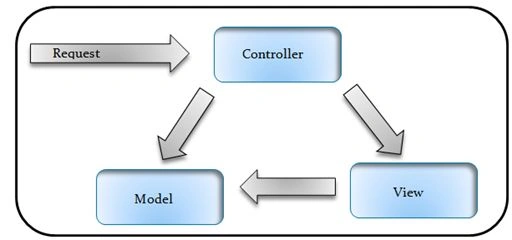
There are the following three ways to pass a value or data from a view to an action:
- Parameterized Query.
- Form Data.
- Model Binding.
Model binding: In this method we can bind a form using a Model class. The class is bound with the form, in other words the User Interface (View). So the form can be validated using the class and the control's value like the value from TextBoxes and others are passed to the Action Method directly.
- What we will do in this application.
- We learn how to do Model Binding in MVC.
- We will create a User Registration Form.
- We will perform Login Authentication.
- We will Validate the Form using Model Binding.
- For all these operations we will use the Entity Framework.
(The database script is available in the file.)
- create table tbl_Student_LogIn
- (
- ID int identity primary key,
- Student_Name varchar(50),
- UserName varchar(50),
- Password varchar(50),
- RePassword varchar(50)
- )
Step 1
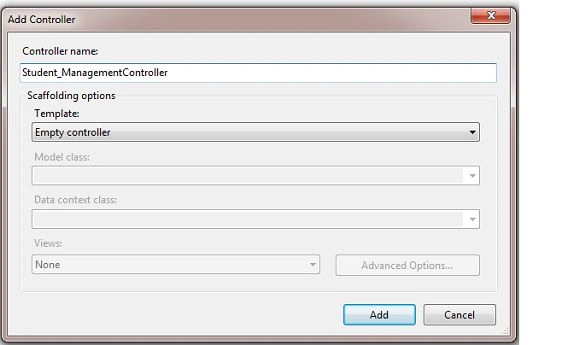
Add a Controller to the Project as in the following:
- using System;
- using System.Collections.Generic;
- using System.Linq;
- using System.Web;
- using System.Web.Mvc;
- namespace MvcApplication3.Controllers
- {
- public class Student_ManagementController : Controller
- {
- //
- // GET: /Student_Management/
- public ActionResult Index()
- {
- return View();
- }
- }
- }
Step 2
Add a class to the Model folder by right-clicking it then selecting Add Class.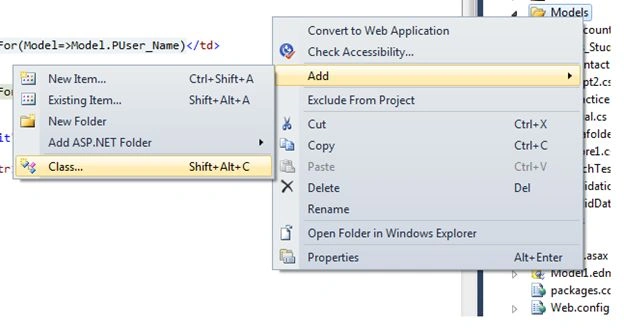
Step 3
Provide it a name such as Cls_Student_LogIn.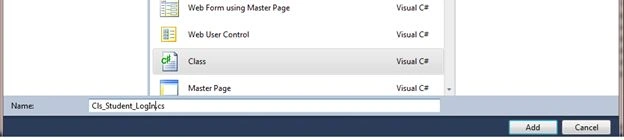
Class Name Added: "Cls_Student_LogIn"
- using System;
- using System.Collections.Generic;
- using System.Linq;
- using System.Web;
- //
- using System.Data.Entity;
- using System.ComponentModel.DataAnnotations;
- namespace MvcApplication3.Models
- {
- public class Cls_Student_LogIn
- {
- }
- }
Step 4
Add properties to the class for the database table's columns.
- using System;
- using System.Collections.Generic;
- using System.Linq;
- using System.Web;
- //
- using System.Data.Entity;
- using System.ComponentModel.DataAnnotations;
- namespace MvcApplication3.Models
- {
- public class Cls_Student_LogIn
- {
- public string PStudent_Name
- {
- set;
- get;
- }
- public string PUser_Name
- {
- set;
- get;
- }
- public string PPassword
- {
- set;
- get;
- }
- public string PRepassword
- {
- set;
- get;
- }
- }
- }
Step 5
Add a view (to the Controller by right-clicking).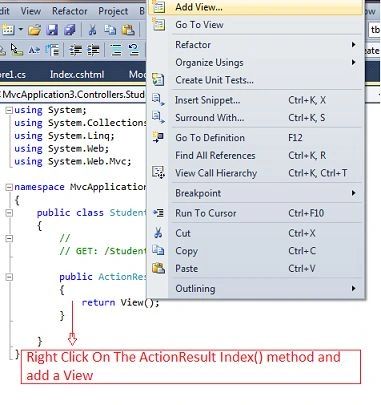
Step 6
Go to View.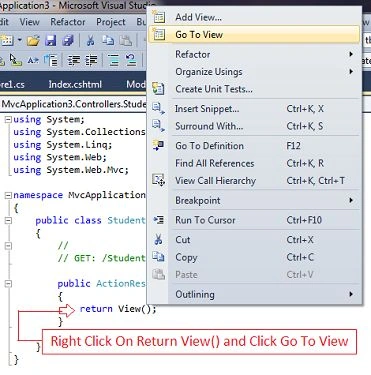
Step 7
At the Index View do this.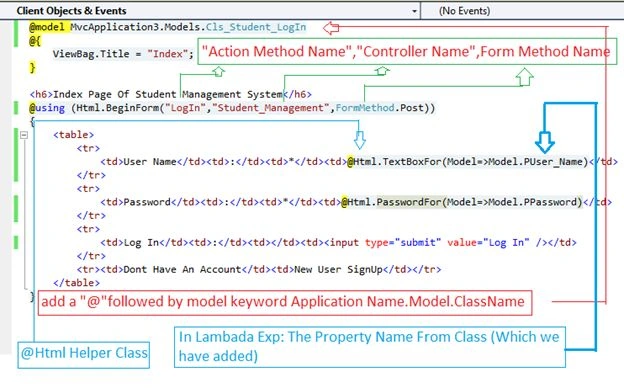
Index script and code:
- @model MvcApplication3.Models.Cls_Student_LogIn
- @{
- ViewBag.Title = "Index";
- }
- <h6>Index Page Of Student Management System</h6>
- @using (Html.BeginForm("LogIn","Student_Management",FormMethod.Post))
- {
- <table>
- <tr>
- <td>User Name</td><td>:</td><td>*</td><td>@Html.TextBoxFor(Model=>Model.PUser_Name)</td>
- </tr>
- <tr>
- <td>Password</td><td>:</td><td>*</td><td>@Html.PasswordFor(Model=>Model.PPassword)</td>
- </tr>
- <tr>
- <td>Log In</td><td>:</td><td></td><td><input type="submit" value="Log In" /></td>
- </tr>
- <tr>
- <td>Don't Have An Account</td><td>:</td><td></td><td>@Html.ActionLink("New User", "NewUser","Student_Management")</td>
- </tr>
- </table>
- }
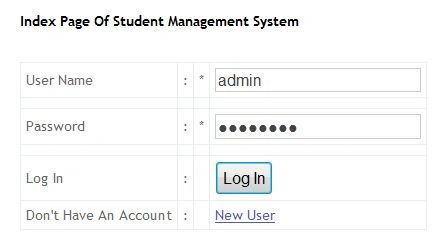
Run the application and watch the output: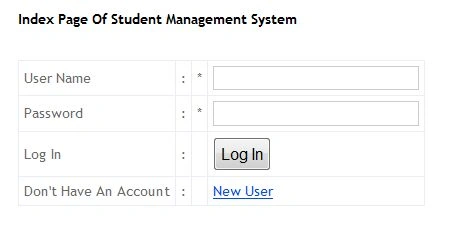
Note: When we click on the Submit Button it automatically finds the Login Action Method. So we need to add an Action Method named as Login.
But before that let's validate the Form
Step 8
Add the following two namespaces to the “Cls_Student_LogIn.cs” class if not yet added.
- using System.Data.Entity;
- using System.ComponentModel.DataAnnotations;
Property: We must add basically these three properties to the class.
- [Required(ErrorMessage = " ")]
- [DataType(DataType.Text)]
- [Display(Name = " ")]
Step 9
Add validation code to the class or modify the class “Cls_Student_LogIn.cs”.
- using System;
- using System.Collections.Generic;
- using System.Linq;
- using System.Web;
- //
- using System.Data.Entity;
- using System.ComponentModel.DataAnnotations;
- namespace MvcApplication3.Models
- {
- public class Cls_Student_LogIn
- {
- [Required(ErrorMessage = "Enter Your Name")]
- [DataType(DataType.Text)]
- [Display(Name = "Name")]
- public string PStudent_Name
- {
- set;
- get;
- }
- [Required(ErrorMessage = "Enter Your User Name")]
- [DataType(DataType.Text)]
- [Display(Name = "User Name")]
- public string PUser_Name
- {
- set;
- get;
- }
- [Required(ErrorMessage = "Enter Your Password")]
- [DataType(DataType.Password)]
- [Display(Name = "Password")]
- public string PPassword
- {
- set;
- get;
- }
- [Required(ErrorMessage = "Enter Your RePassword")]
- [DataType(DataType.Password)]
- [Display(Name = "RePassword")]
- public string PRepassword
- {
- set;
- get;
- }
- }
- }
Step 10
Then go to the View files, in this case the Index.cshtml file and 3 jQuery files.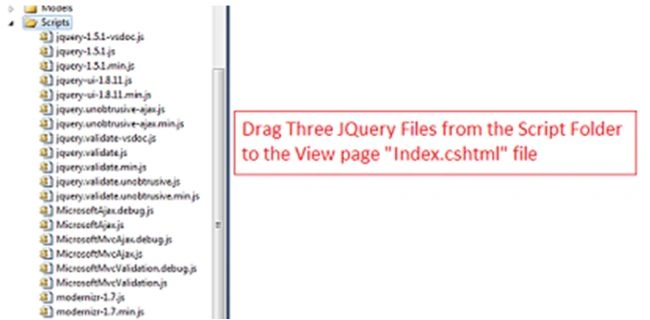
Step 11
After dragging:
- <h6>Index Page Of Student Management System</h6>
- <script src="../../Scripts/jquery-1.5.1.min.js" type="text/javascript"></script>
- <script src="../../Scripts/jquery.validate.min.js" type="text/javascript"></script>
- <script src="../../Scripts/jquery.validate.unobtrusive.min.js" type="text/javascript"></script>
Step 12
Modify the Index.cshtml file as in the following:
- @model MvcApplication3.Models.Cls_Student_LogIn
- @{
- ViewBag.Title = "Index";
- }
- <h6>Index Page Of Student Management System</h6>
- <script src="../../Scripts/jquery-1.5.1.min.js" type="text/javascript"></script>
- <script src="../../Scripts/jquery.validate.min.js" type="text/javascript"></script>
- <script src="../../Scripts/jquery.validate.unobtrusive.min.js" type="text/javascript"></script>
- @using (Html.BeginForm("LogIn","Student_Management",FormMethod.Post))
- {
- <table>
- <tr>
- <td>User Name</td><td>:</td><td>*</td><td>@Html.TextBoxFor(Model=>Model.PUser_Name)</td>
- </tr>
- <tr>
- <td></td><td></td><td></td><td>@Html.ValidationMessageFor(Mode=>Model.PUser_Name)</td>
- </tr>
- <tr>
- <td>Password</td><td>:</td><td>*</td><td>@Html.PasswordFor(Model=>Model.PPassword)</td>
- </tr>
- <tr>
- <td></td><td></td><td></td><td>@Html.ValidationMessageFor(Model=>Model.PPassword)</td>
- </tr>
- <tr>
- <td>Log In</td><td>:</td><td></td><td><input type="submit" value="Log In" /></td>
- </tr>
- <tr>
- <td>Don't Have An Account</td><td>:</td><td></td><td>@Html.ActionLink("New User", "NewUser","Student_Management")</td>
- </tr>
- </table>
- }
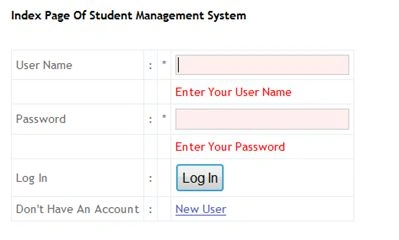
Run the application and test it for validation.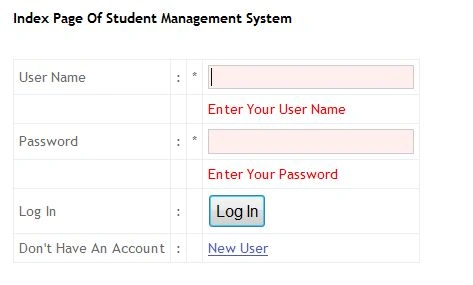
Step 13
We need to register for a New User and to perform Log on Authentication.
- Insert New Data
- Log On Program
- We need to design the form for Insert and validate it.
Step 14
Add a new Action Method to the “Student_Management” controller.
- using System;
- using System.Collections.Generic;
- using System.Linq;
- using System.Web;
- using System.Web.Mvc;
- namespace MvcApplication3.Controllers
- {
- public class Student_ManagementController : Controller
- {
- //
- // GET: /Student_Management/
- public ActionResult Index()
- {
- return View();
- }
- public ActionResult NewUser()
- {
- return View();
- }
- }
- }
Step 15
Right-click on the NewUser() Action Method and add a new View.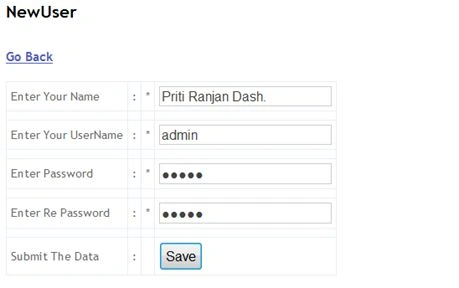
NewUser.cshtml file
- @{
- ViewBag.Title = "NewUser";
- }
- <h2>NewUser</h2>
Design it ("New User") and validate it as we have done previously.
Step 16
Again do Model Binding.
- Bind the class “Cls_Student_LogIn.cs” to it.
- Validate it
Design of the NewUser.cshtml file
- @model MvcApplication3.Models.Cls_Student_LogIn
- @{
- ViewBag.Title = "NewUser";
- }
- <h2>NewUser</h2>
- <h4>@Html.ActionLink("Go Back", "Index", "Student_Management")</h4>
- <script src="../../Scripts/jquery-1.5.1.min.js" type="text/javascript"></script>
- <script src="../../Scripts/jquery.validate.min.js" type="text/javascript"></script>
- <script src="../../Scripts/jquery.validate.unobtrusive.min.js" type="text/javascript"></script>
- @using (@Html.BeginForm("Insert", "Student_Management", FormMethod.Post))
- {
- <table>
- <tr>
- <td>Enter Your Name</td><td>:</td><td>*</td><td>@Html.TextBoxFor(Model=>Model.PStudent_Name)</td>
- </tr>
- <tr>
- <td> </td><td></td><td></td><td>@Html.ValidationMessageFor(Model=>Model.PStudent_Name)</td>
- </tr>
- <tr>
- <td>Enter Your UserName</td><td>:</td><td>*</td><td>@Html.TextBoxFor(Model=>Model.PUser_Name)</td>
- </tr>
- <tr>
- <td> </td><td></td><td></td><td>@Html.ValidationMessageFor(Model=>Model.PUser_Name)</td>
- </tr>
- <tr>
- <td>Enter Password</td><td>:</td><td>*</td><td>@Html.PasswordFor(Model=>Model.PPassword)</td>
- </tr>
- <tr>
- <td> </td><td></td><td></td><td>@Html.ValidationMessageFor(Model=>Model.PPassword)</td>
- </tr>
- <tr>
- <td>Enter RePassword</td><td>:</td><td>*</td><td>@Html.PasswordFor(Model=>Model.PRepassword)</td>
- </tr>
- <tr>
- <td> </td><td></td><td></td><td>@Html.ValidationMessageFor(Model=>Model.PRepassword)</td>
- </tr>
- <tr>
- <td>Submit The Data </td><td>:</td><td></td><td><input type="submit" value="Save" /></td>
- </tr>
- </table>
- }
Run the application: 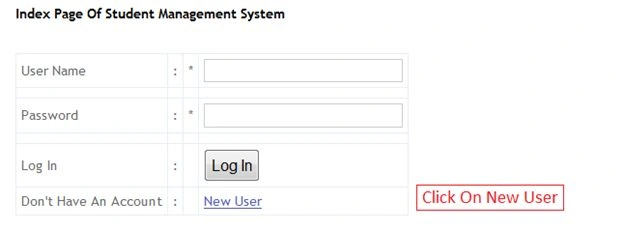
Click on the New User link: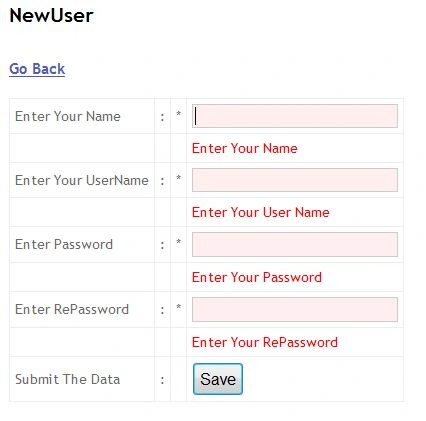
Now our data validation is complete. We will now do the save operation of the new user.
First create a database table as in the following:
- create table tbl_Student_LogIn
- (
- ID int identity primary key,
- Student_Name varchar(50),
- UserName varchar(50),
- Password varchar(50),
- RePassword varchar(50)
- )
- GO
- --
- select * from tbl_Student_LogIn
Procedure:
- Add this table to the EntityFramework file (.Edmx) file.
- Remember, we have already created a class file for the table “Cls_Student_LogIn”.
- Right-click on the .edmx file and select Update Model.
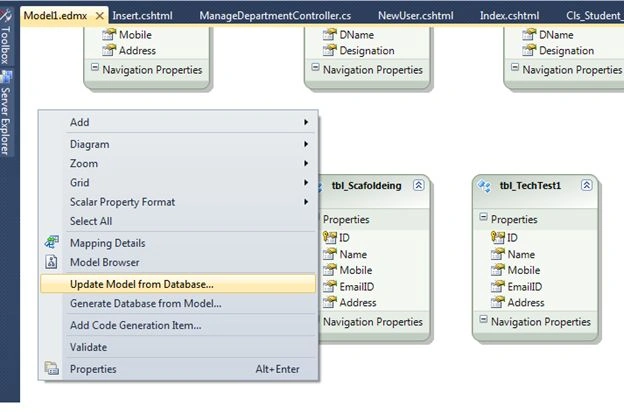
Step 1
Add the table name.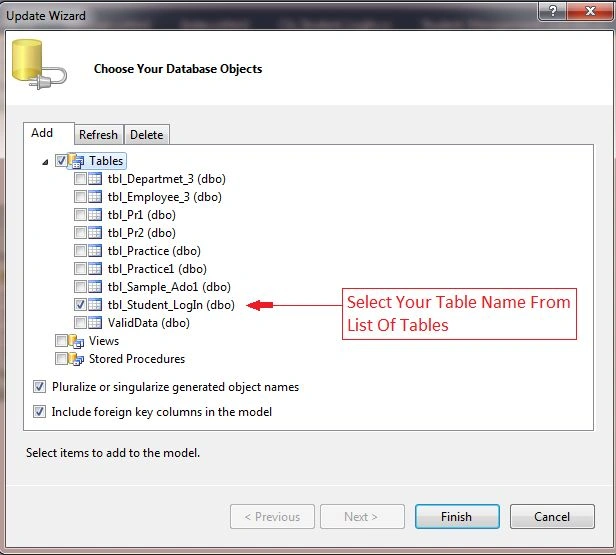
Step 2
After adding the table, you will see this output. Click Save.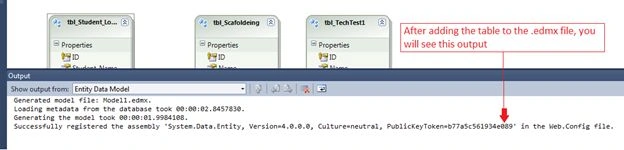
Step 3
For saving the New User we will create an ActionMethod Insert and we will insert the data now.
- Go to the Controller and create an Action Method as Insert.
- using System;
- using System.Collections.Generic;
- using System.Linq;
- using System.Web;
- using System.Web.Mvc;
- //include the model namespaces here
- using MvcApplication3.Models;
- namespace MvcApplication3.Controllers
- {
- public class Student_ManagementController : Controller
- {
- //
- // GET: /Student_Management/
- public ActionResult Index()
- {
- return View();
- }
- public ActionResult NewUser()
- {
- return View();
- }
- public ActionResult Insert()
- {
- return View();
- }
- }
- }
- To add a View for It, right-click on Insert() then select Add view.
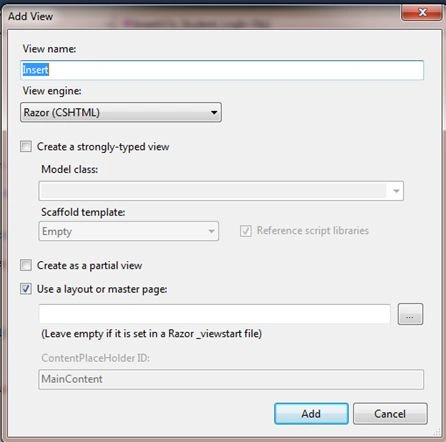
Watch it: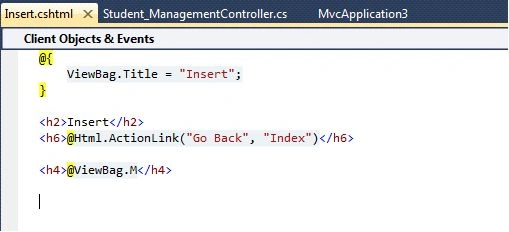
Step 4
Write code for the Insert operation at the Insert() action method in the Controller.
- using System;
- using System.Collections.Generic;
- using System.Linq;
- using System.Web;
- using System.Web.Mvc;
- //include the model namespaces here
- using MvcApplication3.Models;
- namespace MvcApplication3.Controllers
- {
- public class Student_ManagementController : Controller
- {
- //
- // GET: /Student_Management/
- public ActionResult Index()
- {
- return View();
- }
- public ActionResult NewUser()
- {
- return View();
- }
- public ActionResult Insert(Cls_Student_LogIn Obj) // put the class name and create an object of it
- {
- using (MVC_PracticeEntities DbContext = new MVC_PracticeEntities())
- {
- //table Object
- tbl_Student_LogIn tbl = new tbl_Student_LogIn();
- //
- tbl.Student_Name = Obj.PStudent_Name;
- tbl.UserName = Obj.PUser_Name;
- tbl.Password = Obj.PPassword;
- tbl.RePassword = Obj.PRepassword;
- //
- DbContext.AddTotbl_Student_LogIn(tbl);
- int i = DbContext.SaveChanges();
- if (i > 0)
- {
- ViewBag.M = "One User Created Successfully.";
- }
- //
- }
- return View();
- }
- }
- }
- Run the application and add a user.
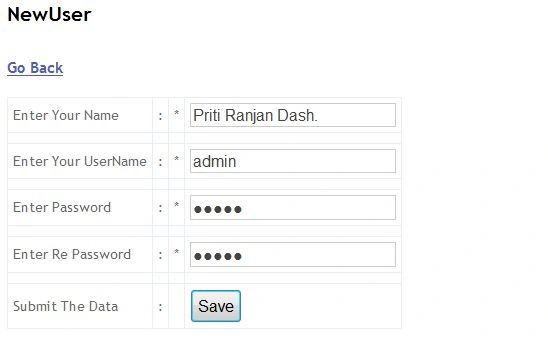
- Click on Save:
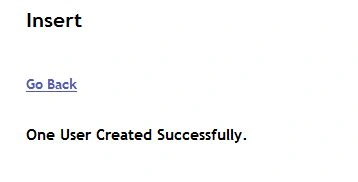
- Add some more users and watch them in the database.
- SQL Management Studio:
- select * from tbl_Student_LogIn
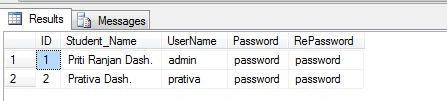
- select * from tbl_Student_LogIn
- Now we will do the Login authentication.
Step 5
Add a Login() action method to the Controller.
- Go To The Controller and add an action method named "Login”.
- public ActionResult LogIn()
- {
- return View();
- }
- Add a View. To do that right-click on Login() then selct Add View.
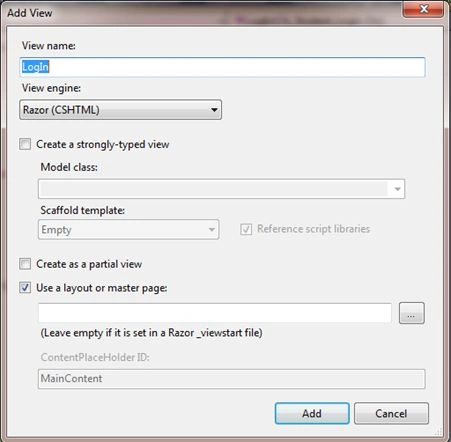
- Watch it after was created.
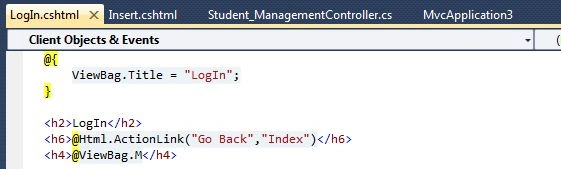
- Now we will do the Login Authentication as in the following:
- Go The the Controller.
- Add the following code for Login().
- using System;
- using System.Collections.Generic;
- using System.Linq;
- using System.Web;
- using System.Web.Mvc;
- //include the model namespaces here
- using MvcApplication3.Models;
- namespace MvcApplication3.Controllers
- {
- public class Student_ManagementController : Controller
- {
- //
- // GET: /Student_Management/
- public ActionResult Index()
- {
- return View();
- }
- public ActionResult NewUser()
- {
- return View();
- }
- public ActionResult Insert(Cls_Student_LogIn Obj) // put the class name and create an object of it
- {
- using (MVC_PracticeEntities DbContext = new MVC_PracticeEntities())
- {
- //table Object
- tbl_Student_LogIn tbl = new tbl_Student_LogIn();
- //
- tbl.Student_Name = Obj.PStudent_Name;
- tbl.UserName = Obj.PUser_Name;
- tbl.Password = Obj.PPassword;
- tbl.RePassword = Obj.PRepassword;
- //
- DbContext.AddTotbl_Student_LogIn(tbl);
- int i = DbContext.SaveChanges();
- if (i > 0)
- {
- ViewBag.M = "One User Created Successfully.";
- }
- //
- }
- return View();
- }
- public ActionResult LogIn(Cls_Student_LogIn Obj)// put the class name and create an object of it
- {
- using (MVC_PracticeEntities DbContext = new MVC_PracticeEntities())
- {
- tbl_Student_LogIn tbl = new tbl_Student_LogIn();
- var Data2 = (from abc in DbContext.tbl_Student_LogIn
- where abc.UserName == Obj.PUser_Name && abc.Password == Obj.PPassword
- select abc).SingleOrDefault();
- }
- ViewBag.M = "Welcome User";
- return View();
- }
- }
- }
- Run the application and watch the output or perform a Login.
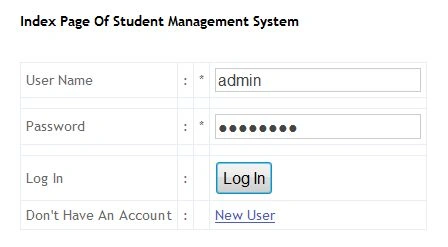
- Click on Login.
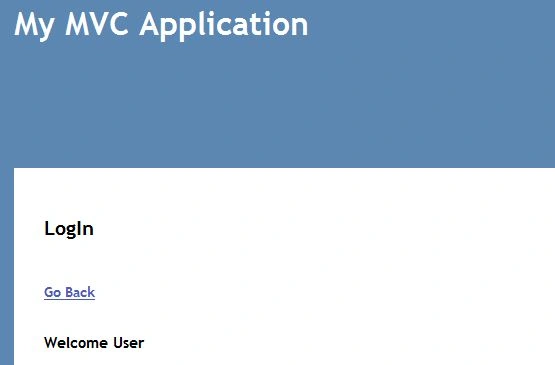
I am again providing all the code and scripts.
- The following is the database table script.
- create table tbl_Student_LogIn
- (
- ID int identity primary key,
- Student_Name varchar(50),
- UserName varchar(50),
- Password varchar(50),
- RePassword varchar(50)
- )
- GO
- The following is the full code of the Cls_Student_LogIn class (Model Class).
- using System;
- using System.Collections.Generic;
- using System.Linq;
- using System.Web;
- //
- using System.Data.Entity;
- using System.ComponentModel.DataAnnotations;
- using System.Web.Mvc;
- namespace MvcApplication3.Models
- {
- public class Cls_Student_LogIn
- {
- [Required(ErrorMessage = "Enter Your Name")]
- [DataType(DataType.Text)]
- [Display(Name = "Name")]
- public string PStudent_Name
- {
- set;
- get;
- }
- [Required(ErrorMessage = "Enter Your User Name")]
- [DataType(DataType.Text)]
- [Display(Name = "User Name")]
- public string PUser_Name
- {
- set;
- get;
- }
- [Required(ErrorMessage = "Enter Your Password")]
- [DataType(DataType.Password)]
- [Display(Name = "Password")]
- public string PPassword
- {
- set;
- get;
- }
- [Required(ErrorMessage = "Enter Your Re Password")]
- [DataType(DataType.Password)]
- [Display(Name = "RePassword")]
- [Compare("PPassword", ErrorMessage = "The Password and Re Password do not match.")]
- public string PRepassword
- {
- set;
- get;
- }
- }
- }
- The following is the full code of Index.cshtml.
- @model MvcApplication3.Models.Cls_Student_LogIn
- @{
- ViewBag.Title = "Index";
- }
- <h6>Index Page Of Student Management System</h6>
- <script src="../../Scripts/jquery-1.5.1.min.js" type="text/javascript"></script>
- <script src="../../Scripts/jquery.validate.min.js" type="text/javascript"></script>
- <script src="../../Scripts/jquery.validate.unobtrusive.min.js" type="text/javascript"></script>
- @using (Html.BeginForm("LogIn","Student_Management",FormMethod.Post))
- {
- <table>
- <tr>
- <td>User Name</td><td>:</td><td>*</td><td>@Html.TextBoxFor(Model=>Model.PUser_Name)</td>
- </tr>
- <tr>
- <td></td><td></td><td></td><td>@Html.ValidationMessageFor(Mode=>Model.PUser_Name)</td>
- </tr>
- <tr>
- <td>Password</td><td>:</td><td>*</td><td>@Html.PasswordFor(Model=>Model.PPassword)</td>
- </tr>
- <tr>
- <td></td><td></td><td></td><td>@Html.ValidationMessageFor(Model=>Model.PPassword)</td>
- </tr>
- <tr>
- <td>Log In</td><td>:</td><td></td><td><input type="submit" value="Log In" /></td>
- </tr>
- <tr>
- <td>Don't Have An Account</td><td>:</td><td></td><td>@Html.ActionLink("New User", "NewUser","Student_Management")</td>
- </tr>
- </table>
- }
- The following is the full code of NewUser.cshtml.
- @model MvcApplication3.Models.Cls_Student_LogIn
- @{
- ViewBag.Title = "NewUser";
- }
- <h2>NewUser</h2>
- <h4>@Html.ActionLink("Go Back", "Index", "Student_Management")</h4>
- <script src="../../Scripts/jquery-1.5.1.min.js" type="text/javascript"></script>
- <script src="../../Scripts/jquery.validate.min.js" type="text/javascript"></script>
- <script src="../../Scripts/jquery.validate.unobtrusive.min.js" type="text/javascript"></script>
- @using (@Html.BeginForm("Insert", "Student_Management", FormMethod.Post))
- {
- <table>
- <tr>
- <td>Enter Your Name</td><td>:</td><td>*</td><td>@Html.TextBoxFor(Model=>Model.PStudent_Name)</td>
- </tr>
- <tr>
- <td> </td><td></td><td></td><td>@Html.ValidationMessageFor(Model=>Model.PStudent_Name)</td>
- </tr>
- <tr>
- <td>Enter Your UserName</td><td>:</td><td>*</td><td>@Html.TextBoxFor(Model=>Model.PUser_Name)</td>
- </tr>
- <tr>
- <td> </td><td></td><td></td><td>@Html.ValidationMessageFor(Model=>Model.PUser_Name)</td>
- </tr>
- <tr>
- <td>Enter Password</td><td>:</td><td>*</td><td>@Html.PasswordFor(Model=>Model.PPassword)</td>
- </tr>
- <tr>
- <td> </td><td></td><td></td><td>@Html.ValidationMessageFor(Model=>Model.PPassword)</td>
- </tr>
- <tr>
- <td>Enter Re Password</td><td>:</td><td>*</td><td>@Html.PasswordFor(Model=>Model.PRepassword)</td>
- </tr>
- <tr>
- <td> </td><td></td><td></td><td>@Html.ValidationMessageFor(Model=>Model.PRepassword)</td>
- </tr>
- <tr>
- <td>Submit The Data </td><td>:</td><td></td><td><input type="submit" value="Save" /></td>
- </tr>
- </table>
- }
- The following is the full code for the Controller again:
- using System;
- using System.Collections.Generic;
- using System.Linq;
- using System.Web;
- using System.Web.Mvc;
- //include the model namespaces here
- using MvcApplication3.Models;
- namespace MvcApplication3.Controllers
- {
- public class Student_ManagementController : Controller
- {
- //
- // GET: /Student_Management/
- public ActionResult Index()
- {
- return View();
- }
- public ActionResult NewUser()
- {
- return View();
- }
- public ActionResult Insert(Cls_Student_LogIn Obj) // put the class name and create an object of it
- {
- using (MVC_PracticeEntities DbContext = new MVC_PracticeEntities())
- {
- //table Object
- tbl_Student_LogIn tbl = new tbl_Student_LogIn();
- //
- tbl.Student_Name = Obj.PStudent_Name;
- tbl.UserName = Obj.PUser_Name;
- tbl.Password = Obj.PPassword;
- tbl.RePassword = Obj.PRepassword;
- //
- DbContext.AddTotbl_Student_LogIn(tbl);
- int i = DbContext.SaveChanges();
- if (i > 0)
- {
- ViewBag.M = "One User Created Successfully.";
- }
- //
- }
- return View();
- }
- public ActionResult LogIn(Cls_Student_LogIn Obj)// put the class name and create an object of it
- {
- using (MVC_PracticeEntities DbContext = new MVC_PracticeEntities())
- {
- tbl_Student_LogIn tbl = new tbl_Student_LogIn();
- var Data2 = (from abc in DbContext.tbl_Student_LogIn
- where abc.UserName == Obj.PUser_Name && abc.Password == Obj.PPassword
- select abc).SingleOrDefault();
- }
- ViewBag.M = "Welcome User";
- return View();
- }
- }
- }


Rasmiranjan sahooPosted Apr 7, 2015, 6:48 AM EDT
Please explain about AddTotbl_Student_LogIn(tbl) .
Priti Ranjan DashPosted Jan 26, 2015, 4:47 AM EST
Thank You to all of you. Very soon I will clarify all yours doubts related to the above article.
Gaurav GuptaPosted Jan 20, 2015, 8:13 PM EST
what is the purpose of using 3 JS Script file in "NewUser.cshtml" file..??
Jeetendra GundTOP 100Posted Jan 19, 2015, 11:32 PM EST
Welcome... Sir
Dinesh BeniwalTOP 10Posted Jan 19, 2015, 11:00 PM EST
Good start Priti Ranjan Dash, Welcome to C# Corner.