
Introduction
This article demonstrates how to download PDF files into devices by tapping/clicking the link button in webview Xamarin Forms.
Prerequisites
- Windows or Mac machine.
- Based on the operating system, the respective Visual Studio has to be installed in it.
- Required to have Android and iOS devices.
How can we achieve this functionality?
We can achieve this functionality by the following steps.
- We have to handle “Navigating” event of webview, using this we can get the URL of the file on which user tapped in webview.
- To download the PDF file, we have to pass the PDF file URL (which we got in the above step) to OpenURL() method.
Explanation
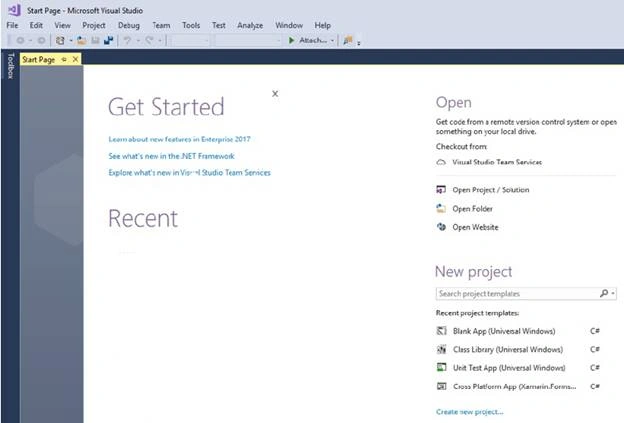
- In the Start screen, launch Visual Studio. This opens the start page of Visual Studio like below.
- Create a new project using Visual Studio as shown below.
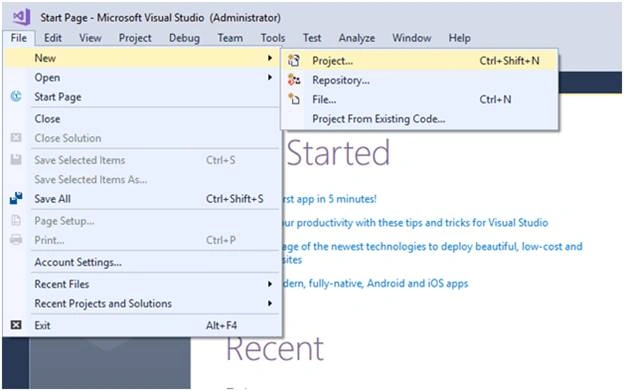
- If you select “Project” in the above context menu, the following window will open.
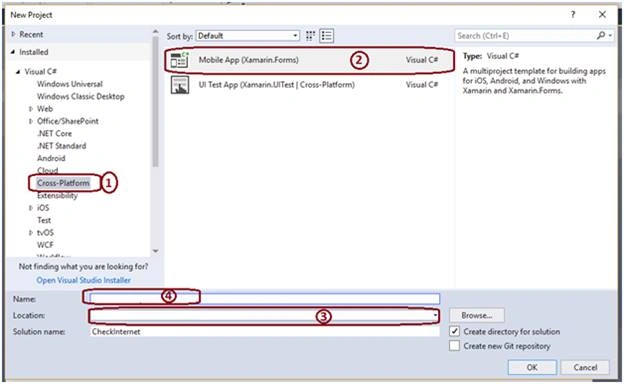
In the above image,
- Select “Cross-Platform” option from the left lane.
- Choose “Mobile App (Xamarin.Forms)” option for creating Xamarin Forms application.
- Choose the location on disk where you want to store your application on hard disk.
- Give some name to your project which is relevant to your task. In my case, I’m giving it as “DownloadPDF”.
- After clicking “OK” button, the project will be created.
- Paste the following code in xaml.cs file within PCL/NET standard project.
- using System;
- using System.Collections.Generic;
- using System.Linq;
- using System.Text;
- using Xamarin.Forms;
- namespace DownloadPDF
- {
- public partial class App : Application
- {
- public App ()
- {
- InitializeComponent();
- MainPage = new NavigationPage(new MainPage());
- }
- protected override void OnStart ()
- {
- // Handle when your app starts
- }
- protected override void OnSleep ()
- {
- // Handle when your app sleeps
- }
- protected override void OnResume ()
- {
- // Handle when your app resumes
- }
- }
- }
- Paste the following code xaml within PCL/NET standard project .
- <?xml version="1.0" encoding="utf-8" ?>
- <ContentPage xmlns="http://xamarin.com/schemas/2014/forms"
- xmlns:x="http://schemas.microsoft.com/winfx/2009/xaml"
- xmlns:local="clr-namespace:DownloadPDF"
- Title="Download PDF"
- x:Class="DownloadPDF.MainPage">
- <StackLayout>
- <WebView x:Name="Browser"
- Source ="http://www.pdfpdf.com/samples.html"
- Navigating="webOnNavigating"
- HorizontalOptions="FillAndExpand"
- VerticalOptions="FillAndExpand"/>
- </StackLayout>
- </ContentPage>
Here, I am giving http://www.pdfpdf.com/samples.html as a source. Actually, it contains some sample PDF files. I will try to download that PDF file (s).
- Paste the following code xaml.cs which is the code behind to the Xaml page of above-pasted code.
- using System;
- using System.Collections.Generic;
- using System.Linq;
- using System.Text;
- using System.Threading.Tasks;
- using Xamarin.Forms;
- namespace DownloadPDF
- {
- public partial class MainPage : ContentPage
- {
- public MainPage()
- {
- InitializeComponent();
- }
- protected void webOnNavigating(object sender, WebNavigatingEventArgs e)
- {
- if (e.Url.Contains(".pdf"))
- {
- // Retrieving the URL
- var pdfUrl = new Uri(e.Url);
- // Open PDF URL with device browser to download
- Device.OpenUri(pdfUrl);
- // Cancel the navigation on click actions
- // (retains in the same page.)
- e.Cancel = true;
- }
- }
- }
- }
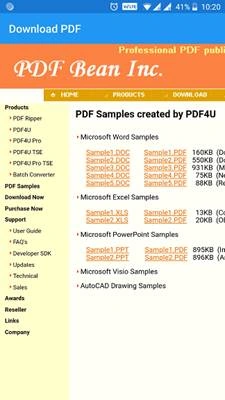
- After that, set either Android or iOS project as a start up project, run the application in the respective platform and the output will be displayed like below.
Output
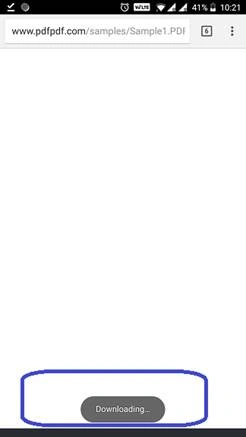
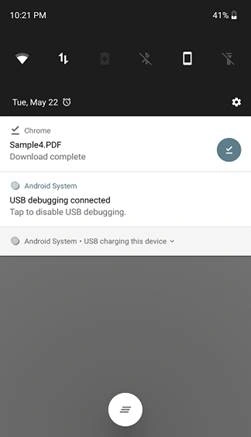
To view full source code, please click here.
Thanks for reading the article.


Munish AhmadPosted Nov 11, 2018, 7:12 PM EST
I want to download pdf internally in app using webview without using device browser.plz help in this regards.
Rajesh JhaPosted Jun 16, 2018, 2:06 AM EDT
Good Article...Can you show How to play youtube video using the xamarin forms.I need to get a complete list of videos from a youtube channel and play them inside the xamarin forms app.