
Backup and Restore Database in SQL Server
Many times as a programmer we have to work with database backup and restore processes. Today we will learn how to attach your .MDF .LDF files and create a database .bak file in SQL Server.
I have EMP.mdf and EMP.ldf files on my Drive and now I want to attach these files and want to create my EMP database.
You can place them in the appropriate folder containing the other SQL databases on the server. In General setting this folder will be
c:\Program Files\Microsoft SQL Server\MSSQL11.MSSQLSERVER\MSSQL\DATA
but it depends on your SQL Server Setup time; data directory path may be in a different location.
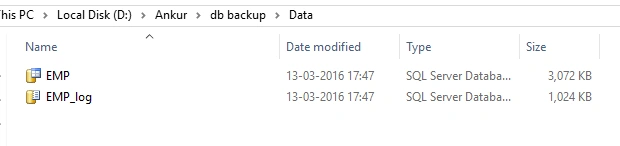
For that follow the steps.
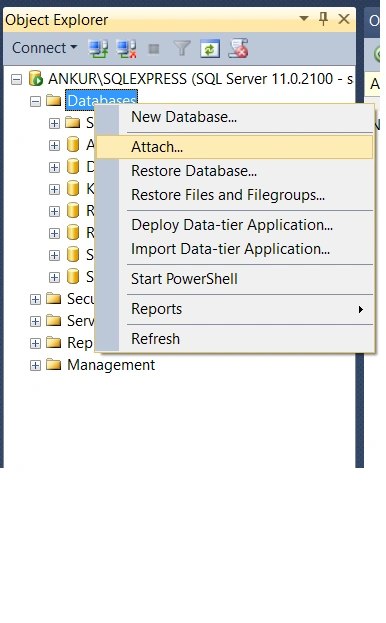
Step 1: Open your Microsoft SQL Server and right click on Database and Click on Attach, as shown in below screen.
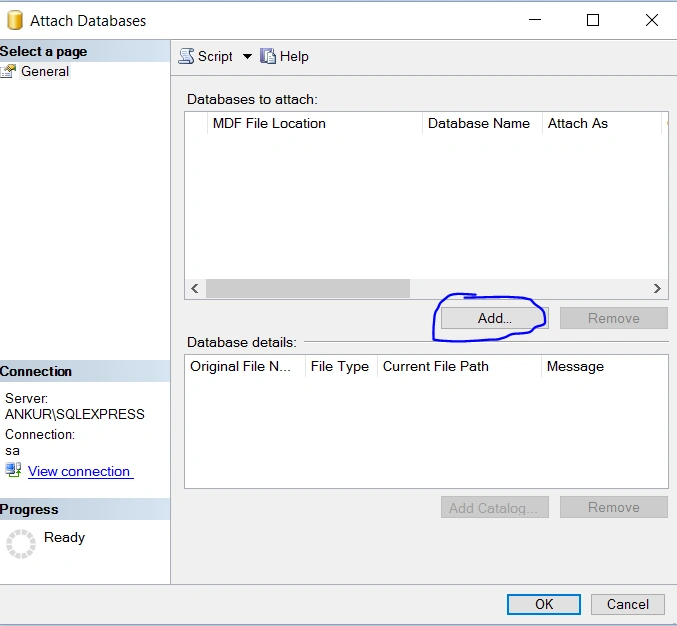
Step 2: It will open the below dialog, for adding a file click on 'Add' Button
Step 3:
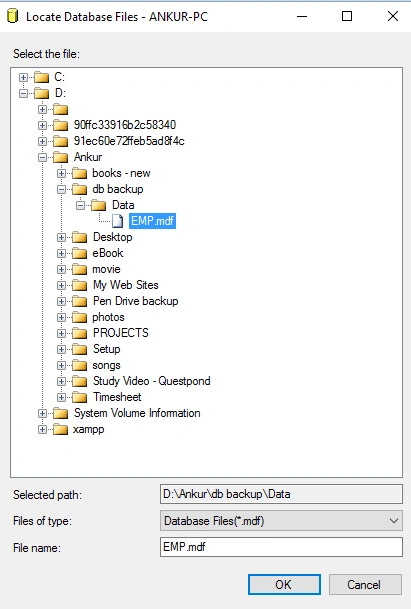
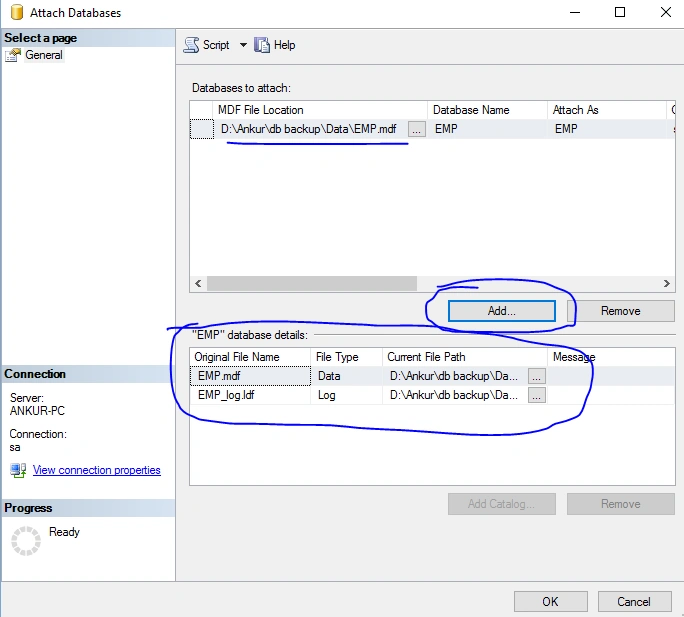
Locate your .MDF file from your Drive, here in my case D:\Ankur\db backup\Data\EMP.mdf. Select the file and click on Ok button.
Locate your .MDF file from your Drive, here in my case D:\Ankur\db backup\Data\EMP.mdf. Select the file and click on Ok button.
Remember the Default Path is c:\Program Files\Microsoft SQL Server\MSSQL11.MSSQLSERVER\MSSQL\DATA. But I am going to place the .mdf file in a different path and try to attach the file.
Step 4: It will display Data file (EMP.mdf) and Log file (EMP.ldf) shown as per below screen.
Click on Ok.
Step 5:
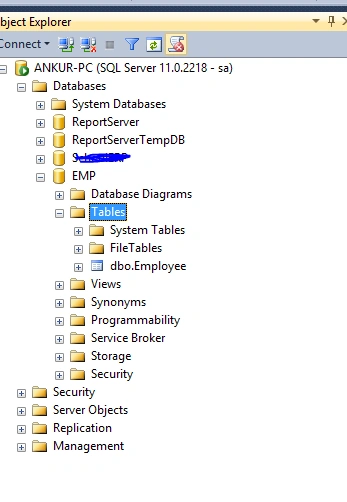
That's it; it will create an EMP database with data, you can check your MS SQL Object Explorer -> database and it will show the database attached, here it is EMP database.
That's it; it will create an EMP database with data, you can check your MS SQL Object Explorer -> database and it will show the database attached, here it is EMP database.
Hope you liked this article about how to attach your .MDF and .LDF file in MS SQL Server.
Read more articles on SQL Server:


Fay DaltasPosted Sep 11, 2019, 9:52 AM EDT
Thanks, is there anything different or additional to do If I also am attaching an ndf file? Or will automatically be detected in step 4?
Naresh MittalPosted Sep 7, 2019, 3:41 AM EDT
Most important part to remember is that you start the SSMS in Admin mode or else attachment will fail (Access denied exception is thrown)
SubashPosted Jul 28, 2016, 12:11 AM EDT
Thank You sir
Humayun Kabir MamunPosted Mar 19, 2016, 8:07 PM EDT
Nice...
Ankur MistryTOP 100Posted Mar 14, 2016, 10:12 PM EDT
Thank you
Amit Kumar SinghPosted Mar 14, 2016, 9:24 PM EDT
Nice One
Ankur MistryTOP 100Posted Mar 14, 2016, 3:54 PM EDT
Thank you
Vignesh ManiTOP 100Posted Mar 14, 2016, 1:42 PM EDT
Good
Ankur MistryTOP 100Posted Mar 14, 2016, 6:43 AM EDT
thank you
Rushabh ParekhPosted Mar 14, 2016, 6:41 AM EDT
Awesome Article and Great for Beginners .