
When working with Outlook, managing a growing number of emails becomes difficult very quickly. Important messages like invoices, resumes, or client updates often get lost in a crowded inbox, making it hard to stay organized and respond on time.
Most users try to handle this with manual folders or static rules, but these solutions don’t scale well as email patterns keep changing. This leads to extra effort, missed emails, and reduced productivity.
Goal
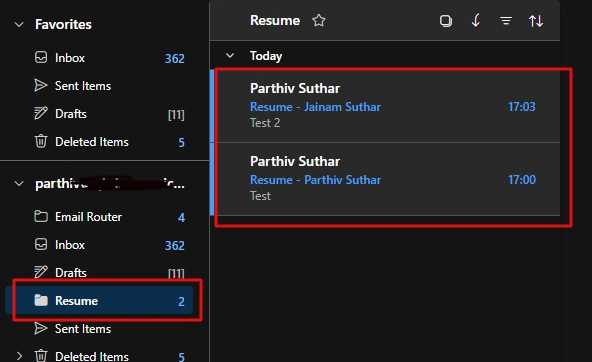
Create folder based on subject and save mail in folder.
Step-wise Implementation
1 - Create flow
Go to make.powerautomate.com
Choose trigger like when email arrives (from Office 365 Outlook)

2 - Initialize variable for subject
Here, i am split subject with character (-).
trim(split(triggerOutputs()?['body/subject'], '-')[0])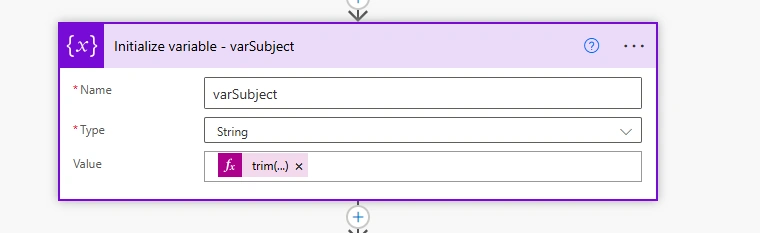
3 - Check folder exist
Add HTTP action Office 365 Outlook
https://graph.microsoft.com/v1.0/me/mailFolders?$filter=displayName eq '@{variables('varSubject')}'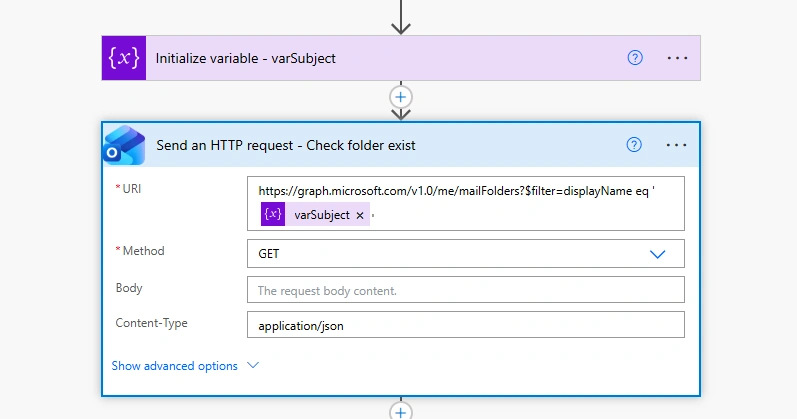
4 - Filter records of Check folder exist
Add Filter array action.
From:
Codebody('Send_an_HTTP_request_-_Check_folder_exist')?['value']condition:
@equals(item()?['displayName'], variables('varSubject'))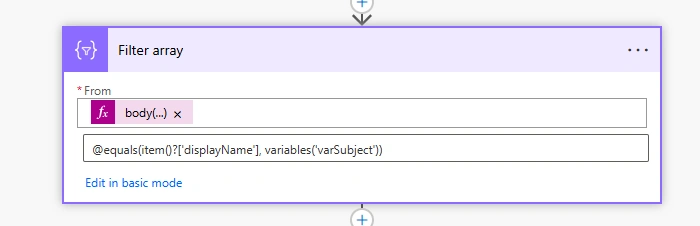
5 - Add Condition
Check that if there is already folder in Outlook
Condition:
length(body('Filter_array')) is not equal to 0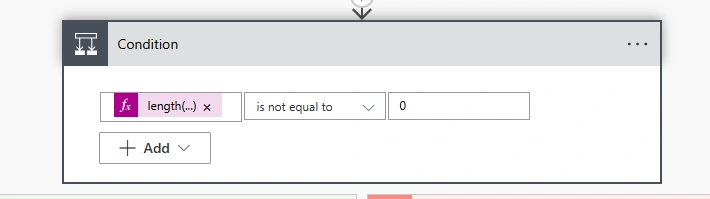
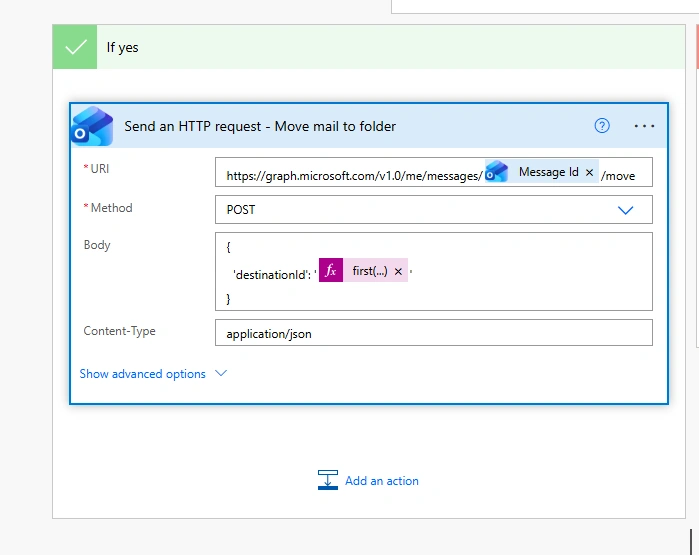
6 - Yes section (Move mail to already created folder)
Uri:
https://graph.microsoft.com/v1.0/me/messages/@{triggerOutputs()?['body/id']}/moveBody:
{
  'destinationId': '@{first(body('Send_an_HTTP_request_-_Check_folder_exist')?['value'])?['id']}'
}
7 - No section (Create folder then move mail to that folder)
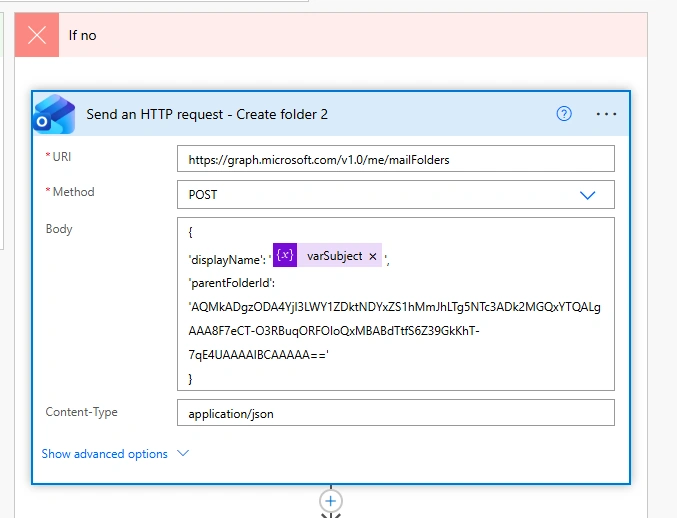
1 - Create folder
Uri:
https://graph.microsoft.com/v1.0/me/mailFoldersBody:
{
'displayName': '@{variables('varSubject')}',
'parentFolderId': 'AQMkADgzODA4YjI3LWY1ZDktNDYxZS1hMmJhLTg5NTc3ADk2MGQxYTQALgAAA8F7eCT-O3RBuqORFOIoQxMBABdTtfS6Z39GkKhT-7qE4UAAAAIBCAAAAA=='
}
Here i have hardcoded value of Parent Folder ID, you can get by requesting - Get method with same above Url.
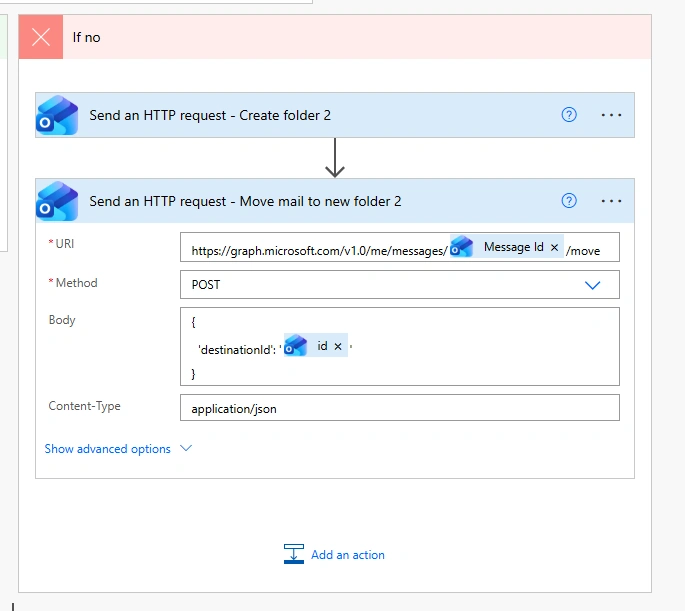
2 - Move mail to newly created folder
Uri:
https://graph.microsoft.com/v1.0/me/messages/@{triggerOutputs()?['body/id']}/moveBody:
{
  'destinationId': '@{body('Send_an_HTTP_request_-_Create_folder_2')?['id']}'
}
Conclusion
Here, we learnt that how we can automate this hectic process of Mail using Power Automate.

Join the conversation! Your thoughts help the community grow.