
Let's see how to configure a managed metadata service application in SharePoint 2013.
Open SharePoint Central Administration.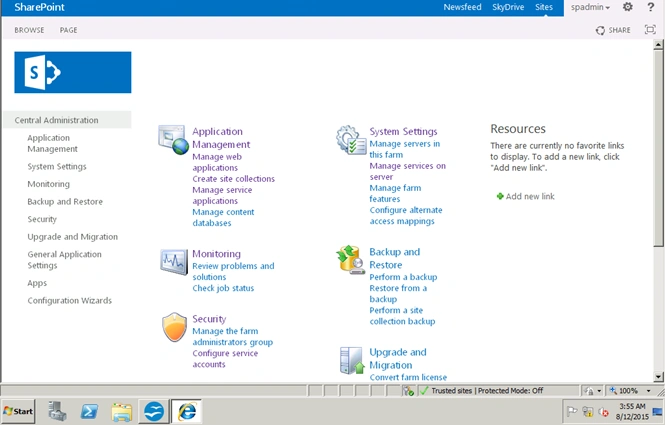
Click on Manage service application.
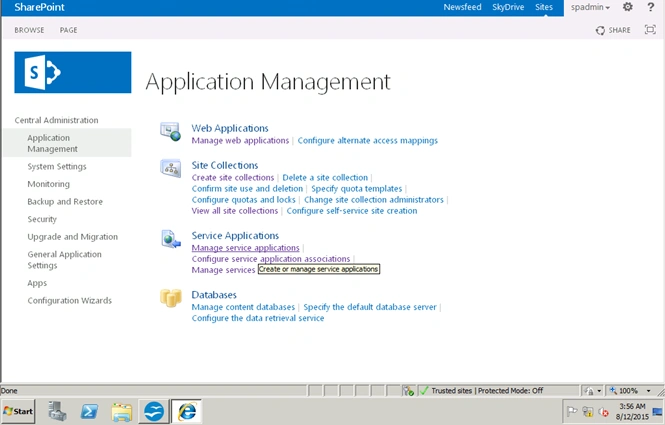
On the page click New -> Managed metadata service.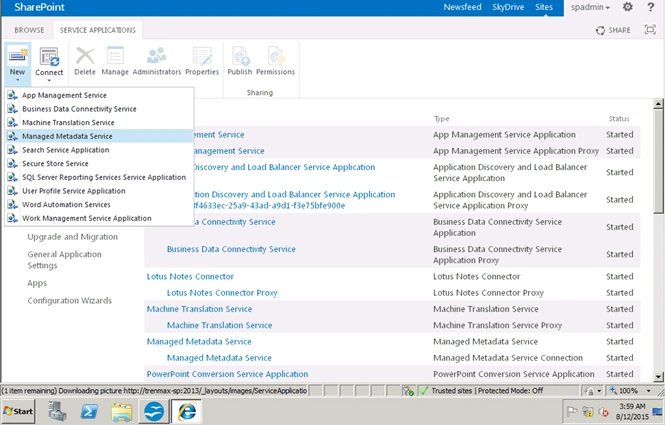
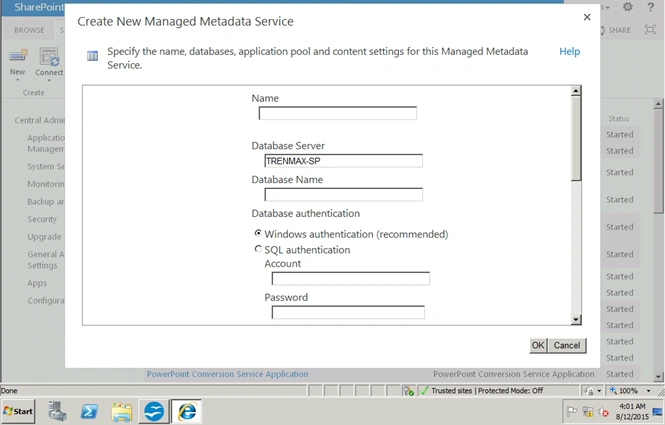
In this window, enter the name of the service application as in the following: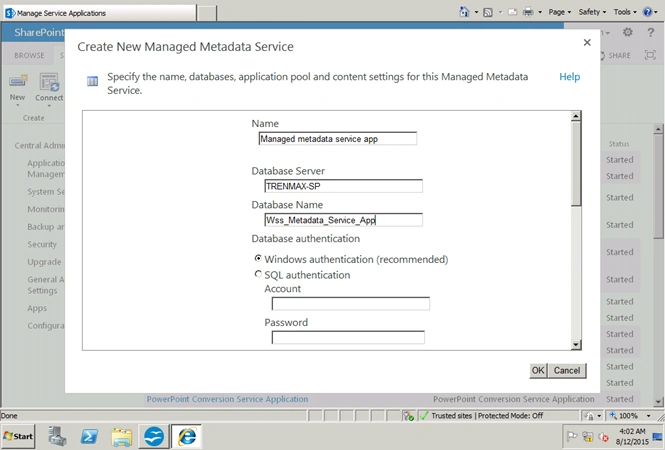
Enter the database name.
I am using WSS_Metadata_Service_App.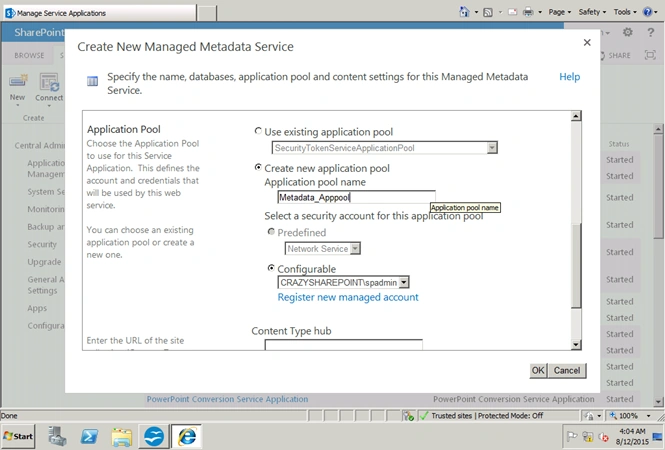
Create a new application pool “Metadata_Apppool”. The Configurable account will be “CRAZYSHAREPOINT\Spfarm”.
Click OK to complete.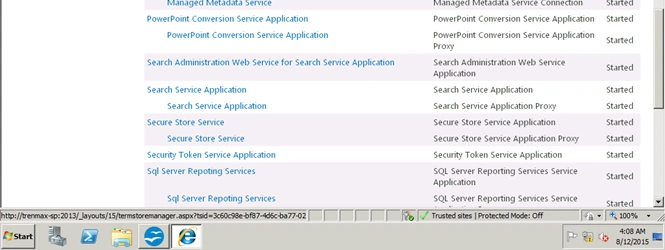
Now see Managed metadata service application has been configured successfully.
Click on managed metadata service application.
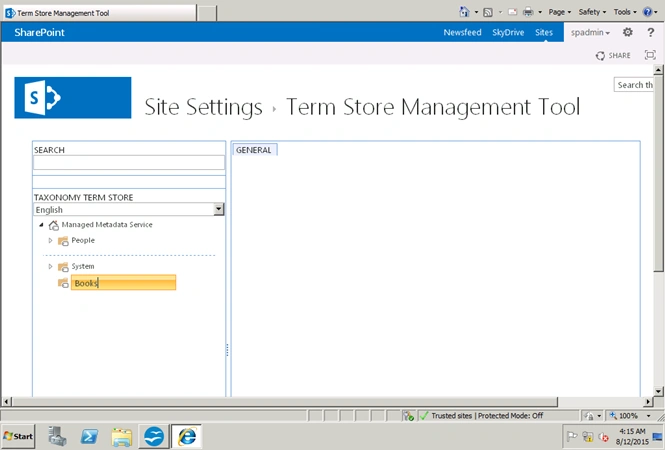
Add users under the term store administrators and grant permission to create a term and term sets.
Addded CRAZYSHAREPOINT\Spadmin
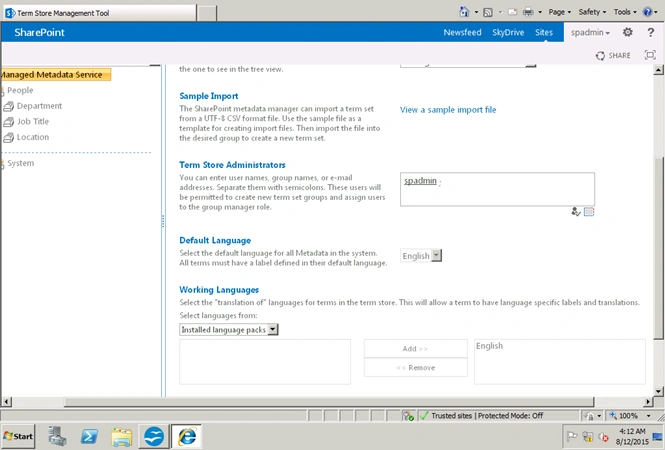
Click Save.
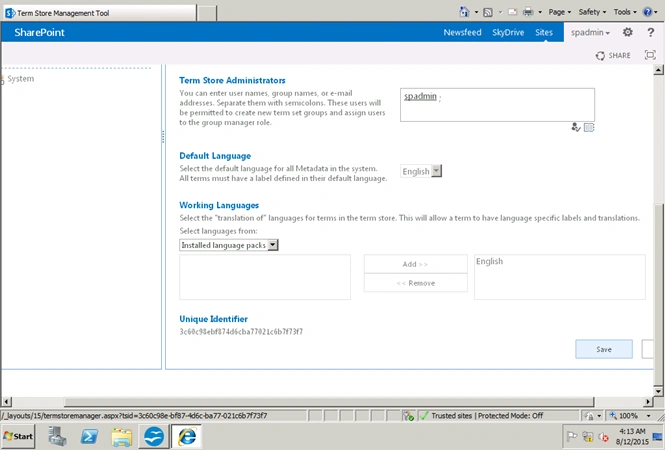
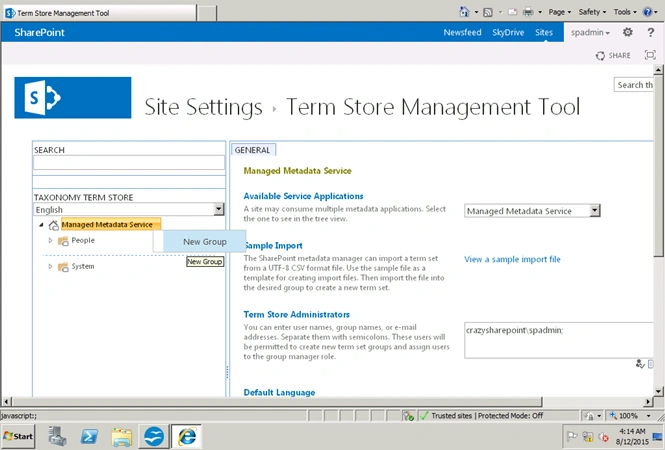
Click on new group.
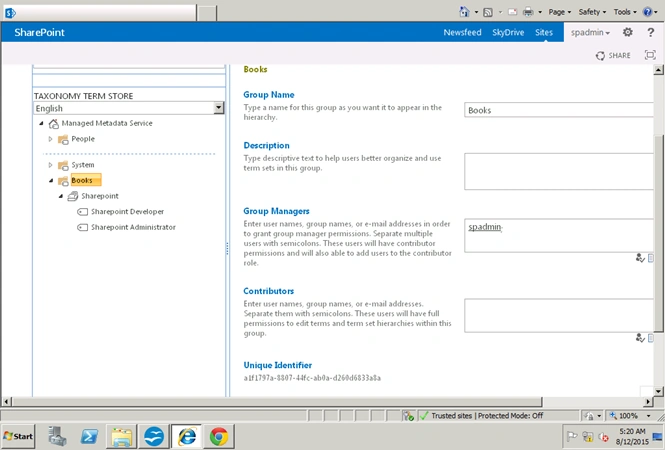
Create a new group named books.
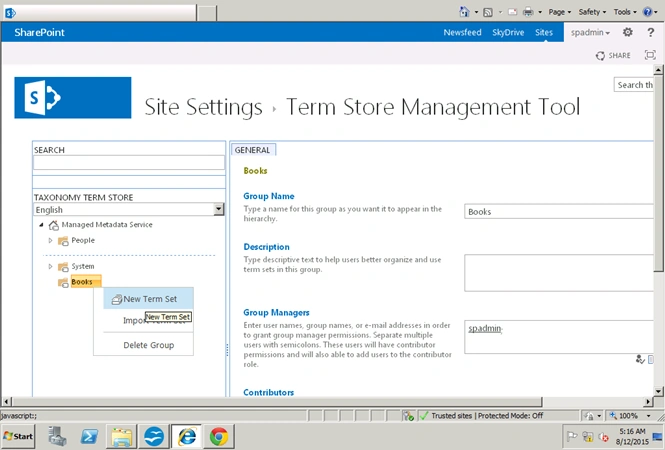
Click under the created group to create a new term set.
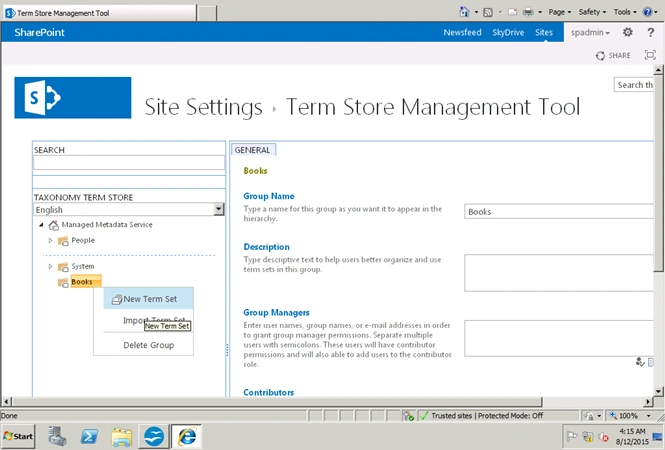
Enter SPAdmin as group manager permissions.
Now I will create a new term set under books.
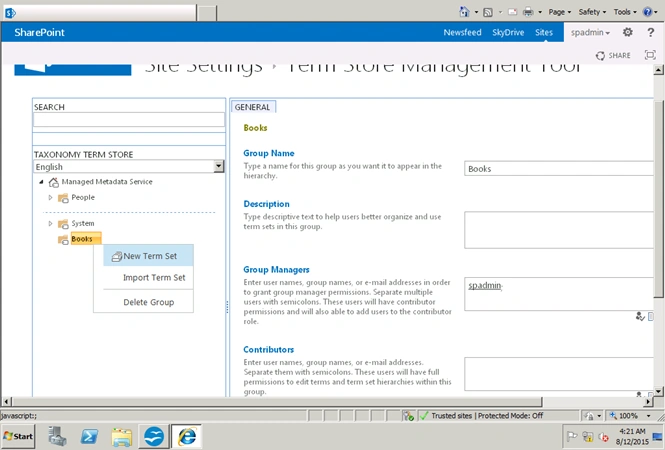
Create a new group named "Books".
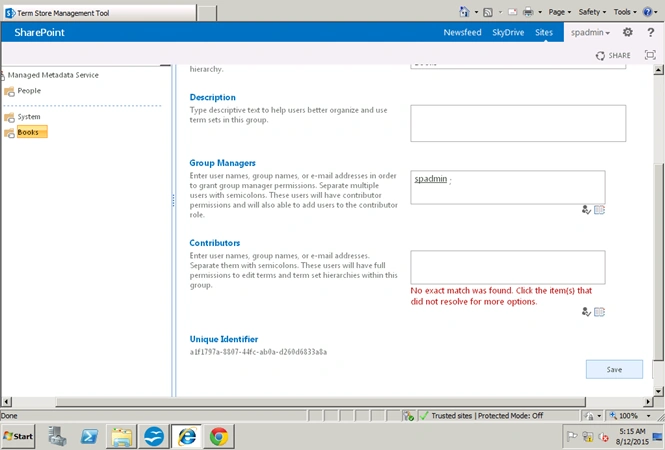
Create a term set named "SharePoint".
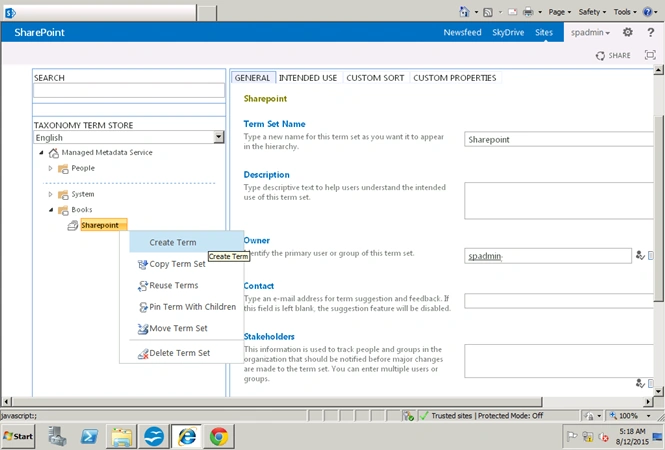
Create the terms:
SharePoint Developer
SharePoint Administrator
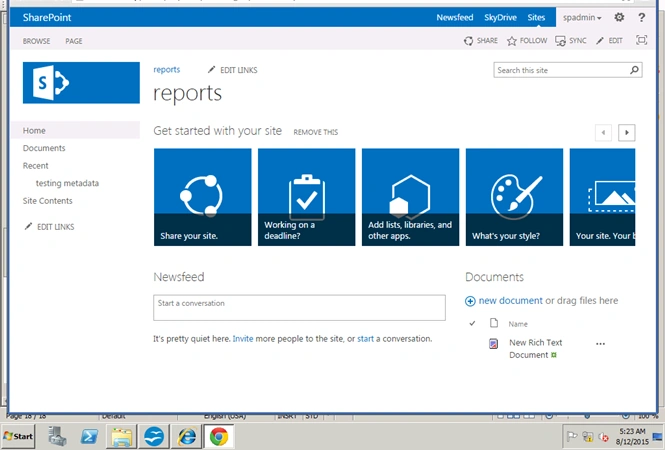
Now open a team site.
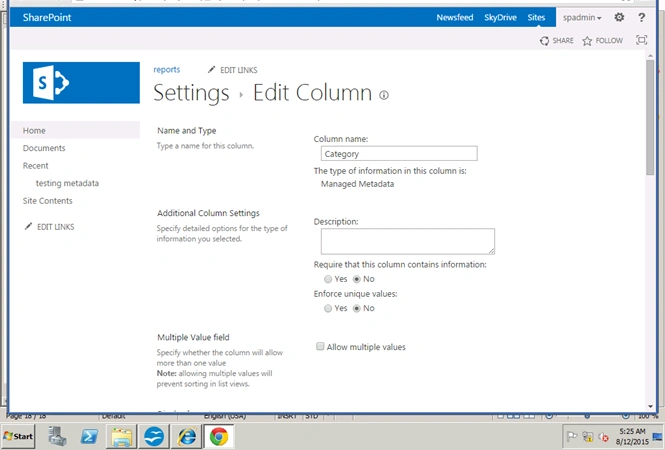
Create a Document Library.
Create a new column named Category → Column type: Managed Metadata.
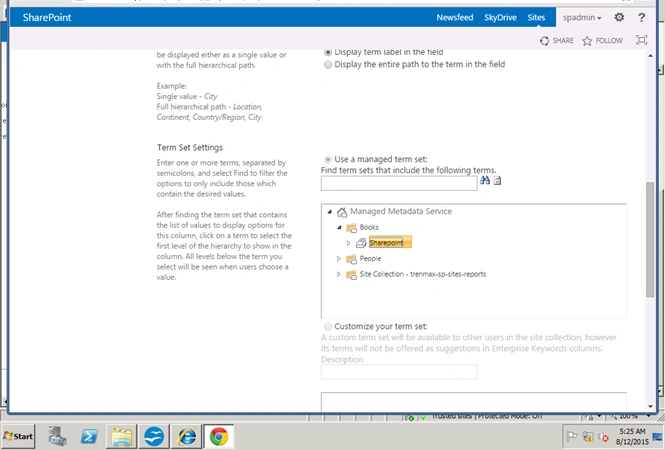
Select your term set.
Now your Document Library looks like this:
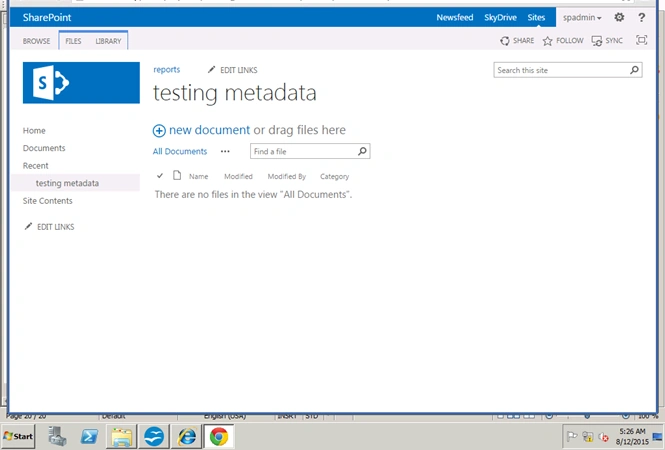
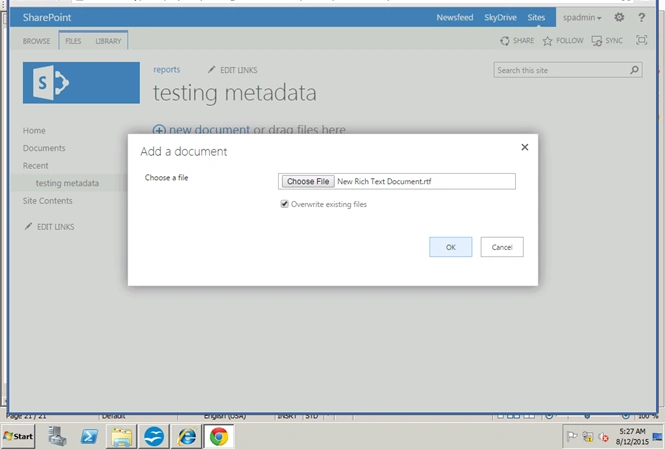
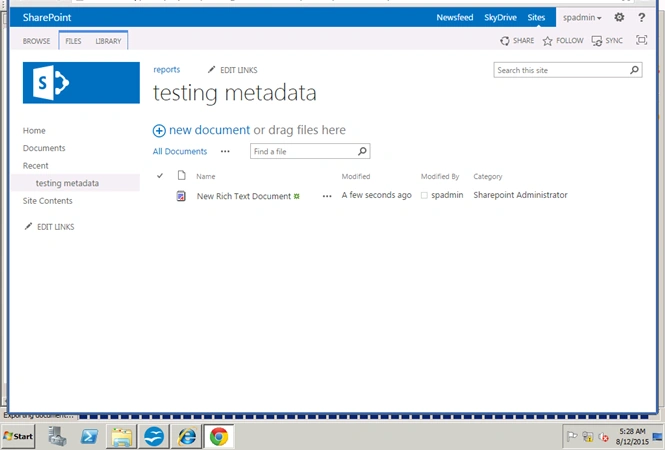
Now upload a new document as in the following:
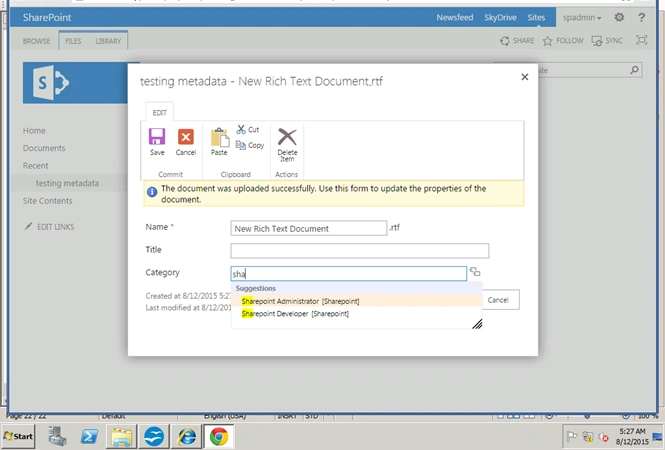
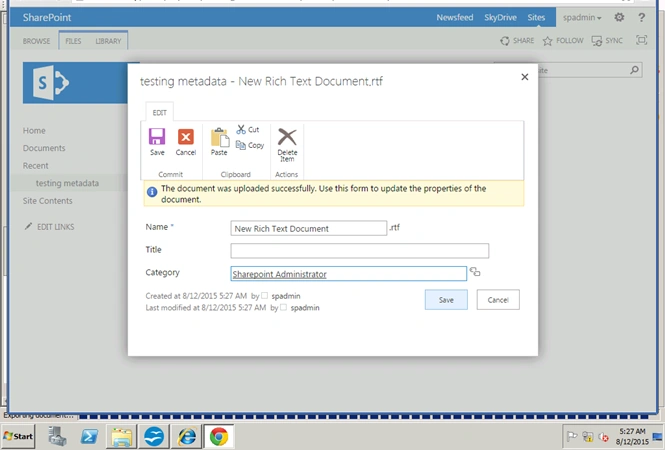
Click Save.
Now the created terms have been added to the documents.
Happy SharePoint.
Regards: Vinodh.N (Sharepoint Developer\Administrator)


Vinodh NarayananPosted Aug 13, 2015, 10:40 AM EDT
Thanks
Abhay ShankerPosted Aug 13, 2015, 9:16 AM EDT
Nice Article
Vinodh NarayananPosted Aug 13, 2015, 8:12 AM EDT
thank you
RakeshPosted Aug 13, 2015, 6:19 AM EDT
Good one
Vinodh NarayananPosted Aug 13, 2015, 4:30 AM EDT
Thank you
Ankit BansalPosted Aug 13, 2015, 3:41 AM EDT
good one..
Vinodh NarayananPosted Aug 13, 2015, 1:50 AM EDT
Thanks a lo guys
Gowtham RajamanickamTOP 100Posted Aug 13, 2015, 12:49 AM EDT
good one..
Sibeesh VenuTOP 100Posted Aug 13, 2015, 12:28 AM EDT
Nice Share :)
Nilesh JadavPosted Aug 12, 2015, 10:51 PM EDT
Nice share sir thank you for sharing
Vinodh NarayananPosted Aug 12, 2015, 10:50 PM EDT
Thanks
Vaikesh K PPosted Aug 12, 2015, 10:00 PM EDT
Nice article
Rajeesh MenothPosted Aug 12, 2015, 8:38 PM EDT
Good One
Vinodh NarayananPosted Aug 12, 2015, 7:26 PM EDT
Thanks a lot
Karthikeyan KPosted Aug 12, 2015, 7:09 PM EDT
Good one sir..Thanks for sharing
Van LaiPosted Aug 12, 2015, 5:36 PM EDT
Thank you for the detailed demonstration.