
Prerequisites
- Microsoft Azure account.
- Visual Studio Community, download here
Now, let's get started with the following steps.
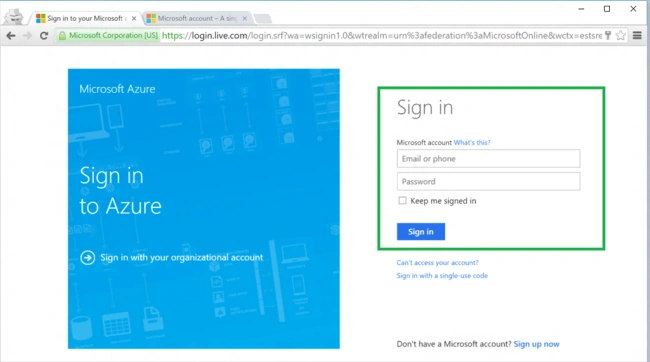
1. Sign in to the online Microsoft Azure Portal.
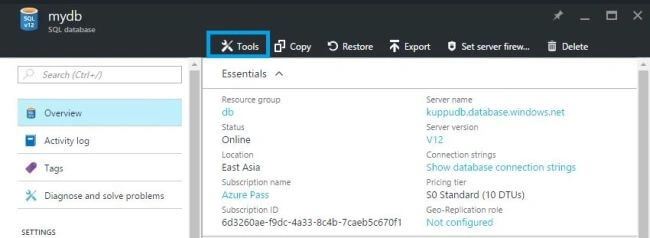
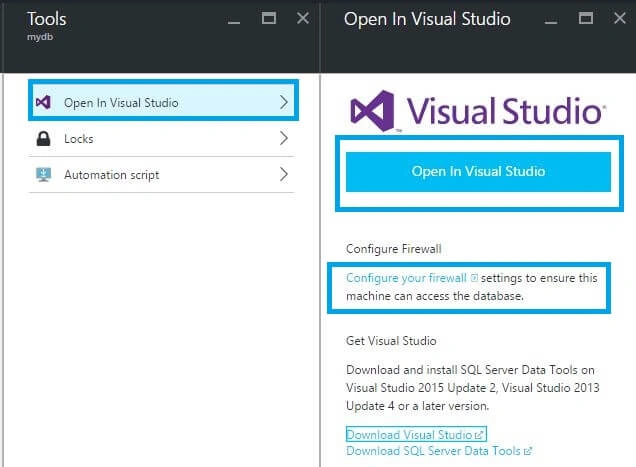
2. Open the existing database on Azure portal and click "Tools" button at the top of the database blade.
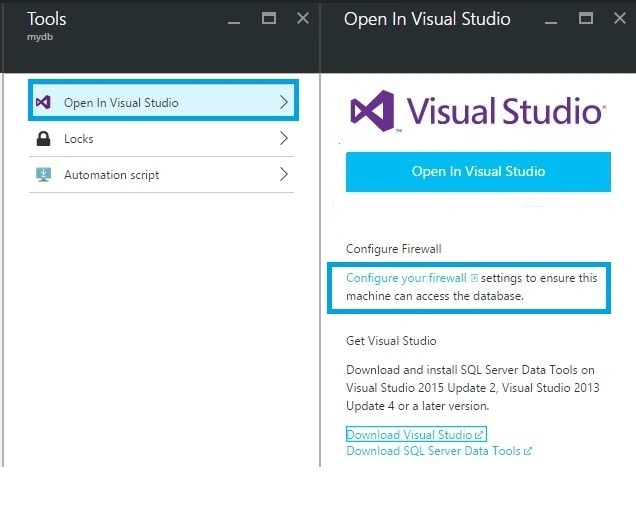
3. Add your computer's IP Address to the SQL Server, otherwise you will be getting an error message.
For that, click "Configure your firewall" link, as shown below.
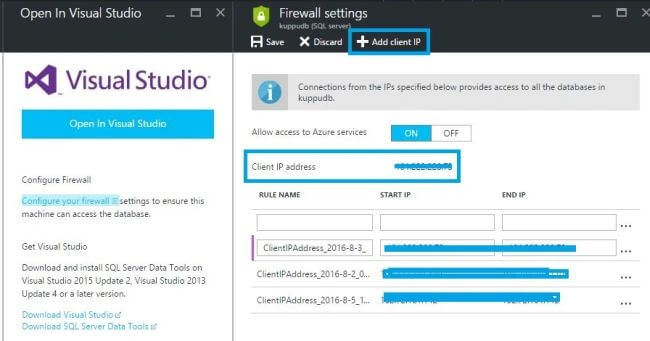
Now, click "Add Client IP" option and click "Save".
4. Next, click "Open in Visual Studio" button.
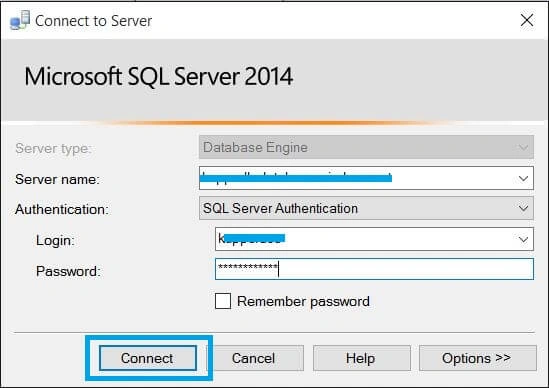
5. Next, Visual Studio opens with "Connect to Server" window, already set to connect to the server and database that we selected in the portal. Type your server admin password and click "Connect".
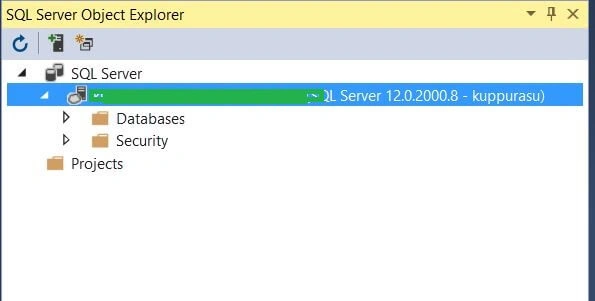
After successfully connecting, the SQL Server Object Explorer window opens with a connection to our database.
Run a sample query
Now that we're connected to the database, the following steps show how to run a simple query.
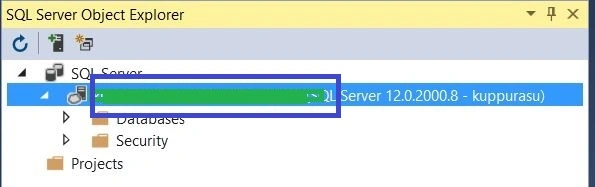
1. Right-click the database name and select "New Query".
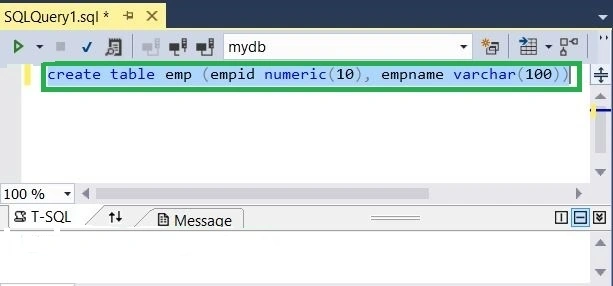
In the query window, copy and paste the following code.
- create table emp(empid numeric(10, empname varchar(100))
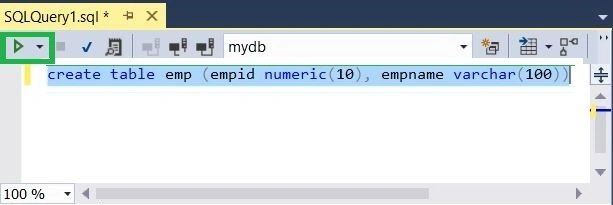
Click the "Execute" button to run the query.
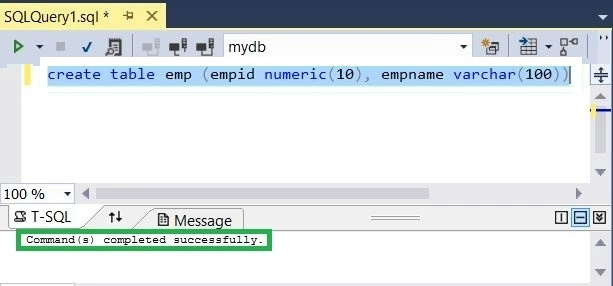
Finally, we get the Command(s) completed successfully message.
That's it. In this article we learned how to connect and work with the Azure SQL database, using Visual Studio. You comments and feedback will be appreciated.


Vignesh ManiTOP 100Posted Sep 21, 2016, 12:53 PM EDT
Good One Sir
Anu VPosted Sep 18, 2016, 8:09 PM EDT
Nice..
Humayun Kabir MamunPosted Sep 17, 2016, 8:08 PM EDT
Nice...