
In my previous article I created an Azure Search service as shown. To know how to create an Azure Search Service you can read Part One here.
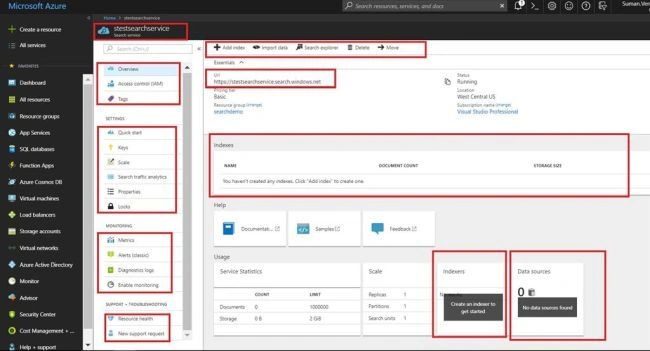
In this article, I’ll show how to add an index on search service.
We can do it in two ways,
- By using Add index button.
- OR use Import data
STEP 1 - Click on Import data
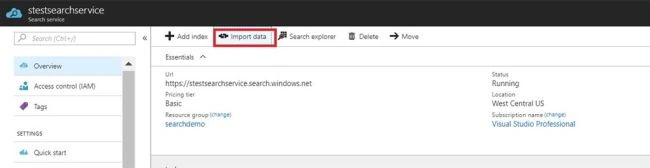
STEP 2 - Click on Data source
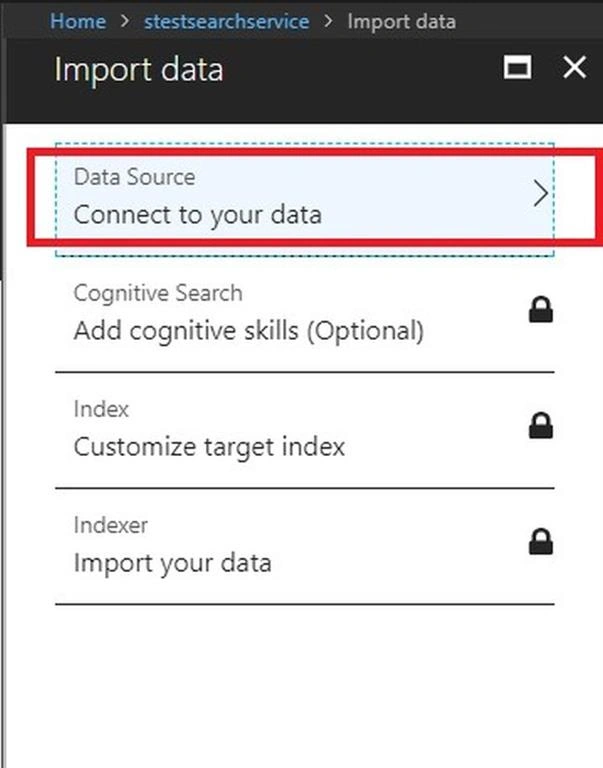
STEP 3 - Choose Data Source
Using the below options select a data source
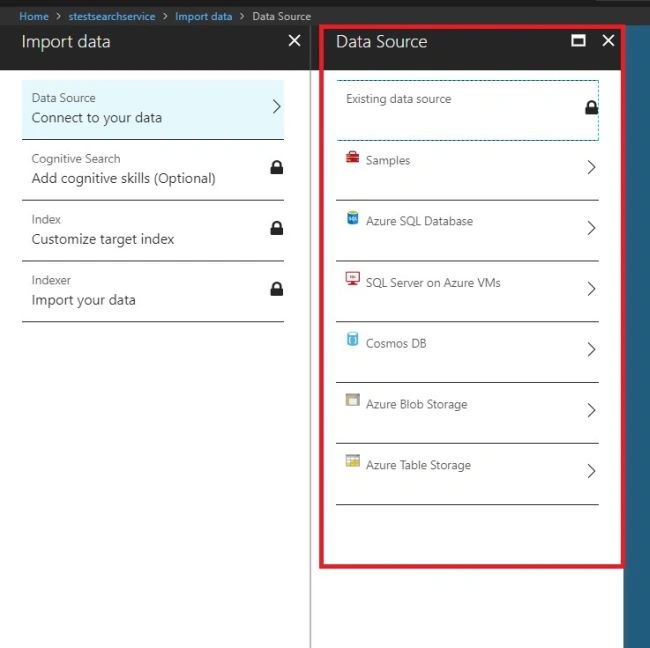
I selected the Azure SQL Database
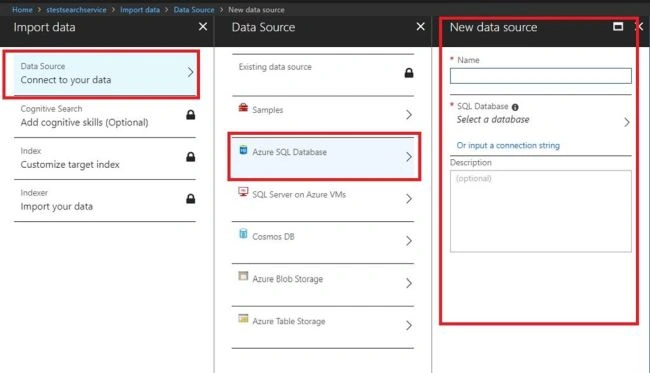
STEP 4 - Create New Data source
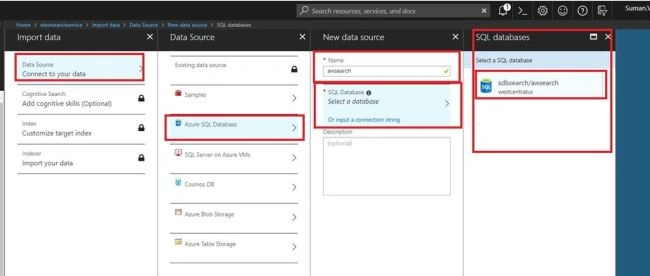
- Name: Enter new data source name – ‘awsearch’
- SQL Database – Select an SQL Database, I will use the already existing database [‘awsearch’]
I created a SQL database [using adventurWorks] with name ‘awsearch’ as shown. I’ll show in another article how to create a SQL database using an Azure portal.
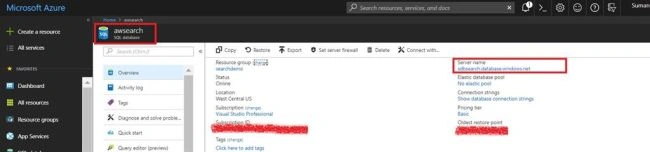
For this article, I will use this existing database.
STEP 5 - Test connection
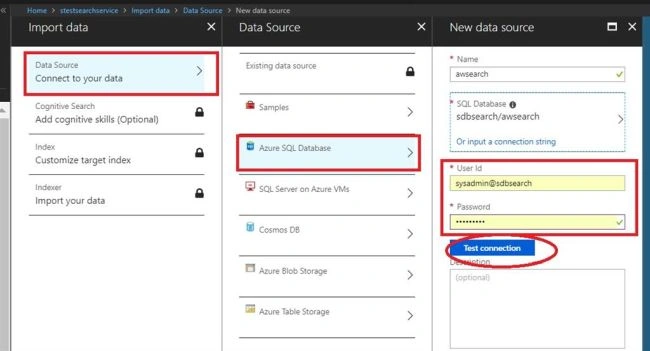
Connection is validated and we can see a table/View as shown.
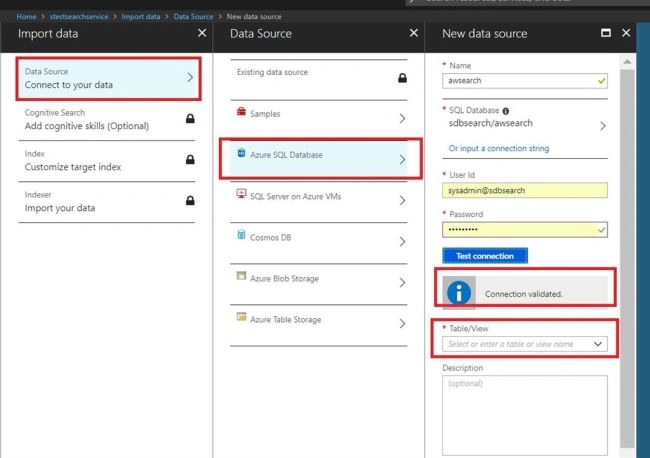
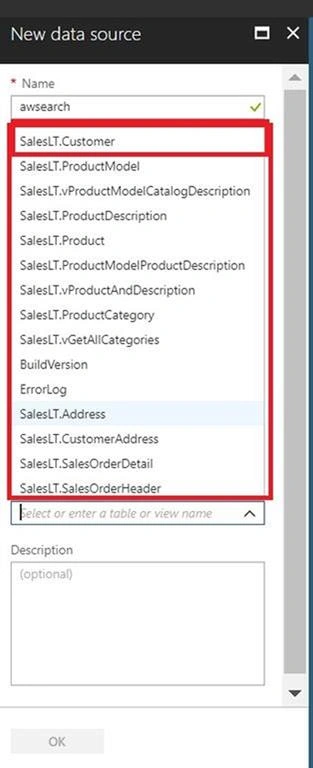
STEP 6 - Select Table/View
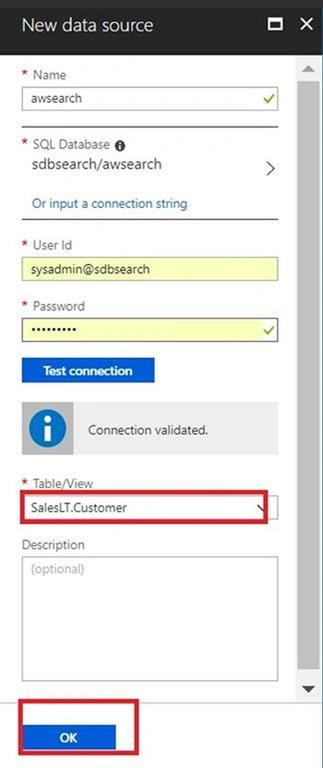
Select the table name as salesLT.customer from the dropdown list.
Select the customer table and click OK.
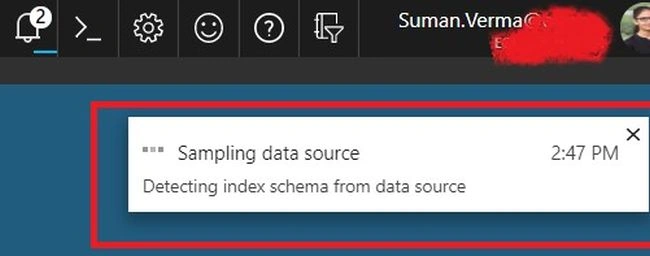
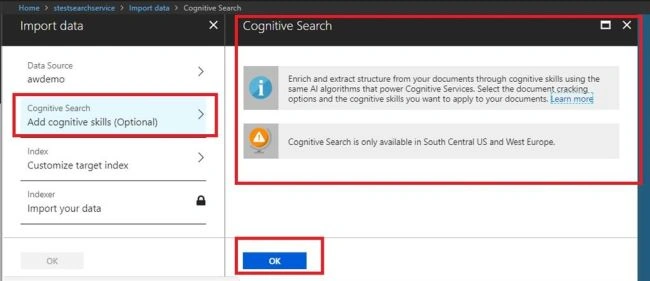
STEP 7 - Cognitive Search
Cognitive search is the enterprise search that makes use of Artificial Intelligence (AI) to return results that are more relevant to the user or embedded in an application issuing the search query. To know more about cognitive skills, click on Learn More.
STEP 8: Customize Target Index
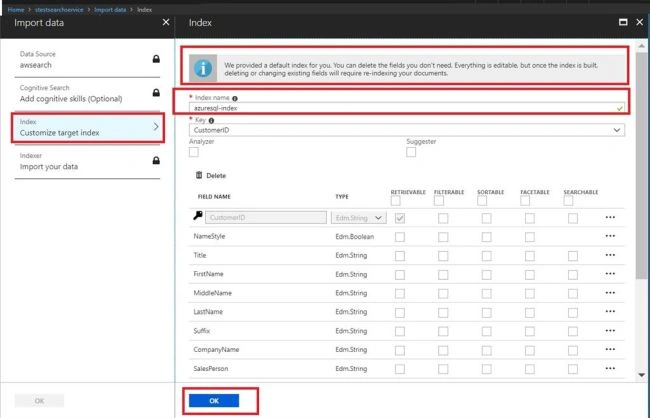
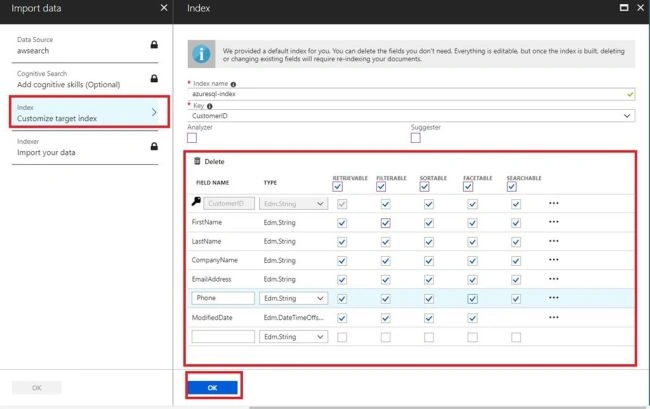
Click on Index
The information that appears on the screen states,
- It will provide a default index for us as shown.
- We can delete the fields which are not required.
- Once the index is built, deleting and changing fields will require re-indexing of documents
Index Name
Select Key
I Selected customerId as the key field.
As shown, the index can have only one key field and that must be a string field and retrievable.

Select Fields
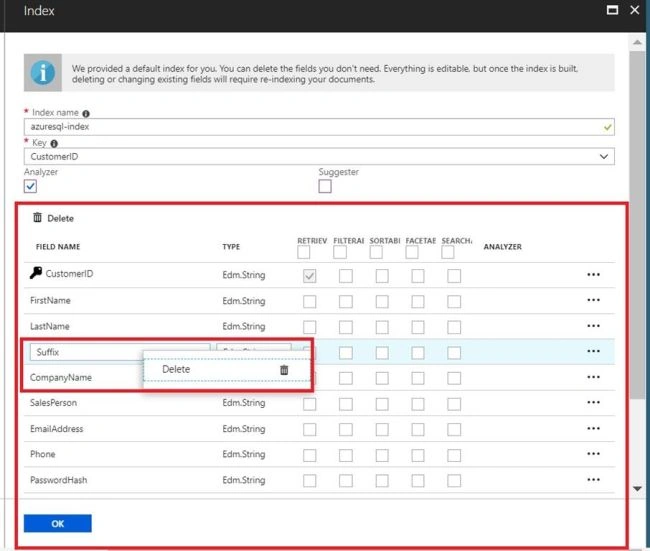
Select fields in the index, delete the one you don’t need by right-clicking on the field and click on delete as shown.
So, I selected fields,
- CustomerID
- FirstName
- LastName
- ComapnyName
- EmailAddress
- Phone
- ModifiedDate
Set Filters controls
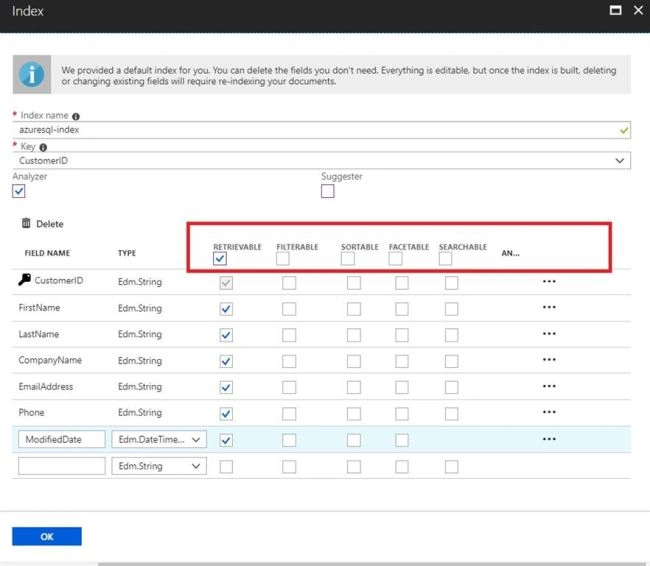
We have five controls in an index that we can set on these fields,
- Retrievable
- Filterable
- Sortable
- Facetable
- Searchable
Retrievable
Select the fields for which we want documents to be retrievable as part of search results.
Searchable and retrievable
If you want the documents to be searchable and retrievable then select both and we could search based on any of the data in these fields
Filterable and sortable
As the name suggests, we could do filtration and sort on the search based on the selected fields for selected controls.
Facetable
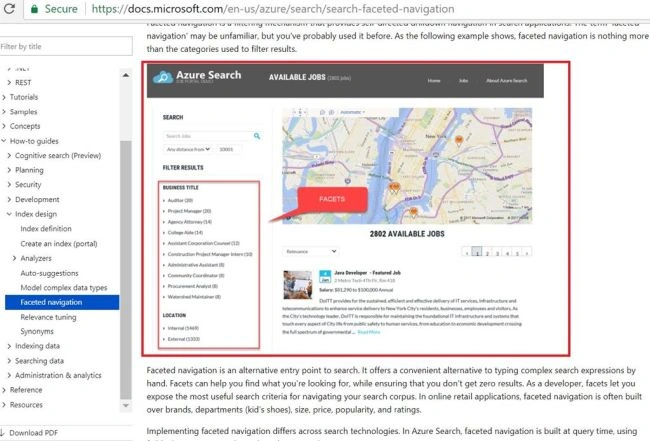
It’s a filtering mechanism that provides a self-directed drill down in search applications. In short, we can say that the category is used to filter the results. To know more, read this MSDN doc here; in this article, the below figure clarifies what facets are.
Select the filters and Click OK
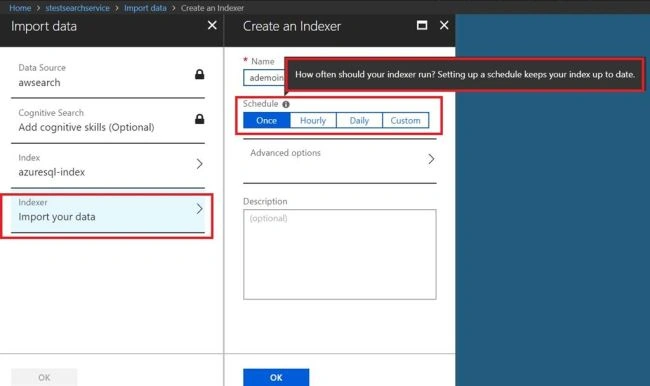
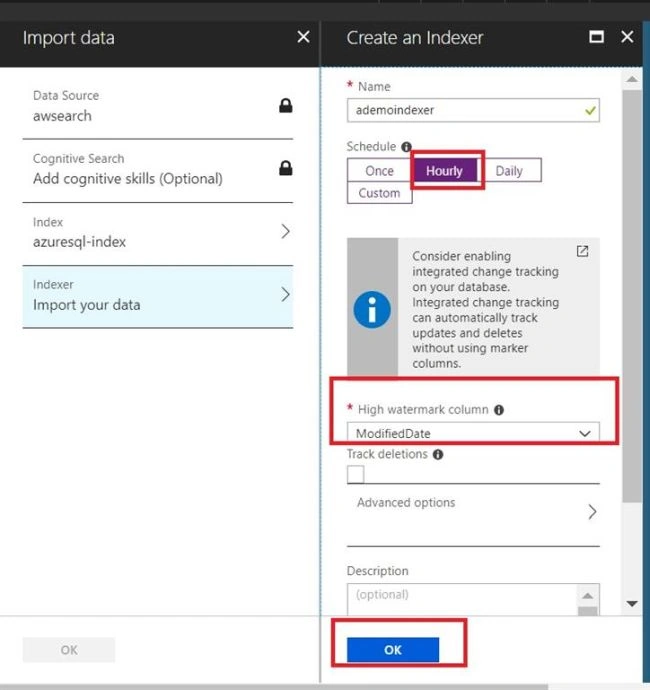
STEP 9 - Create an Indexer
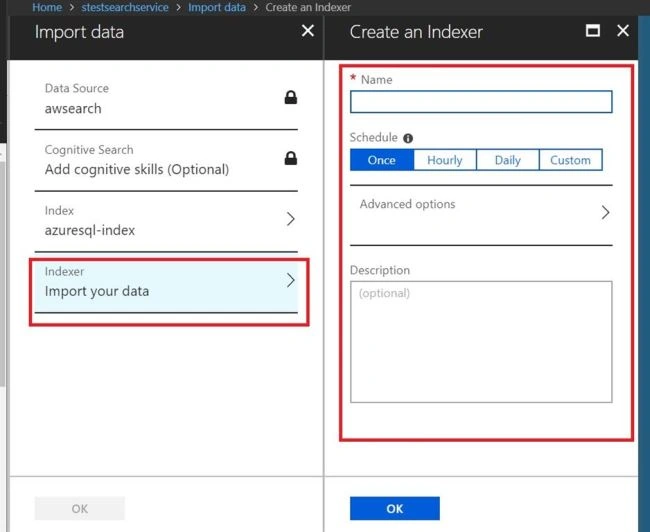
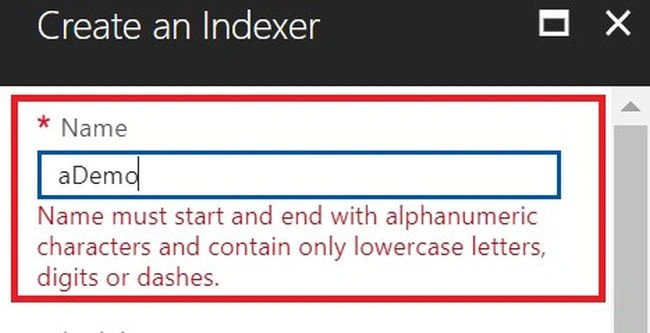
Indexer Name
Enter the name for the indexer, it must alphanumeric and no uppercase, only lowercase letters, digits and dashes as shown in the validation.
Schedule
It will show the schedule of your indexer, it can be,
- Once
- Hourly
- Daily
- Custom
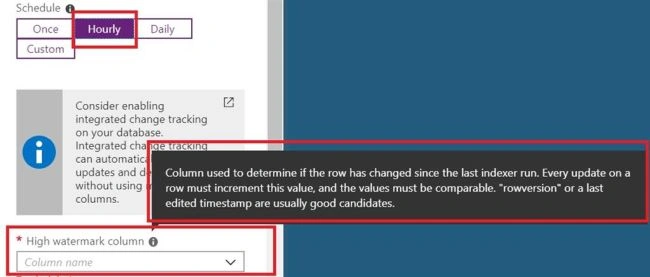
Schedule it for hourly. We can see the high watermark column, which keeps our index up to date with database
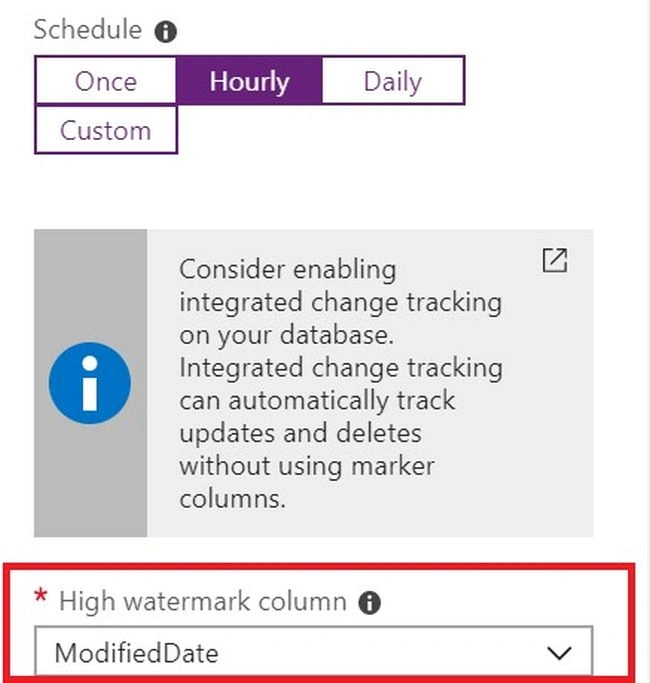
I selected Modified date. If this has changed,since the last time we did the indexer, then update this in the index as well.
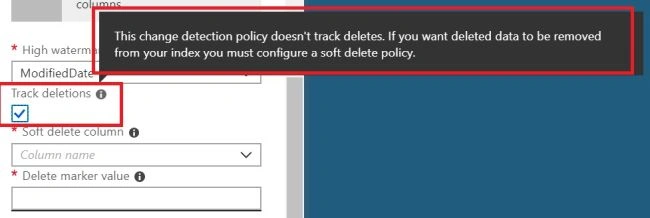
For now, uncheck the track deletions and click OK.
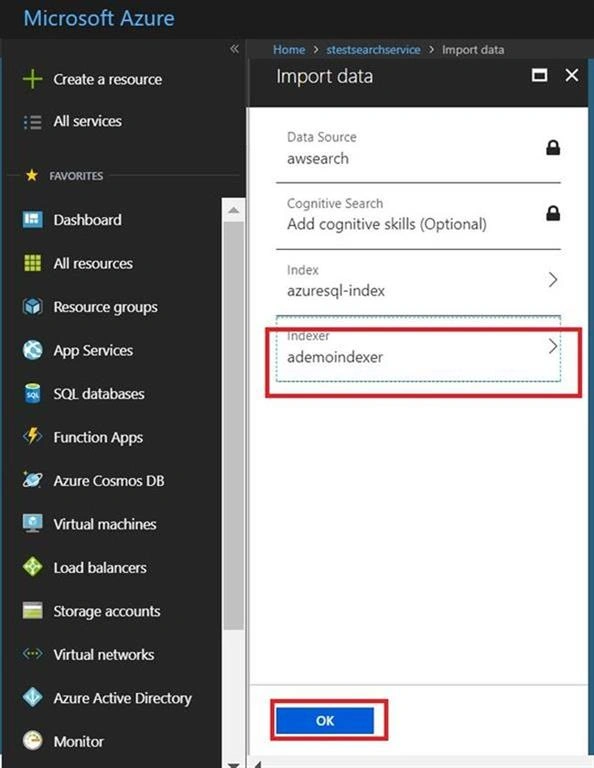
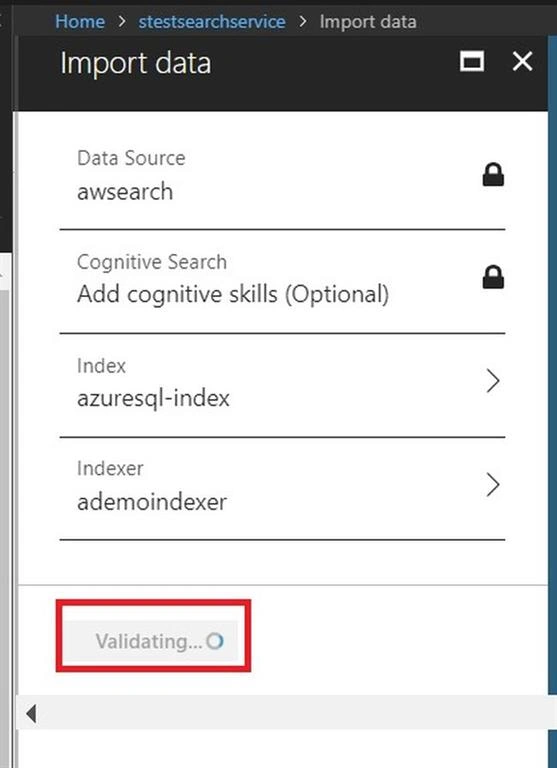
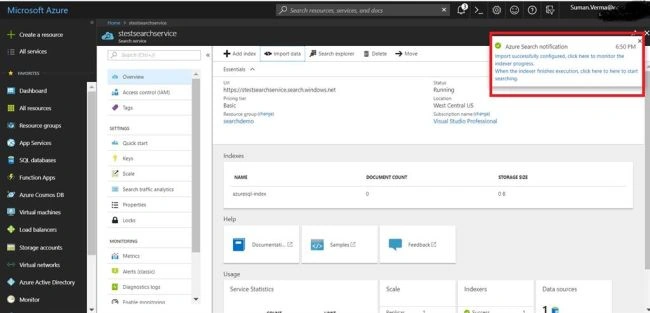
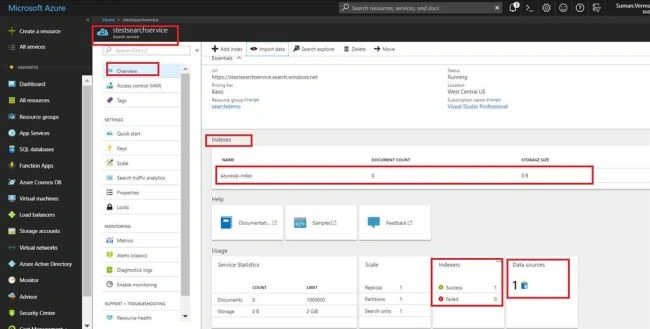
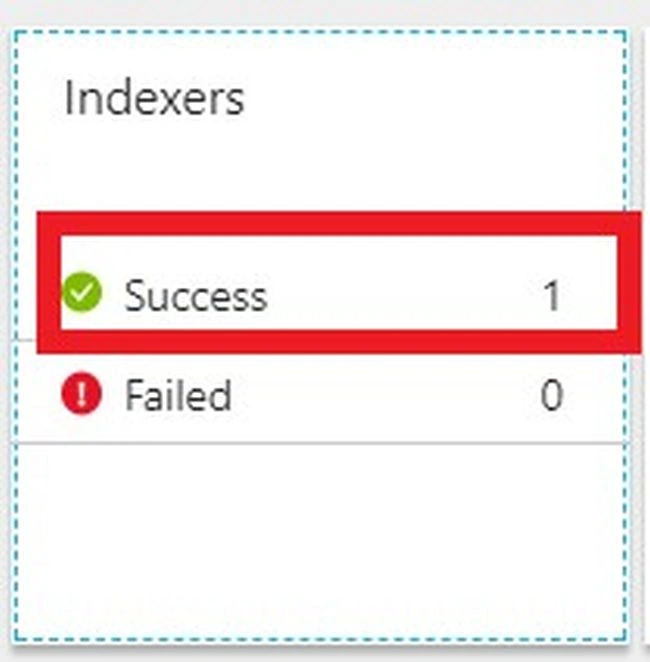
Here, we can see that Indexers are now created successfully and success=1
Also, indexes contain the index name, document count and storage size.
STEP 10 - Run Indexer Manually
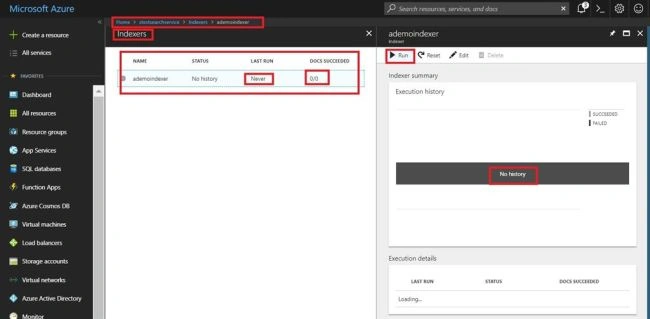
Select the name of the indexer, we see no documents have succeeded and no history for this indexer.
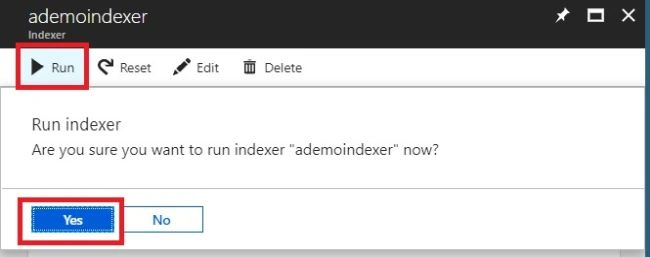
Click on Run and create the indexer manually and select ‘Yes’
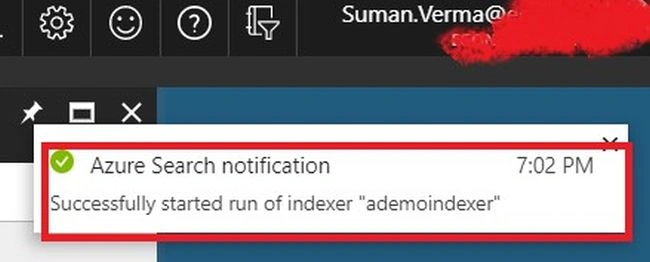
On the extreme right notification pane, we can see the notification as
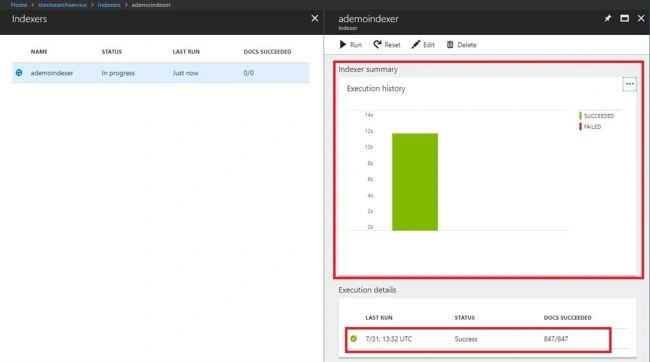
Now, go back again and click on Indexers, here we go,
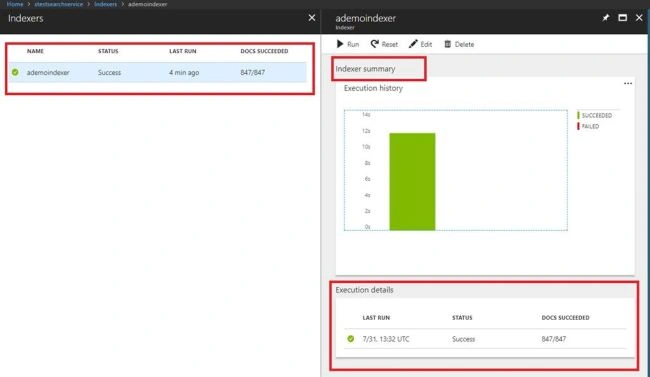
Indexers with success details, docs succeeded as shown below.
In this article, we saw how to create an index using Import data, saw search filters [Retrievable, Filterable, Sortable, Facetable, Searchable] used for the fields, created indexer, and ran it manually.
Happy reading!


Sumit RajguruPosted Aug 9, 2018, 7:35 AM EDT
Nice one. Thanx for sharing.