
Steps Involved:
- Open Visual Studio 2010.
- Create an "Empty SharePoint Project".
- Right click on the solution and click on Add => New Item.
- Select "Webpart" template from SharePoint 2010 installed templates.
- Entire solution looks like the following
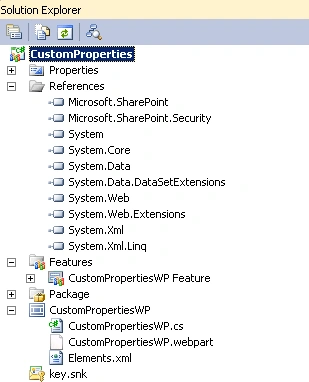
- Replace CustomPropertiesWP.cs file with the following code.
using System;
using System.ComponentModel;
using System.Web;
using System.Web.UI;
using System.Web.UI.WebControls;
using System.Web.UI.WebControls.WebParts;
using Microsoft.SharePoint;
using Microsoft.SharePoint.WebControls;
namespace CustomProperties.CustomPropertiesWP
{
[ToolboxItemAttribute(false)]
public class CustomPropertiesWP : WebPart
{
public static string _value;
[System.Web.UI.WebControls.WebParts.WebBrowsable(true),
System.Web.UI.WebControls.WebParts.WebDisplayName("Enter the Value"),
System.Web.UI.WebControls.WebParts.WebDescription(""),
System.Web.UI.WebControls.WebParts.Personalizable(
System.Web.UI.WebControls.WebParts.PersonalizationScope.Shared),
System.ComponentModel.Category("anavijai Custom Properties"),
System.ComponentModel.DefaultValue("")]
public string _Value
{
get { return _value; }
set { _value = value; }
}
public Boolean _property;
[System.Web.UI.WebControls.WebParts.WebBrowsable(true),
System.Web.UI.WebControls.WebParts.WebDisplayName("Check box property"),
System.Web.UI.WebControls.WebParts.WebDescription(""),
System.Web.UI.WebControls.WebParts.Personalizable(
System.Web.UI.WebControls.WebParts.PersonalizationScope.Shared),
System.ComponentModel.Category("anavijai Custom Properties"),
System.ComponentModel.DefaultValue("")]
public Boolean _Property
{
get { return _property; }
set { _property = value; }
}
public enum siteLists { List1, List2, List3 };
protected siteLists _list;
[System.Web.UI.WebControls.WebParts.WebBrowsable(true),
System.Web.UI.WebControls.WebParts.WebDisplayName("Select the List"),
System.Web.UI.WebControls.WebParts.WebDescription(""),
System.Web.UI.WebControls.WebParts.Personalizable(
System.Web.UI.WebControls.WebParts.PersonalizationScope.Shared),
System.ComponentModel.Category("anavijai Custom Properties"),
System.ComponentModel.DefaultValue("")]
public siteLists _List
{
get { return _list; }
set { _list = value; }
}
protected override void CreateChildControls()
{
Label lblMessage = new Label();
lblMessage.Text = "Custom Properties";
this.Controls.Add(lblMessage);
}
}
}
- Build and deploy the solution.
- Go to the SharePoint Site =>Site Actions =>Edit Page =>Editing Tools => Insert =>Web Part =>Categories => Custom =>CustomPropertiesWP.
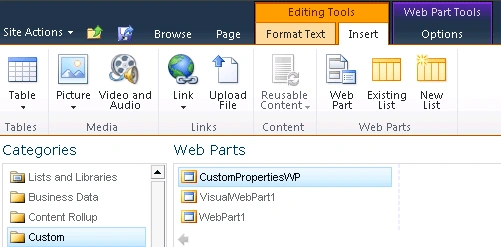
- Click on Add.
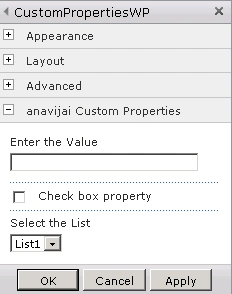
- Edit the webpart; you will see custom categories in the webpart properties.


Rink sahPosted Feb 16, 2018, 8:02 PM EST
How to keep the selected value on edit webpart on custom property dropdownlist
Dennis ThomasPosted Jan 8, 2018, 11:19 PM EST
It was a good one, thank you!
Shandeep BaalajiPosted Mar 18, 2016, 4:50 AM EDT
Vijai, do you have any reference for adding values dynamically to DropDown ?
Akash AnandPosted Feb 17, 2014, 4:38 AM EST
Hello Vijai, Can i add multiple checkbox in SharePoint 2013 web part properties.