
Introduction
This article explains how to create Multicolumn Custom Field Types in SharePoint. Suppose we have a scenario like in our list there is a column Address that has the fields Country, State, City, ZipCode, Street Address and so on. So one solution is to create multiple fields in a SharePoint list for each field or we can create a custom multicolumn field that handles all fields as a single logical unit.
How
Now suppose our custom field name is MyAddressField that has the following fields:
- Street Address Line
- City
- State
- Country
- Zip Code
The following are the steps that are required to create a Multicolumn Custom Field Type:
- Create an Empty SharePoint Project as a Farm solution named as MyAddressField
- In the solution add a SharePoint Mapped Folder of Template-Control Template
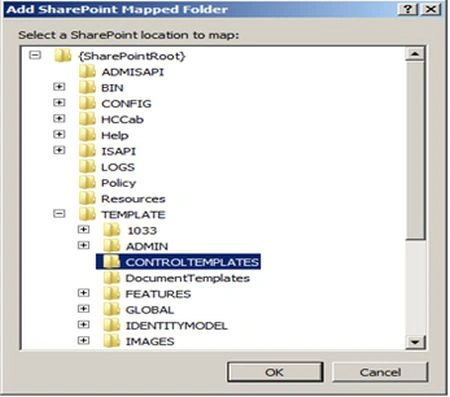
- Now click on this Control Template Folder and add a user control named MyAddressRenderingTemplate.ascx
- Add following code to the ascx file:
<SharePoint:RenderingTemplaterunat="server"ID="MyAddressRenderingTemplate">
<Template>
<table>
<tr>
<td>Address Street:</td>
<td><asp:TextBoxID="txtAddress"runat="server"/></td>
</tr>
<tr>
<td>City:</td>
<td><asp:TextBoxID="txtCity"runat="server"/></td>
</tr>
<tr>
<td>State:</td>
<td><asp:TextBoxID="txtState"runat="server"/></td>
</tr>
<tr>
<td>Country:</td>
<td><asp:TextBoxID="txtCountry" runat="server"/></td>
</tr>
<tr>
<td>Zipcode:</td>
<td><asp:TextBoxID="txtZipcode"runat="server"/></td>
</tr>
</table>
</Template>
</SharePoint:RenderingTemplate>
- Add a class named MyAddress.cs and write the following code:
publicclass MyAddress : SPFieldMultiColumn
{
public MyAddress(SPFieldCollection fields,
string fieldName)
:base(fields, fieldName) { }
public MyAddress(SPFieldCollection fields,
string typeName,
string displayName)
:base(fields, typeName, displayName) { }
public overrideBaseFieldControl FieldRenderingControl
{
get
{
BaseFieldControl ctr =new MyAddressFieldControl();
ctr.FieldName = this.InternalName;
return ctr;
}
}
public overridestring GetFieldValueAsHtml(object value)
{
string HtmlLineBreak =@"<br />";
SPFieldMultiColumnValue mColumnValue =
new SPFieldMultiColumnValue(value.ToString());
string HtmlAddress = mColumnValue [0].ToString() + HtmlLineBreak;
if (!string.IsNullOrEmpty(mcv[1]))
{
HtmlAddress += mcv[1].ToString() + HtmlLineBreak;
}
HtmlAddress += mColumnValue [2].ToString() + ", " + mColumnValue [3] + " " + mColumnValue [4];
return HtmlAddress;
}
}
publicclass MyAddressFieldControl : BaseFieldControl
{
protected overridestring DefaultTemplateName
{
get { return"MyAddressRenderingTemplate"; }
}
protected TextBox txtAddress;
protected TextBox txtCity;
protected TextBox txtState;
protected TextBox txtCountry;
protected TextBox txtZipcode;
protected overridevoid CreateChildControls()
{
base.CreateChildControls();
txtAddress =
(TextBox)this.TemplateContainer.FindControl("txtAddress");
txtCity =
(TextBox)this.TemplateContainer.FindControl("txtCity");
txtState =
(TextBox)this.TemplateContainer.FindControl("txtState");
txtCountry =
(TextBox)this.TemplateContainer.FindControl("txtCountry");
txtZipcode =
(TextBox)this.TemplateContainer.FindControl("txtZipcode");
}
public overrideobject Value
{
get
{
this.EnsureChildControls();
SPFieldMultiColumnValue mColumnValue =new SPFieldMultiColumnValue(5);
mColumnValue [0] = txtAddress.Text;
mColumnValue [1] = txtCity.Text.ToUpper();
mColumnValue [2] = txtState.Text;
mColumnValue [3] = txtCountry.Text;
mColumnValue [4] = txtZipcode.Text;
return mColumnValue;
}
set
{
this.EnsureChildControls();
SPFieldMultiColumnValue mColumnValue =
(SPFieldMultiColumnValue)this.ItemFieldValue;
txtAddress.Text = mColumnValue [0];
txtCity.Text = mColumnValue [1];
txtState.Text = mColumnValue [2];
txtCountry.Text = mColumnValue [3];
txtZipcode.Text = mColumnValue [4];
}
}
}
-
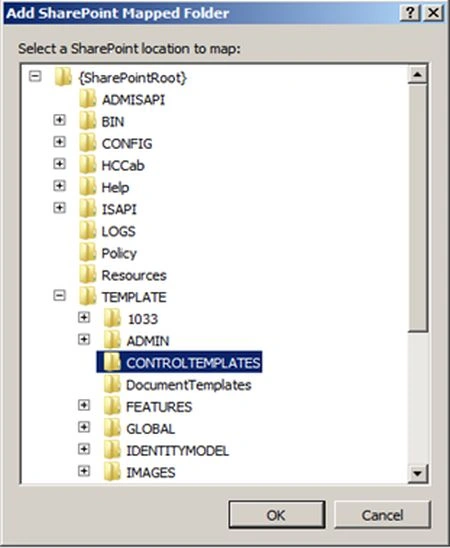
Add another SharePoint Mapped Folder. Right-click on the solution, click on the "Add" menu and now click on "SharePoint Mapped Folder". You need to choose the Template-->XML folder. Now it will add a folder named XML to your solution.
-
Right-click on this XML folder and add an XML file named fldtypes_MyAddressFields.xml
Add the following code inside this file.
<FieldTypes>
<FieldType>
<FieldName="TypeName">MYAddress</Field>
<FieldName="ParentType">MultiColumn</Field>
<FieldName="TypeDisplayName">MY Address</Field>
<FieldName="TypeShortDescription">My Address</Field>
<FieldName="UserCreatable">TRUE</Field>
<FieldName="ShowInListCreate">TRUE</Field>
<FieldName="FieldTypeClass">
MyAddressField.MyAddress,$SharePoint.Project.AssemblyFullName$
</Field>
</FieldType>
</FieldTypes>
Finally the Project Structure will look like this: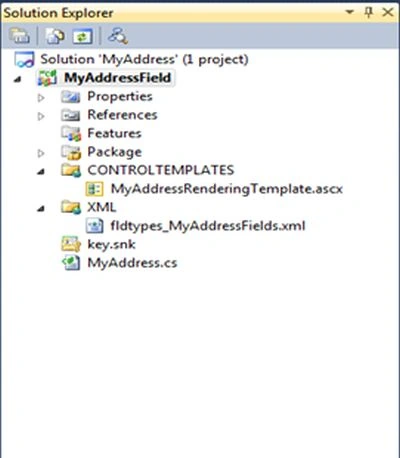
Now deploy the solution and in your SharePoint site try to add a new column. You will then see there is a custom field named "MyAddressField". Add this column, you can find the multicolumn field when you try to insert a new record into your list.

Join the conversation! Your thoughts help the community grow.