
Steps Involved:
- Open visual studio 2010.
- Go to File => New => Project.
- Choose Console Application template.
- Enter the Name as ExternalList and click OK.
- Change the Target Framework and platform target as shown in this link.
- Replace the Program.cs with the following code.
using System;
using System.Collections.Generic;
using System.Linq;
using System.Text;
using Microsoft.SharePoint;
namespace ExternalList
{
class Program
{
static void Main(string[] args)
{
using (SPSite site = new SPSite("http:// sharepoint2010:4040/"))
{
using (SPWeb web = site.OpenWeb())
{
string title="ExternalListTest";
string description="Creating External List through code";
SPListCollection listCollection = web.Lists;
SPListTemplateCollection tempCollection = web.ListTemplates;
SPListDataSource ds = new SPListDataSource();
ds.SetProperty("Entity", "Employee");
ds.SetProperty("EntityNamespace", "BdcModelUsingOracle.BdcModel1");
ds.SetProperty("LobSystemInstance", "BdcModel1");
ds.SetProperty("SpecificFinder", "ReadItem");
Guid gd = listCollection.Add(title, description, "", ds);
listCollection[gd].Update();
SPList list = web.Lists[title];
list.OnQuickLaunch = true;
list.Update();
Console.WriteLine("External List Created Successfully");
}
}
}
}
}

-
Open the SharePoint site http:// sharepoint2010:4040/ (the Url mentioned in the code).
-
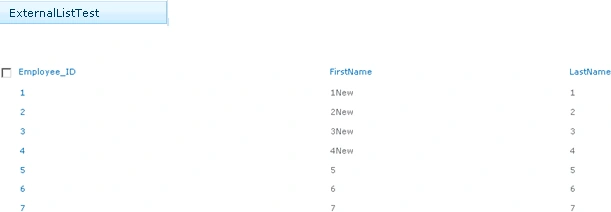
You can see an External List as shown in the following.

Join the conversation! Your thoughts help the community grow.