
Today, I will show you how to delete a Microsoft Fabric workspace using the Fabric REST API. Rather than navigating to the Fabric portal and manually deleting a workspace, we'll use PowerShell in Visual Studio Code (VS Code) to authenticate with Microsoft Entra ID, retrieve an access token, identify the workspace and execute the DELETE API request.
This is particularly useful when automating workspace administration activities or managing multiple Microsoft Fabric workspaces programmatically.
For this demonstration, I'll be deleting a workspace named databricks to fabric.
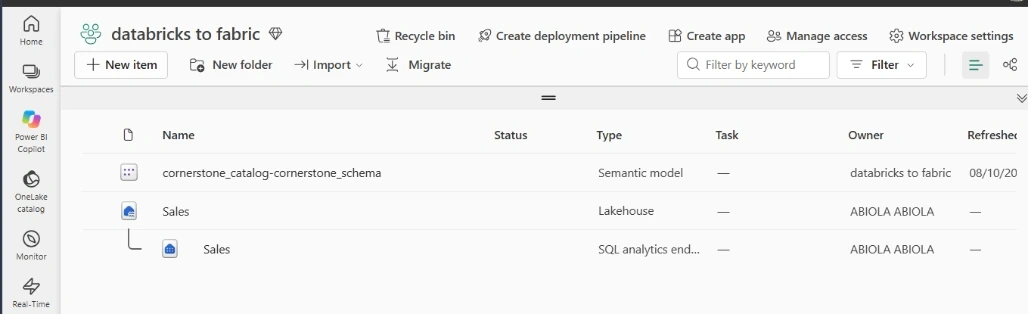
Let's get started!
Step 1: Open Visual Studio Code
First, open Visual Studio Code on your laptop.
We'll use the integrated PowerShell terminal to execute our commands.
Open Visual Studio Code.
Navigate to the Terminal menu.
Select New Terminal.
Ensure that PowerShell is selected as your terminal.
You should see something similar to:
PS C:\Users\YourUsername>Step 2: Install Azure CLI
We'll use Azure CLI to authenticate with Microsoft Entra ID and obtain an access token for Microsoft Fabric.
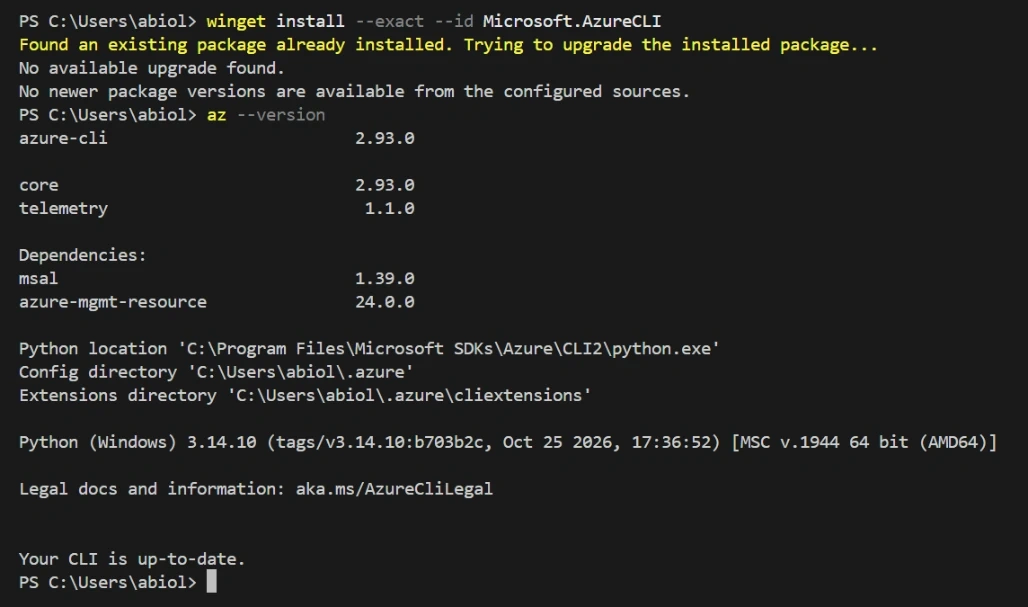
If you haven't installed Azure CLI, execute the following command in your VS Code terminal:
winget install --exact --id Microsoft.AzureCLIOnce the installation is complete, restart VS Code and verify that Azure CLI is installed:
az --versionYou should see information about your installed Azure CLI version.
Step 3: Create a project folder
Let's create a dedicated folder for our Fabric workspace deletion project.
Execute:
mkdir Fabric-Workspace-APINavigate into the folder:
cd Fabric-Workspace-APICreate a PowerShell script:
New-Item -Name "Delete-FabricWorkspace.ps1" -ItemType FileOur project will contain the following file:
Fabric-Workspace-API
    |
    └── Delete-FabricWorkspace.ps1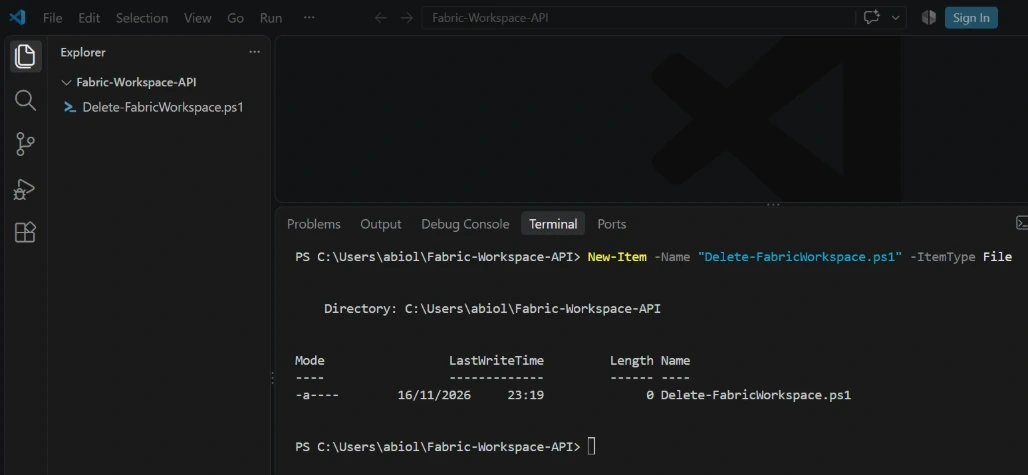
Step 4: Authenticate using Azure CLI
Before communicating with the Microsoft Fabric REST API, we need to authenticate.
Execute the following command:
az loginYour browser will open, allowing you to sign in using your Microsoft account.
After successful authentication, Azure CLI may display your available subscriptions and tenants.
For example:
Select a subscription and tenant
(Type a number or Enter for no changes):
Enter the appropriate subscription number or press Enter to retain the default selection.
Once authentication is complete, verify your account:
az account showThis displays information about your signed-in account, tenant and subscription.
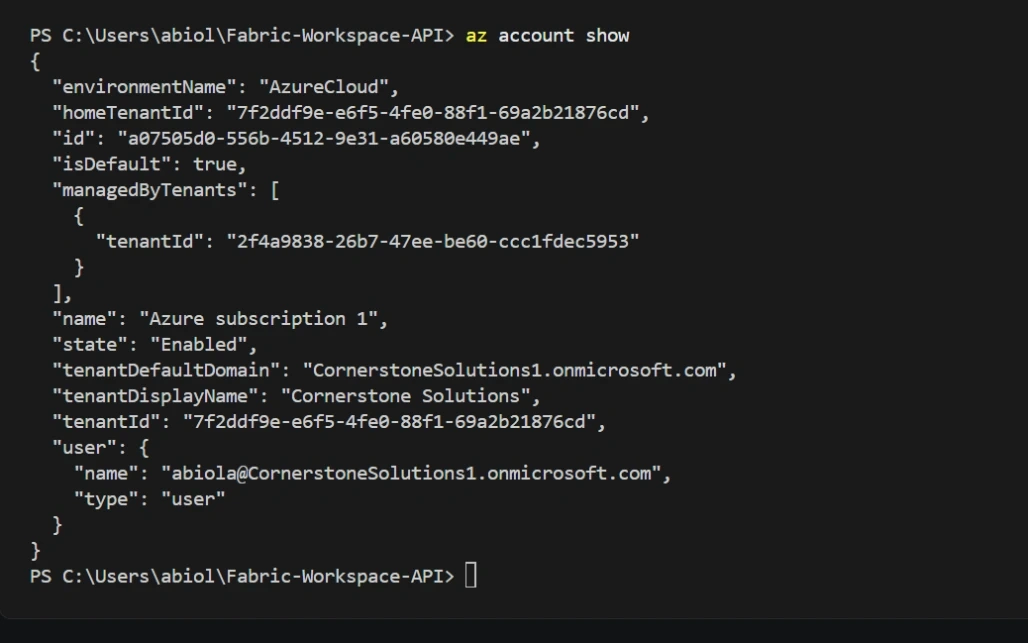
Important: Your account must have the Admin role in the Fabric workspace you intend to delete.
Step 5: Retrieve the Microsoft Fabric access token
Now that we have authenticated, we need an access token to communicate with the Fabric REST API.
Execute:
$accessToken = az account get-access-token `
    --resource "https://api.fabric.microsoft.com" `
    --query accessToken `
    --output tsv
Let's confirm that the token was successfully retrieved:
if ($LASTEXITCODE -eq 0 -and $accessToken) {
    Write-Host "Fabric access token retrieved successfully!" -ForegroundColor Green
}
else {
    Write-Host "Unable to retrieve Fabric access token." -ForegroundColor Red
}
If successful, you should see:
Fabric access token retrieved successfully!The access token will be used in the Authorization header of our subsequent API requests.
Note that the delegated permission required for workspace deletion is Workspace.ReadWrite.All. Your organisation may require an administrator to grant consent to this permission.
Step 6: Retrieve available Fabric workspaces
Before deleting anything, let's identify the workspace we want to remove.
Microsoft provides the List Workspaces REST API, which allows us to retrieve workspaces accessible to the authenticated user.
The endpoint is:
GET https://api.fabric.microsoft.com/v1/workspacesFirst, configure the HTTP headers:
$headers = @{
    Authorization = "Bearer $accessToken"
}
Next, execute the GET request:
$workspaces = Invoke-RestMethod `
    -Uri "https://api.fabric.microsoft.com/v1/workspaces" `
    -Method GET `
    -Headers $headers
Display the workspace IDs and names:
$workspaces.value | Format-Table id, displayNameYou should see a list of workspaces available to your account.
For this demonstration, our target workspace is:
displayName
-----------
databricks to fabric
The important thing here is to identify the correct workspace before executing the DELETE request.
Step 7: Identify the Workspace ID automatically
Instead of manually copying the Workspace ID, we can use PowerShell to locate the workspace by its display name.
First, define the workspace name:
$workspaceName = "databricks to fabric"Next, filter the returned workspaces:
$targetWorkspace = $workspaces.value |
    Where-Object {
        $_.displayName -eq $workspaceName
    }
Let's display the result:
$targetWorkspace | Format-List id, displayNameThe output should look similar to:
id          : xxxxxxxx-xxxx-xxxx-xxxx-xxxxxxxxxxxx
displayName : databricks to fabric
Now extract the Workspace ID:
$workspaceId = $targetWorkspace.idWe now have the Workspace ID required by the DELETE API.
Note: The example assumes the workspace appears in the returned page of results. For environments with many workspaces, handle pagination using the continuation token returned by the API.
Step 8: Understand the Delete Workspace API
Microsoft Fabric provides a dedicated REST API for deleting workspaces.
The endpoint is:
DELETE https://api.fabric.microsoft.com/v1/workspaces/{workspaceId}The API uses the HTTP DELETE method.
The required permission is:
Workspace.ReadWrite.AllThe caller must also have the Admin workspace role.
Unlike some other REST API operations, this endpoint does not require a JSON request body.
We only need to provide the Workspace ID in the URL and the access token in the Authorization header.
Step 9: Delete the Microsoft Fabric workspace
Now let's implement the actual deletion.
Open the Delete-FabricWorkspace.ps1 file in VS Code and add the following code:
# ============================================
# DELETE MICROSOFT FABRIC WORKSPACE USING API
# ============================================

# 1. Define workspace name
$workspaceName = "databricks to fabric"

# 2. Retrieve access token
$accessToken = az account get-access-token `
    --resource "https://api.fabric.microsoft.com" `
    --query accessToken `
    --output tsv

if ($LASTEXITCODE -ne 0 -or -not $accessToken) {
    throw "Unable to retrieve Microsoft Fabric access token."
}

# 3. Configure HTTP headers
$headers = @{
    Authorization = "Bearer $accessToken"
}

# 4. Retrieve available workspaces
$workspaces = Invoke-RestMethod `
    -Uri "https://api.fabric.microsoft.com/v1/workspaces" `
    -Method GET `
    -Headers $headers

# 5. Identify the target workspace
$targetWorkspace = @(
    $workspaces.value |
    Where-Object {
        $_.displayName -ceq $workspaceName
    }
)

# 6. Validate the workspace
if ($targetWorkspace.Count -eq 0) {
    throw "Workspace '$workspaceName' was not found."
}

if ($targetWorkspace.Count -gt 1) {
    throw "Multiple matching workspaces found. Aborting deletion."
}

# 7. Extract Workspace ID
$workspaceId = $targetWorkspace[0].id

Write-Host "Workspace found: $workspaceName"
Write-Host "Workspace ID: $workspaceId"

# 8. Define DELETE API endpoint
$deleteUrl = "https://api.fabric.microsoft.com/v1/workspaces/$workspaceId"


# 9. Request confirmation
$confirmation = Read-Host "Type DELETE to confirm workspace deletion"

if ($confirmation -ceq "DELETE") {

    try {

        # Execute DELETE request
        Invoke-RestMethod `
            -Uri $deleteUrl `
            -Method DELETE `
            -Headers $headers

        Write-Host "Workspace deleted successfully!" `
            -ForegroundColor Green

    }
    catch {

        Write-Host "Workspace deletion failed!" `
            -ForegroundColor Red

        Write-Host $_.Exception.Message

    }

}
Let's understand what the implementation does:
First, it authenticates with Microsoft Fabric and retrieves an access token.
It configures the HTTP Authorization header.
It retrieves the available workspaces.
It searches for the workspace named
databricks to fabric.It extracts the corresponding Workspace ID.
It constructs the DELETE API endpoint.
Finally, it executes the DELETE request after confirmation.
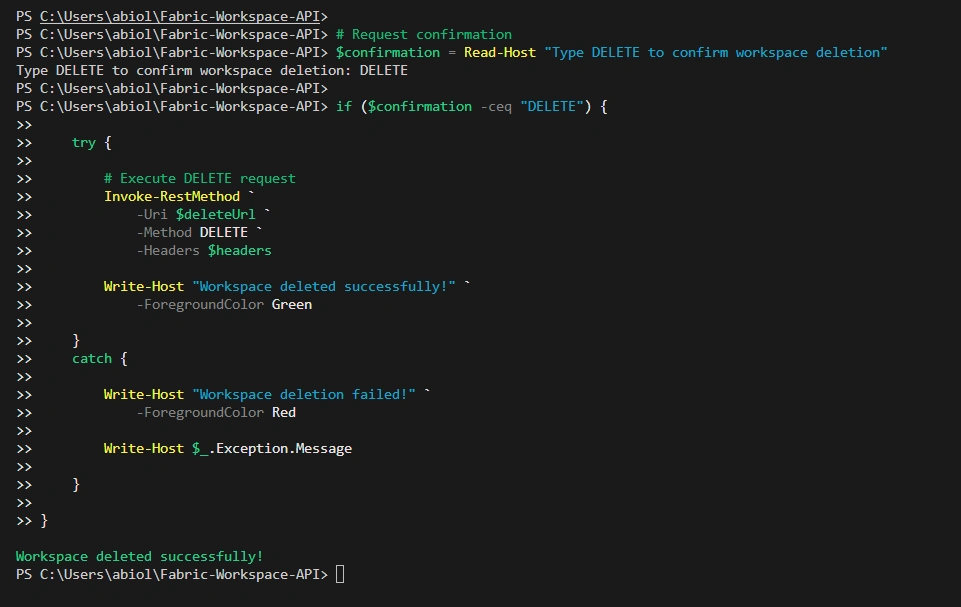
DELETE databricks to fabricPress Enter.
If successful, you should see:
Workspace deleted successfully!The Microsoft Fabric REST API returns HTTP 200 OK when the deletion request completes successfully.
Conclusion
In this demonstration, we successfully explored how to delete a Microsoft Fabric workspace programmatically using the Fabric REST API.
We started by installing Azure CLI, authenticated with Microsoft Entra ID, retrieved an access token, identified our target workspace and executed the DELETE request using PowerShell in VS Code.
One important thing to remember is that deleting a workspace also deletes the items under that workspace. Therefore, always verify the workspace ID and ensure that any required content has been backed up before executing the operation.
This approach can be particularly useful when building automated Microsoft Fabric administration and workspace management solutions.

Join the conversation! Your thoughts help the community grow.