
Problem
By default in SharePoint 2013 there is no option for "Sign in as different user".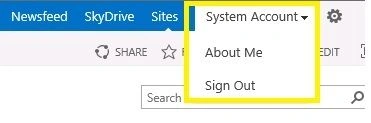
Use the following procedure to enable this in SharePoint 2013.
Solutions
Step 1
Go to the location:
C:\Program Files\Common Files\microsoft shared\Web ServerExtensions\15\TEMPLATE\CONTROLTEMPLATES
Here we have a file named "welcome.ascx".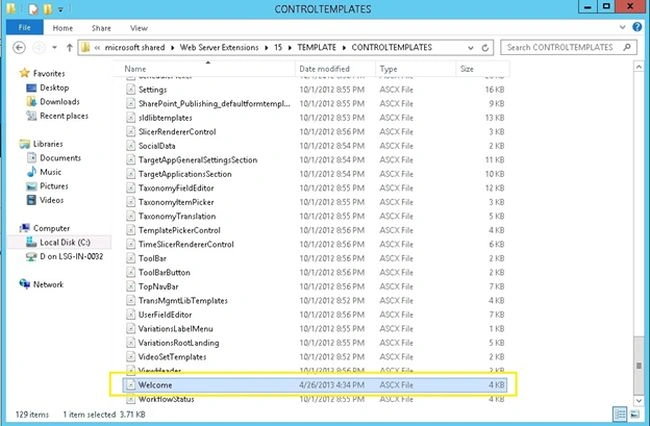
We need to edit this file to enable the option.
Step 2
Open the welcome.ascx file in Visual Studio or in Notepad and add the following code and save it:
<SharePoint:MenuItemTemplate runat="server" ID="ID_LoginAsDifferentUser"
Text="<%$Resources:wss,personalactions_loginasdifferentuser%>"
Description="<%$Resources:wss,personalactions_loginasdifferentuserdescription%>"
MenuGroupId="100"
Sequence="100"
UseShortId="true"
/>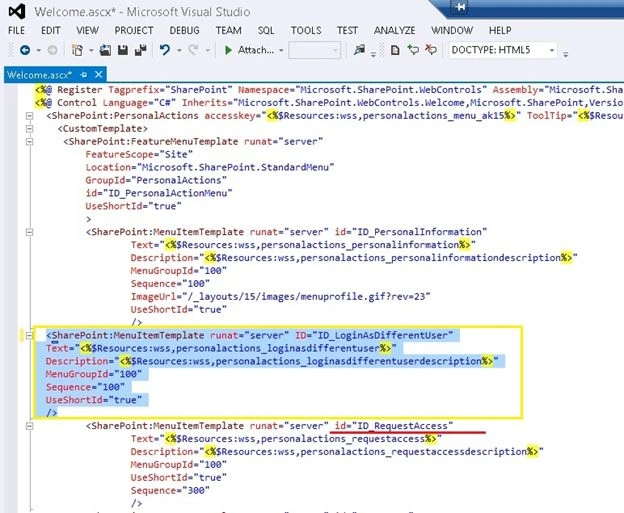
And it should be above the tag that has ID_RequestAcess.
Step 3
Refresh the site and then "Sign in as different user" will be enabled.
Summary
In this article I tried to explain how to enable the "Sign in as different user" option in SharePoint2013.
How to Enable Sign in as Different User Option in SharePoint 2013
In this article I will explain how to enable the “Sign in as different user” option in SharePoint2013.


Shiju JosephPosted Jun 5, 2013, 10:00 PM EDT
When you are creating the visual web part use list title to get the list instance in Visual web part. SPContext.Current.Web.Lists["List Title"]