Overview
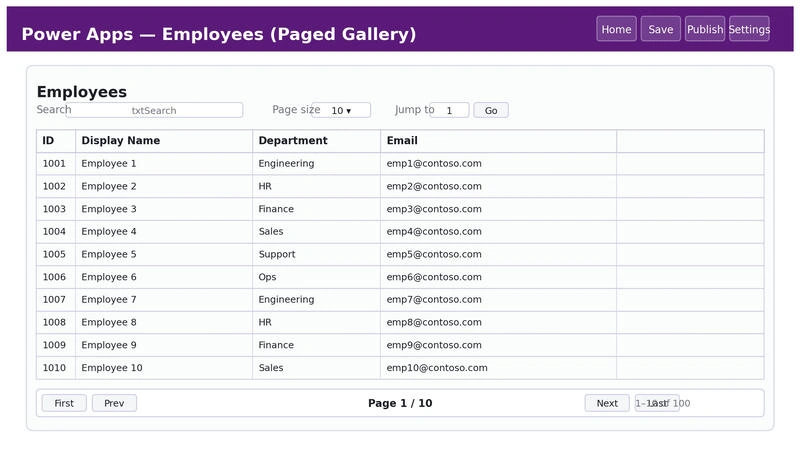
When a gallery shows hundreds or thousands of records on a single screen, the app becomes slow and harder to use. Pagination solves this problem by showing data in small chunks, such as 10 or 25 records per page. In this article, we will learn how to create Next / Previous / First / Last page buttons, show Page X of Y, and optionally add a Search + Page Size selector.
This approach works for:
Dataverse
SharePoint Lists
SQL Tables
Static Collections
Final Result (What We Are Building)
You will get a screen like this ↓
Prerequisites
Basic knowledge of Power Apps Canvas App
A gallery showing your data source
For better performance, we load data into a local collection and apply paging in the app.
Step 1. Add Controls to the Screen
Inside your screen:
| Control | Name | Purpose |
|---|---|---|
| Gallery | galEmployees | Displays paged records |
| Button | btnFirst | Go to first page |
| Button | btnPrev | Go to previous page |
| Button | btnNext | Go to next page |
| Button | btnLast | Go to last page |
| Label | lblPager | Shows record count and page number |
| Dropdown | ddPageSize | Select page size (10, 25, 50) |
| (Optional) Text Input | txtSearch | Search filter |
| (Optional) Text Input + Button | txtJumpToPage, btnGo | Jump directly to page |
Step 2. Initialize Variables (Screen OnVisible)
Select the Screen → OnVisible property and paste:
Set(PageSize, 10);
Set(CurrentPage, 1);

ClearCollect(colData, Employees); // Replace 'Employees' with your datasource

Set(TotalRecords, CountRows(colData));
Set(LastPage, Max(1, RoundUp(TotalRecords / PageSize, 0)));
Step 3. Gallery Items Formula (Pagination Logic)
Set galEmployees.Items:
FirstN(
    Skip(
        SortByColumns(colData, "ID", Ascending),
        (CurrentPage - 1) * PageSize
    ),
    PageSize
)
Step 4. Pagination Button Logic
| Button | OnSelect Formula |
|---|---|
| First | Set(CurrentPage, 1) |
| Previous | If(CurrentPage > 1, Set(CurrentPage, CurrentPage - 1)) |
| Next | If(CurrentPage < LastPage, Set(CurrentPage, CurrentPage + 1)) |
| Last | Set(CurrentPage, LastPage) |
Step 5. Page Size Dropdown
ddPageSize.Items
["10", "25", "50"]ddPageSize.OnChange
Set(PageSize, Value(ddPageSize.Selected.Value));
Set(CurrentPage, 1);
Set(LastPage, Max(1, RoundUp(TotalRecords / PageSize, 0)));
Step 6. Pager Text Label
Set lblPager.Text:
With(
    {
        start: If(TotalRecords=0, 0, (CurrentPage - 1) * PageSize + 1),
        finish: Min(CurrentPage * PageSize, TotalRecords)
    },
    $"{start} – {finish} of {TotalRecords}  |  Page {CurrentPage}/{LastPage}"
)
Step 7. (Optional) Search + Pagination Together
txtSearch.OnChange
ClearCollect(
    colFiltered,
    If(
        IsBlank(txtSearch.Text),
        colData,
        Filter(colData, StartsWith(DisplayName, txtSearch.Text))
    )
);

Set(TotalRecords, CountRows(colFiltered));
Set(LastPage, Max(1, RoundUp(TotalRecords / PageSize, 0)));
Set(CurrentPage, 1);
Update gallery to use filtered collection if available:
FirstN(
    Skip(
        SortByColumns(
            If(CountRows(colFiltered)>0, colFiltered, colData),
            "ID",
            Ascending
        ),
        (CurrentPage - 1) * PageSize
    ),
    PageSize
)
Step 8. (Optional) Jump to Page
btnGo.OnSelect
If(
    IsNumeric(txtJumpToPage.Text),
    With({ p: Value(txtJumpToPage.Text) },
        If(p >= 1 && p <= LastPage, Set(CurrentPage, p))
    )
)
Join the conversation! Your thoughts help the community grow.