
Introduction
Is your Power Automate flow taking too long to run? Slow flows not only increase execution time but also consume more API calls, making automation less efficient.
In this article, we'll explore 10 common mistakes that slow down Power Automate flows and learn the best practices to improve performance.
1. Nested Apply to Each Loops
Problem
Using an Apply to each loop inside another loop increases execution time dramatically.
Example
Loop through Orders
Inside each Order, loop through Order Items
Better Approach
Use Filter Array
Use Select
Restructure your data before looping
Benefit
Faster execution
Fewer iterations
2. Retrieving Everything Then Filtering
Problem
Many developers use Get Items to retrieve every SharePoint item and then apply Filter Array.
Get Items
↓
Filter Array
This downloads unnecessary records.
Better Approach
Use an OData Filter Query
Example:
Status eq 'Approved'Instead of retrieving 5,000 items, retrieve only the required records.
Benefit
Lower API usage
Faster execution
Less memory consumption
3. Multiple Get Item Actions
Problem
Calling Get Item repeatedly for the same record.
Example
Get Item
Get Item
Get Item
Better Approach
Reuse outputs from previous actions using dynamic content or Compose.
Benefit
Fewer SharePoint calls
Reduced latency
4. Overusing Variables
Problem
Using variables inside loops.
Set Variable
Set Variable
Set Variable
Variables increase processing overhead.
Better Approach
Use
Compose
Select
Filter Array
Expressions
instead of variables whenever possible.
Benefit
Cleaner and faster flows.
5. Sequential Loops
Problem
Processing records one by one.
Example
500 records
1
2
3
...
500
Better Approach
Enable Concurrency Control.
Multiple records can be processed simultaneously.
Benefit
Significant reduction in runtime
Better throughput
6. Triggering Too Often
Problem
The flow starts every time an item changes and then checks a condition.
Example
Trigger
↓
Condition
↓
Terminate
Most runs do nothing.
Better Approach
Use Trigger Conditions so the flow starts only when required.
Benefit
Saves API calls
Reduces unnecessary flow runs
Improves performance
7. Large Attachments
Problem
Downloading large attachments repeatedly.
Better Approach
Filter files first
Download only required files
Avoid unnecessary attachment processing
Benefit
Less download time and reduced execution duration.
8. Excessive Connector Calls
Problem
Repeatedly calling connectors like:
Get User Profile
Get Manager
Office 365 Users
inside loops.
Better Approach
Retrieve data once and reuse it throughout the flow.
Benefit
Lower API usage
Reduced throttling
Faster execution
9. Connector Calls Inside Loops
Problem
Calling SharePoint or Dataverse actions inside every iteration.
Example
Apply to Each
Get Item
If the loop has 1,000 items, that's 1,000 API calls.
Better Approach
Retrieve data once before entering the loop and reference it using expressions.
Benefit
Massive reduction in API calls
Better scalability
10. No Error Handling
Problem
If one action fails, the entire flow stops.
Better Approach
Use
Try
Catch
Finally
with Configure Run After.
Benefit
More reliable flows
Better troubleshooting
Prevents downstream failures
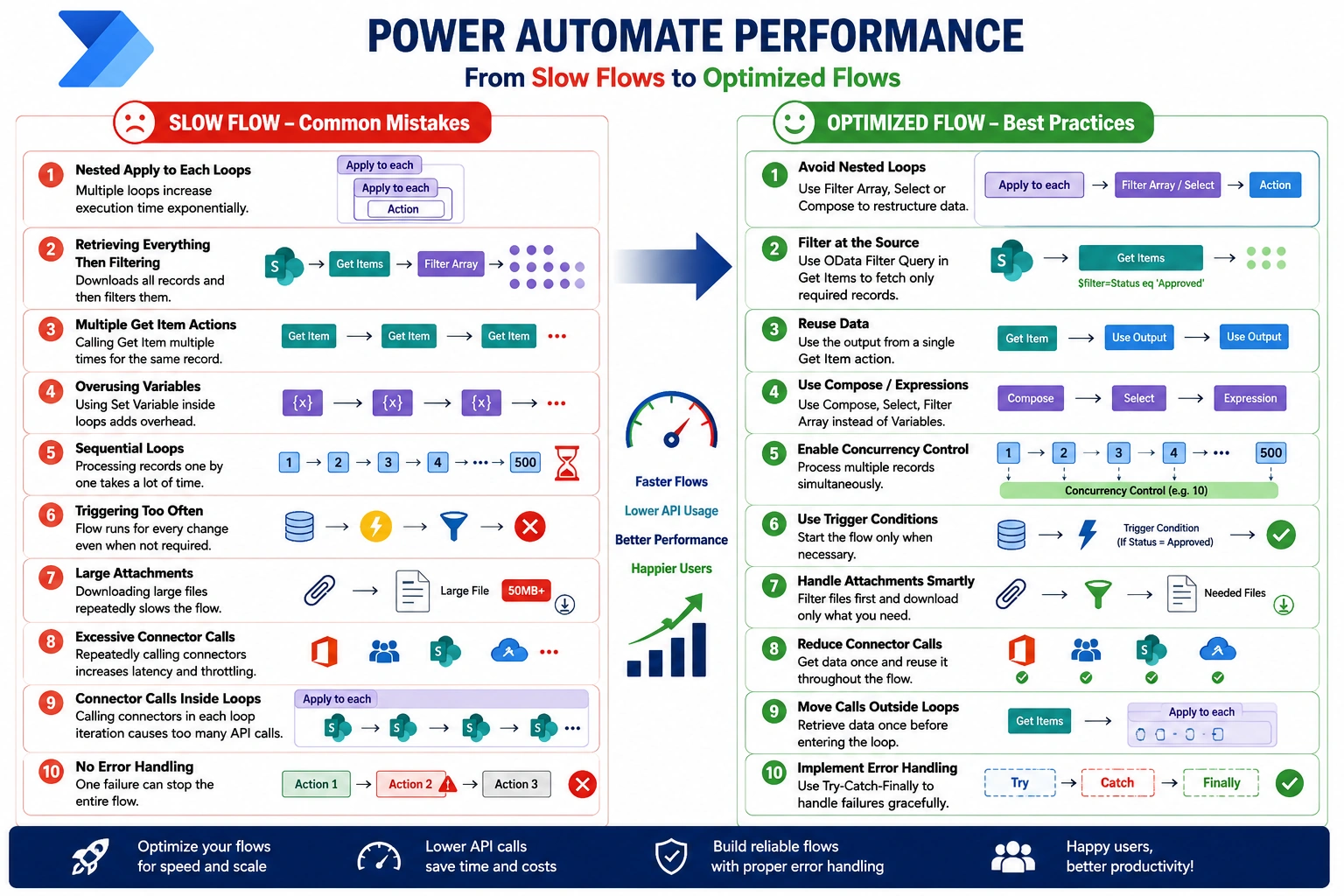
Bonus Performance Tips
✔ Use OData Filters instead of Filter Array when possible.
✔ Enable Concurrency Control for large loops.
✔ Retrieve only required columns using Select Query.
✔ Avoid unnecessary variables.
✔ Minimize connector calls.
✔ Reuse outputs instead of calling actions again.
✔ Use Trigger Conditions to prevent unnecessary runs.
✔ Add proper error handling.
Conclusion
Most Power Automate performance issues are caused by design choices rather than platform limitations. By reducing unnecessary loops, filtering data at the source, minimizing connector calls, enabling concurrency, and implementing proper error handling, you can build flows that are faster, more reliable, and more scalable.
Following these best practices will help reduce execution time, lower API consumption, and improve the overall performance of your Power Automate solutions.

Join the conversation! Your thoughts help the community grow.