
Introduction
In this article I will explain how to insert an image within shapes using Photoshop.
Step 1
Open Adobe Photoshop CS5.1.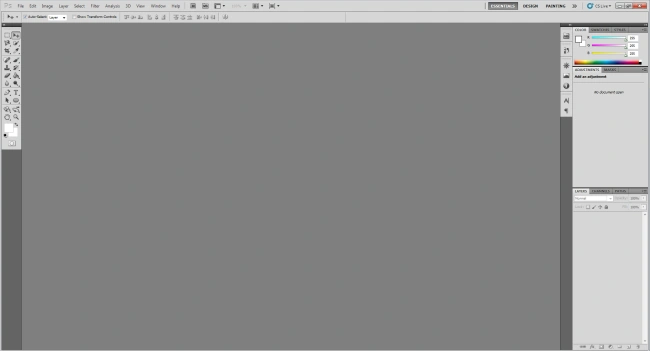
Step 2
Open an image using "Ctrl+o" to be placed inside shapes.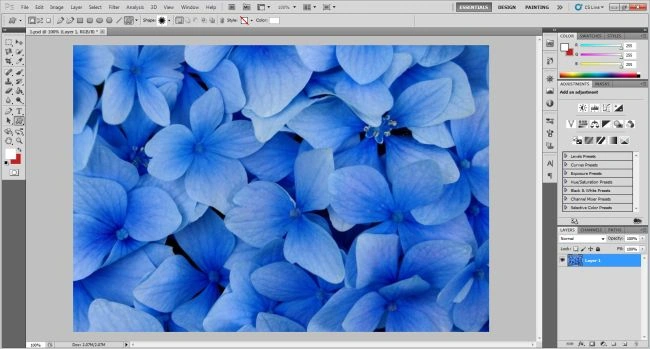
Step 3
Select this image layer in the layer palette. Then right-click on it and select "Duplicate Layer" from the context menu.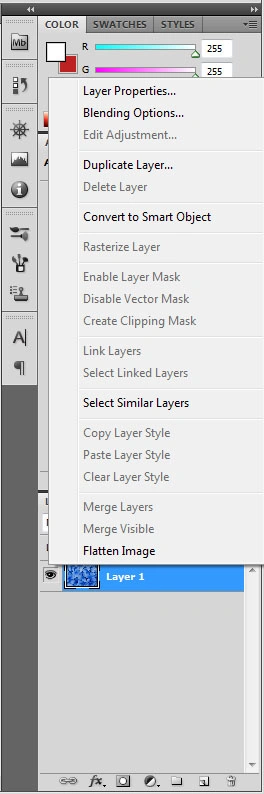
Duplicate layer in layer palette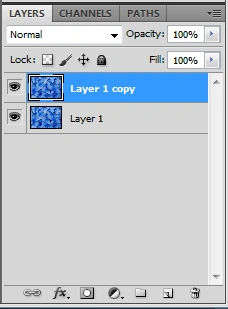
Step 4
Take a new blank layer between those image layers and fill it with the white color.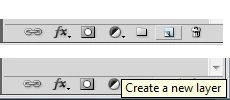
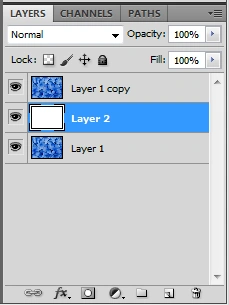
Step 5
Select the first image layer in the layer palette.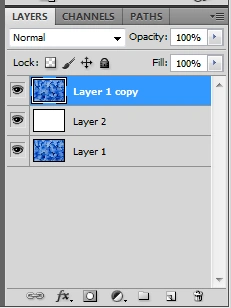
Step 6
Select white as your foreground color, then right-click on the shape tool and select the custom shape tool.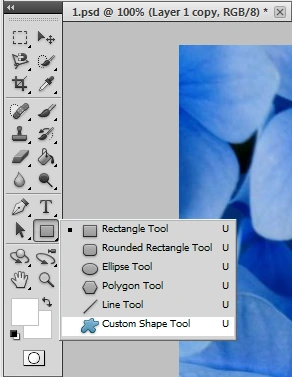
Step 7
Select your custom shape from the custom shape pop-up window.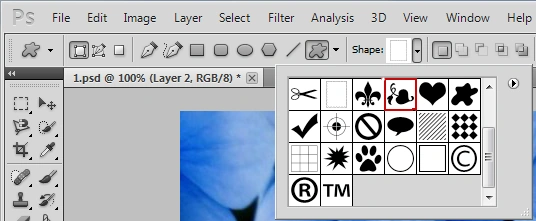
Step 8
Draw your shape according to your requirements.
Step 9
Resize and reposition your shape using the Free Transform command ("Ctrl+t").
Step 10
Drag the shape layer to below the first image layer in the palette.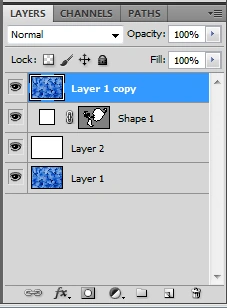
Step 11
Right-click on the first image layer and select "Create Clipping Mask" from the context menu.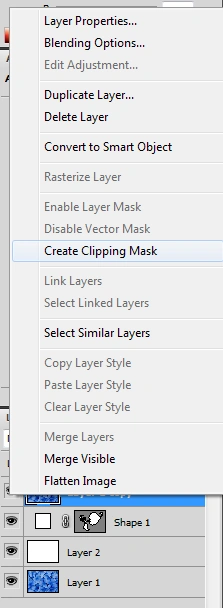
Finale Output
In the finale output you will see that your image will be visible only within the shape.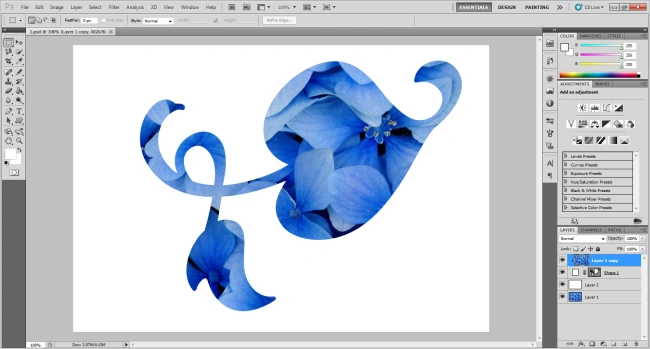
7 comments
Join the conversation! Your thoughts help the community grow.

Join to leave a comment
Members earn 10 SHARP for a comment, 10 SHARP for a reaction, and 1,000 SHARP for every article they publish.

SubashPosted Sep 15, 2016, 4:08 AM EDT
Very nice
Amit TripathiPosted Jul 9, 2014, 3:21 AM EDT
Nice @rticle......
Sandeep SharmaPosted May 9, 2013, 7:20 PM EDT
nice article......
Mudita RathoreTOP 100Posted Apr 28, 2013, 11:14 PM EDT
nice...........
Preeti ZutshiPosted Apr 9, 2013, 10:34 PM EDT
Thanks All.................
Rishikesh Kumar SinghPosted Feb 7, 2013, 12:05 AM EST
really very nice article...keep on posting some more stuffs regarding Photoshop..
Satyapriya NayakTOP 100Posted Feb 6, 2013, 5:31 AM EST
Nice one. Keep on posting some more stuff as it will be helpful to learn Photoshop for the beginners like me.