
Introduction
In this article, I will demonstrate how to install Bootstrap 4 in Angular 6. There are two ways to install Bootstrap in Angular. If you are new to how to setup a development environment then check out my article. Click here:
To install Bootstrap there are two methods:
- Direct using CDN link in project
- Using npm or angular CLI
First Method
Step 1
Open browser type https://getbootstrap.com/ and copy the css and script links.
- <link rel="stylesheet" href="https://stackpath.bootstrapcdn.com/bootstrap/4.1.1/css/bootstrap.min.css" integrity="sha384-WskhaSGFgHYWDcbwN70/dfYBj47jz9qbsMId/iRN3ewGhXQFZCSftd1LZCfmhktB" crossorigin="anonymous">
- <script src="https://code.jquery.com/jquery-3.3.1.slim.min.js" integrity="sha384-q8i/X+965DzO0rT7abK41JStQIAqVgRVzpbzo5smXKp4YfRvH+8abtTE1Pi6jizo" crossorigin="anonymous"></script>
- <script src="https://cdnjs.cloudflare.com/ajax/libs/popper.js/1.14.3/umd/popper.min.js" integrity="sha384-ZMP7rVo3mIykV+2+9J3UJ46jBk0WLaUAdn689aCwoqbBJiSnjAK/l8WvCWPIPm49" crossorigin="anonymous"></script>
- <script src="https://stackpath.bootstrapcdn.com/bootstrap/4.1.1/js/bootstrap.min.js" integrity="sha384-smHYKdLADwkXOn1EmN1qk/HfnUcbVRZyYmZ4qpPea6sjB/pTJ0euyQp0Mk8ck+5T" crossorigin="anonymous"></script>
Step 2
Open project folder, find scr folder, under src folder open index.html file copy and paste above CDN links as show in below image.
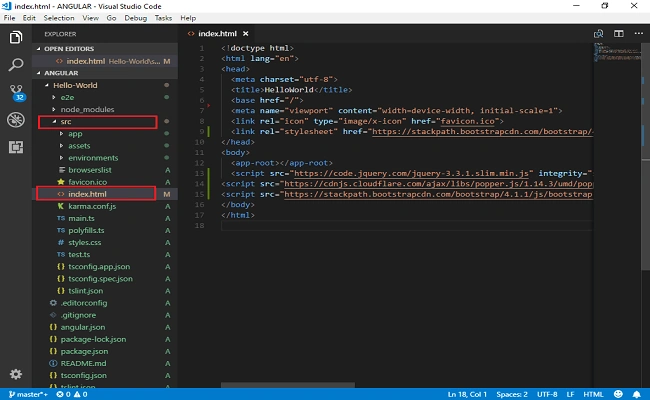
Code for CDN link in index.html
- <!doctype html>
- <html lang=”en”>
- <head>
- <meta charset=”utf-8”>
- <title>HelloWorld</title>
- <base href=”/”>
- <meta name=”viewport” content=”width=device-width, initial-scale=1”>
- <link rel=”icon” type=”image/x-icon” href=”favicon.ico”>
- <link rel=”stylesheet” href=”https://stackpath.bootstrapcdn.com/bootstrap/4.1.1/css/bootstrap.min.css” integrity=”sha384-WskhaSGFgHYWDcbwN70/dfYBj47jz9qbsMId/iRN3ewGhXQFZCSftd1LZCfmhktB”
- crossorigin=”anonymous”>
- </head>
- <body>
- <app-root></app-root>
- <script src=”https://code.jquery.com/jquery-3.3.1.slim.min.js” integrity=”sha384-q8i/X+965DzO0rT7abK41JStQIAqVgRVzpbzo5smXKp4YfRvH+8abtTE1Pi6jizo”
- crossorigin=”anonymous”></script>
- <script src=”https://cdnjs.cloudflare.com/ajax/libs/popper.js/1.14.3/umd/popper.min.js” integrity=”sha384-ZMP7rVo3mIykV+2+9J3UJ46jBk0WLaUAdn689aCwoqbBJiSnjAK/l8WvCWPIPm49”
- crossorigin=”anonymous”></script>
- <script src=”https://stackpath.bootstrapcdn.com/bootstrap/4.1.1/js/bootstrap.min.js” integrity=”sha384-smHYKdLADwkXOn1EmN1qk/HfnUcbVRZyYmZ4qpPea6sjB/pTJ0euyQp0Mk8ck+5T”
- crossorigin=”anonymous”></script>
- </body>
- </html>
Step 3
Open app folder find app.compponent.html click on it and open rit and eplace with some Bootstrap 4 theme.
Screenshot 1
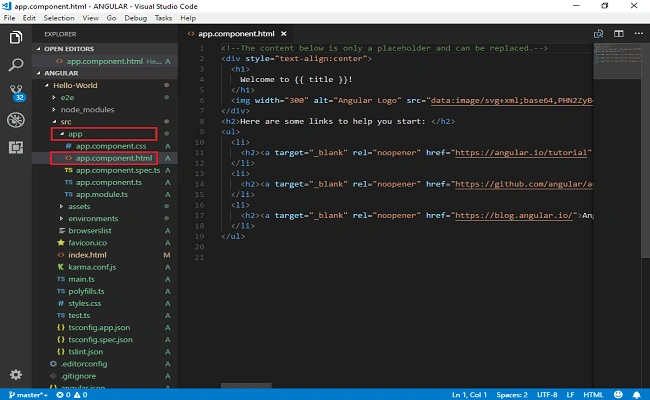
Screenshot 1
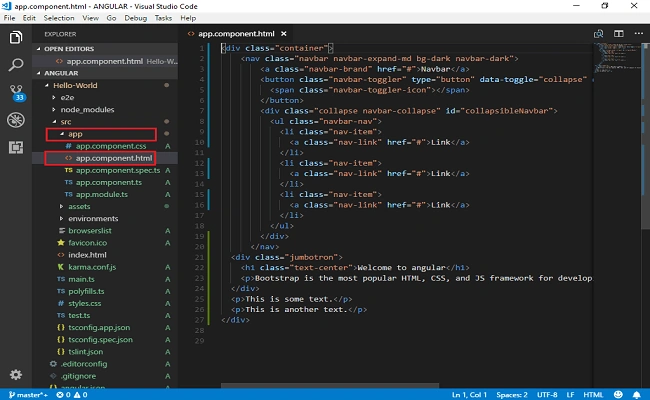
Code for app.component.html
- <div class="container">
- <nav class="navbar navbar-expand-md bg-dark navbar-dark">
- <a class="navbar-brand" href="#">Navbar</a>
- <button class="navbar-toggler" type="button" data-toggle="collapse" data-target="#collapsibleNavbar">
- <span class="navbar-toggler-icon"></span>
- </button>
- <div class="collapse navbar-collapse" id="collapsibleNavbar">
- <ul class="navbar-nav">
- <li class="nav-item">
- <a class="nav-link" href="#">Link</a>
- </li>
- <li class="nav-item">
- <a class="nav-link" href="#">Link</a>
- </li>
- <li class="nav-item">
- <a class="nav-link" href="#">Link</a>
- </li>
- </ul>
- </div>
- </nav>
- <div class="jumbotron">
- <h1 class="text-center">Welcome to angular</h1>
- <p>Bootstrap is the most popular HTML, CSS, and JS framework for developing responsive, mobile-first projects on the web.</p>
- </div>
- <p>This is some text.</p>
- <p>This is another text.</p>
- </div>
Step 4
Run the project
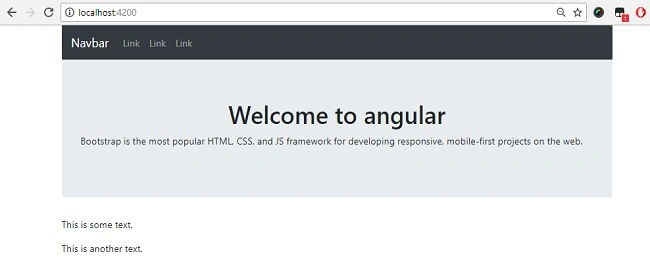
Second Method
Step 1
Open index.html remove all CDN links from it.
- <!doctype html>
- <html lang="en">
- <head>
- <meta charset="utf-8">
- <title>HelloWorld</title>
- <base href="/">
- <meta name="viewport" content="width=device-width, initial-scale=1">
- <link rel="icon" type="image/x-icon" href="favicon.ico">
- </head>
- <body>
- <app-root></app-root>
- </body>
- </html>
Step 2
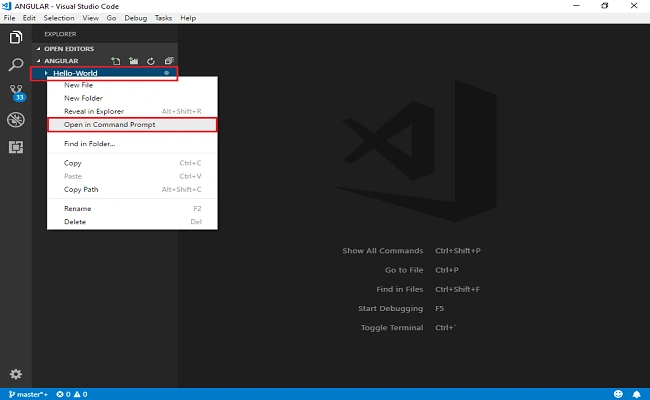
Right click on project and open in command prompt.
Step 3
Bootstrap has dependency on Jquery and Popper js. To install Jquery and Popper js type the following commands.
- To install jquery type
npm install jquery --save - To install popper js
npm install popper.js --save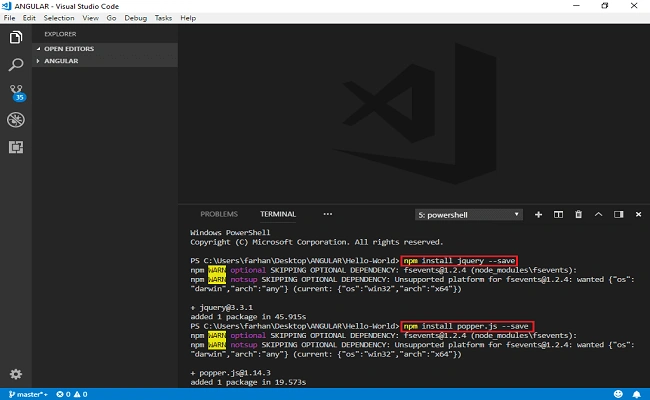
- To install bootstrap 4 type the following command
npm install ngx-bootstrap [email protected]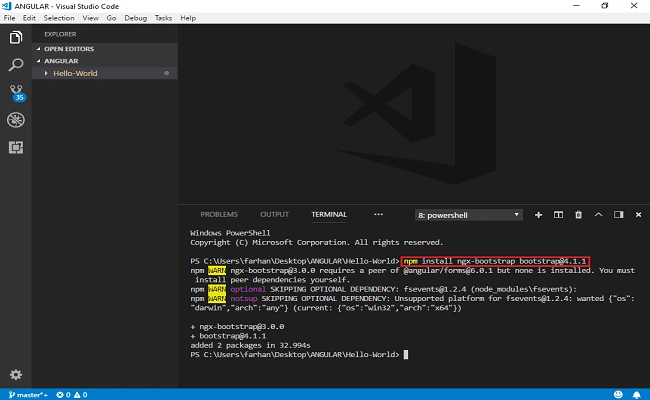
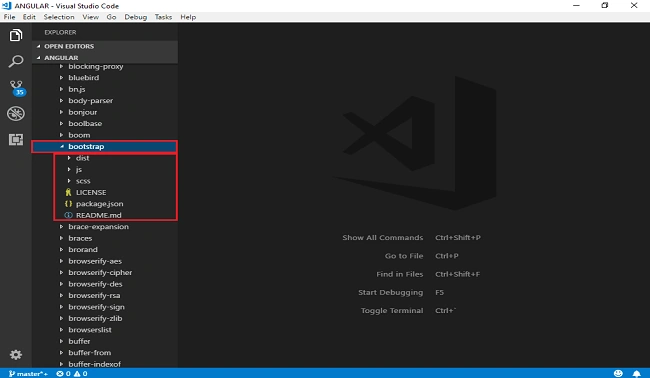
Step 4: Open project folder find node_modules folder; under that check if Jquery, Popper js and Bootstrap folder s areinstalled.
Screenshot 1
Screenshot 2
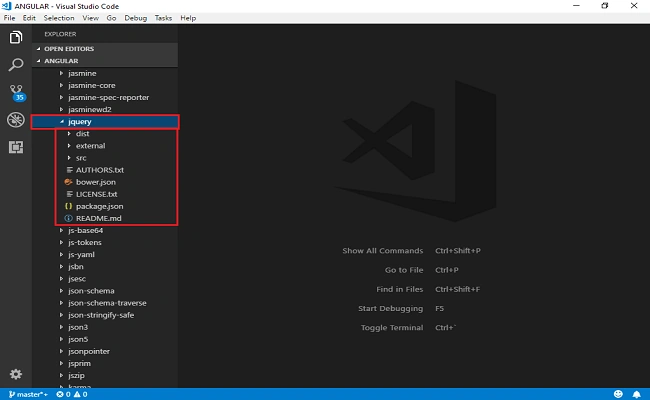
Screenshot 3
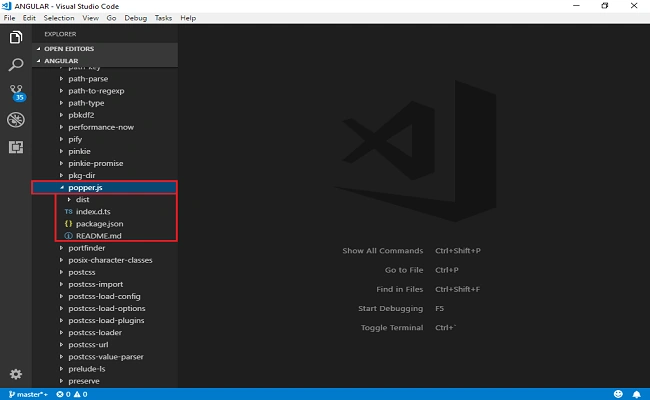
Step 5: Open Angular.json from project and type the following code.
- "styles": [
- "src/styles.css",
- "./node_modules/bootstrap/dist/css/bootstrap.min.css"
- ],
- "scripts": [
- "./node_modules/jquery/dist/jquery.min.js",
- "./node_modules/popper.js/dist/umd/popper.min.js",
- "./node_modules/bootstrap/dist/js/bootstrap.min.js"
- ]
Step 6: Terminate running server. To terminate running server press ctrl+c
Type Y hit enter
Now type ng serve to re start server and open in browser.
Conclusion
In this article, I have explained installation of Jquery, Popper js and Bootstrap 4 step by step. Hopefully it will be helpful for beginners.


Bakshinder SethiPosted Sep 11, 2018, 5:22 PM EDT
And thanks for this article i was looking for the order of these(jquery, popper, bootstrap.js) for me dropdown is not working with this order also. If any help can be provided
Bakshinder SethiPosted Sep 11, 2018, 5:20 PM EDT
The best practice is to add all these through package manager and add their references in angular.json file in respective css and scripts array property
NISHANTHA HEVAVITHARANAPosted Aug 30, 2018, 2:49 AM EDT
Thanks a lot, several hours saved. :)
Cobra ClubPosted Jul 13, 2018, 4:45 AM EDT
Thanks man