
Cross-browser testing checks the same web experience across browser engines and devices.
Cross-browser testing is the process of checking that your web application works correctly, looks usable, and remains accessible across the browsers, operating systems, screen sizes, and input methods your users actually use. For a modern application, start with Chrome or Edge, Firefox, and Safari coverage, automate the repeatable user flows, then manually verify the risky areas on real devices before release.
You do not need to test every browser version ever made. You need a clear support policy, a small test matrix based on your audience, and a routine that catches browser-specific bugs before your users do.
Key takeaways
- Test browser engines, not only browser names: Chromium, Firefox, and WebKit expose different rendering and platform behavior.
- Choose browsers and devices from your product analytics and support commitments instead of testing an unmanageable list of combinations.
- Automate critical flows such as sign-in, checkout, search, forms, and file upload, then use manual testing for touch, keyboard, layout, and device-specific checks.
- Playwright can run the same end-to-end tests against Chromium, Firefox, and WebKit projects from one test suite.
- Use feature support data before adopting a new CSS or JavaScript API, and provide a fallback when a feature is not supported by your target browsers.
What cross-browser testing checks
A browser is more than a window that displays your app. It includes a rendering engine, JavaScript engine, networking behavior, permissions model, form controls, font handling, media support, and device integrations. A page that looks correct in Chrome on a Windows laptop can still fail in Safari on an iPhone or render differently in Firefox.
Cross-browser testing checks that users can complete important tasks across the environments you support. It covers behavior and presentation. A button must be clickable, a form must submit valid data, a dialog must receive focus, and the layout must remain usable at the screen width where a real user sees it.
Common failures include CSS layout differences, unsupported JavaScript and CSS features, date and number input behavior, touch-only interaction problems, sticky headers covering content, font changes that cause text wrapping, permission prompts, downloads, and media playback restrictions. Safari on iOS deserves deliberate attention because it uses WebKit, while Chrome and Edge use Chromium.
MDN recommends choosing important browsers and devices based on the target audience instead of trying to cover every possible combination. It also recommends testing small changes as you build them, rather than saving browser testing for the end of a project. MDN's cross-browser testing guidance is a useful starting point for defining that policy.
Choose a practical browser and device matrix
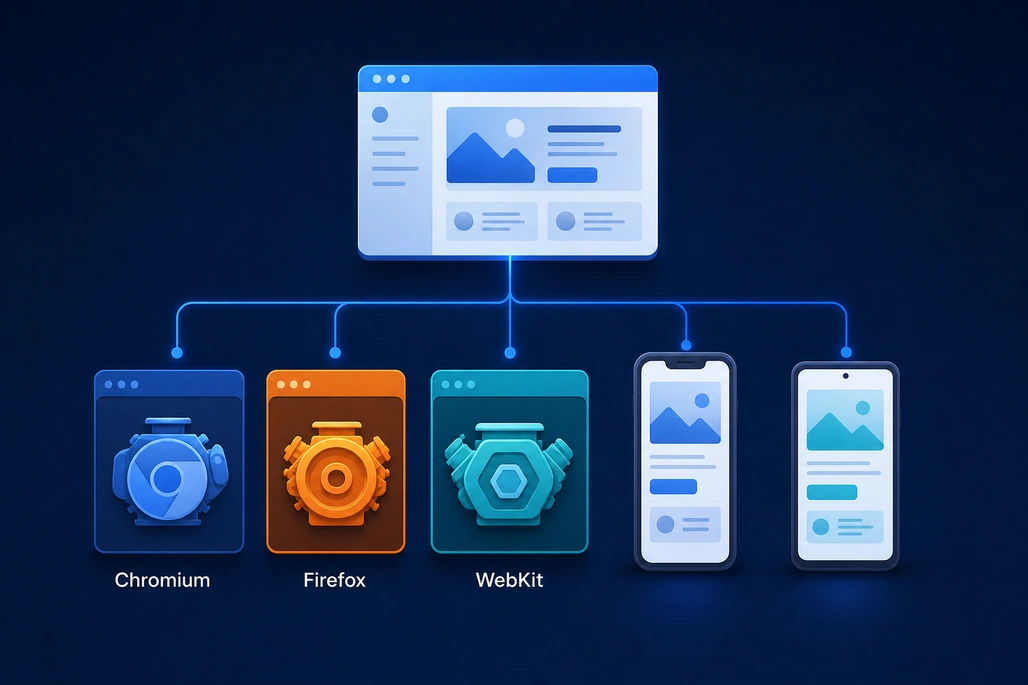
A small browser matrix gives broad engine coverage without testing every possible device.
A test matrix is a list of environments where you promise the application will work. Beginners often make one of two mistakes: testing only their own browser, or adding every browser, operating system, device, and version to a spreadsheet. Both approaches fail. The first misses real defects. The second creates work that nobody can maintain.
Start with production data. Review the browsers, operating systems, screen widths, and mobile devices in your analytics tool. Then consider contractual needs. An internal business app may need a Windows and Edge focus. A consumer app with many iPhone visitors needs Safari on iOS in its release checks.
| Coverage level | Suggested environments | What you verify |
|---|---|---|
| Every pull request | Chromium | Fast feedback for critical automated tests. |
| Every main branch build | Chromium, Firefox, WebKit | Core user flows, browser engine differences, screenshots where needed. |
| Before release | Desktop browsers plus priority real phones and tablets | Touch, keyboard, responsive layout, downloads, permissions, and customer-facing flows. |
| Scheduled checks | Older versions or specialized enterprise environments | Support commitments that are too slow or expensive for every build. |
For many public web applications, a sensible starting set is the current stable Chrome or Edge on desktop, Firefox on desktop, Safari on macOS, Chrome on Android, and Safari on iPhone. Your own analytics may show that this list should change. If 30 percent of your customers use a particular browser or device, do not treat it as an edge case.
Use browser engines as the first layer
Testing Chrome and Edge alone gives you strong Chromium coverage, but it does not prove Firefox or Safari behavior. A practical automated baseline is Chromium, Firefox, and WebKit. Playwright supports these three browser engines, and its browser projects let one test suite run against each configuration.
WebKit automation is valuable, but it is not a replacement for checking your actual iPhone and Safari release path. Browser engine automation gives quick feedback. Real-device testing catches issues involving mobile viewport behavior, touch interaction, virtual keyboards, hardware characteristics, and platform permissions.
Write down what support means
Use simple language in your project README or quality plan. For example: “The application supports the current and previous major versions of Chrome, Edge, Firefox, and Safari. The sign-in and purchase flows are verified on the latest iOS Safari and Android Chrome before release.” A written rule helps product owners understand the cost of adding an older browser or device.
Check compatibility before writing a workaround
Cross-browser testing starts before the test run. When you plan to use a newer web platform feature, check whether it is supported by the browsers in your matrix. MDN browser compatibility data is useful for a feature-by-feature view. Web Platform Baseline is another signal: it identifies whether a feature is interoperable across Chrome, Edge, Firefox, and Safari.
Baseline labels can guide a decision, but they do not replace your own browser matrix. A feature marked as newly available may work across the core browser set while still being unsuitable if your product supports older browser versions. Test the exact environments you support.
When compatibility is limited, choose one of three paths. Use a standards-based fallback, load a well-maintained polyfill when it makes sense, or avoid the feature until your users can support it. Progressive enhancement is often the cleanest option. Build the basic task with dependable HTML and JavaScript, then add the newer experience only where supported.
/* A safe base layout works everywhere in the support matrix. */
.card-list {
  display: grid;
  grid-template-columns: repeat(1, minmax(0, 1fr));
  gap: 1rem;
}

/* Improve the layout when the viewport has enough room. */
@media (min-width: 48rem) {
  .card-list {
    grid-template-columns: repeat(3, minmax(0, 1fr));
  }
}
This does not mean avoiding modern CSS. It means treating a feature choice as a user-support decision. Keep the fallback understandable, and add a test that proves the core task still works.
Automate browser coverage with Playwright
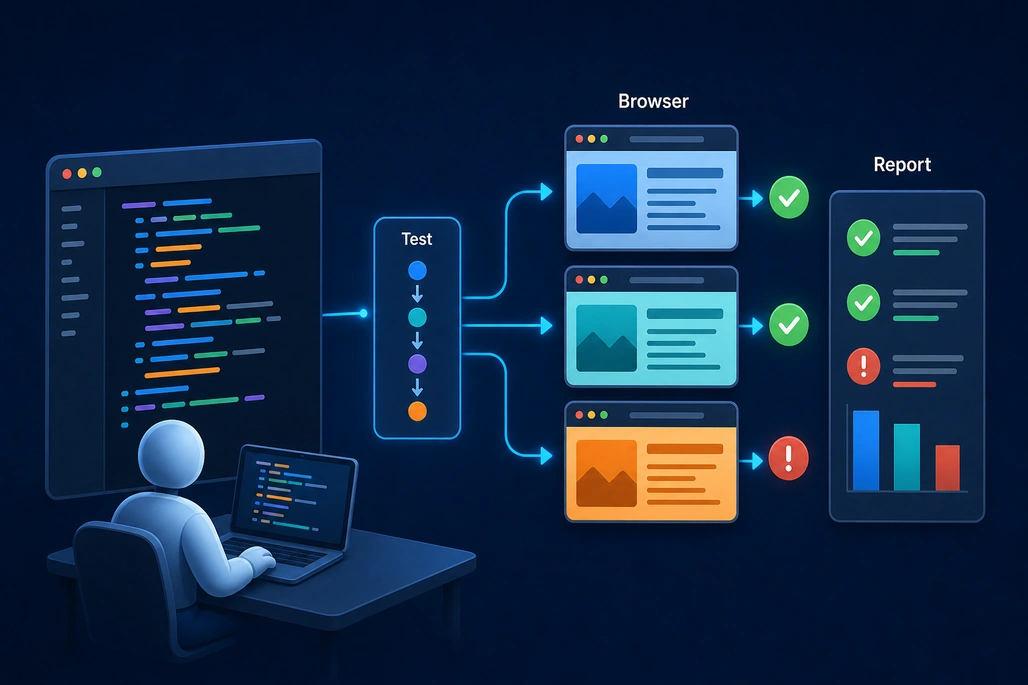
One Playwright test suite can run against multiple browser projects.
For a beginner-friendly automated setup, Playwright Test is a good choice for modern web applications. It includes a test runner, assertions, browser isolation, reports, and support for Chromium, Firefox, and WebKit. The official Playwright browser documentation shows how projects run the same tests across those engines and how to target branded Chrome and Microsoft Edge when needed.
Create a Node.js project, then run the Playwright initializer. It can add Playwright to an existing application or create a starter test setup.
npm init playwright@latest
npx playwright test
The initializer creates a playwright.config.ts file and example tests. Keep the configuration small at first. The following config defines three desktop browser projects and uses a local application URL. Replace the port with the one used by your app.
import { defineConfig, devices } from '@playwright/test';

export default defineConfig({
  testDir: './tests',
  use: {
    baseURL: 'http://127.0.0.1:3000',
    trace: 'on-first-retry'
  },
  projects: [
    {
      name: 'chromium',
      use: { ...devices['Desktop Chrome'] }
    },
    {
      name: 'firefox',
      use: { ...devices['Desktop Firefox'] }
    },
    {
      name: 'webkit',
      use: { ...devices['Desktop Safari'] }
    }
  ],
  webServer: {
    command: 'npm run dev',
    url: 'http://127.0.0.1:3000',
    reuseExistingServer: true
  }
});
Now write a test for a user task. Do not start by testing every HTML element. Start with a path that matters to the business and the user. The example below checks a sign-in form. It uses accessible locators based on labels, roles, and names, which are generally more stable than CSS selectors tied to page structure.
import { test, expect } from '@playwright/test';

test('a registered user can sign in', async ({ page }) => {
  await page.goto('/signin');

  await page.getByLabel('Email address').fill('[email protected]');
  await page.getByLabel('Password').fill('correct-password');
  await page.getByRole('button', { name: 'Sign in' }).click();

  await expect(page).toHaveURL(/dashboard/);
  await expect(
    page.getByRole('heading', { name: 'Dashboard' })
  ).toBeVisible();
});
Run all projects with npx playwright test. Run one browser while debugging with npx playwright test --project=firefox. Add --headed--ui
Use visual checks for layout regressions
Functional tests answer, “Can the user finish the task?” Visual testing answers, “Did the page still look right?” You need both. A CSS change can preserve a successful form submission while moving the submit button off-screen or causing a product card to overlap another element.
Playwright supports screenshot assertions. Start with one or two stable pages, such as a landing page and a product detail page. Avoid screenshotting content that changes on every run, including live dates, rotating banners, ad slots, random avatars, and remote data that you do not control.
import { test, expect } from '@playwright/test';

test('pricing page keeps its desktop layout', async ({ page }) => {
  await page.goto('/pricing');

  await expect(page).toHaveScreenshot('pricing-page.png', {
    fullPage: true
  });
});
Review visual failures instead of accepting a new screenshot automatically. A difference may be an expected design change, but it may also reveal a font fallback, an unexpected scrollbar, an image sizing problem, or a layout shift that only happens in one browser.
Run cross-browser tests in continuous integration
Run a small set of fast tests on every pull request. Run the complete Chromium, Firefox, and WebKit suite on merges to your main branch. This gives developers quick feedback without making every pull request wait for the longest possible browser matrix.
Save the HTML report, screenshots, videos, and traces as build artifacts when a test fails. Playwright's report can group results by project, so you can see whether a failure occurs only in Firefox or WebKit. That detail helps you decide whether the issue is a product bug, a browser-specific behavior difference, or an unstable test.
For wider device coverage, teams commonly use a hosted browser and real-device service or maintain their own browser infrastructure. Selenium remains a reasonable choice when your organization already uses WebDriver tooling, several programming languages, or Selenium Grid. Selenium describes WebDriver as a browser automation interface designed for interchangeable code across major browsers, and Selenium Manager can handle modern driver and browser management in many setups.
How to investigate a browser-specific failure
First, make the failure reproducible. Run the affected test only in the failing browser project. Use headed mode, inspect the browser console, review network requests, and open the trace or screenshots from the CI run. Do not change the test just to make the failure disappear.
Next, reduce the problem. Is it a JavaScript error, a CSS rendering issue, a timing issue, a browser permission, a server response, or test data? Check the DOM, computed styles, and network requests in the browser's developer tools. Compare the working and failing environments, but avoid assuming Chromium behavior is the correct behavior without checking the relevant web standard or compatibility documentation.
Use explicit assertions and reliable waiting. Playwright assertions automatically wait for expected states, so prefer an assertion such as await expect(button).toBeEnabled() over fixed delays such as await page.waitForTimeout(2000). Fixed waits make tests slower and still fail when a server or browser takes longer than expected.
Start with a small routine you can maintain
Start this week with a browser matrix of Chromium, Firefox, and WebKit. Add one automated Playwright test for a critical task. Run it on every code change. Then add a manual release checklist for the real mobile devices that matter to your audience.
As your application grows, add tests when a bug escapes or a new feature introduces risk. A cross-browser suite should reflect how people use your product. It is a living safety net, not a large checklist you create once and forget.
Frequently asked questions
Which browsers should beginners test first?
Start with Chromium, Firefox, and WebKit in automation because they cover the main browser engines. Before release, manually test the browsers and devices that appear most often in your analytics, especially Safari on iPhone if iOS users are important to your product.
Is Chrome testing enough for a web application?
No. Chrome and Edge both use Chromium, so testing only Chrome can miss Firefox and Safari differences. Test at least one browser from each main engine: Chromium, Firefox, and WebKit.
Can Playwright test Safari?
Playwright runs tests against WebKit, the browser engine used by Safari, and provides a Desktop Safari device profile. Use that coverage for fast automation, then add real Safari testing for priority macOS and iOS release checks.
What should I automate in cross-browser testing?
Automate stable, high-value user flows such as authentication, forms, checkout, search, navigation, and account tasks. Keep visual, touch, permission, and device-specific checks in a focused manual release checklist.
How often should cross-browser tests run?
Run a fast critical suite on pull requests, run your full browser-engine suite on merges to the main branch, and run real-device checks before important releases. Adjust the schedule when analytics, support requirements, or risk change.
Based on reporting by Playwright, MDN Web Docs, web.dev and Selenium.

Join the conversation! Your thoughts help the community grow.