
We are using a dropdown list and a button. I will embed some data into the drop down, so when the user selects any data from the dropdown and clicks on the button it is saved to the database.
INITIAL CHAMBER
Step 1
Step 1
Open Visual Studio 2010 and create an empty website, name it dropdownlist_demo.
Step 2
Step 2
In Solution Explorer you will get your empty website, add a web form and SQL Database. Use the following procedure.
For Web Form
dropdownlist_demo (your empty website), right-click and select Add New Item, Web Form. Name it dropdownlist_demo.aspx page.
For SQL Server Database
dropdownlist_demo (your empty website), right-click and select Add New Item, SQL Server Database. Add the database inside the App_Data_folder.
Add some data into the dropdown list, I had inserted some city names, you can take anything by going to the dropdown list. Edit Items and a new window will open where you need to add the data. Now ADD Text Field = (”City Name”) add 5-6 cities in the similar manner.
DATABASE CHAMBER
Step 3
In Server Explorer click on your database (Database.mdf) and select Tables to add a new table. Make the table like the following:
Table: tbl_data
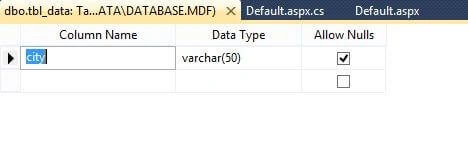
Figure 1: Data Table
DESIGN CHAMBER
Step 4
Table: tbl_data
Figure 1: Data Table
DESIGN CHAMBER
Step 4
Open your dropdownlist_demo.aspx file from Solution Explorer and start designing your application.
Dropdownlist_demo.aspx
Dropdownlist_demo.aspx
- <%@ Page Language="C#" AutoEventWireup="true" CodeFile="Default.aspx.cs" Inherits="_Default" %>
- <!DOCTYPE html PUBLIC "-//W3C//DTD XHTML 1.0 Transitional//EN" "http://www.w3.org/TR/xhtml1/DTD/xhtml1-transitional.dtd">
- <html
- xmlns="http://www.w3.org/1999/xhtml">
- <head runat="server">
- <title></title>
- <style type="text/css">
- .style1
- {
- width: 298px;
- }
- .style2
- {
- text-decoration: underline;
- text-align: left;
- font-size: x-large;
- }
- .style3
- {
- font-size: xx-large;
- text-decoration: underline;
- }
- .style4
- {
- text-align: left;
- }
- </style>
- </head>
- <body>
- <form id="form1" runat="server">
- <div class="style4">
- <br />
- <br />
- <strong>
- <span class="style3">Save Selected Data of DropDownList to Database</span>
- </strong>
- <br />
- <br />
- </div>
- <table style="width:100%;">
- <tr>
- <td class="style1">
- </td>
- <td class="style2"></td>
- <td>
- </td>
- </tr>
- <tr>
- <td class="style1">
- </td>
- <td>
- </td>
- <td>
- </td>
- </tr>
- <tr>
- <td class="style1">
- </td>
- <td>
- <asp:DropDownList ID="DropDownList1" runat="server" AutoPostBack="True"
- DataTextField="city" DataValueField="city" BackColor="#FFCCCC" Height="32px"
- style="text-align: center" Width="145px">
- <asp:ListItem Value="0">-- Select your City--</asp:ListItem>
- <asp:ListItem>Rajkot</asp:ListItem>
- <asp:ListItem>Ahmedabad</asp:ListItem>
- <asp:ListItem>Bhuj</asp:ListItem>
- <asp:ListItem>Surat</asp:ListItem>
- <asp:ListItem>Delhi</asp:ListItem>
- </asp:DropDownList>
- </td>
- <td>
- </td>
- </tr>
- <tr>
- <td class="style1">
- </td>
- <td>
- </td>
- <td>
- </td>
- </tr>
- <tr>
- <td class="style1">
- </td>
- <td>
- <asp:Button ID="Button1" runat="server" onclick="Button1_Click"
- Text="Save to Database" />
- </td>
- <td>
- <asp:Label ID="lbmsg" runat="server"></asp:Label>
- </td>
- </tr>
- </table>
- </form>
- </body>
- </html>
Your design look will look like the following: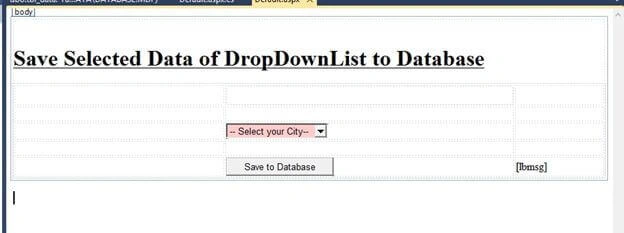
Figure 2: Design
CODE CHAMBER
Step 5
Open your dropdownlist.aspx.cs file to write the code, for making the application like we assumed.
- using System;
- using System.Collections.Generic;
- using System.Linq;
- using System.Web;
- using System.Web.UI;
- using System.Web.UI.WebControls;
- using System.Data;
- using System.Data.SqlClient;
- public partial class _Default: System.Web.UI.Page
- {
- protected void Page_Load(object sender, EventArgs e)
- {
- //if (!Page.IsPostBack)
- //{
- // DropDownList1.DataSource = DropDownList1.SelectedItem.Value;
- // DropDownList1.DataBind();
- //}
- }
- protected void Button1_Click(object sender, EventArgs e)
- {
- SqlConnection con = new SqlConnection(@
- "Data Source=.\SQLEXPRESS;AttachDbFilename=|DataDirectory|\Database.mdf;Integrated Security=True;User Instance=True");
- SqlCommand cmd = new SqlCommand("insert into tbl_data (city) values (@city)", con);
- cmd.Parameters.AddWithValue("city", DropDownList1.SelectedItem.Value);
- con.Open();
- int i = cmd.ExecuteNonQuery();
- con.Close();
- if (i != 0) {
- lbmsg.Text = " Your data is been saved in the database";
- lbmsg.ForeColor = System.Drawing.Color.ForestGreen;
- } else {
- lbmsg.Text = "Something went wrong with selection";
- lbmsg.ForeColor = System.Drawing.Color.Red;
- }
- }
- }
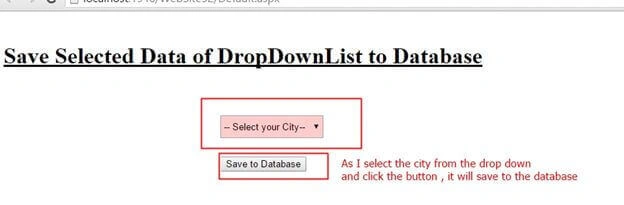
Figure 3: Output 1
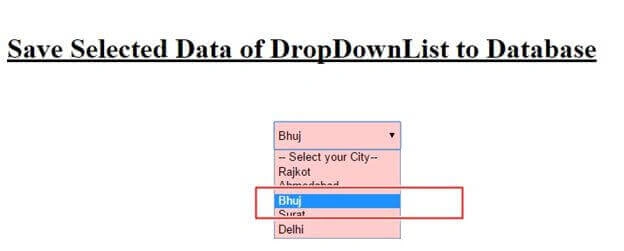
Figure 4: Output 2
Check out the database from tbl_data and the table data shown.
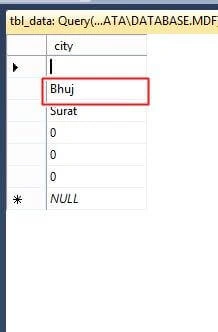
Figure 5: Database Output
I hope you liked this. Thanks for reading. Have a good day!


Rahul PatilPosted Oct 1, 2019, 4:32 AM EDT
Nilesh Jadav hey, I inserted dropdown value in the student table then store the int value? what is the problem with the code? cmd.Parameters.AddWithValue("@Country", txtCountry.SelectedItem.Value);
Rohan RaoPosted Sep 1, 2019, 8:37 PM EDT
Great article bdw! I want to ask, if I have a gridview and the dropdown list items come from database how would you update the database based on dropdown list selected item?
Rukshar KhanPosted Jul 4, 2017, 4:48 PM EDT
Hi. Do you know how to save data from dropdown to a excel instead of sql using MVC dropdownlistfor Nilesh Jadav\
Manav PandyaPosted Nov 14, 2016, 8:57 PM EST
Nice and simple explanation sir Nilesh Jadav
Arul RPosted Oct 28, 2015, 1:40 AM EDT
Good one !!!
Mediamarkk bizzPosted Sep 12, 2015, 9:31 AM EDT
Great article. How would you do this with multiple DropDowns??
Santhakumar MunuswamyPosted Jun 27, 2015, 6:58 AM EDT
Thanks for nice article:)
Pankaj Kumar ChoudharyTOP 100Posted Jun 26, 2015, 8:53 PM EDT
Nice Article Sir.......
Sibeesh VenuTOP 100Posted Jun 26, 2015, 8:33 PM EDT
Good one.
Rajeesh MenothPosted Jun 26, 2015, 3:45 AM EDT
Really Good...Many more article in a row..great