
This article demonstrates how to search data of a list of data using LightSwitch 2012.
Before going further I would highly recommend reading this article first to learn what LightSwitch is and how to load and show data. Getting Started With LightSwitch 2012
After an external data source has been attached it looks like this: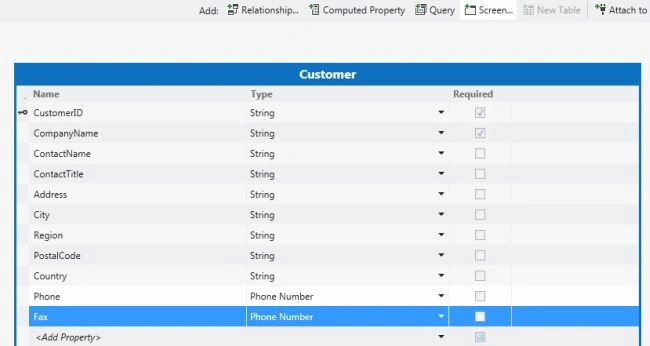
Image 1.
Now add a Search Data Screen and edit the name of the screen and select some screen data from the drop down and click OK.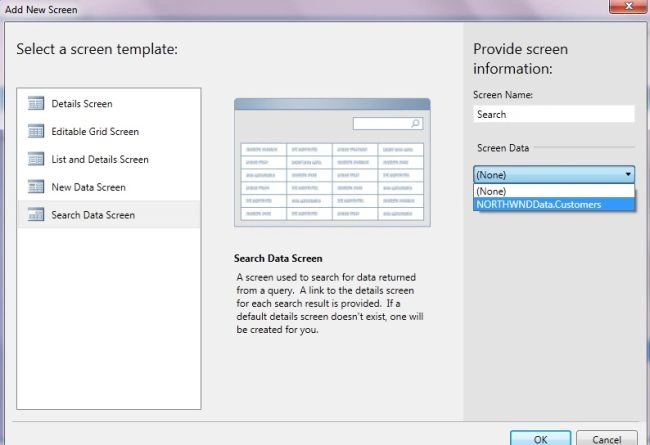
Image 2.
Screen Designer looks like this; here you can change properties and you can add new columns and delete data.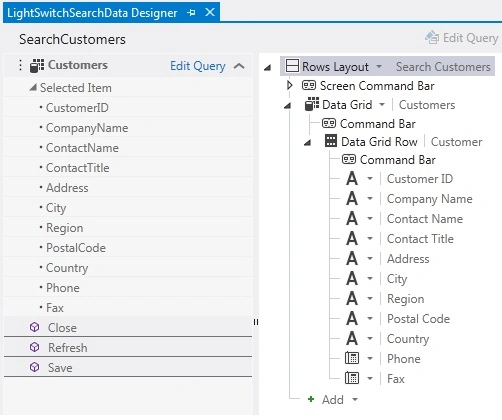
Image 3.
Now run the application.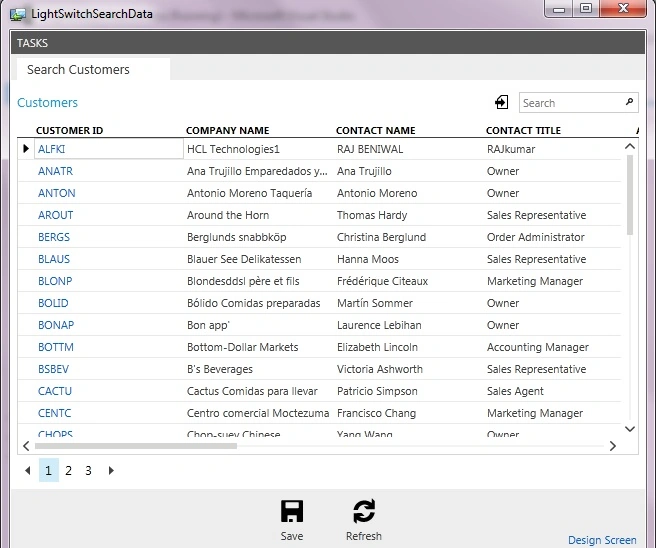
Image 4.
As you can see there is a search text box on top of the grid. Now let's search for something.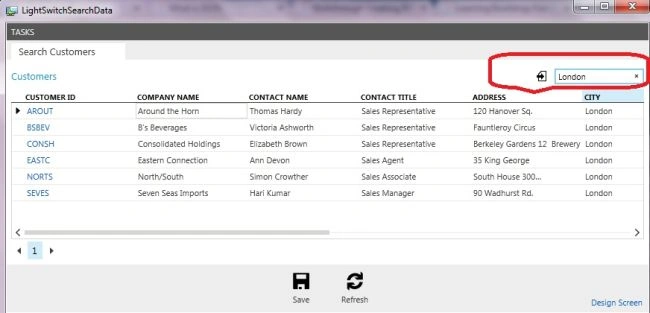
Image 5.
You can export searched records in the Excel file after clicking the "Export" button.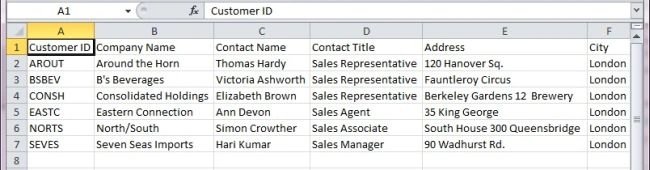
Image 6.
How to Search Data Using LightSwitch 2012
Learn how to add and use a Search Data Screen in LightSwitch 2012 to search records from an attached external data source and export results to Excel.


Raj KumarTOP 100Posted Apr 3, 2013, 7:31 PM EDT
Yes that gives an idea how to start working on LightSwitch...at that time i did't install LightSwitch 2012.
Mahesh ChandTOP 10Posted Apr 3, 2013, 3:23 AM EDT
Raj, This article is about LightSwitch 2012 but your link at the top is Getting Started With LightSwitch 2011. May be you can create another article "Getting Started With LightSwitch 2012" and link that.